Fill Any PDF Form With Axyen: Plain Questions In, a Filled PDF Out
Attach a PDF form and Axyen turns it into plain-language questions, one at a time, in a panel beside your chat. Ask what a field means, get a suggestion where it's safe to, check the preview, and download the filled PDF.
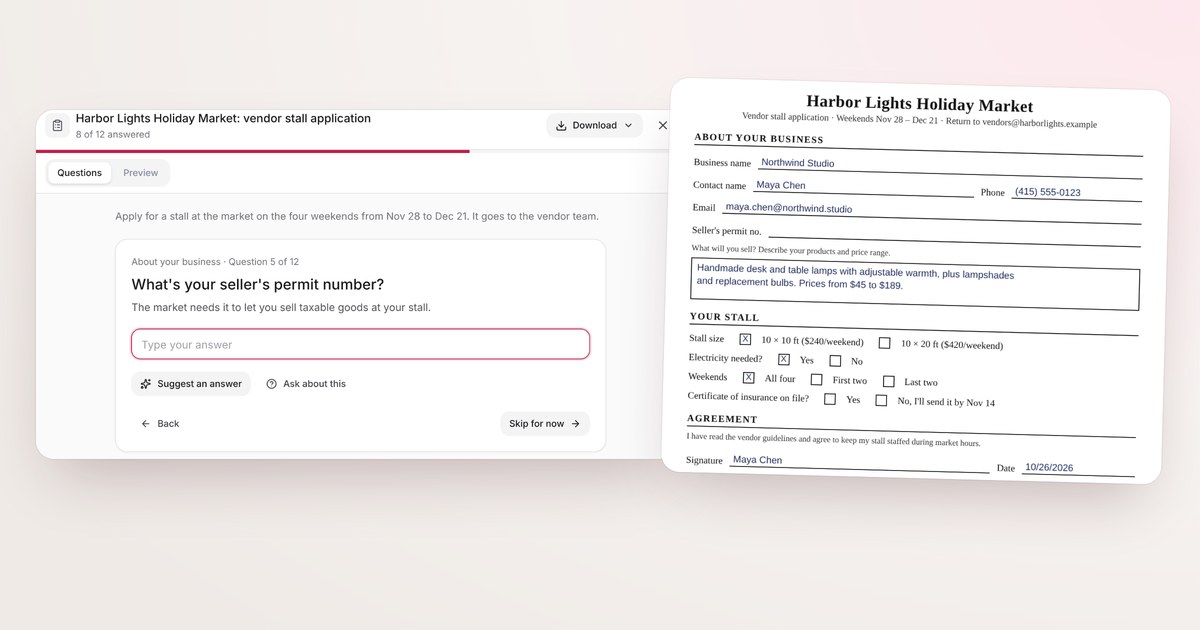
Forms are rarely hard because of the questions you know the answers to. They’re hard because of the three fields you don’t understand, the box that’s tiny on a printed page, and the moment you realize your PDF reader won’t let you type on it at all.
Axyen now fills PDF forms with you. Attach the form, and Axyen reads it and turns every field into a plain-language question in a panel next to your chat. You answer, Axyen explains anything confusing, and you download the filled PDF at the end.
To show it, we’ll follow Maya at Northwind Studio, who is applying for a stall at a holiday market.
Start from the PDF
Attach the form to a chat the way you’d attach any file. There are three ways to begin:
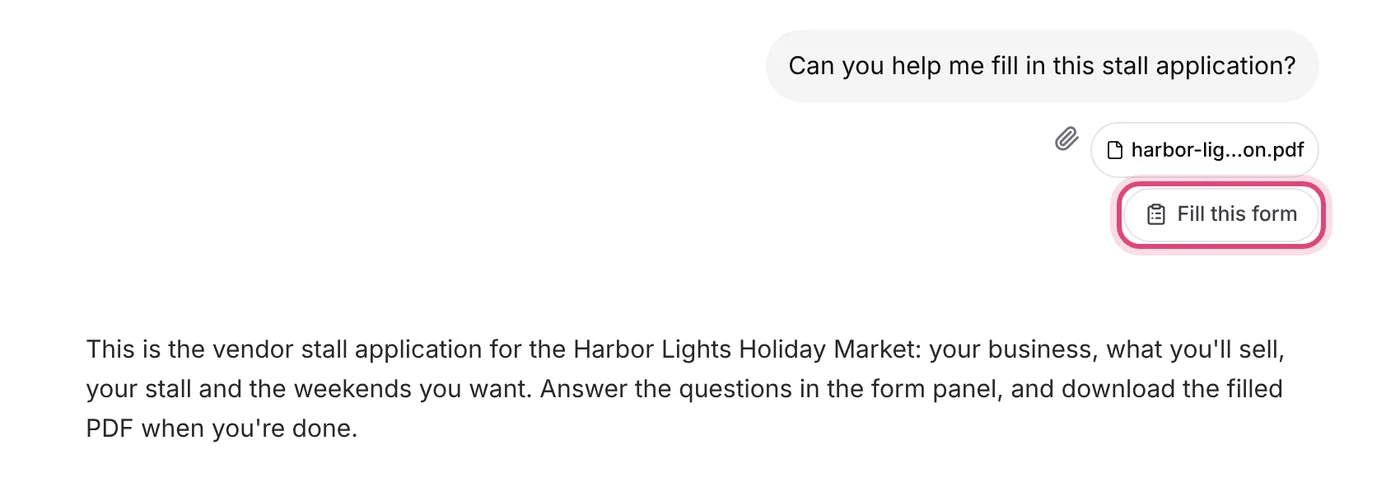
- Click “Fill this form” under the PDF on your message.
- Just say so when you attach it: “fill this form” or “help me fill in this application” works.
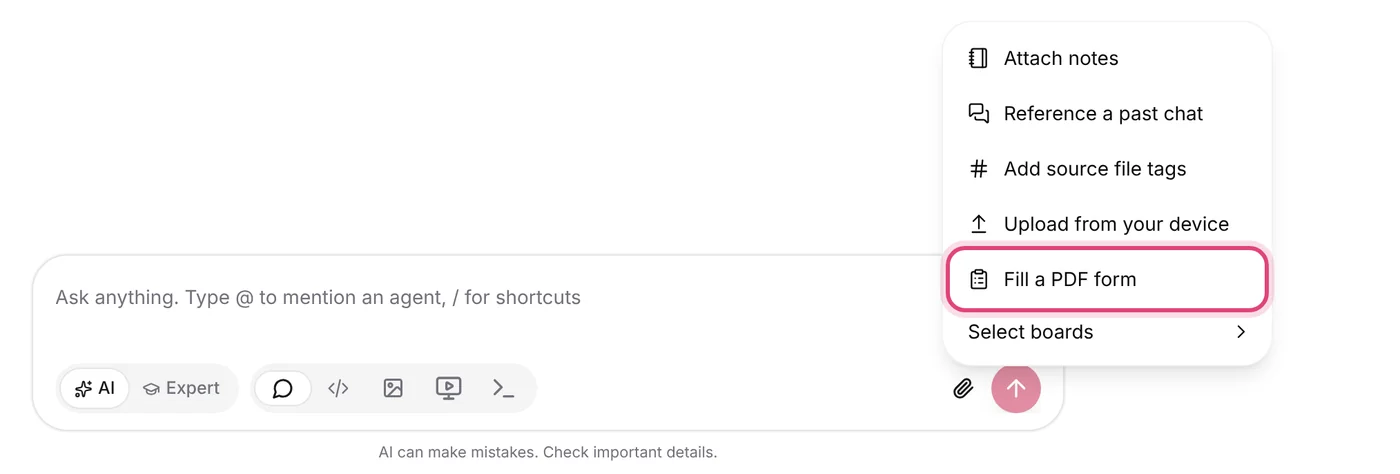
- Use the attach menu in a chat: click the paperclip and choose Fill a PDF form.
It works with fillable PDFs, with flat printed forms that have no fields at all, and with scans: Axyen looks at the page itself to find where each answer goes.
Answer one plain question at a time
The form opens in a panel beside your chat. At the top: the form’s name, how many questions you’ve answered (“8 of 12 answered”) and a progress bar. Below that, a one-line summary of what the form is for, and the current question.
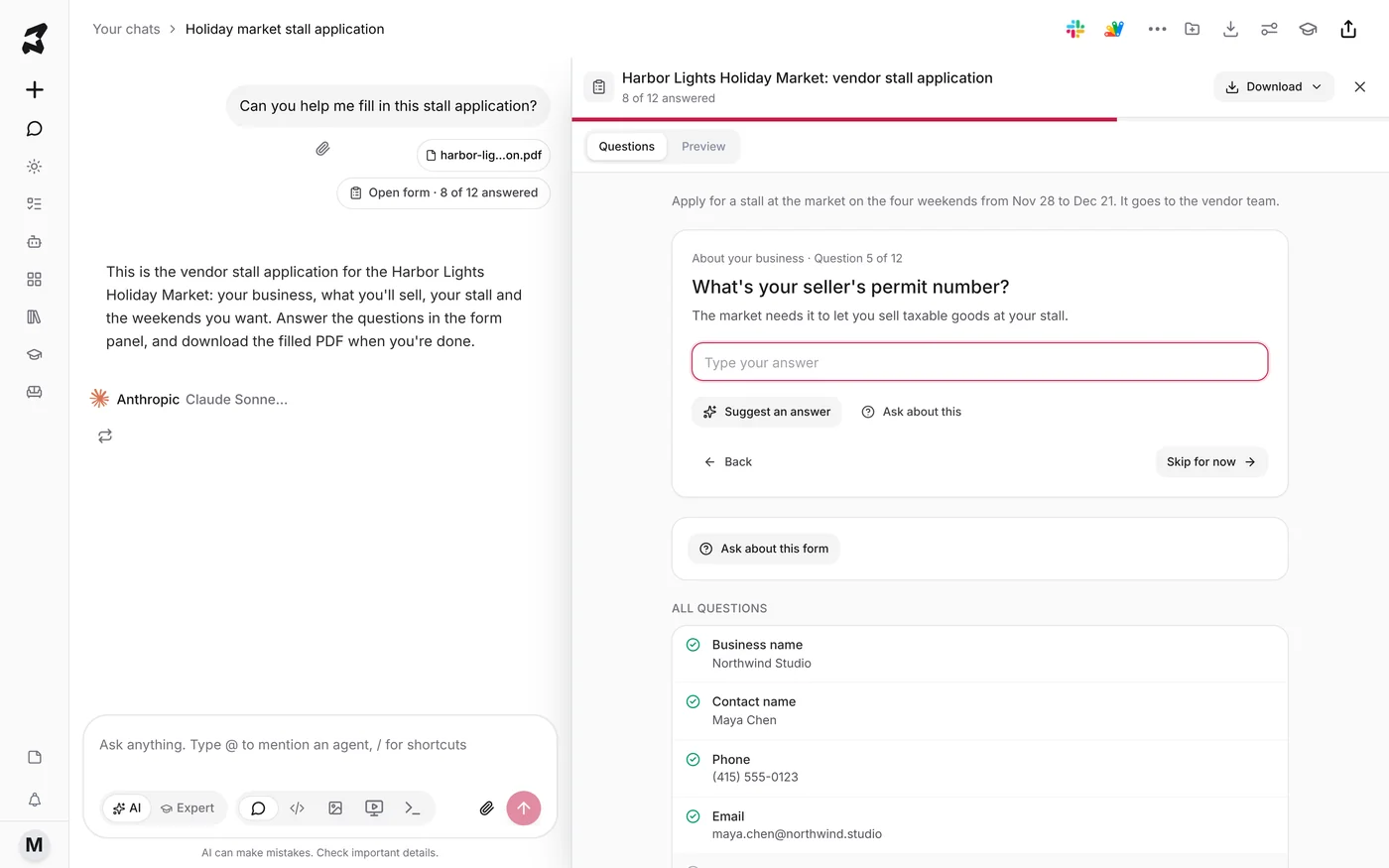
Questions are written the way a person would ask them. “Seller’s permit no.” becomes What’s your seller’s permit number?, with a line underneath on why the form wants it. Checkboxes and multiple-choice fields become options you click, instead of tiny boxes you hunt for.
Don’t have an answer yet? Click Skip for now and come back later. Every question is listed under All questions, with your answer or “Not answered”, and you can jump to any of them with a click. Boxes marked for office use are tucked away under “fields not for you to fill”, so you don’t wonder whether you should.
Ask what a field means
Every question has Ask about this. Type what’s confusing you and the answer appears right under the question, specific to this form:
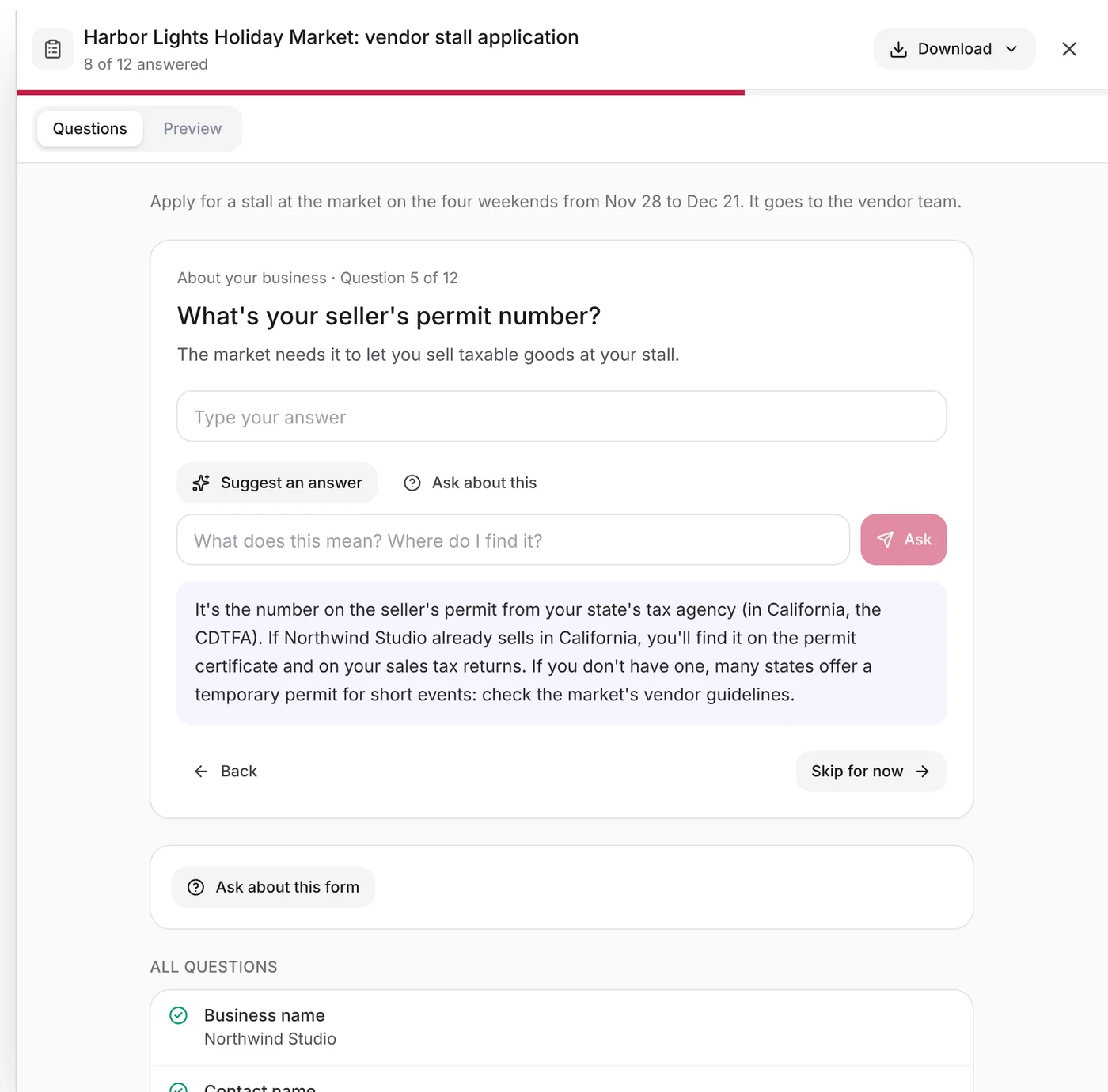
For questions about the form as a whole, like “when is this due?” or “who do I send it to?”, use Ask about this form below the question card.
Get a suggestion where it’s safe
Some answers are already known. Suggest an answer offers one, with a line on where it came from, and Use this fills it in:
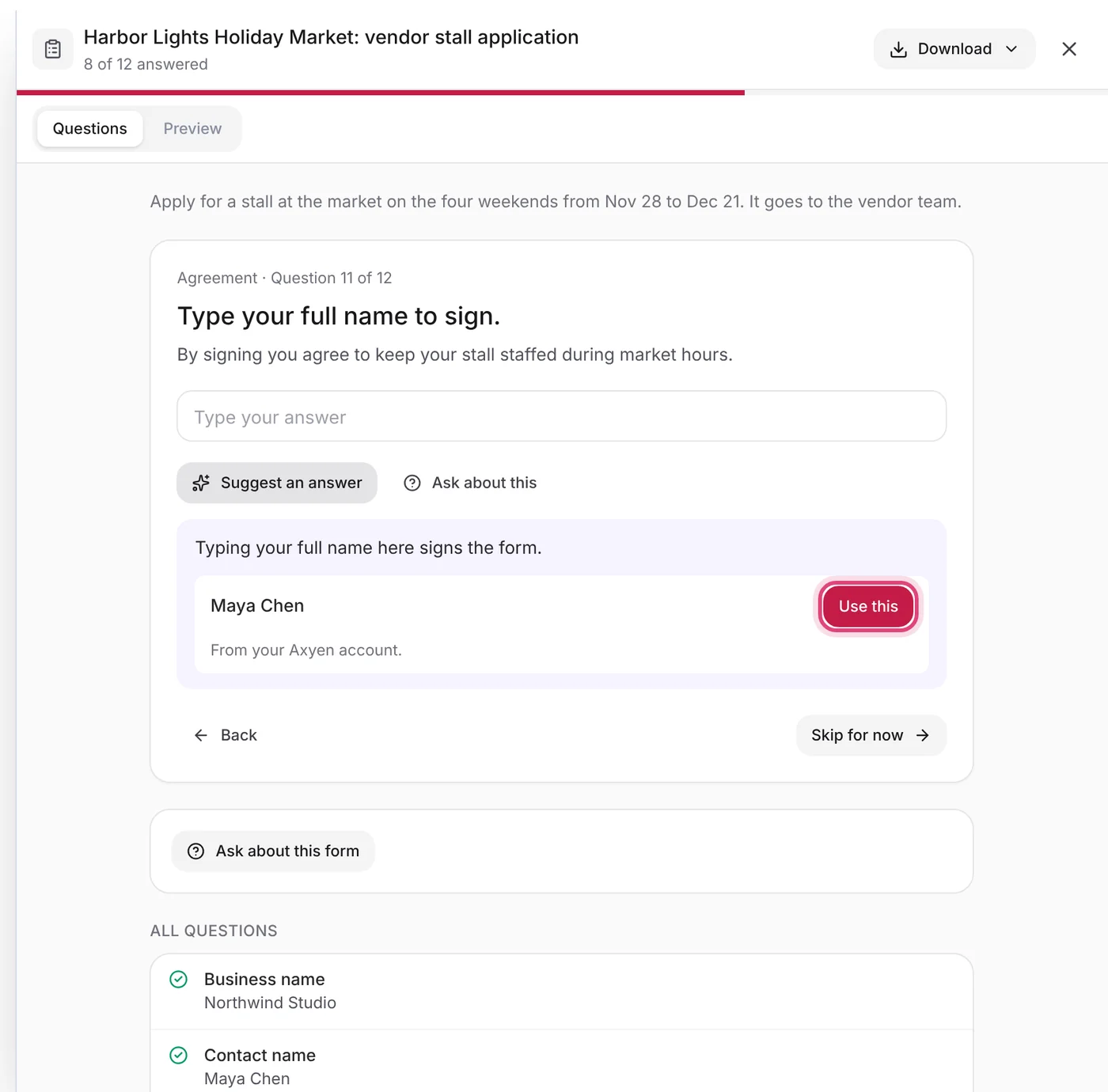
Suggestions only come from three places: the name and email on your Axyen account, answers you’ve already given on this form, and today’s date. Axyen doesn’t fill the form from your chats or your memory, and it won’t guess personal facts like your address, ID numbers or bank details. Those answers come from you.
Check the preview, then download
Switch to the Preview tab to see your answers on the page, exactly where they’ll land on the form.
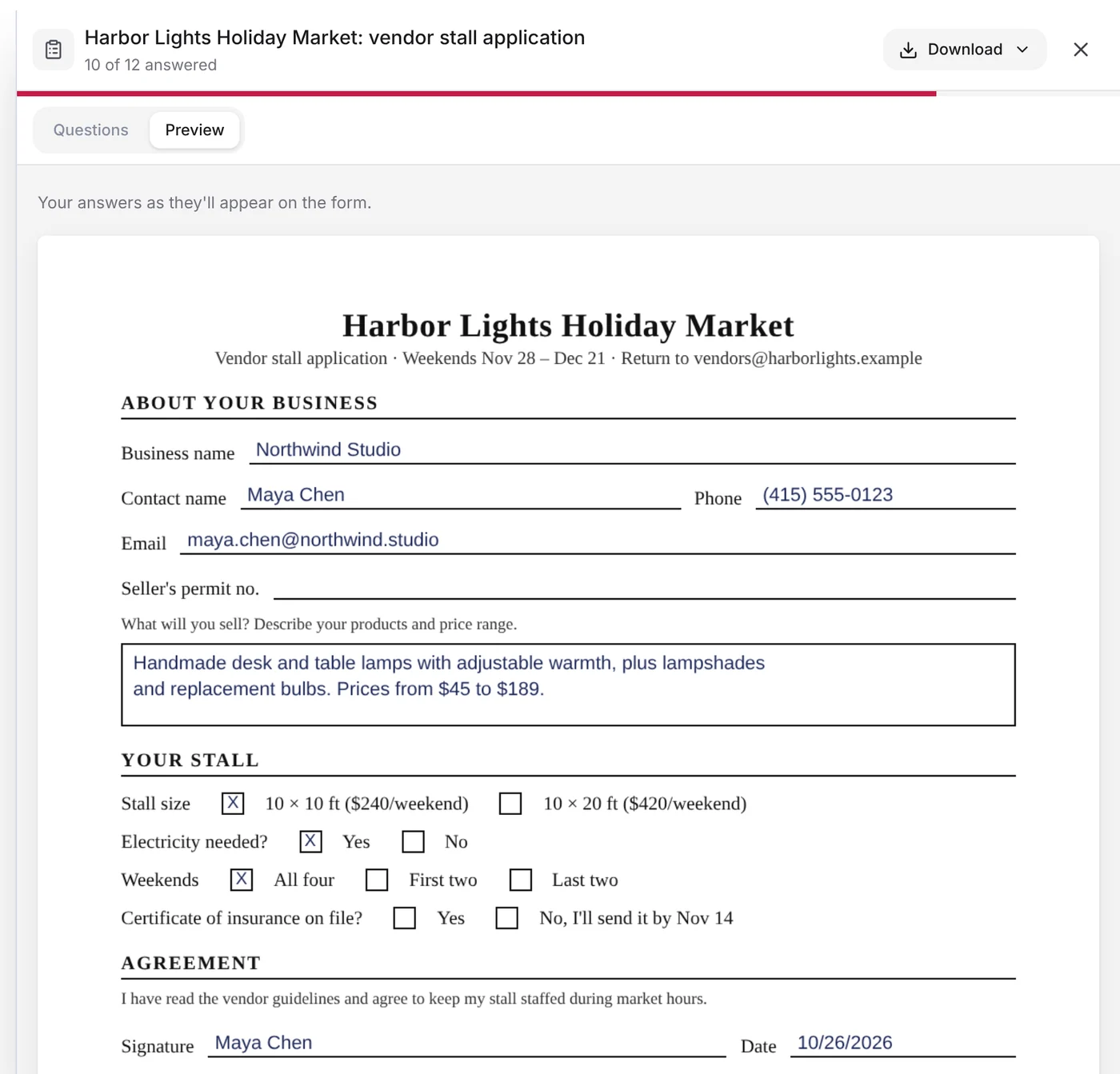
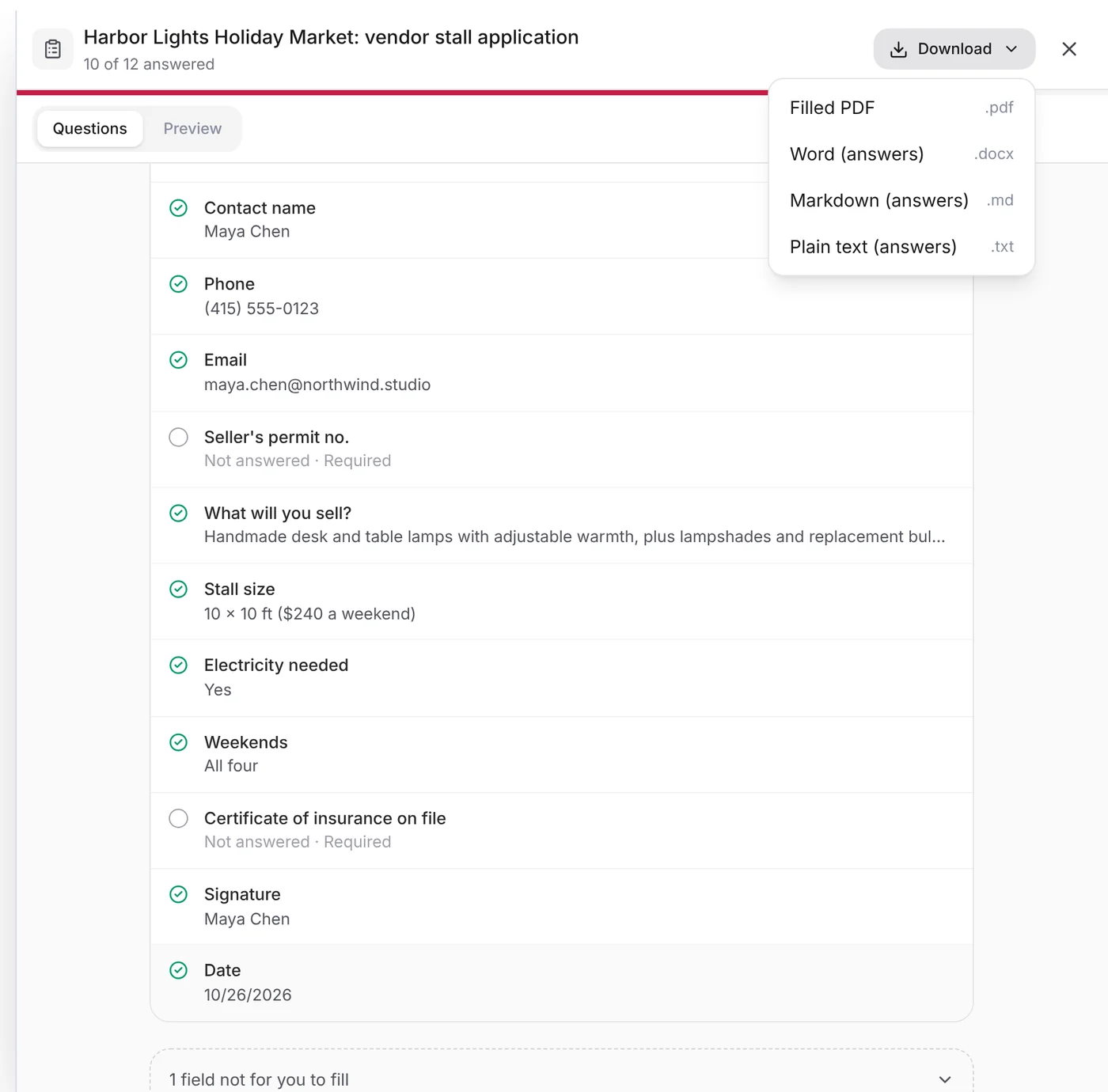
When it looks right, click Download:
- Filled PDF. A fillable form stays fillable, so you can still change a field in any PDF reader. On a flat or scanned form, the answers are written onto the page.
- Word, Markdown or Plain text. Just the questions and your answers, handy when a form has to be retyped into a website or pasted into an email.
You don’t have to finish in one sitting. Your answers are saved as you go, and the button under the PDF changes to Open form with your progress, so you can pick it up later in the same chat.
Good to know
- PDFs only, up to 20 MB and 30 pages. Word files and old XFA-style PDF forms aren’t supported yet.
- A typed signature is your name, not an e-signature. Where a form asks you to sign, Axyen writes your typed name in the signature box. If the form needs a certified electronic signature, sign the downloaded PDF with your e-signature tool.
- Only you can see your form and your answers.
- Reading the form and asking questions use credits, like any other chat.
- Check before you send. Open the filled PDF and read it through before you submit it.
The screenshots use fictional sample data: Maya Chen at Northwind Studio, the same example as our guides. The Harbor Lights Holiday Market and its application form are made up for this post.
Try it
Find the form you’ve been putting off, attach it to a chat in Axyen and click Fill this form.