Agents & automation
Build agents for the work you repeat
Create an agent with its own instructions, background knowledge, tone, skills and integrations, then call it into any chat with @.
The Rundown
An agent is a saved assistant with its own job description. You give it a name, a default model, custom instructions, background knowledge, a tone and a personality, and you can attach skills and integrations it should carry with it. Then you call it into any chat by typing @ and picking it from the list. You can also give an agent scheduled tasks, so it does a piece of work every day or every week on its own.
Why it helps
- You stop pasting the same “you are our copywriter, our voice is…” paragraph into every chat.
- Every teammate who uses the agent gets the same instructions and background, so the output is consistent.
- An agent can bring its skills and integrations with it, so it’s ready to work as soon as you mention it.
- Scheduled tasks let an agent handle routine work, like a weekly report, without you starting a chat.
What you’ll need
- An Axyen account.
- A clear idea of the agent’s job: who it is, what it knows, and how it should sound.
- Optional: skills you’ve already made (see the Skills guide) and integrations you’ve connected.
Step 1 — Open Agents and start a new one
Click Agents in the sidebar (the robot icon), then the All agents tab at the top. (The Tasks tab next to it lists your scheduled tasks.) You’ll see every agent you’ve made as a card with its name and tagline. Click New Agent in the top right.
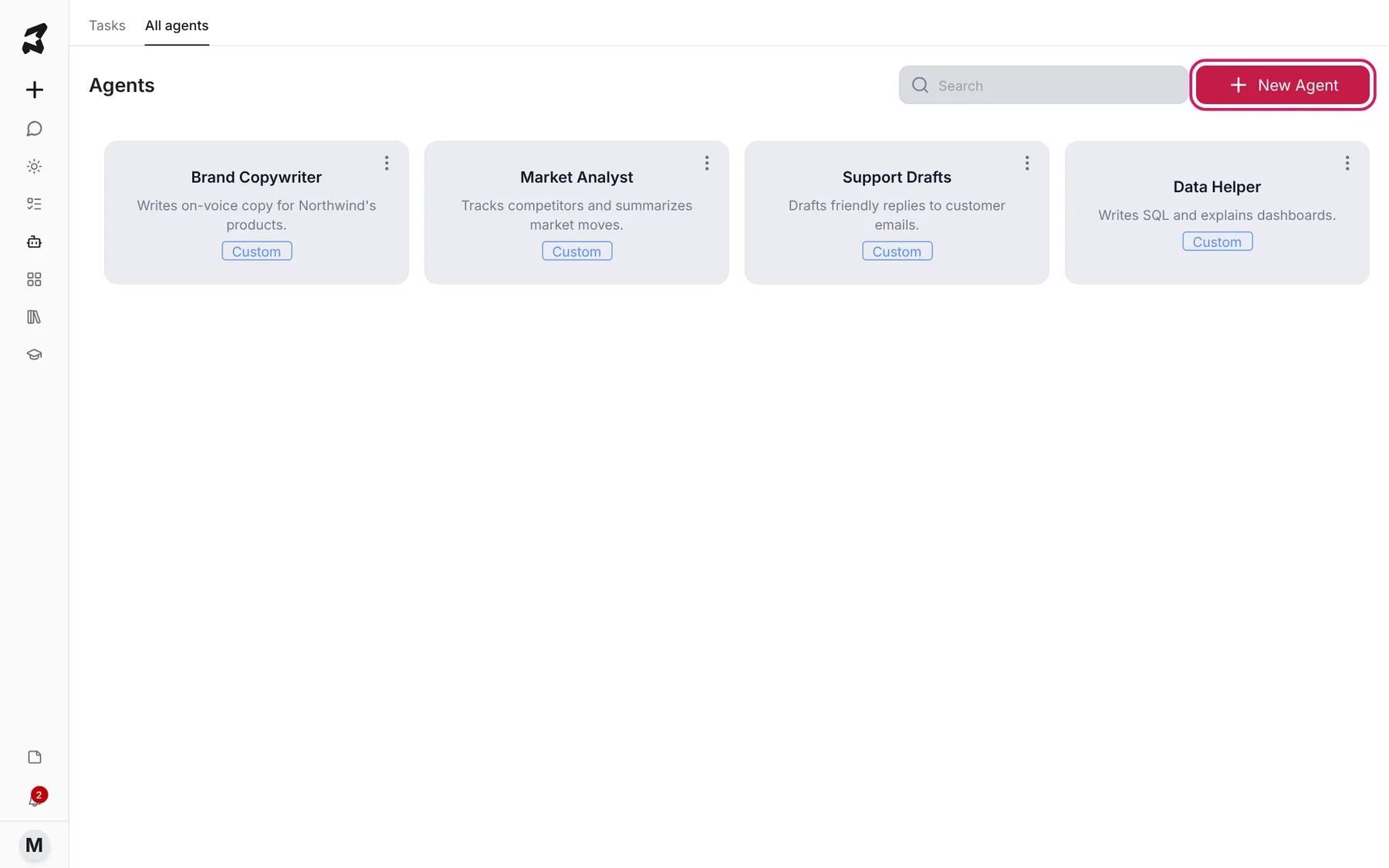
In the address bar this page shows as /personas. That’s the same thing: the app calls them agents everywhere on screen.
Step 2 — Name the agent and describe its avatar
The New agent form opens. Fill in:
- Name — what you’ll type after @ to call it, so keep it short and clear.
- Tagline — one line that says what it’s for. It shows on the agent’s card and in the @ list.
- Avatar — a short description of how the agent should look. Click Generate avatar to have Axyen draw a picture from it.
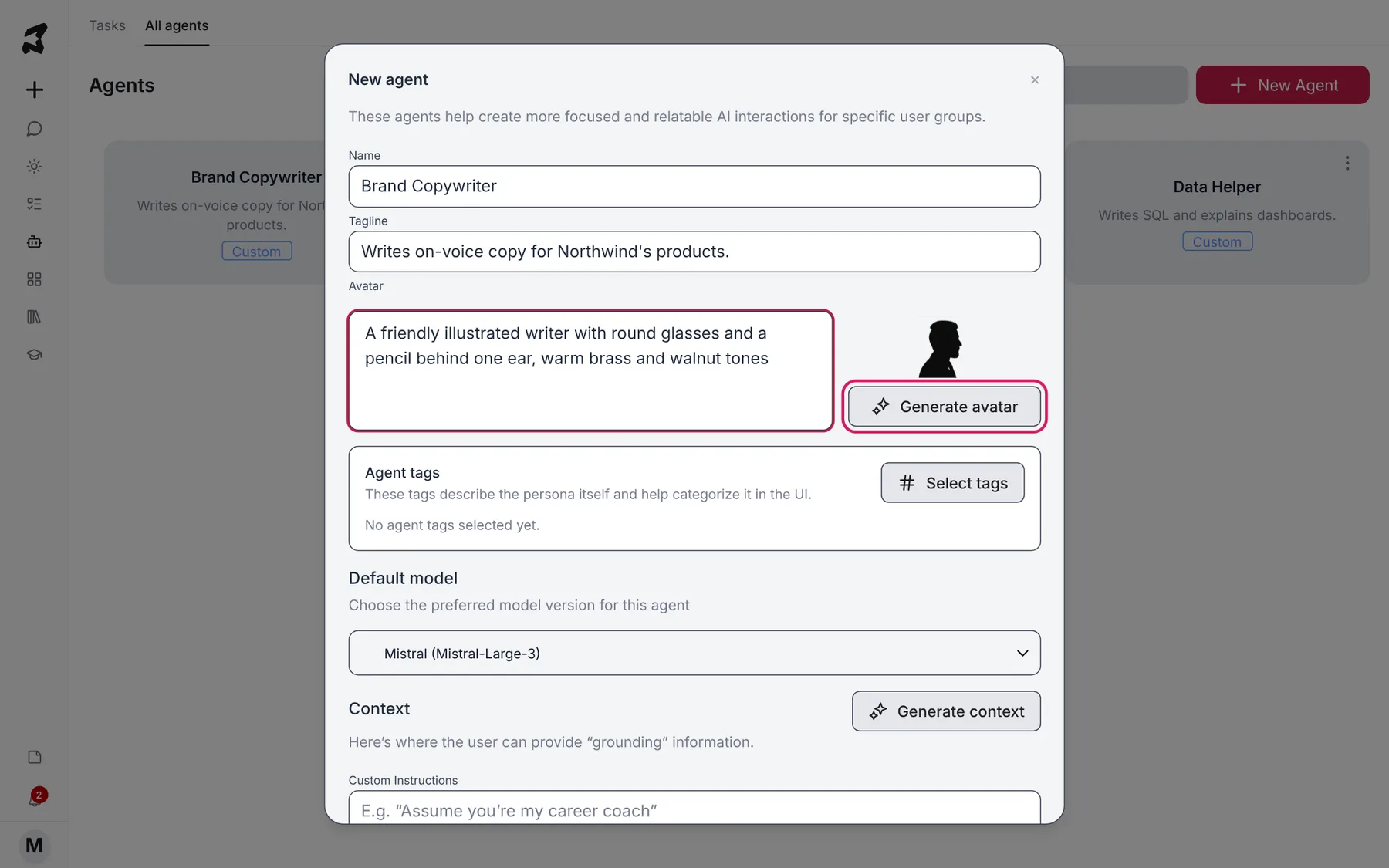
Name: Brand Copywriter
Tagline: Writes on-voice copy for Northwind's products.
Avatar: A friendly illustrated writer with round glasses and a pencil behind one ear, warm brass and walnut tones
You can also add Agent tags with Select tags. Tags help you sort and find agents later.
Step 3 — Pick a model and write its context
Under Default model, choose the model this agent should use. You can still switch models in a chat later.
Then fill in the Context section:
- Custom Instructions — how the agent should behave. Write it the way you’d brief a new colleague.
- Background Knowledge — facts it should always know: your company, your product, your audience.
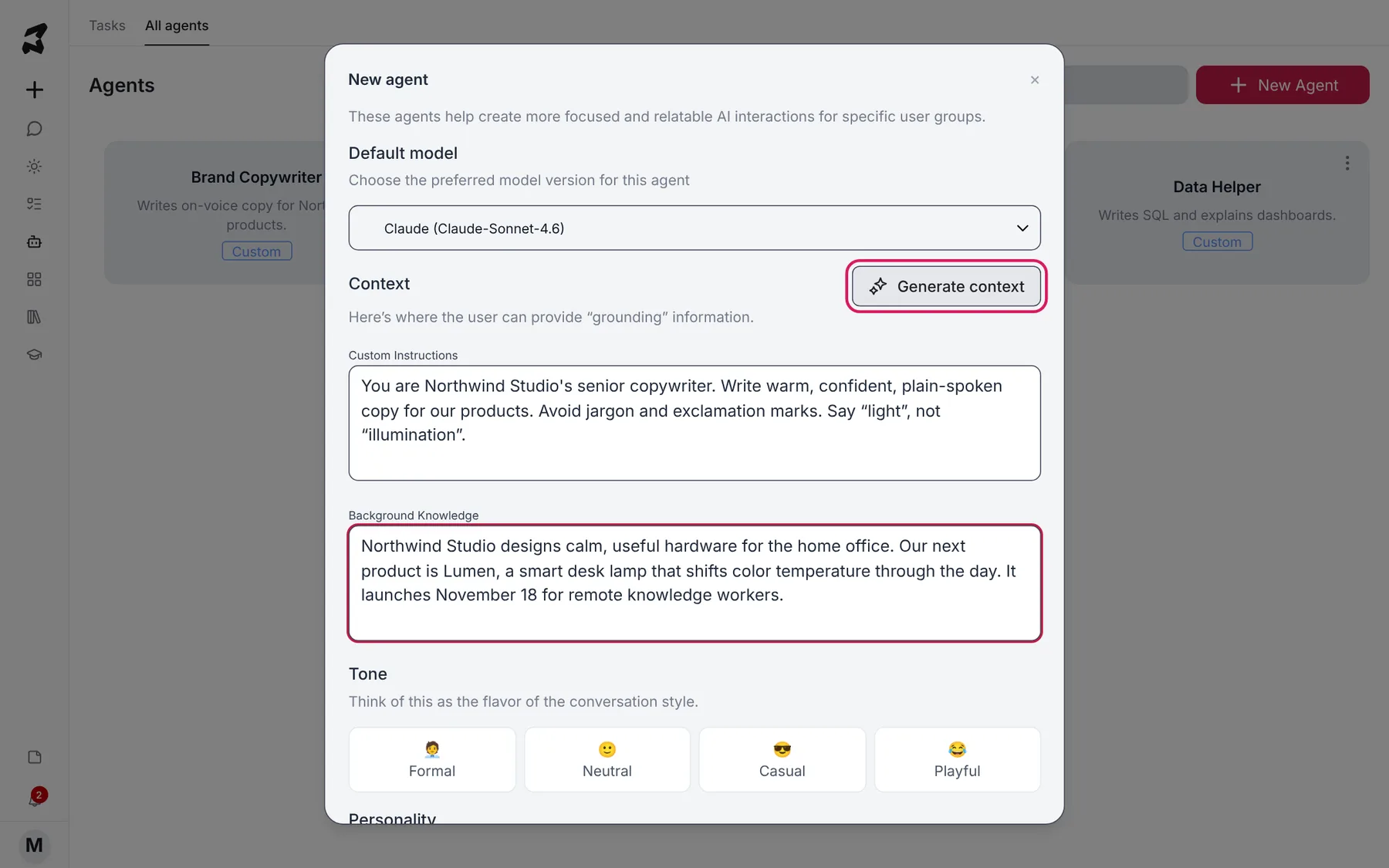
Custom Instructions:
You are Northwind Studio's senior copywriter. Write warm, confident,
plain-spoken copy for our products. Avoid jargon and exclamation marks.
Say "light", not "illumination".

Background Knowledge:
Northwind Studio designs calm, useful hardware for the home office.
Our next product is Lumen, a smart desk lamp that shifts color
temperature through the day. It launches November 18 for remote
knowledge workers.
Short on time? Fill in the name and avatar description, then click Generate context. Axyen drafts the instructions, background knowledge, tone and personality for you. Read the draft and edit anything that’s off.
Step 4 — Choose a tone, a personality, skills and integrations
Pick one Tone (Formal, Neutral, Casual or Playful) and one Personality (for example Concise & Direct or Creative & Imaginative). Tone is the flavor of the writing; personality is how the agent thinks and responds.
Under Skills, attach up to 5 skills the agent should carry with it. Under Integrations, pick up to 5 apps it may use. If an integration isn’t connected yet, the agent asks you to connect it the first time it needs it.
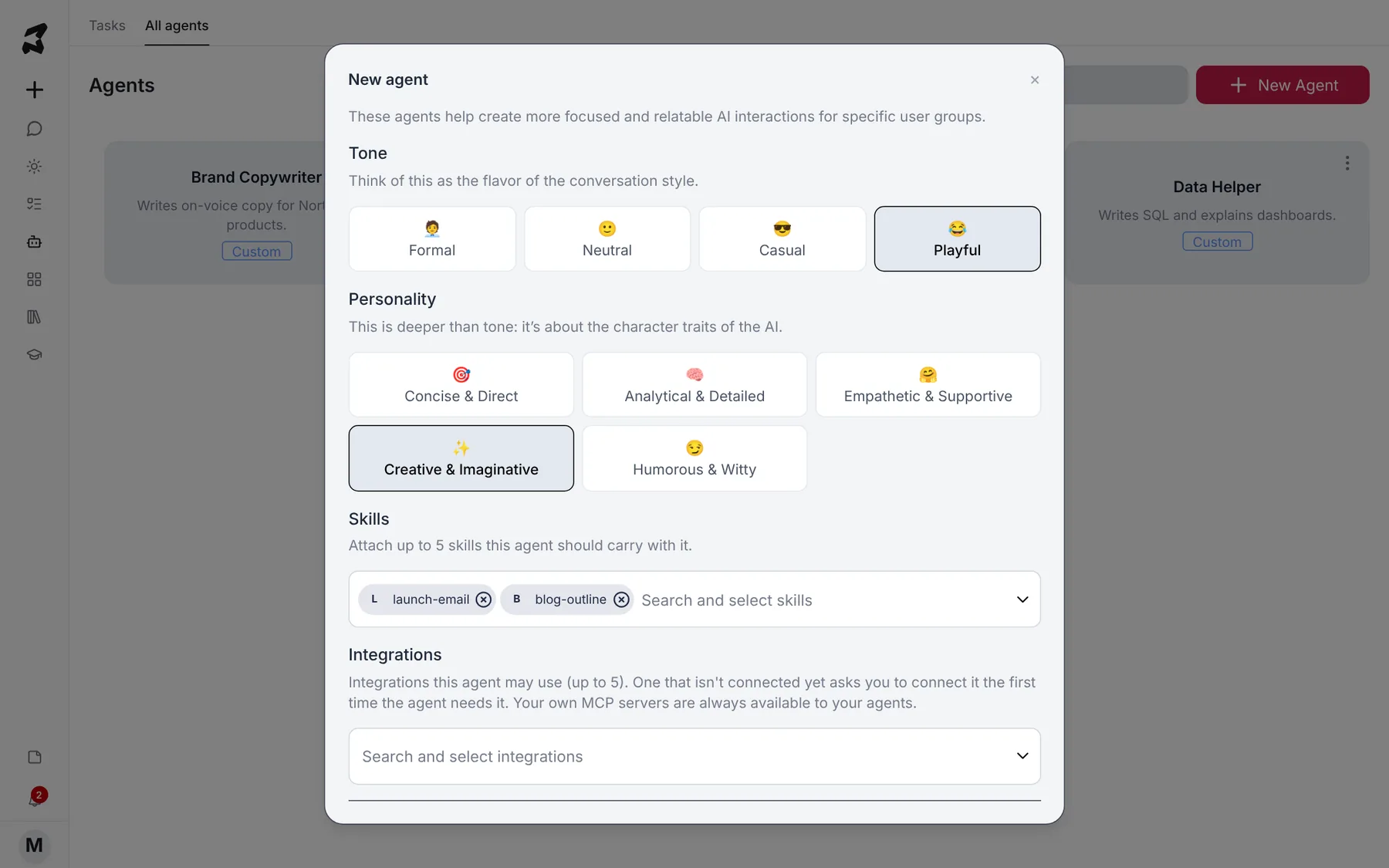
Every field in the form except tags, skills and integrations is required. When it’s filled in, scroll to the bottom and click Create.
Step 5 — Check an agent’s details
Back on the Agents page, click an agent card, or open its ⋮ menu and choose View Details. The details view shows the agent’s personality, tone and recommended model, what it does (Agent Identity), how it talks to you (Chat Interaction), and its skills and integrations.
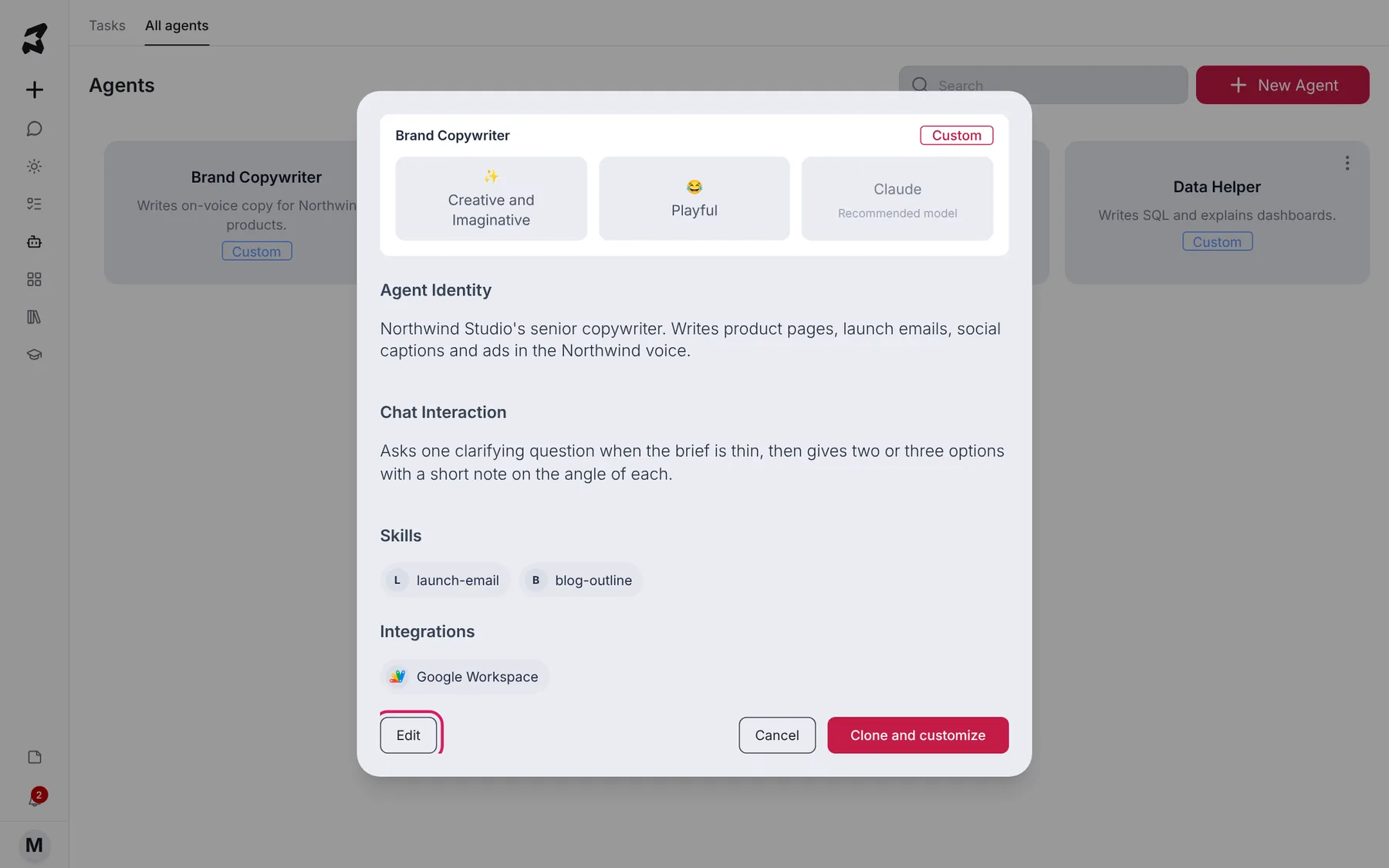
From here you can Edit your own agents, or click Clone and customize to make your own copy of an agent and change it.
Step 6 — Give the agent a scheduled task
Open the agent’s ⋮ menu and choose Edit. Scroll down to Scheduled tasks and click Add a scheduled task. Give it a name, write what it should do each time, and pick How often it runs (every 15 minutes up to every month). Turn on Watch my email if each run should read the new mail that’s come in since the last one.
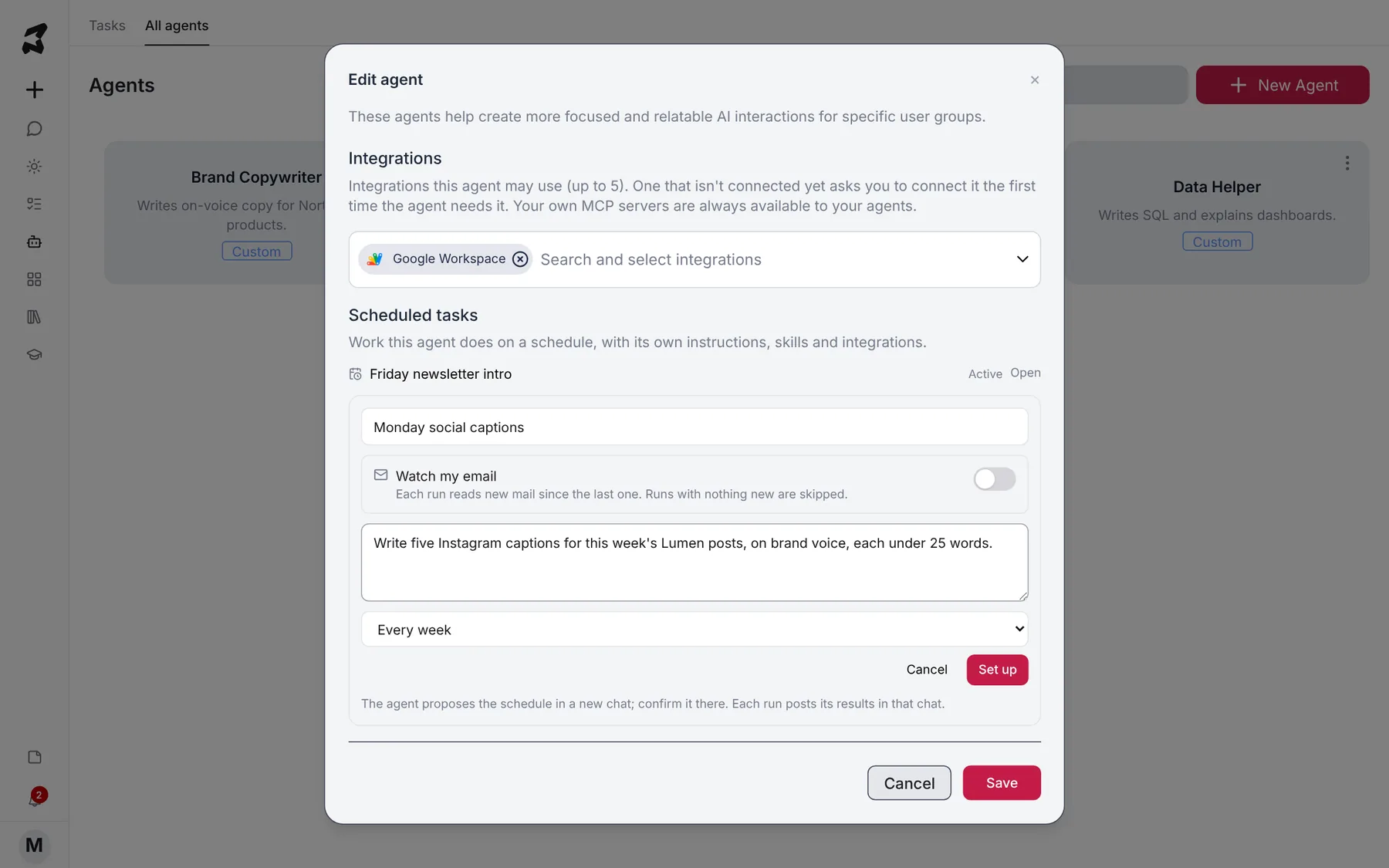
Name: Monday social captions
What it does each time: Write five Instagram captions for this week's
Lumen posts, on brand voice, each under 25 words.
How often: Every week
Click Set up. The agent opens a new chat and proposes the schedule there. Confirm it in that chat, and each run posts its results to the same chat. Scheduled tasks you’ve already set up are listed above the form with their status and an Open link.
Step 7 — Use the agent in a chat
Start a new chat and type @ in the message box. A list headed Mention an agent to give them the task appears with each agent’s name and tagline.
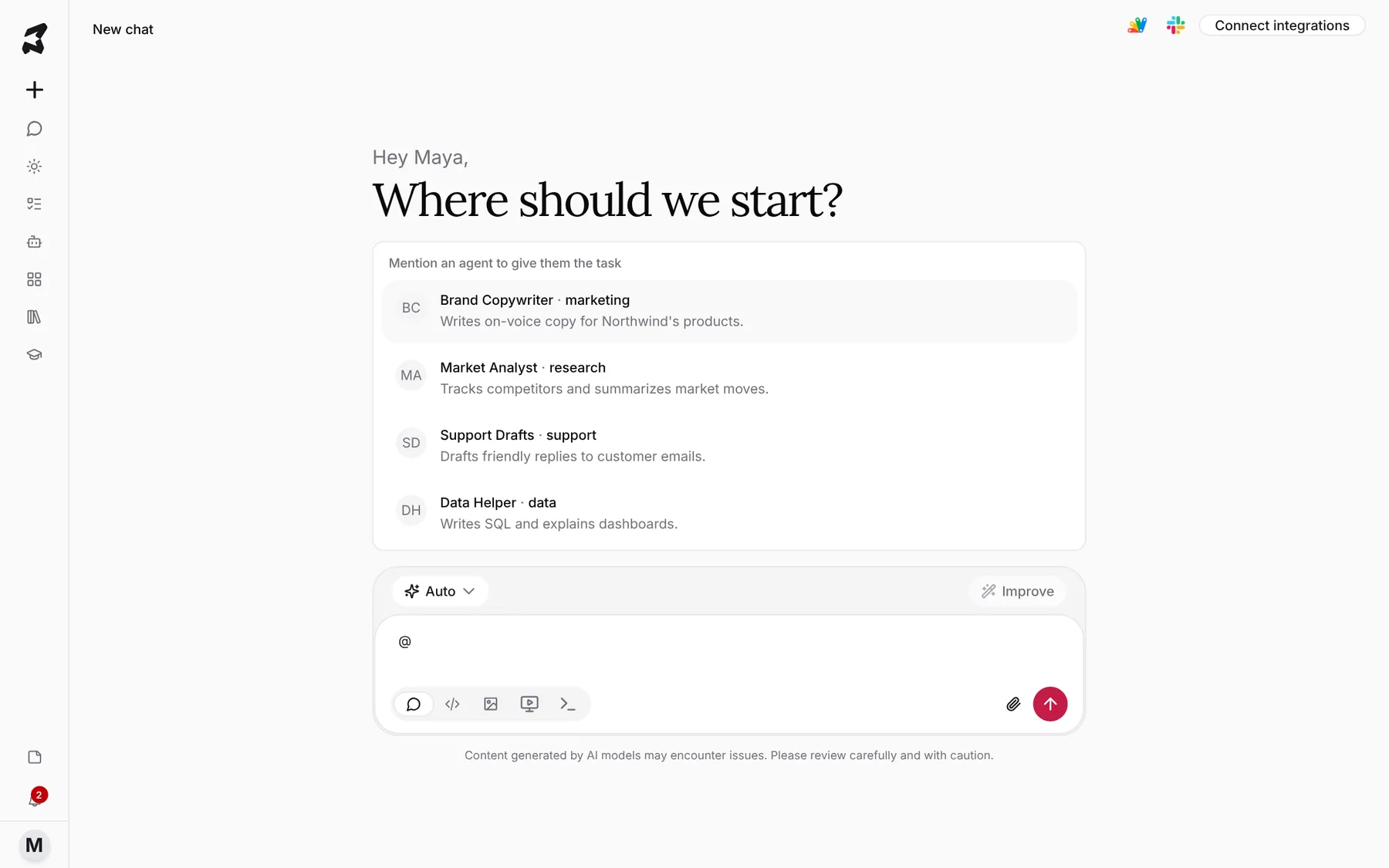
Pick one, then type your request after the mention and send it.
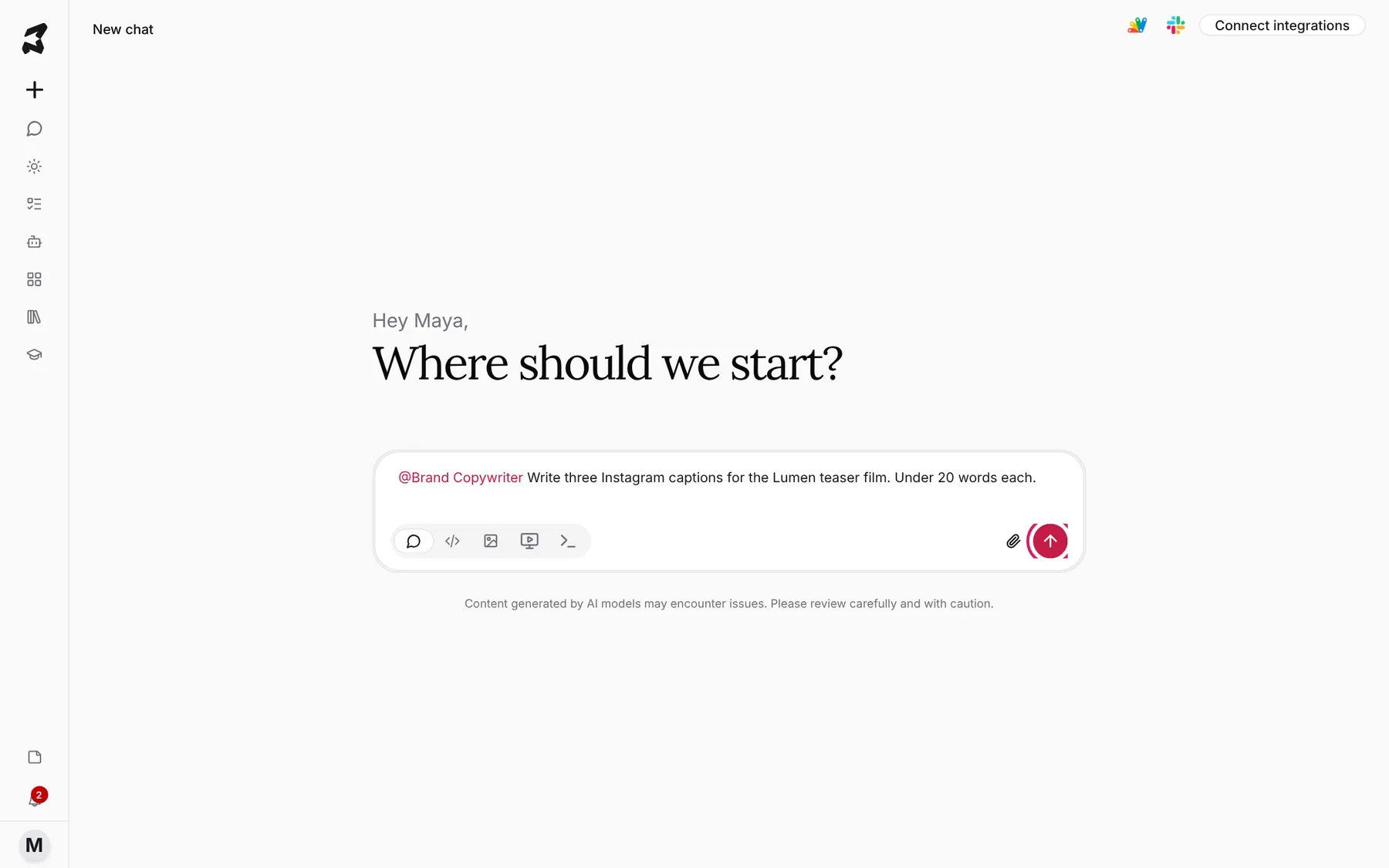
@Brand Copywriter Write three Instagram captions for the Lumen teaser film. Under 20 words each.
The agent answers with its own instructions, knowledge, tone and model, so you don’t need to explain your brand voice again.
Try it yourself: worked examples
Example 1 — A support reply drafter
Set up: name it “Support Drafts”, choose the Casual tone and Empathetic & Supportive personality, and put your return policy and shipping times in Background Knowledge.
@Support Drafts A customer says their Lumen arrived with a scratched
base and wants a replacement before a client call on Friday. Draft a reply.
Why it works: the policy facts live in the agent, so every reply quotes the same terms, and the tone stays warm without you asking.
Example 2 — A market analyst with a weekly scheduled task
Set up: name it “Market Analyst”, pick Formal and Analytical & Detailed, and attach a competitor-research skill. Then add a scheduled task that runs Every week.
Every Monday, check what Brightline and Halo Labs launched or changed
last week, including prices, and give me a short table with links.
Why it works: the agent already knows who your competitors are, and the scheduled task means the digest arrives without you asking.
Example 3 — A data helper that explains its SQL
Set up: name it “Data Helper”, choose Concise & Direct, and add “Use Postgres syntax. Show the query, then explain it in two sentences.” to Custom Instructions.
@Data Helper Write a query for 30-day retention by signup week from the
users and events tables.
Why it works: the format rule is set once in the agent, so every answer comes back the same way.
Tips
- Write Custom Instructions as rules (“Avoid exclamation marks”), and put facts (“Lumen launches November 18”) in Background Knowledge.
- Use Generate context for a first draft, then cut anything generic.
- Keep each agent to one job. Two focused agents work better than one that tries to do everything.
- Use Clone and customize to start from an existing agent instead of a blank form.