Getting started
Chat basics: prompts, attachments, shortcuts and replies
Write a good first prompt, pull in files, notes and agents with + / and @, and use the tools under every reply.
The Rundown
Everything in Axyen starts in the message box. This guide shows you how to write a prompt that gets a useful first answer, how to bring in context with three shortcuts — + for files and notes, / for skills and integrations, @ for agents — and what you can do with a reply once you have it.
Why it helps
Most of the difference between a generic answer and a useful one is context. The shortcuts let you hand Axyen your actual files, your notes and your saved instructions in a couple of clicks, instead of pasting and re-explaining them every time.
What you’ll need
- An Axyen account (see Get started with Axyen)
- Something real to work on — a plan, a draft, a question from your week
Step 1 — Write your prompt
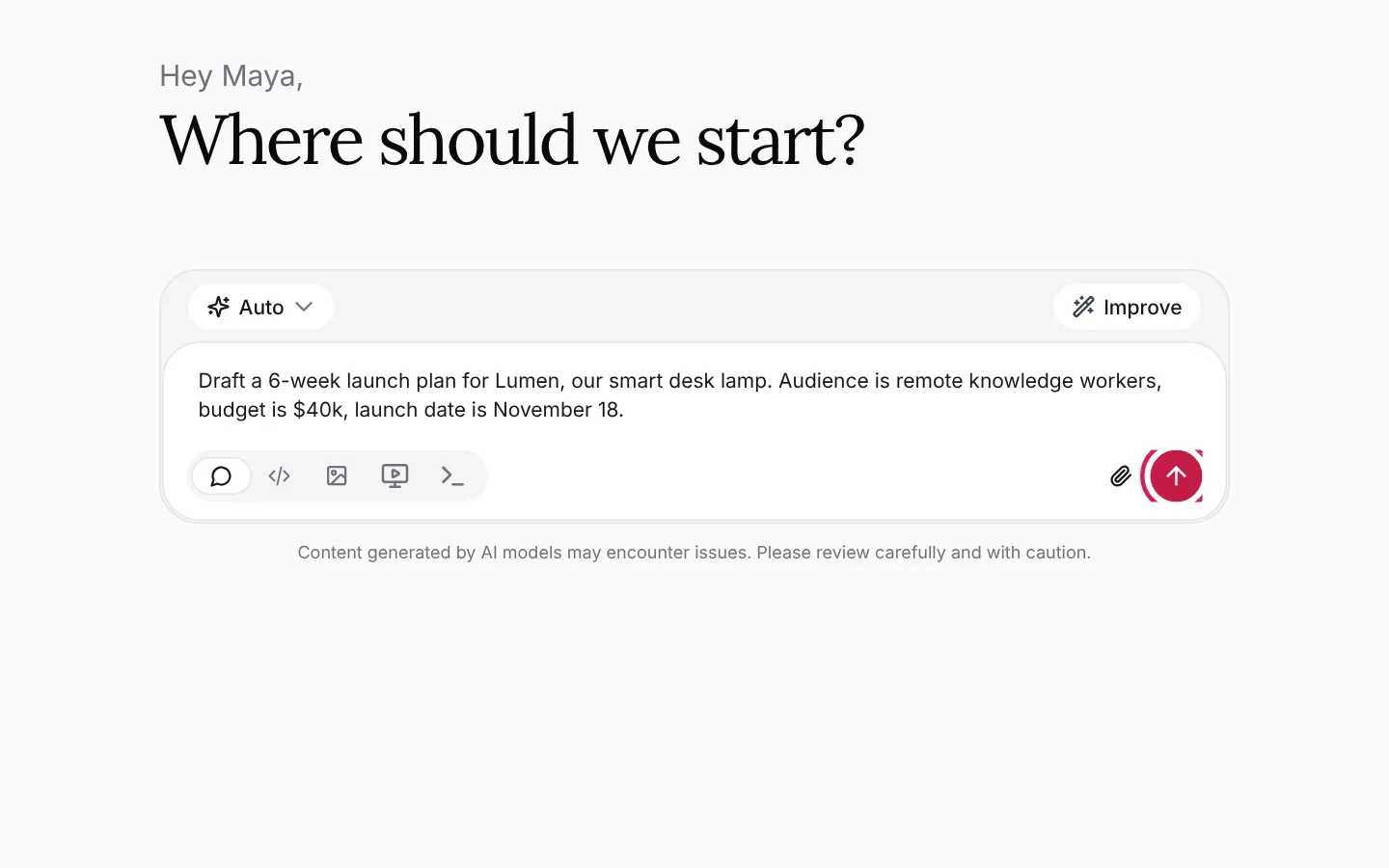
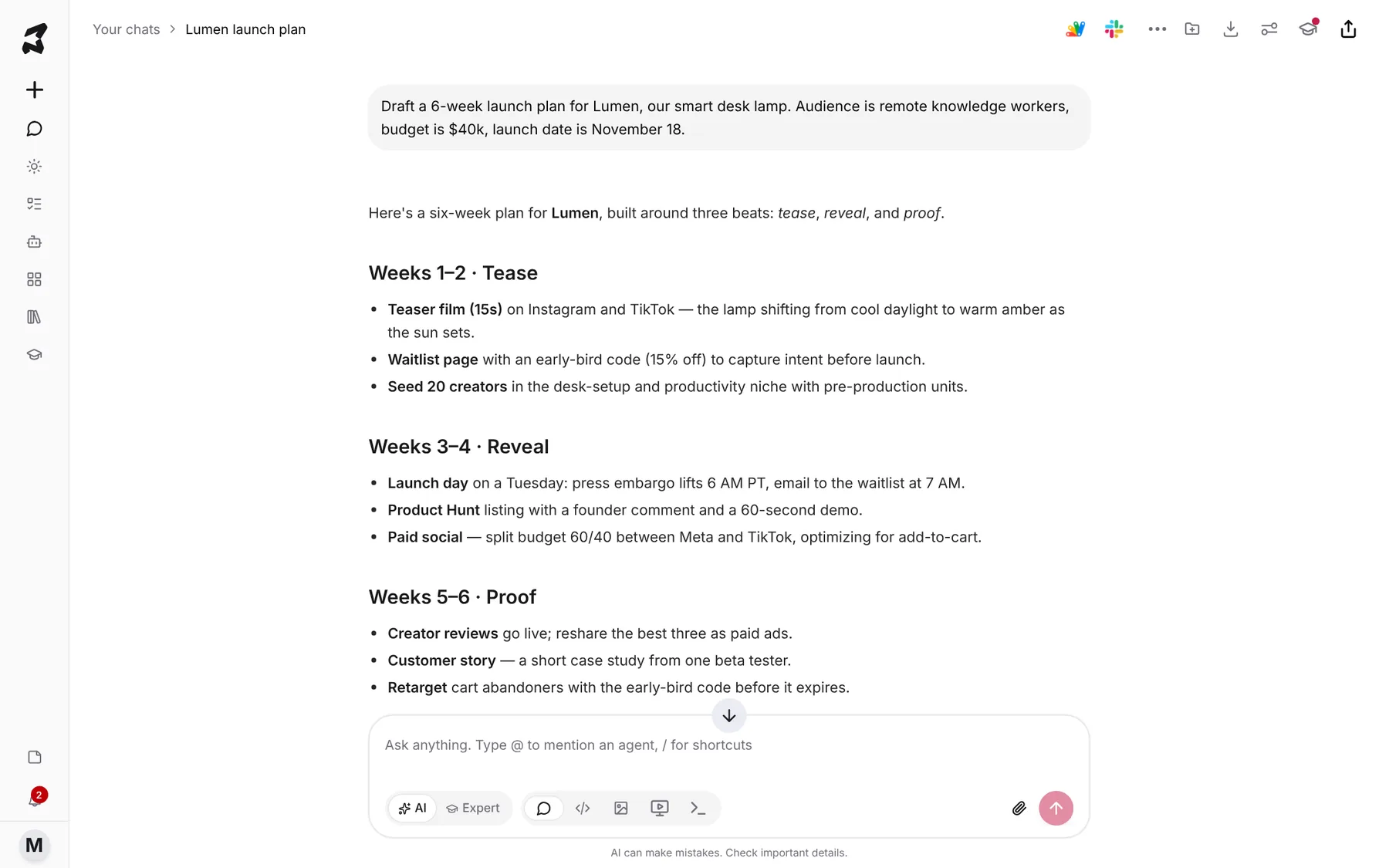
Click New chat in the sidebar (or start from the home screen) and type into the message box. Say what you want, who it’s for, and any constraints — numbers, dates, length, tone. The more of that you include, the less back-and-forth you’ll need.
Draft a 6-week launch plan for Lumen, our smart desk lamp. Audience is
remote knowledge workers, budget is $40k, launch date is November 18.
When you start typing, two controls appear above the text: the model button (it says Auto until you pick a model — see Choose the right model) and Improve, which rewrites a rough prompt into a clearer one. Press Enter or click the send arrow.
Step 2 — Use / for shortcuts
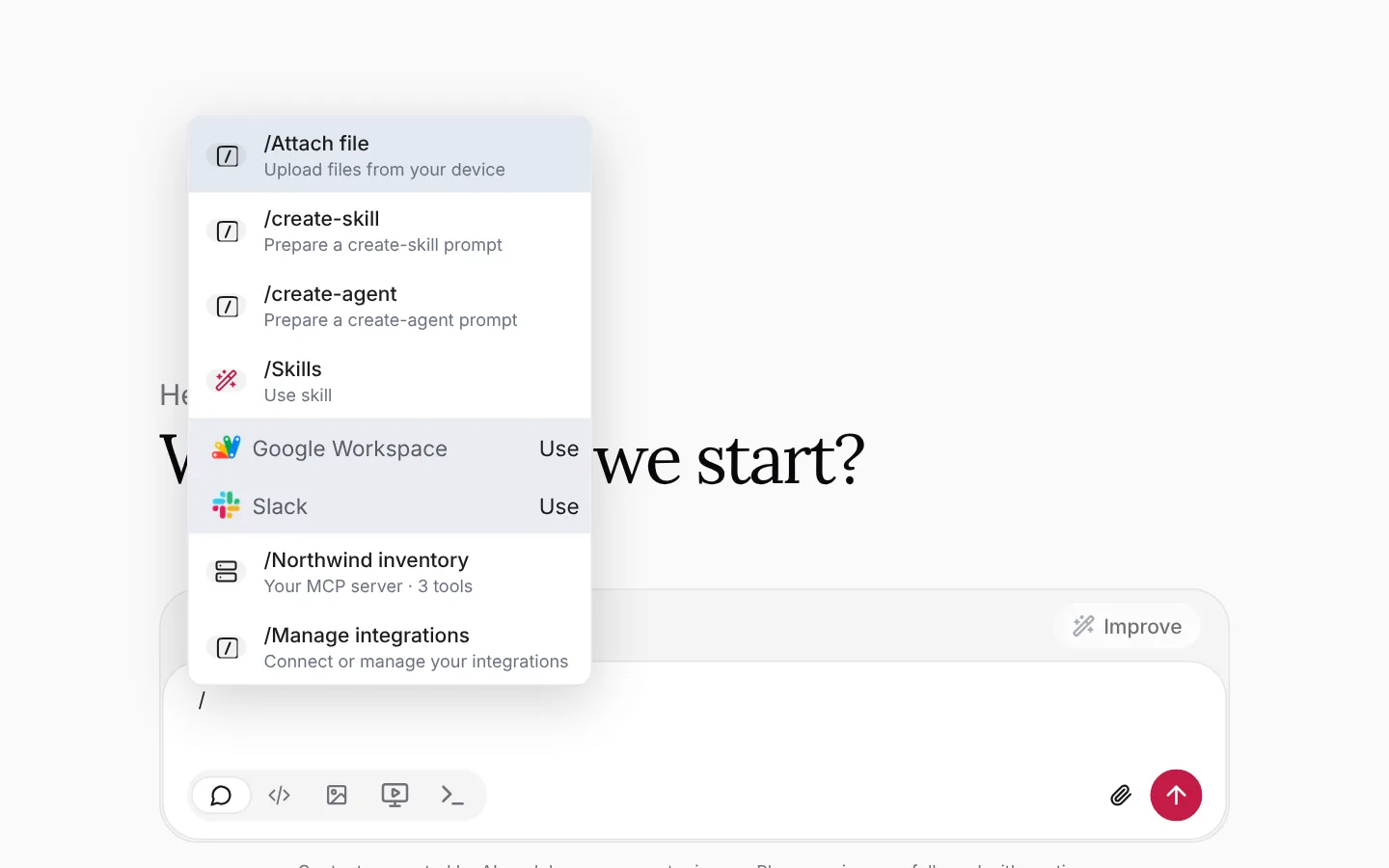
Type / at the start of the box to open the shortcut menu. From here you can /Attach file, run one of your /Skills (saved, reusable prompts), draft a new skill or agent with /create-skill and /create-agent, or /Manage integrations. Connected apps and MCP servers show up in this list too, so you can tell Axyen which tool to use for the next message.
Step 3 — Use @ to hand the task to an agent
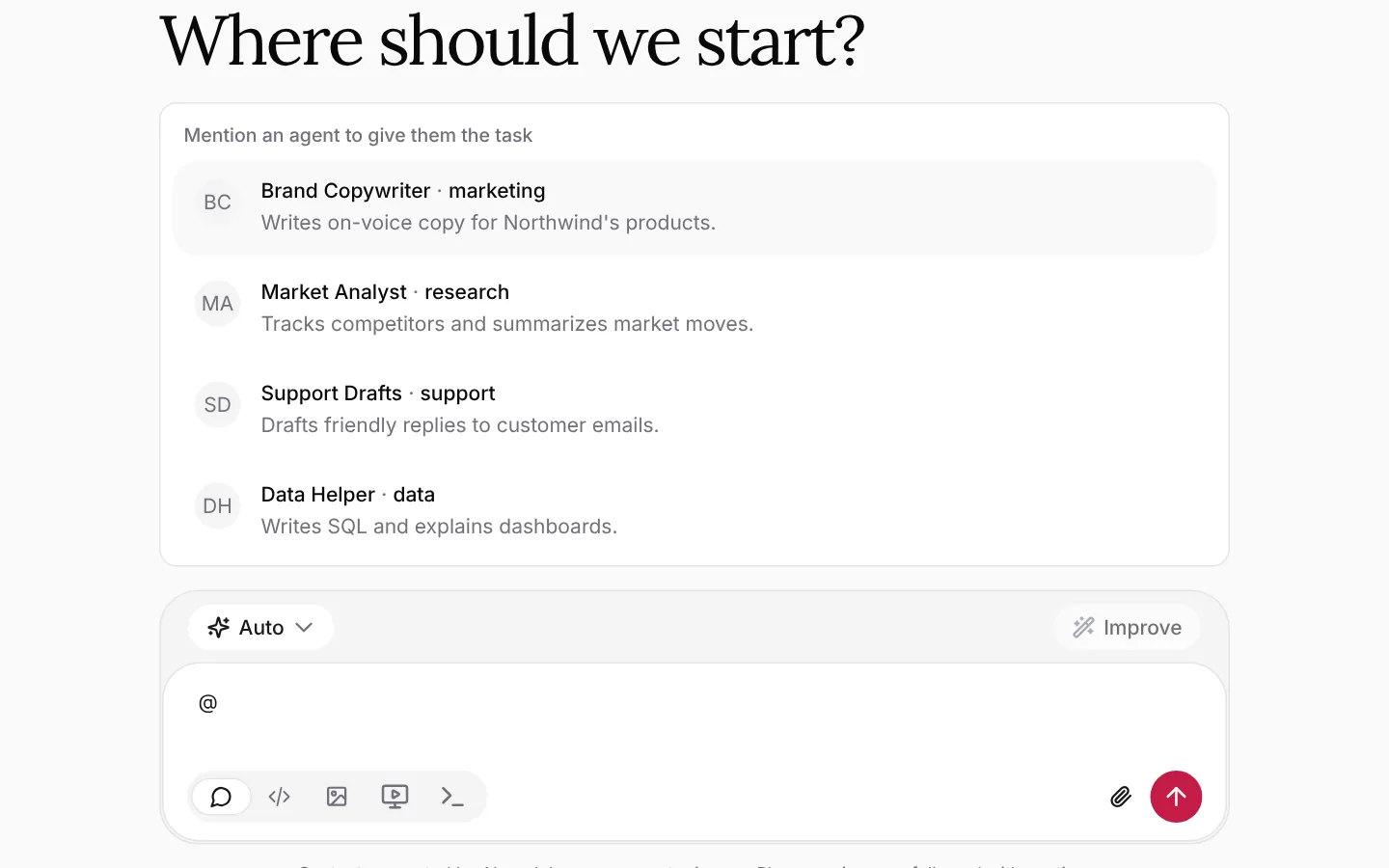
Type @ to see your agents — saved assistants with their own instructions, tone and default model. Pick one and the message goes to that agent instead of the general assistant. In the example below, Brand Copywriter would answer in Northwind’s brand voice.
The Agents guide covers how to create your own.
Step 4 — Attach files, notes and boards
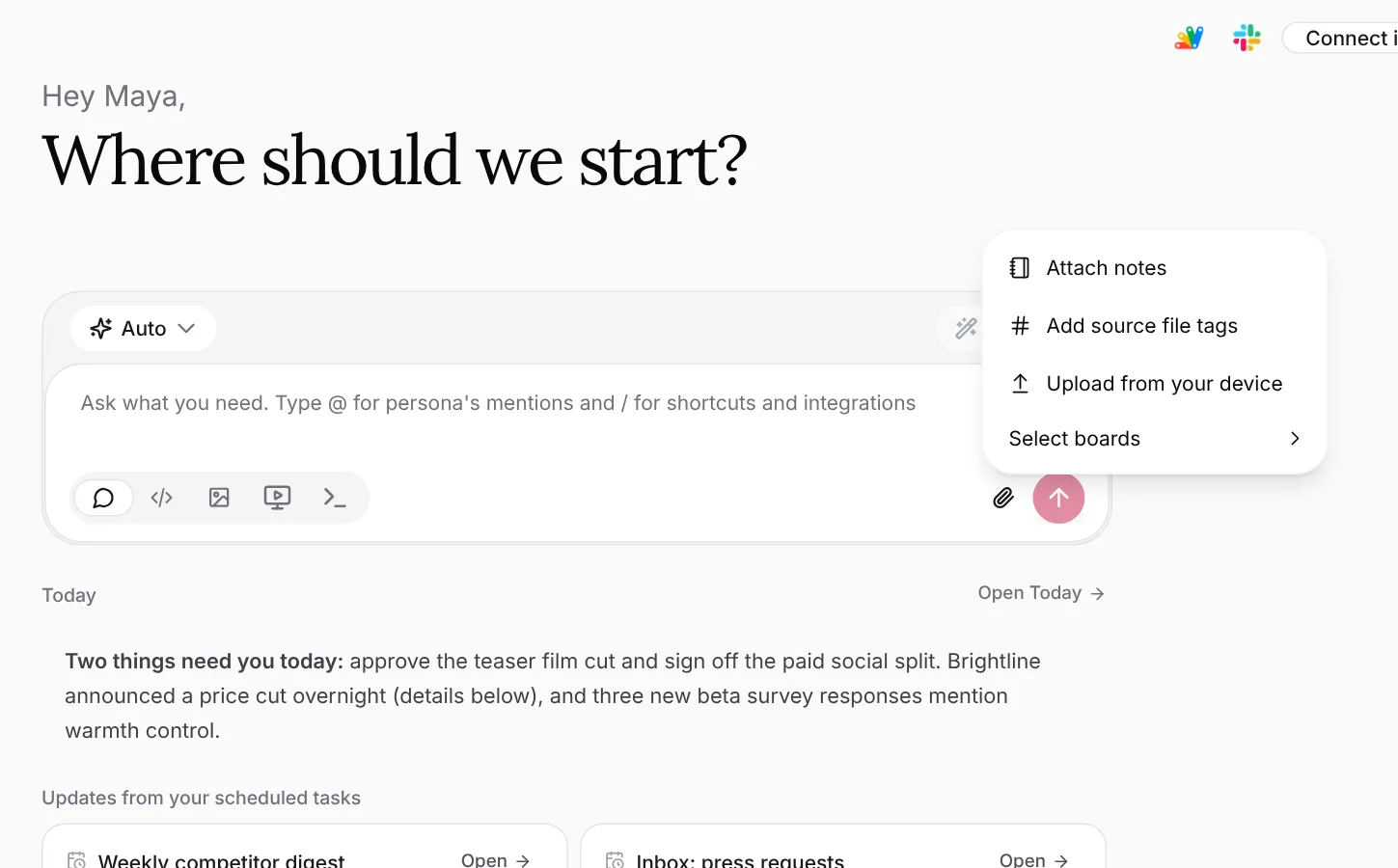
Click the paperclip to open the attachment menu:
- Upload from your device — PDFs, spreadsheets, images, documents
- Attach notes — pick from your notes
- Add source file tags — bring in every file in Artifacts that has a given tag
- Select boards — use the answers pinned to one of your boards as context
If you paste a long block of text into the box, Axyen turns it into an attachment card and asks you to name it, so your prompt stays readable.
Step 5 — Read the reply
Replies are formatted for scanning: headings, lists and tables where they help. Under each reply you’ll see which model wrote it.
Step 6 — Act on the reply
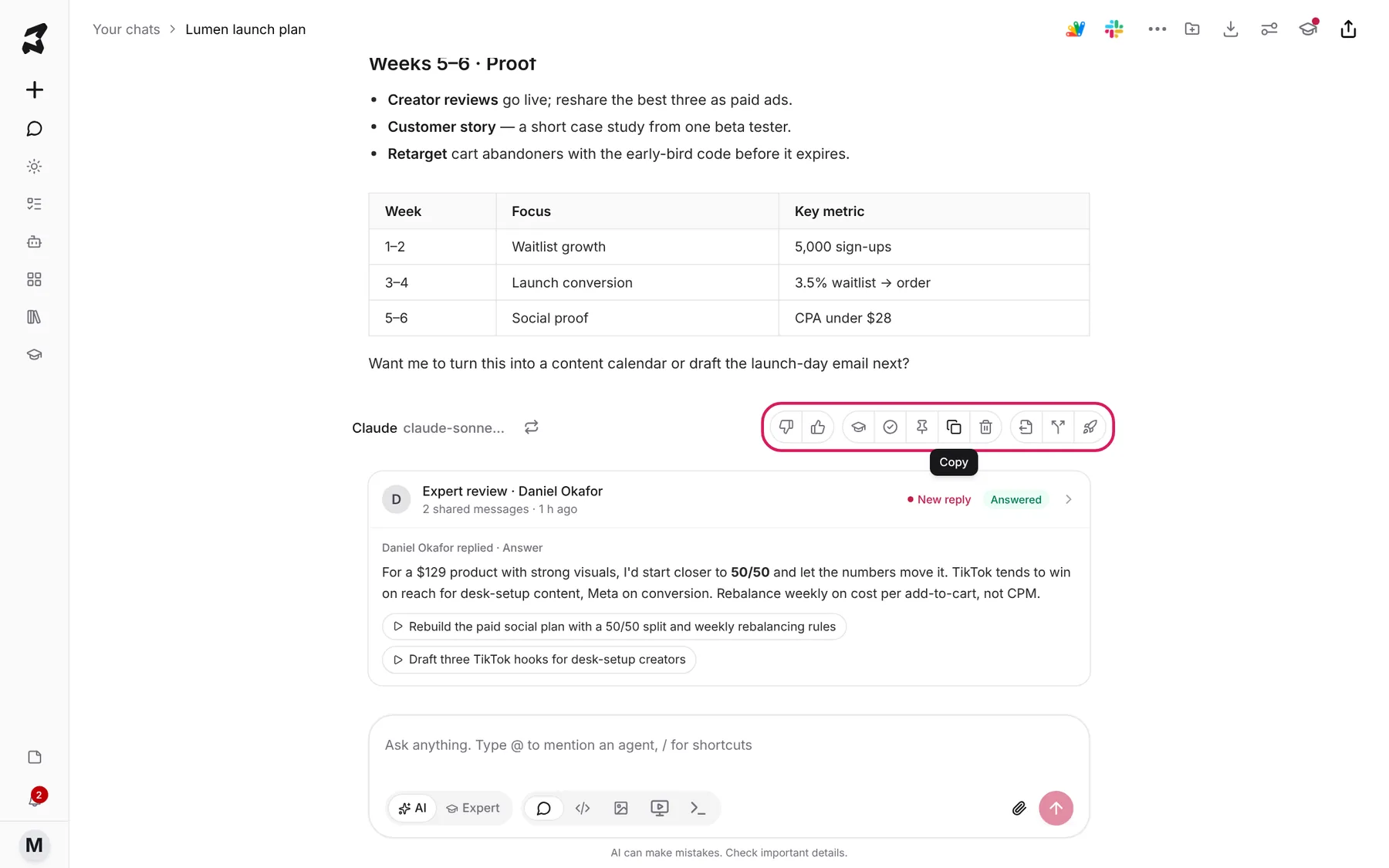
Hover over a reply to use the actions underneath it. From left to right you can switch the model and re-run the answer, give feedback, ask a human expert to review it, select it, pin it to a board, copy it, delete it, extract it to a file, fork the chat from this point, or publish it.
Two you’ll use often:
- Pin message saves the answer to a board, so you can find it again without scrolling back through the chat.
- Fork chat starts a new chat from this point, with either the full history or a short summary — handy when you want to try a different direction without losing the original.
Try it yourself: worked examples
Example 1 — Summarize a file you have on hand
Click the paperclip, choose Upload from your device, pick a document, then ask:
Summarize this in five bullet points for a busy exec. Flag anything that
needs a decision this week.
Why it works: you’re giving the audience (a busy exec) and the output shape (five bullets plus decisions), so the summary is usable as-is.
Example 2 — Reuse your own notes
Choose Attach notes, pick the notes from your last planning session, and ask:
Turn these notes into a project update for the team: what we decided,
what's next, and who owns each item.
Why it works: your notes carry the facts; the prompt says how to shape them.
Example 3 — Get it in your brand’s voice
Type @, pick your copywriting agent, and ask:
Write three subject lines for the Lumen launch email. Keep them under
45 characters.
Why it works: the agent already knows your voice, so you only need to describe the task.
Tips
- Put constraints in the first message (length, audience, format). It’s faster than correcting afterwards.
- Click Improve on a rough prompt to see a clearer version before you send it.
- Keep one chat per topic. A focused chat gives the model cleaner context than one long chat about everything.
- When a reply is worth keeping, pin it to a board right away.