Use cases
Generate on-brand images from your own references
Attach a few brand references in Chat, get back a design language and a short style block, save it as a note, then use it in Image mode to generate, compare and refine images that look like your brand.
The Rundown
You’ll attach two or three of your own brand images to a chat and ask Axyen to describe the design language behind them: colors with hex codes, type, composition, light and mood. You’ll keep the short style block it writes as a note, then paste it into every Image mode prompt. From there you generate, try the same prompt on another image model, and refine the best result with small, specific follow-ups.
Why this matters
Typing “make it on-brand” into an image model doesn’t work, because the model has never seen your brand. Describing it from memory each time doesn’t work well either: every prompt is a little different, so every image drifts a little.
A style block written from real references fixes both problems. It names the exact colors, the headline style and the layout you already use, and because you paste the same block every time, a set of five images comes out looking like one campaign instead of five guesses.
What you’ll need
- An Axyen account
- Two or three images that show your current look: a past social post, a good product photo, a palette or brand sheet
- A clear idea of the first image you need (for example, a square launch post)
Step 1 — Attach your brand references in Chat mode
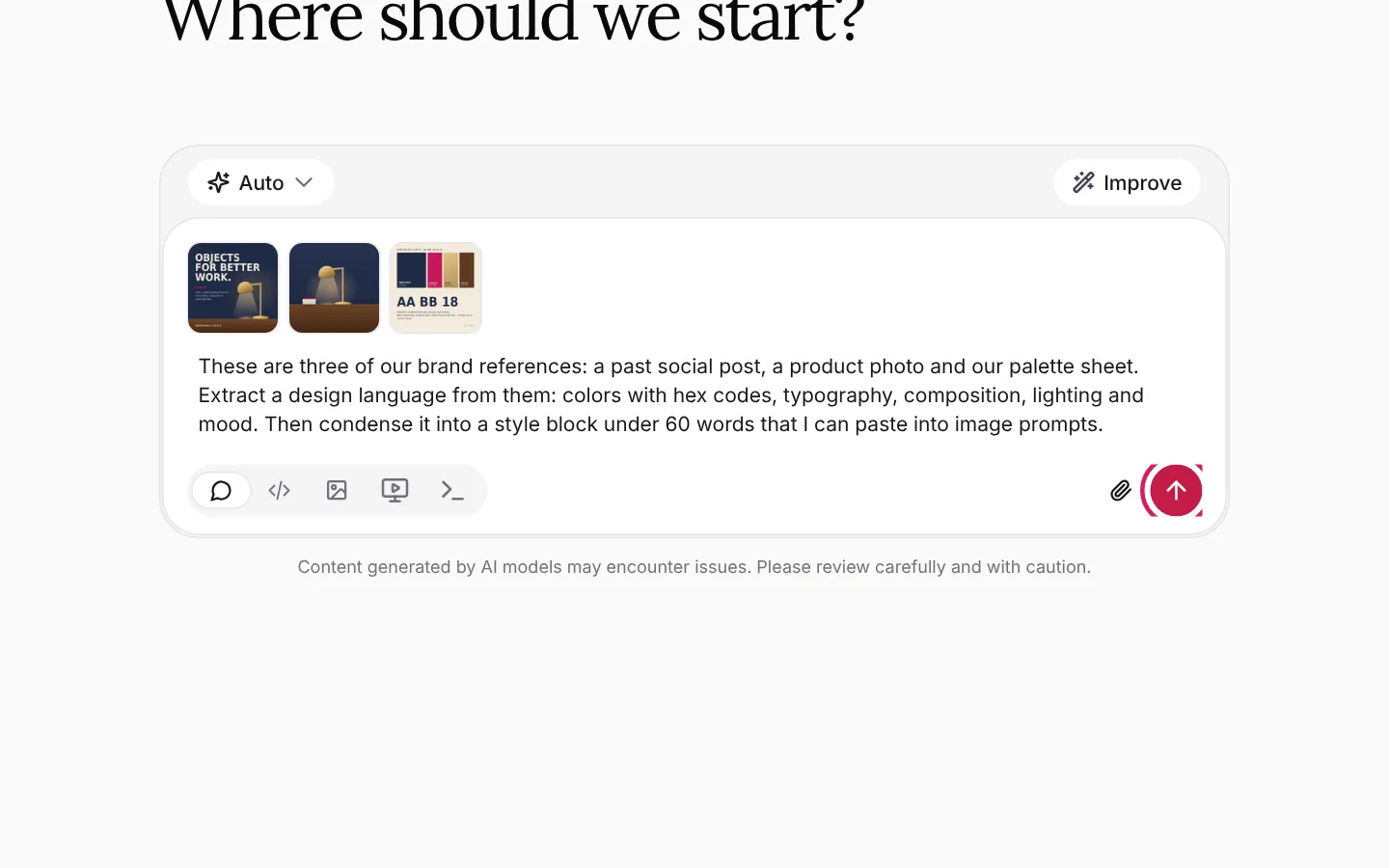
Start a new chat and keep the box in Chat mode (the speech-bubble icon). Click the paperclip (Attachment options), choose Upload from your device and pick two or three images that show your current look. Each one appears as a thumbnail above your prompt.
Pick references that agree with each other. A past post, one strong product photo and your palette sheet work well together. Then ask for the design language and a short style block in the same message:
These are three of our brand references: a past social post, a product photo and our palette
sheet. Extract a design language from them: colors with hex codes, typography, composition,
lighting and mood. Then condense it into a style block under 60 words that I can paste into
image prompts.
Step 2 — Read the design language and the style block
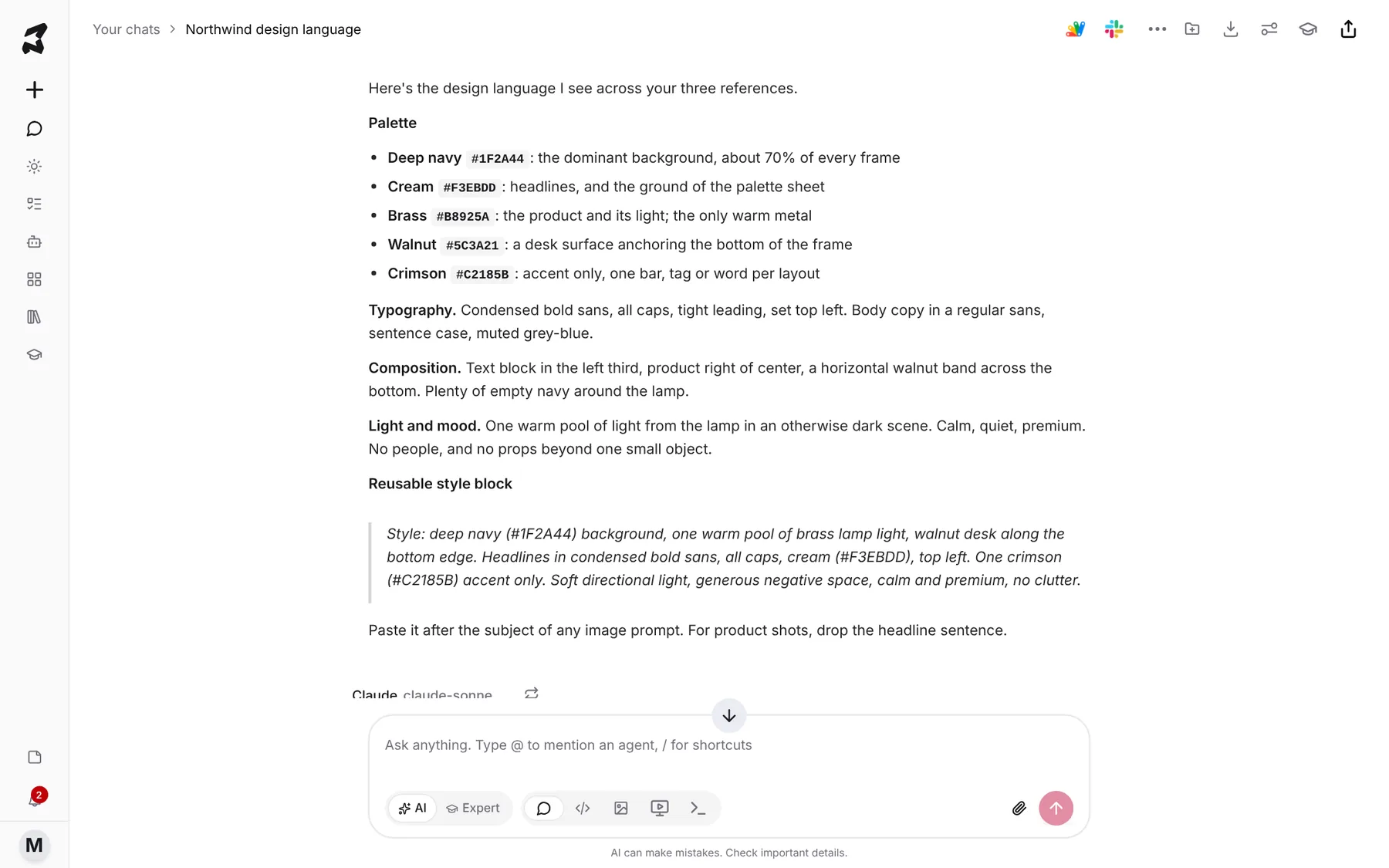
The reply has two parts. The first describes what the references have in common: each color with its hex code and its job, the headline style, where things sit in the frame, and the light and mood. The second is the style block, a few sentences you can paste after any subject.
Check it against your references before you use it. If a color is off or a rule is missing (for example, “crimson is an accent only”), say so in a follow-up and ask for an updated block. It’s much cheaper to fix the description now than to fix twenty images later.
Step 3 — Save the style block as a note
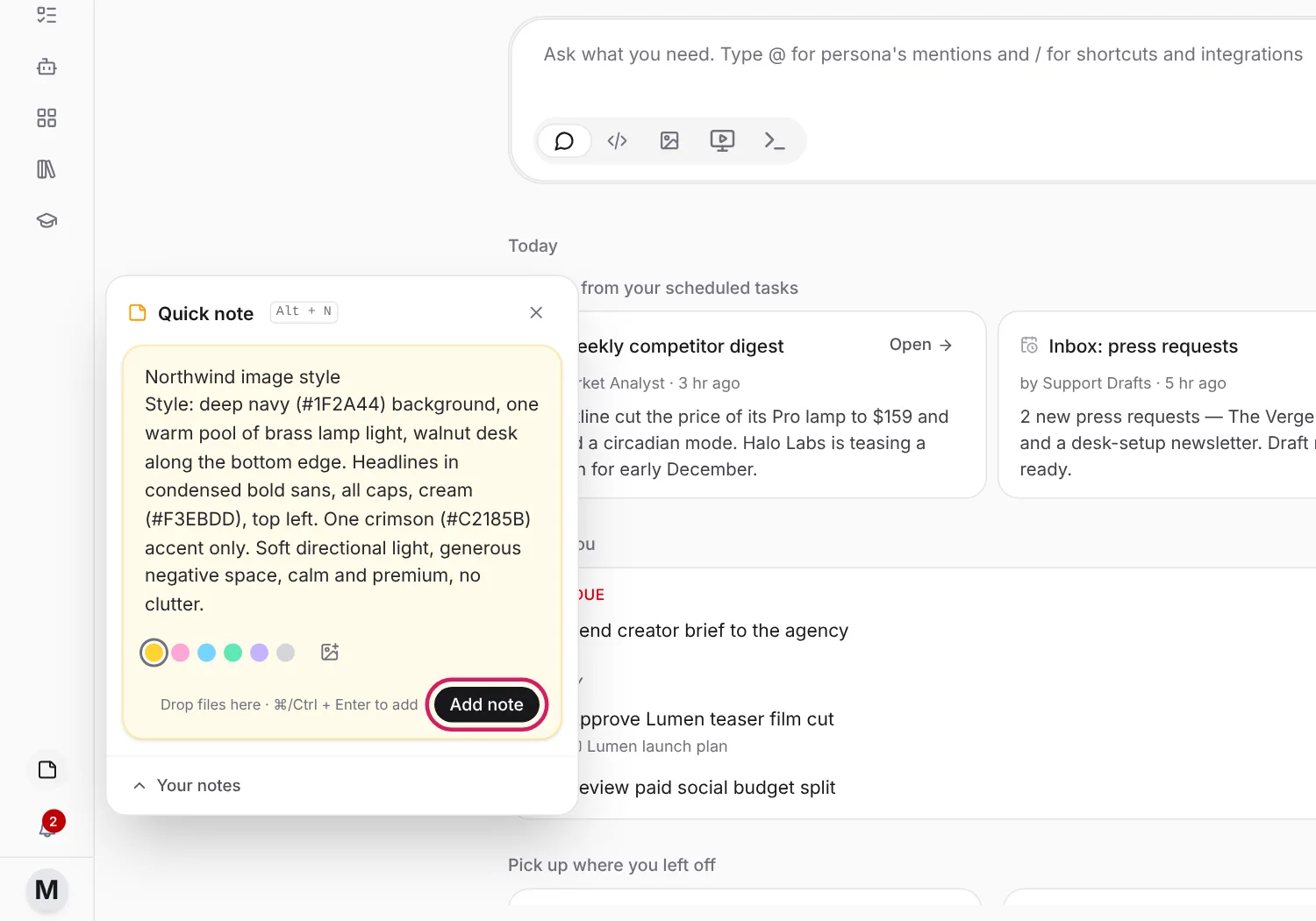
Copy the style block from the reply. Click Quick note at the bottom of the sidebar (or press Alt + N), give it a first line you’ll recognize, paste the block and click Add note.
Northwind image style
Style: deep navy (#1F2A44) background, one warm pool of brass lamp light, walnut desk along the
bottom edge. Headlines in condensed bold sans, all caps, cream (#F3EBDD), top left. One crimson
(#C2185B) accent only. Soft directional light, generous negative space, calm and premium, no
clutter.
The note is now on your Notes board, and in Your notes in the Quick note panel, ready to copy whenever you write an image prompt. A note is the right home for it: it’s plain text you paste yourself, so it works in Image mode.
Step 4 — Switch to Image mode, pick a size and paste your prompt
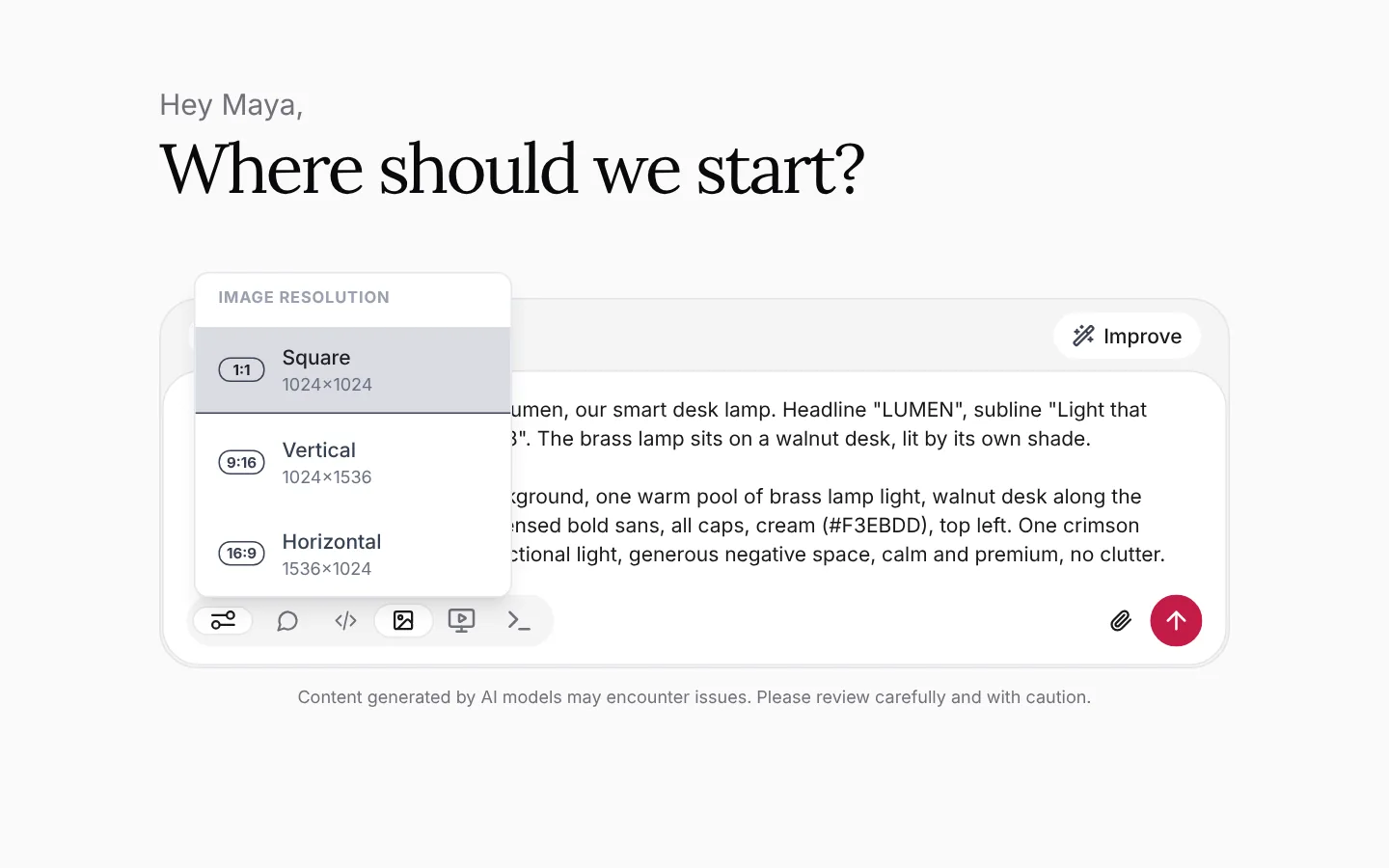
Start a new chat and click the picture icon (Image) in the message box. The model button above the box now shows an image model, such as gpt-image-1.5; click it to choose another one.
Click Image Settings, the control just left of the mode icons, and pick a size: Square (1024×1024), Vertical (1024×1536) or Horizontal (1536×1024). Then write the subject, paste your style block after it, and send.
Square social post announcing Lumen, our smart desk lamp. Headline "LUMEN", subline "Light that
keeps up with you.", date "Nov 18". The brass lamp sits on a walnut desk, lit by its own shade.

Style: deep navy (#1F2A44) background, one warm pool of brass lamp light, walnut desk along the
bottom edge. Headlines in condensed bold sans, all caps, cream (#F3EBDD), top left. One crimson
(#C2185B) accent only. Soft directional light, generous negative space, calm and premium, no
clutter.
Put anything the image must contain (exact headline text, a date, the product) in the subject, and keep the style block unchanged. That way you know which part to edit when something’s wrong.
Step 5 — Review the first result
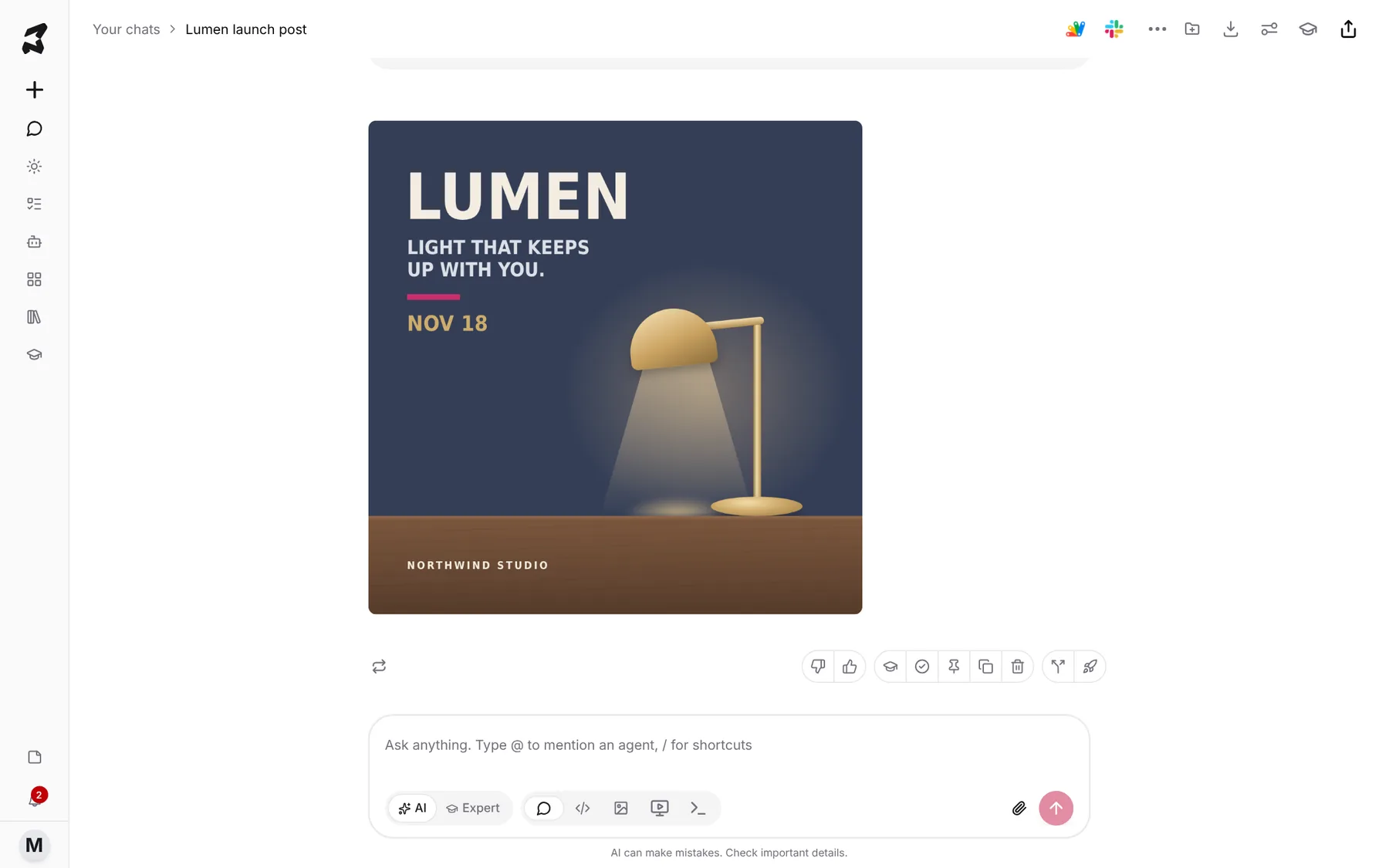
The image appears in the chat as the reply. Check it against the style block, not just your taste: are the colors right, is the headline in the right place and style, is there only one crimson accent, is the text spelled correctly?
Make a short list of what’s off before you change anything. Under the image, Retry response (the circular-arrows icon) generates the same prompt again with the same model if you just want another take.
Step 6 — Try the same prompt on another image model
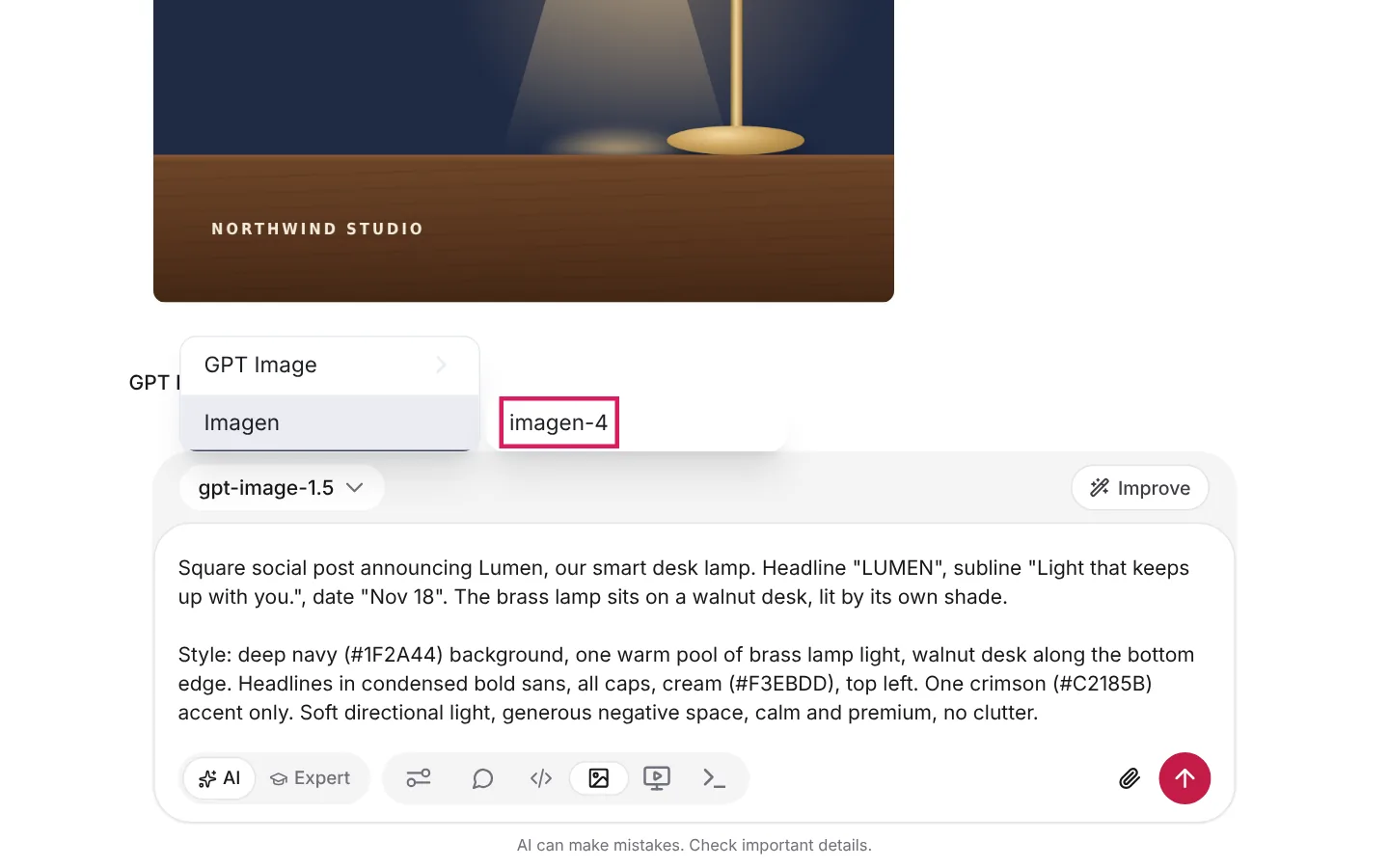
Image models differ. One may follow layout instructions closely while another gets the light and texture better. To compare, stay in the same chat, click the picture icon in the message box, paste the same prompt again, then click the model button and choose a different model, for example imagen-4 under Imagen. Send it and the new image lands below the first one.
Image replies don’t have a Switch model button, so this is how you compare: same prompt, same size, a different model. If the image models in the menu are greyed out, switch the box to Chat mode, pick a specific model instead of Auto, then switch back to Image mode.
Step 7 — Refine with a specific follow-up
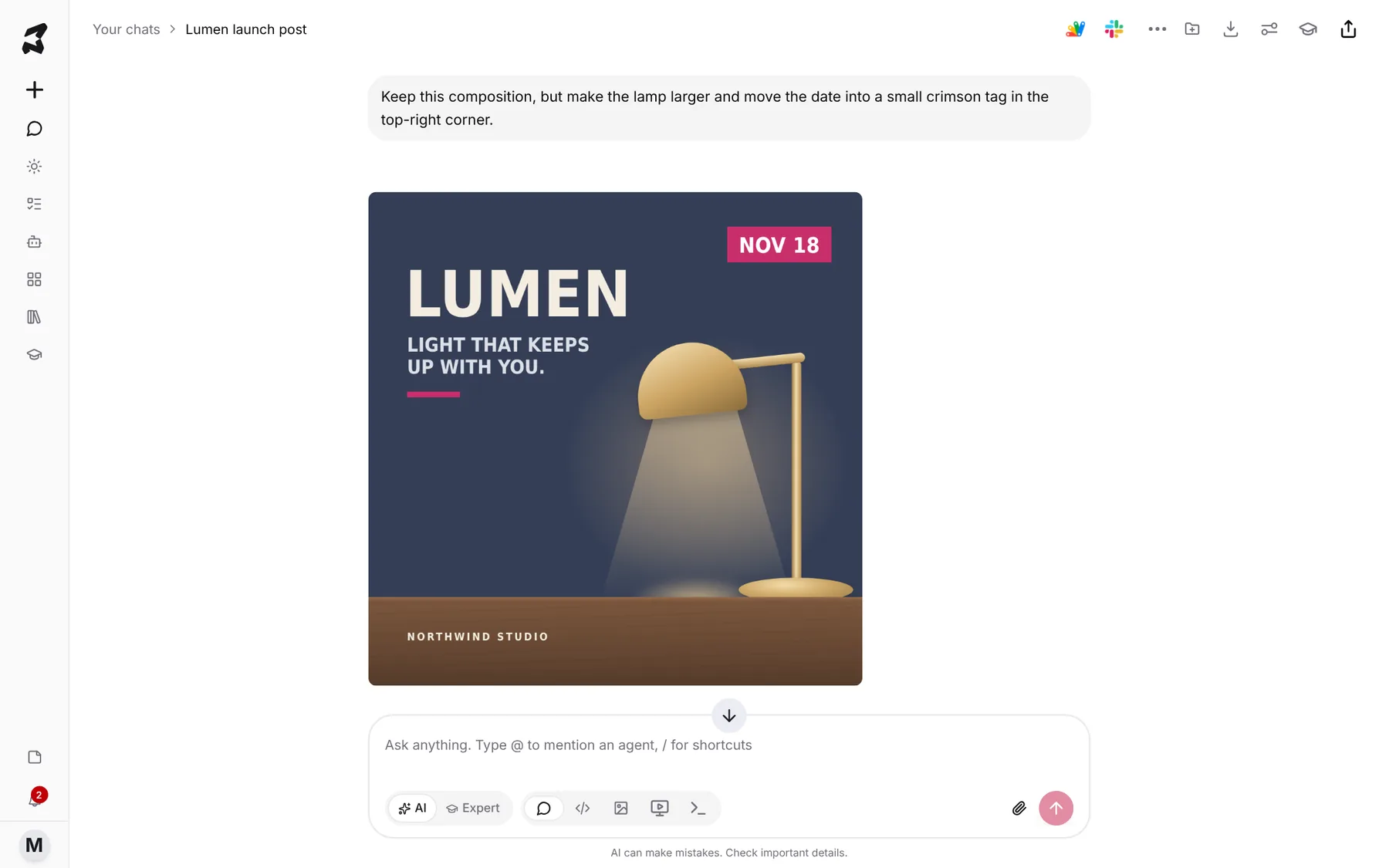
Once you’ve picked a direction, change one or two things at a time instead of rewriting the whole prompt. Say what to keep, then what to change:
Keep this composition, but make the lamp larger and move the date into a small crimson tag in
the top-right corner.
Other follow-ups that work well: “Same layout, but shift the light so it falls on the headline”, or “Give me the same image with the headline in two lines instead of one.” If a follow-up drifts away from your brand, send the full prompt again with the style block and add the change to the subject.
Step 8 — Pin the keeper to a board
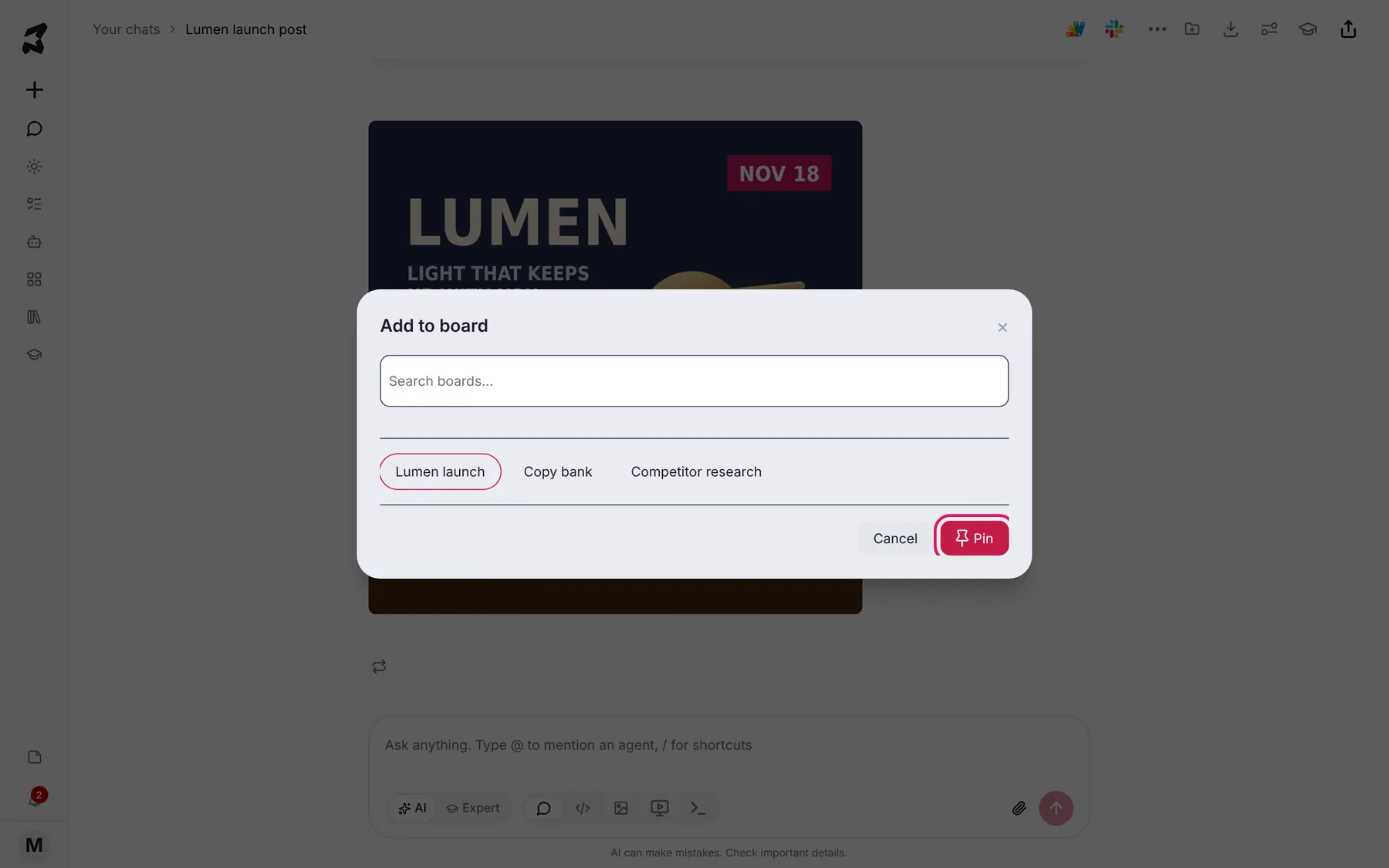
When an image is ready, hover over it, click the pin icon (Pin message) in the row of actions, choose a board such as Lumen launch in Add to board, and click Pin. Your team can find the final version there without scrolling through every draft.
Try it yourself: worked examples
Example 1 — Social graphics that match your existing brand look
What to attach in Step 1: three or four past social posts that you’d happily post again, plus your palette sheet if you have one.
Modified prompt (Image mode, Square):
Square social post announcing "20% off this weekend". The text is the focal point and must be
easy to read at phone size. Leave clear space in the bottom-left corner for our logo.

[paste your style block from the note]
Why the change: social graphics live or die on legibility at small sizes, so the prompt makes the text the focal point and reserves space for the logo you’ll add later. Choosing Square in Image Settings handles the feed format, so you don’t need to describe it in words.
Example 2 — Product photo variations from one reference shot
What to attach in Step 1: a single, well-lit photo of your product. In your Step 1 prompt, ask Axyen to focus the design language on lighting, background, camera angle and framing, not on type.
Modified prompt (Image mode, Square or Horizontal):
The same desk lamp as in our reference photo, seen from a three-quarter angle instead of
straight on. Same lighting setup, same background and same distance from the camera.

[paste your product-photo style block]
Why the change: for product shots, lighting and framing are what make a new image look like it belongs next to your existing photos. A style block about light and background keeps the lineup consistent. One about headlines would only get in the way.
Example 3 — Ad creative in three sizes
What to attach in Step 1: your best-performing past ad, so the style block is based on something you know works.
Modified prompt (send it three times, changing Image Settings before each send: Square 1024×1024 for the feed, Vertical 1024×1536 for stories and Horizontal 1536×1024 for wide placements):
Ad for Lumen, our smart desk lamp. Headline "Light that keeps up with you." and a small
"Pre-order now" button shape. Keep the lamp, headline and button the same in every version;
only rearrange them to fit the frame.

[paste your style block from the note]
Why the change: placements need different shapes, and Image Settings offers exactly these three. Keeping the prompt identical and changing only the size gives you one ad in three formats instead of three different ads.
The pattern to reuse
Extract the design language once from real references, save the style block as a note, then write a specific subject (what’s in the image, the exact text, the size) and paste the block after it. What you ask Axyen to extract is the part worth adapting: color and type for brand graphics, light and framing for product shots, the whole concept for ads.