Chat & models
Generate images and videos
Switch the message box to Image or Video mode, pick a model and size, and turn a written description into a picture or a short clip.
The Rundown
The same message box you chat in can make images and videos. Switch to Image or Video mode, choose a model, describe what you want, and the result appears in the chat where you can download it, pin it, or ask for changes. This guide walks through both modes and how to write prompts that get close on the first try.
Why it helps
You can go from an idea to a usable visual — a product shot for a launch page, a social post, a short motion clip — without leaving the conversation where you planned it. And because several image and video models are available, you can try the same prompt on a different model when the first result isn’t right.
What you’ll need
- A plan that includes image and video generation (the Help menu marks them as PRO features). Generations use credits.
- A clear idea of where the result will be used — that decides the size and style you ask for.
- For on-brand work, see the in-depth guide Generate on-brand images from your own references.
Step 1 — Switch to Image mode
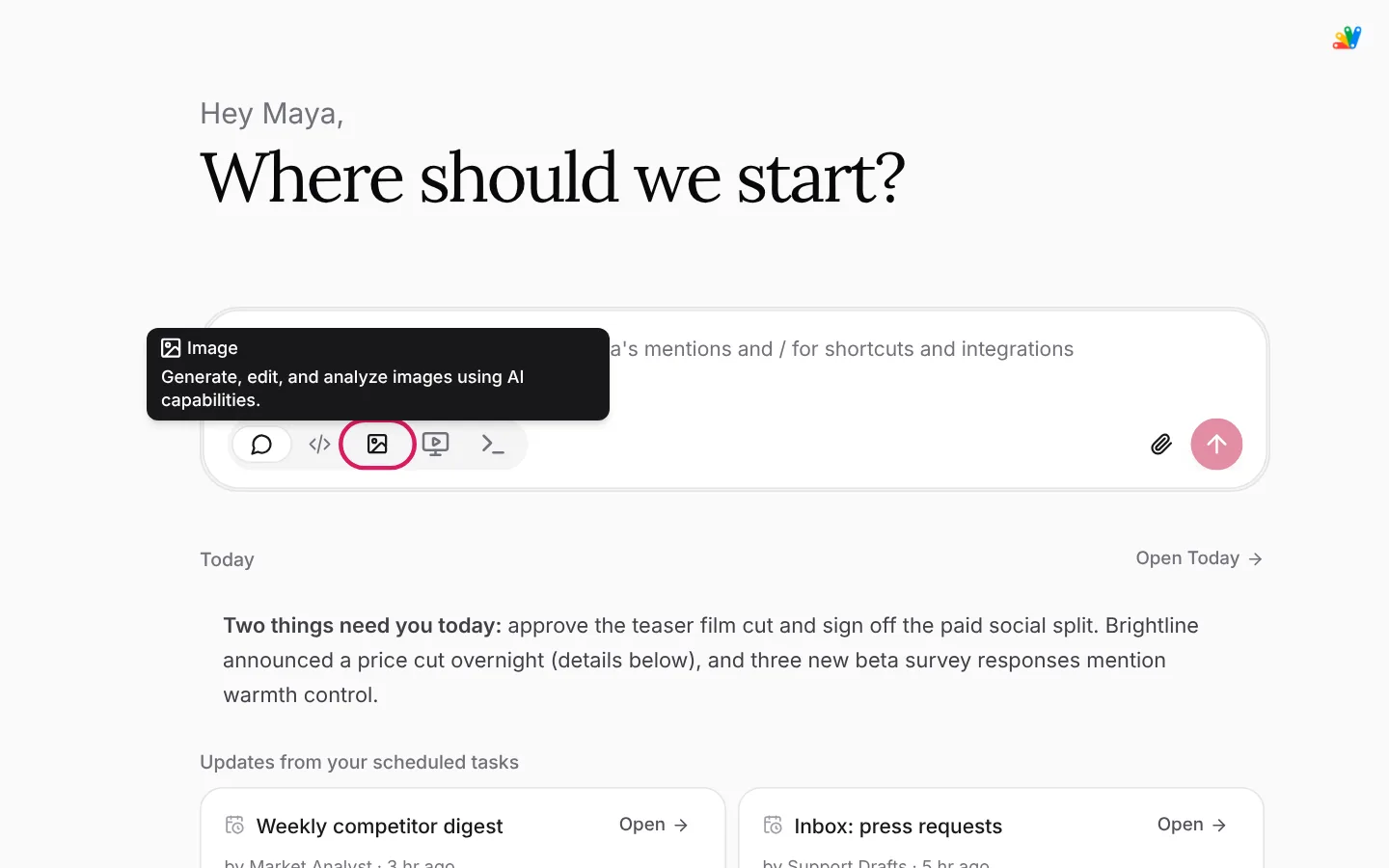
At the bottom of the message box, click the picture icon. Hover over it first and you’ll see what it does: “Generate, edit, and analyze images using AI capabilities.”
Step 2 — Describe the image
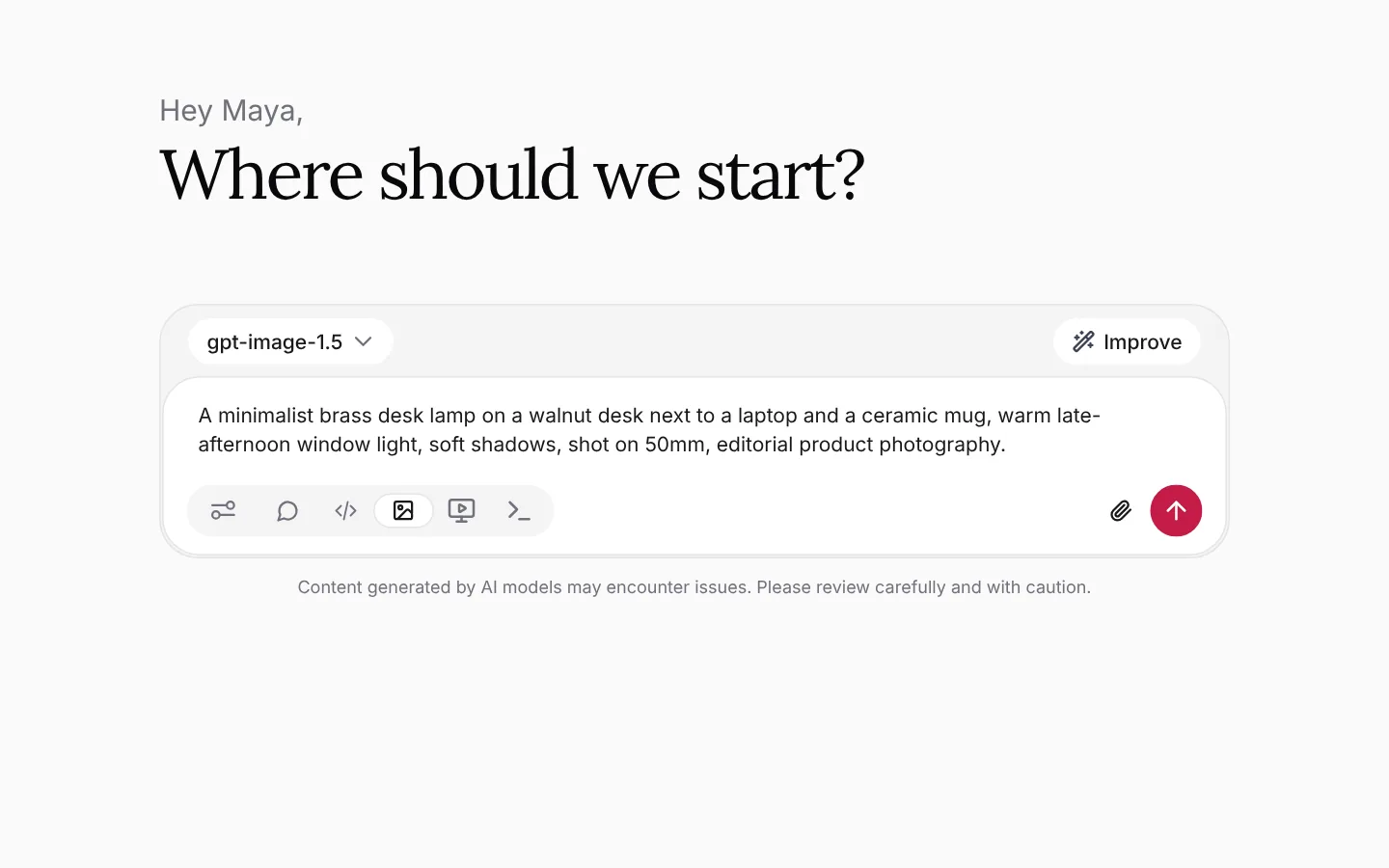
Write the subject first, then the setting, the light, and the style. Concrete details — materials, time of day, camera lens, “editorial product photography” — matter more than adjectives like “beautiful” or “stunning”.
A minimalist brass desk lamp on a walnut desk next to a laptop and a
ceramic mug, warm late-afternoon window light, soft shadows, shot on
50mm, editorial product photography.
In Image mode the model button above the box switches to an image model. Click it to choose a different one — some models are better at photo realism, others at illustration or text inside images. If the image models in that menu are greyed out, switch the box to Chat mode, pick a specific model instead of Auto, then switch back to Image mode.
Step 3 — Pick the size
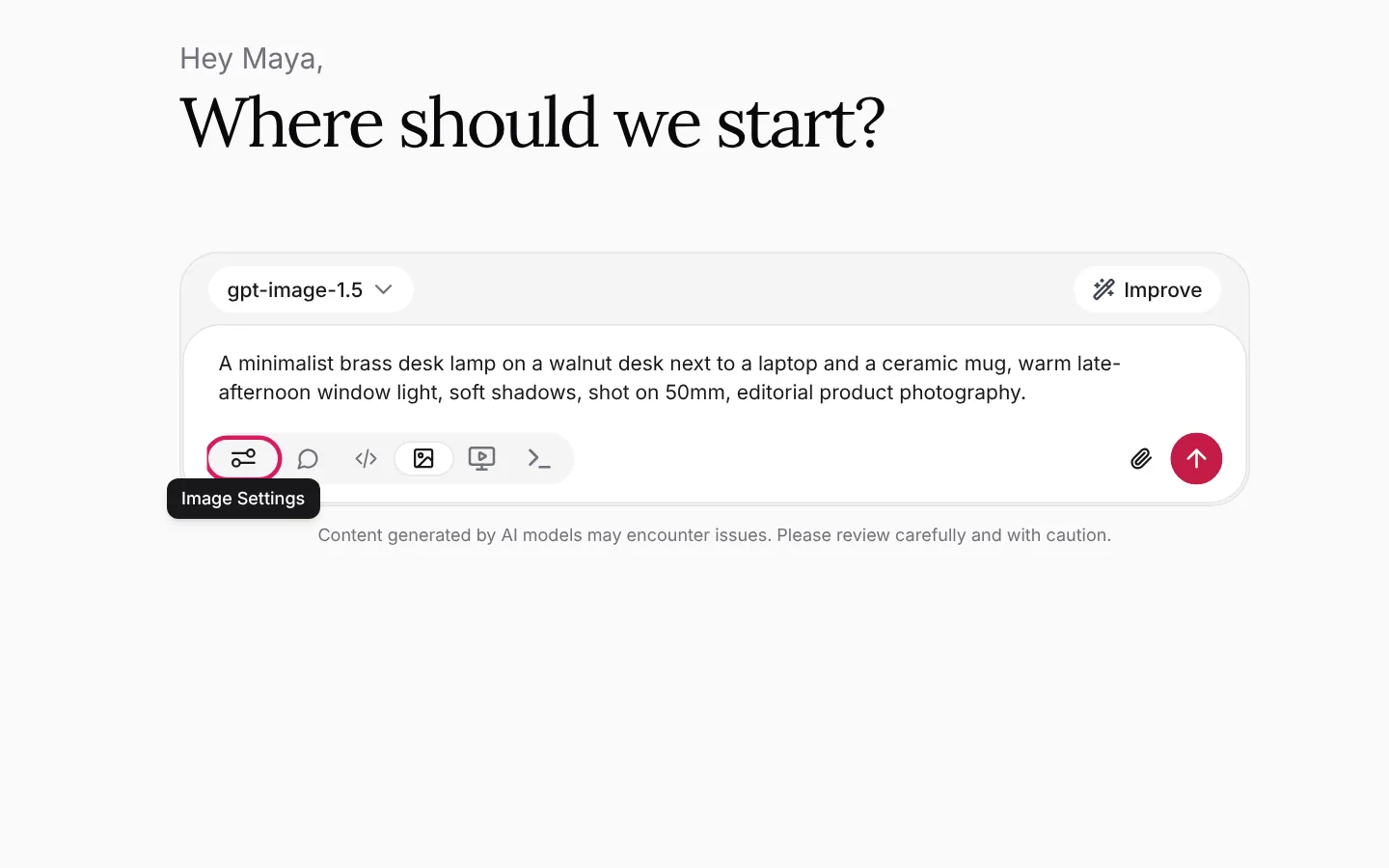
In Image mode, an extra control appears to the left of the mode icons: Image Settings. Click it.
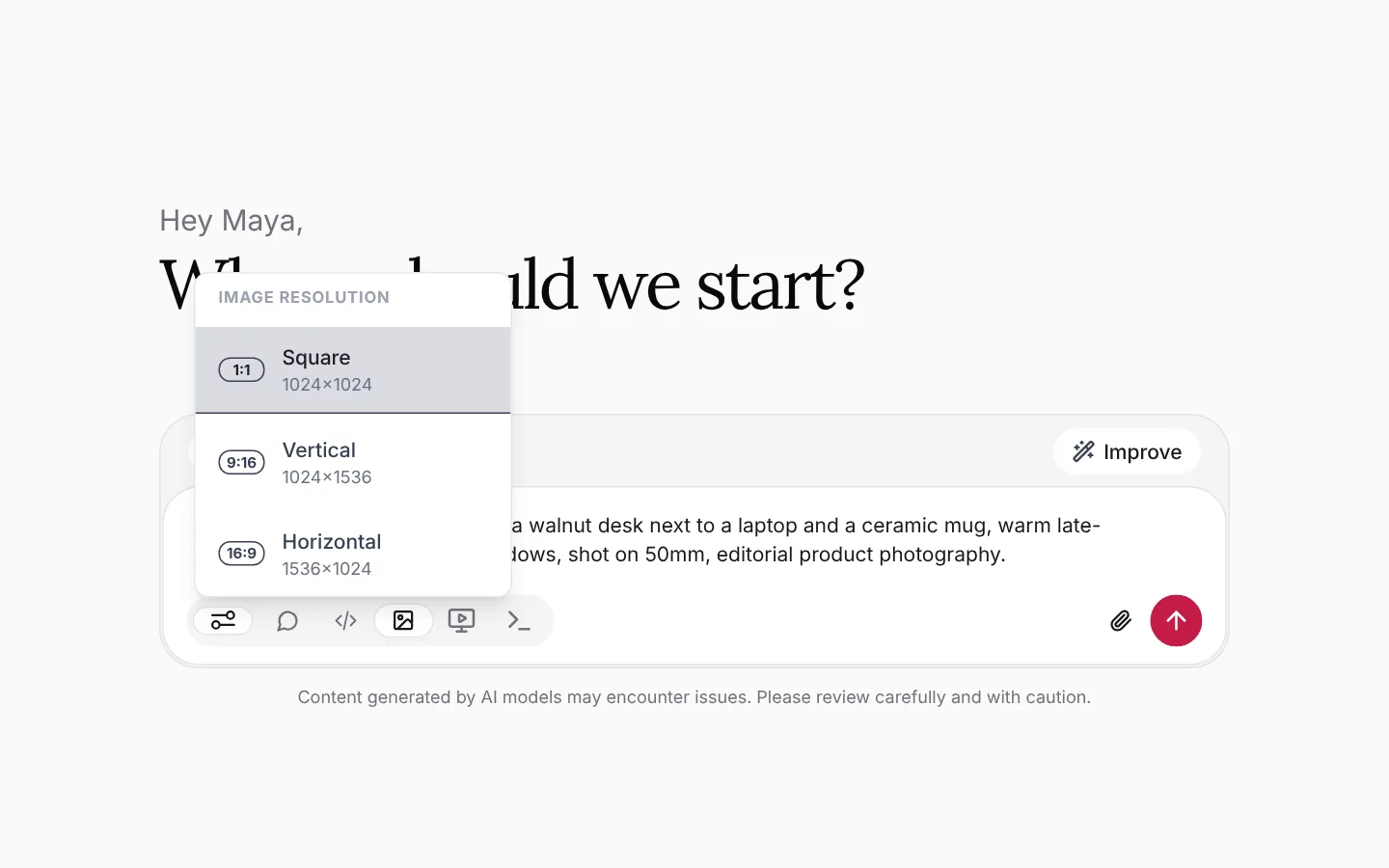
Choose Square (1024×1024), Vertical (1024×1536) or Horizontal (1536×1024) under Image resolution. Pick the shape for where the image will live — vertical for stories and phone screens, horizontal for banners and slides.
Step 4 — Generate and review
Send the message. While the image is being made you’ll see a progress card; the finished image appears in the chat, with the same actions underneath as any other reply — pin it to a board, give feedback, or fork the chat from there. If something went wrong, the card says so and offers Try again.
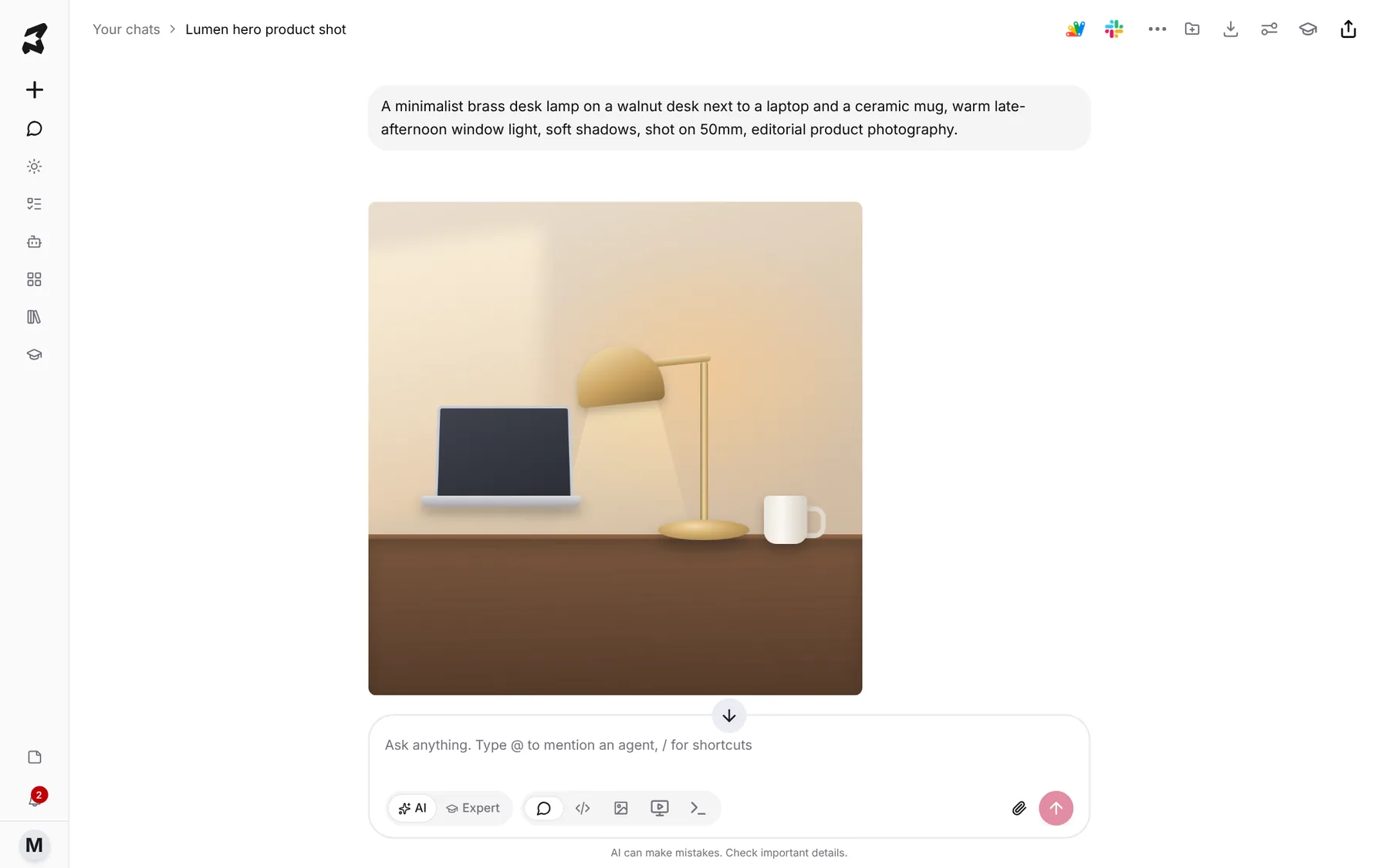
To change it, reply in plain language — “same shot, but in the evening with the lamp switched on”, “make the desk lighter oak”. Retry response under the image makes another take with the same model; to try a different model, send the prompt again with another image model chosen.
Step 5 — Make a video
Click the screen icon to switch to Video mode. The model button switches to a video model, and you can pick another from the same menu. Describe the motion as well as the scene: what moves, how the camera moves, and how long the clip is.
Slow push-in on a brass desk lamp as the light shifts from cool daylight
to warm amber at sunset, shallow depth of field, 6 seconds.
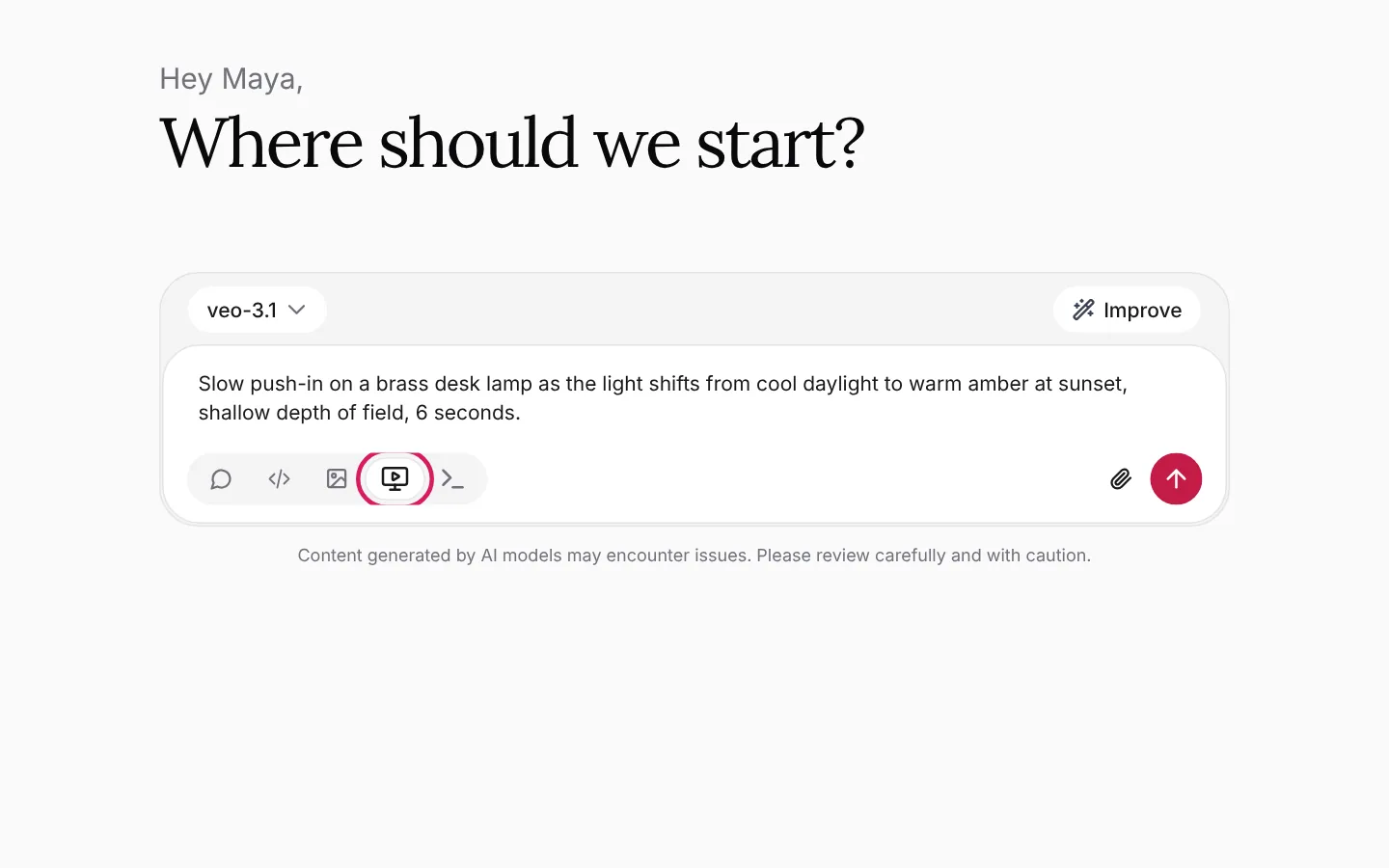
Videos take longer than images; you’ll see a “Rendering your video…” card while it works, and you can keep chatting in the meantime.
Try it yourself: worked examples
Example 1 — A launch-page hero image
Image mode, Horizontal:
Wide shot of a tidy home office at golden hour, a brass desk lamp
casting a warm pool of light on a walnut desk, plenty of empty space on
the left for a headline, photographic, calm.
Why it works: asking for empty space on one side gives you room for text when you place it on the page.
Example 2 — A set of social posts that match
Image mode, Square. Generate one image you like, then reply:
Make three more in exactly this style and lighting: the lamp on a
bedside table, on a kitchen counter, and on a drafting desk.
Why it works: building on an image you’ve already approved keeps the set consistent.
Example 3 — A short product loop
Video mode:
Top-down shot of a desk lamp turning on, the light warming from white
to amber, a hand placing a coffee mug in the pool of light, 5 seconds,
seamless loop.
Why it works: one clear action and a stated length give the model less room to wander.
Tips
- Start in Chat mode to brainstorm the idea, then switch to Image mode to make it — the on-brand images guide shows this in depth.
- Say what you don’t want (“no text”, “no people”) when it matters.
- Keep a prompt you like in a note or a skill so you can reuse it.
- Pin your best results to a board to keep a campaign’s visuals together.