Organize your work
Start your day with Today and to-dos
Read a short daily brief, see what your scheduled tasks found overnight, and keep your to-dos in one list with due dates.
The Rundown
Today is your starting point each morning. It gives you a short brief of what needs you, the latest results from your scheduled tasks, and your to-dos grouped by when they’re due. You can have the brief emailed to you each morning. To-dos is the full list: add items with due dates, check them off, and see which ones came from a chat or were added by a scheduled task.
Why it helps
- One screen tells you what’s overdue, what’s due today and what your automations found while you were away.
- The same summary shows on the new-chat page, so you see it before you start typing.
- The morning email gives you the brief before you open Axyen.
- To-dos that came from a chat link back to it, so you always have the context.
What you’ll need
- An Axyen account.
- Optional: one or more scheduled tasks (see the orchestration guide). Their results show up under Updates.
Step 1 — Glance at Today on the home page
Open a new chat. Under the message box you’ll see a Today section with your brief, Updates from your scheduled tasks, and Needs you (your overdue and due-today to-dos). Click Open on an update to jump to the chat where that task posted its result, or tick a to-do’s checkbox to mark it done.
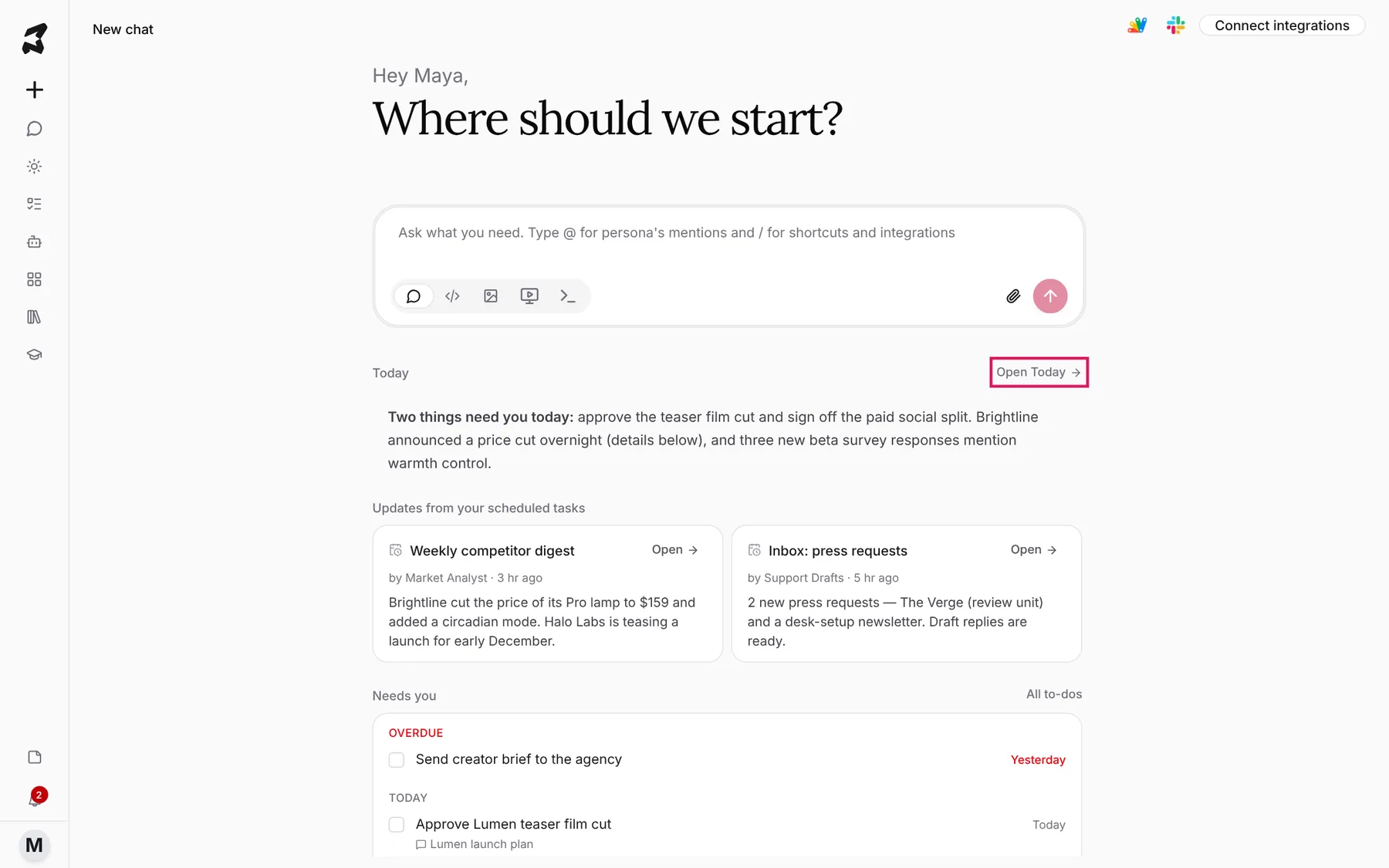
Click Open Today to see the full page.
Step 2 — Read your brief on the Today page
You can also open it from Today (the sun icon) in the sidebar. The page shows:
- The brief — a few sentences on what needs you today and what changed overnight.
- To-dos — overdue, due today and Coming up, with an Add a to-do for today box at the top.
- Updates — the latest result from each scheduled task, with how long ago it ran.
- Your activity — chats, messages, to-dos done and scheduled runs, plus a quote of the day.
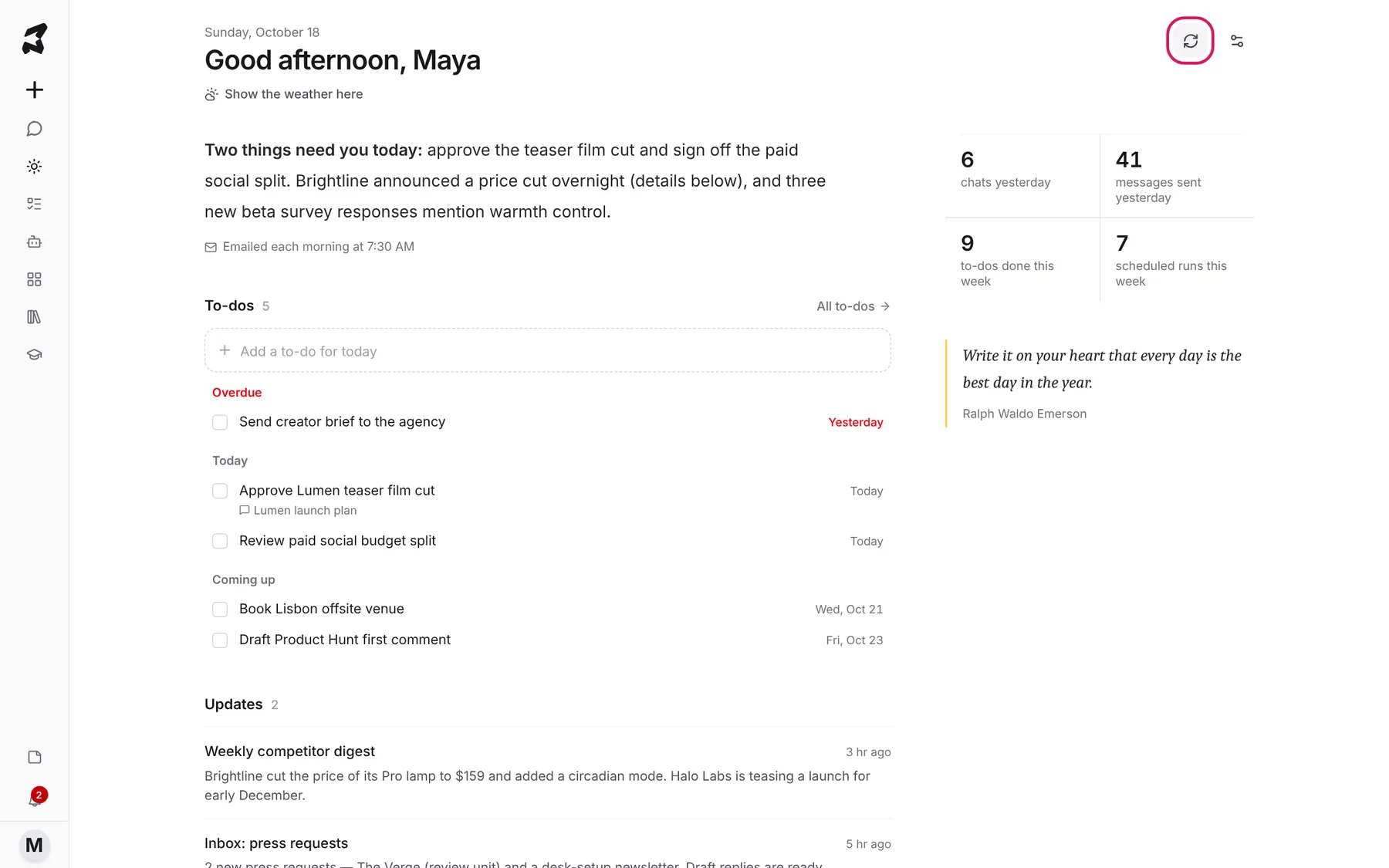
Click Refresh brief (the circular arrows at the top right) to rebuild the brief with the latest updates and to-dos. Click Show the weather here if you want local weather on the page. Your browser asks for your location first.
Step 3 — Get the brief by email each morning
Click Morning email settings (the sliders icon next to Refresh brief). Turn on Email me the brief each morning, choose the time under Send at, and check the Time zone. The brief goes to your account email.
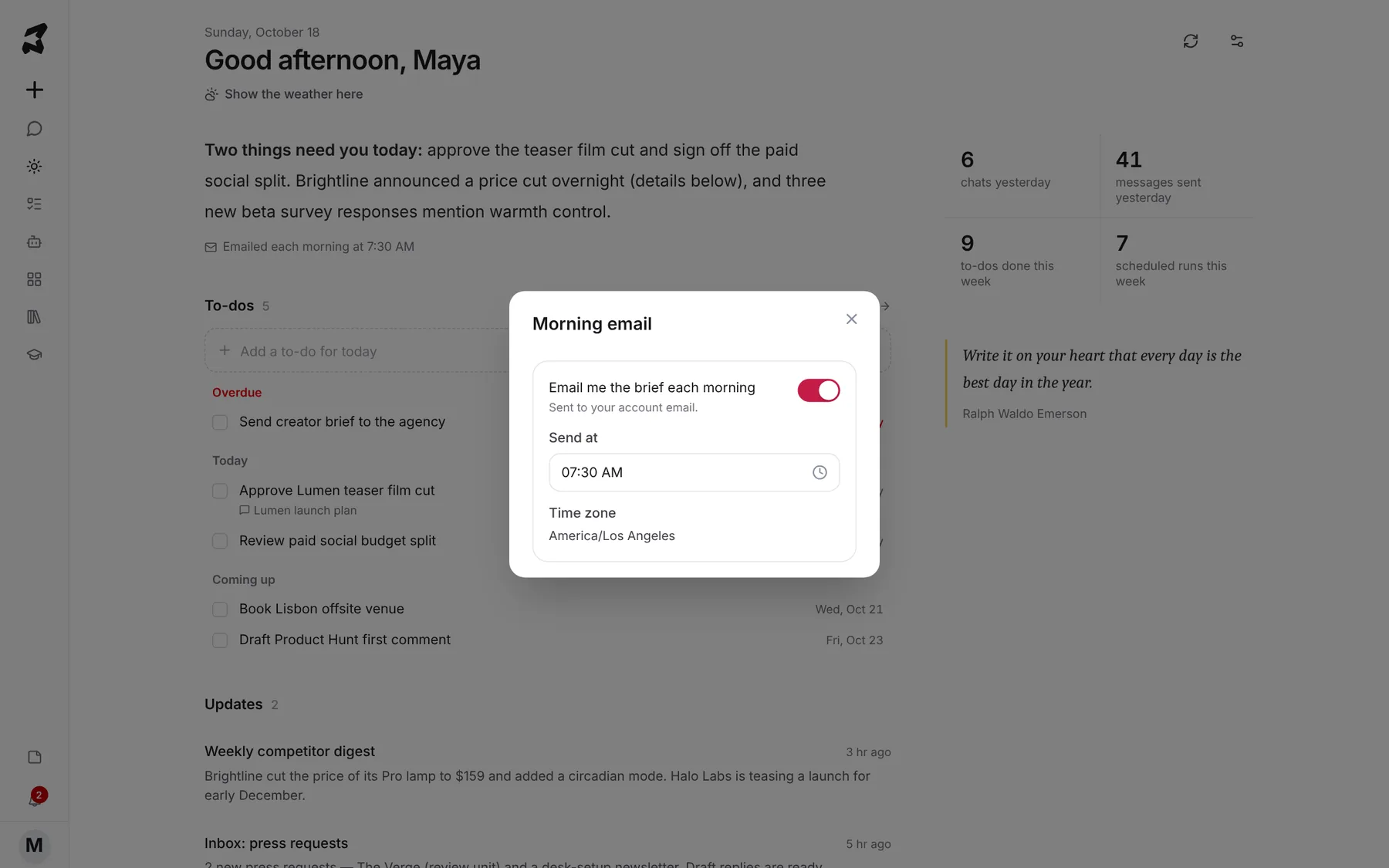
When it’s on, the page shows Emailed each morning at and the time under your brief.
Step 4 — Add a to-do with a due date
Click All to-dos on Today, or To-dos (the checklist icon) in the sidebar, to open To-dos. Type the to-do in the box at the top. To give it a date, click Due date and pick a day from the calendar. Then click Add.
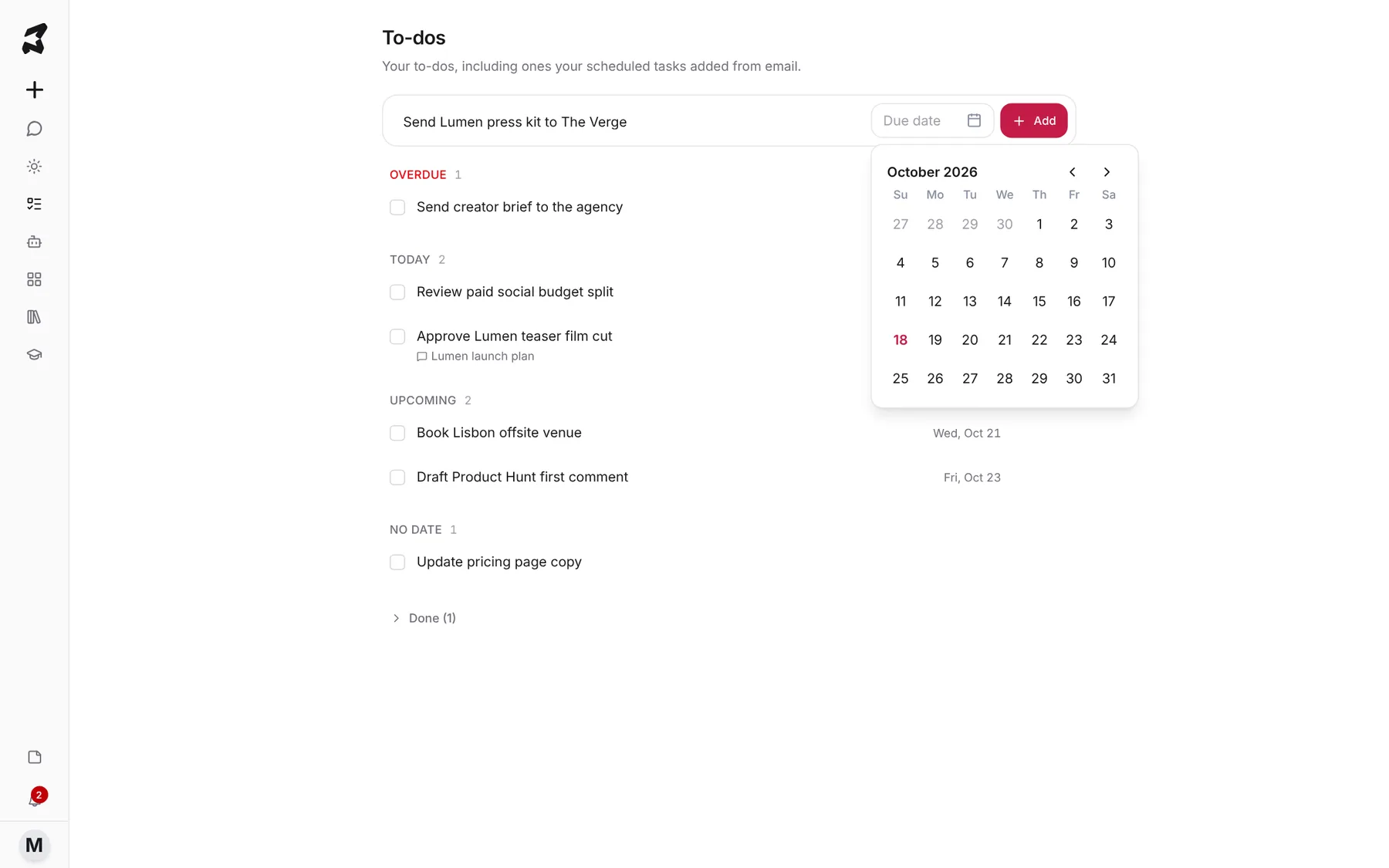
Send Lumen press kit to The Verge
Leave the date empty for to-dos with no deadline. They go under No date.
Step 5 — Work through your list
To-dos are grouped as Overdue, Today, Upcoming and No date, each with a count. Tick the checkbox to mark one done. Finished items move to Done, which you can expand to see what you’ve completed. Hover over a to-do to Edit or Delete it.
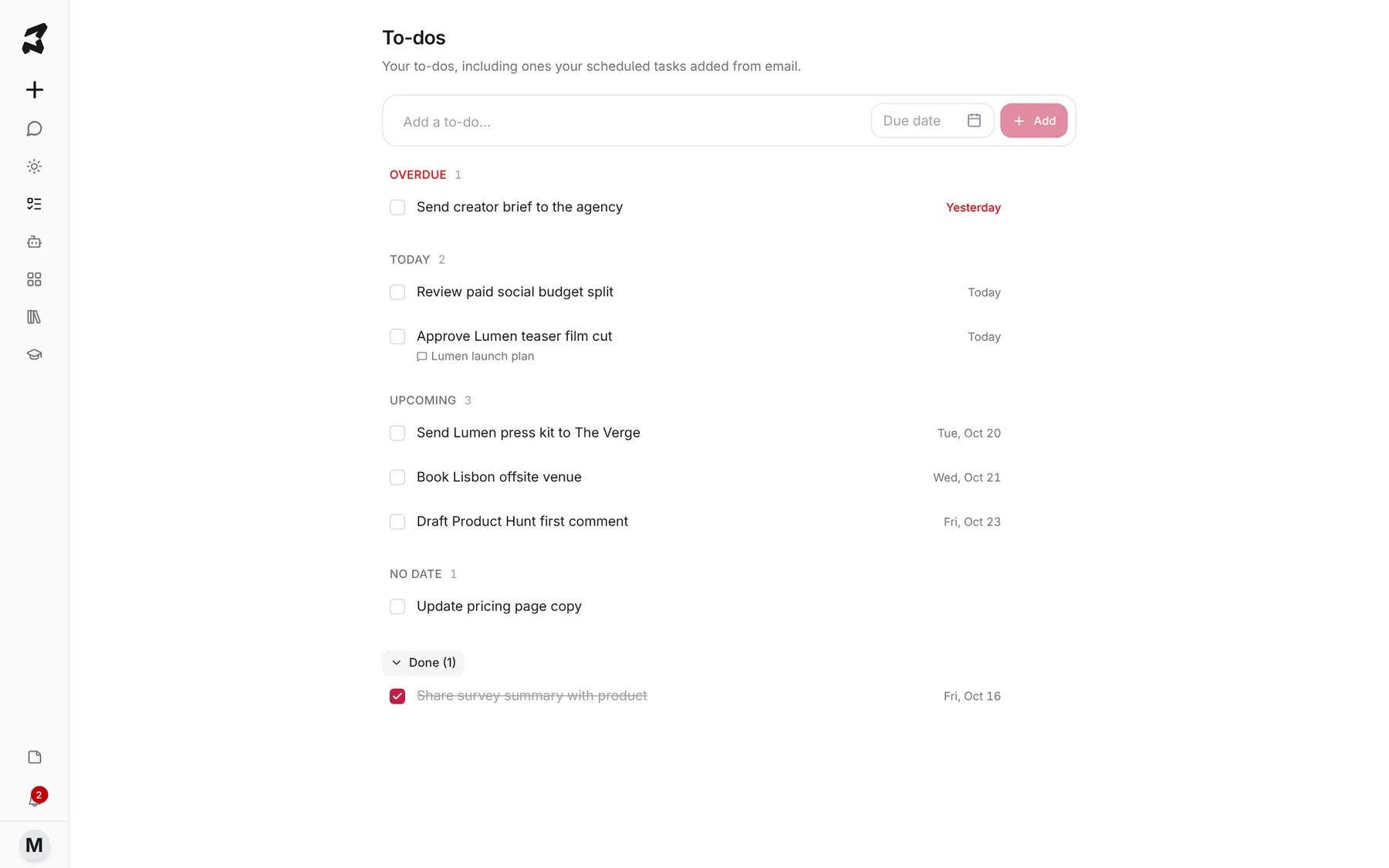
A to-do that came from a chat shows the chat’s name under it (for example Lumen launch plan). Click it to go back to that conversation.
Try it yourself: worked examples
Example 1 — Turn a plan into to-dos
In a chat where you’ve worked out a plan, ask for the next steps as a list, then add the ones that are yours on the To-dos page with due dates.
From this launch plan, list the five things I personally need to do
this week, each with a suggested due date.
Why it works: you get a short, dated list from a long plan, and the to-dos show up in Needs you on the day they’re due.
Example 2 — Let a scheduled task fill your list
Give an agent a scheduled task with Watch my email turned on (see the Agents guide) and tell it to add to-dos.
Every hour, check my inbox for press requests. Draft a reply for each
and add a to-do with the outlet's name and their deadline.
Why it works: the task adds to-dos for you, and its results appear under Updates on Today the next morning.
Example 3 — A Monday-morning check
Turn on the morning email, then on Monday open Today and click Refresh brief after your first meetings.
Why it works: the email gets you started before you open your laptop, and refreshing later picks up anything your scheduled tasks found since.
Tips
- Keep to-do titles short and start them with a verb (“Send…”, “Approve…”, “Book…”).
- Give anything with a real deadline a Due date, so it moves to Overdue if it slips instead of disappearing into the list.
- Check Updates before you start a chat. Your scheduled tasks may already have done the research you were about to ask for.