Use cases
Turn your data files into a strategy report
Attach a performance export and your creative files to a chat, get back a ranked analysis with charts and pause, adjust or scale calls, then export it as a PDF or Word report.
The Rundown
In this guide you’ll turn a raw performance export into a short strategy report. You attach a CSV or Excel file and a few creative images to a chat, ask for a specific analysis, and get back a ranking table, a bar chart, the patterns behind your best performers, and a pause, adjust or scale call for each campaign. Then you refine it with follow-ups and export it as a PDF or Word file. The example is Maya at Northwind Studio, reviewing October’s paid social campaigns on Meta and TikTok for Lumen, the smart desk lamp launching November 18.
Why this matters
Most performance reviews start the same way: someone exports a CSV, stares at it for twenty minutes, then spends the afternoon building tables and charts to explain it. Axyen can do that first pass in one well-scoped request, but only if you give it the right data and ask for the right thing.
- A focused file and a specific prompt give you a faster, cheaper and more accurate answer than every file you have.
- Asking for a ranking by the metric that matters (ROAS, engagement rate) turns a summary into decisions.
- Follow-ups change the cut in seconds instead of rebuilding a spreadsheet.
- The export gives you a document with real tables that you can edit before you download it.
What you’ll need
- An Axyen account.
- A data file: a CSV or XLSX export from your ad platform, analytics tool or social scheduler. A campaign-level or daily rollup works better than an event-level dump.
- Optional: creative files (ad images, post screenshots, video thumbnails), named to match an ID column in your data.
- A clear question: what you’re comparing, which metric decides the ranking, and what kind of recommendation you want.
Step 1 — Choose the right data, then attach it
This is the step people skip, and it matters most. Before you attach anything, decide what the question needs:
- Scope to the period and campaigns you care about. A full year of data when you’re reviewing last month adds noise and cost.
- Drop columns that don’t inform the decision. Internal IDs, raw timestamps and fields unrelated to performance can usually go.
- Use a rollup, not a raw dump. A 50,000-row export of every click is rarely what you need. A campaign-level or daily summary tells the same story with far less to read.
- Name creative files after an ID in your data. If your CSV has a
creative_idcolumn with the valuett_4pm_slump_hook, name the imagett_4pm_slump_hook.jpg. Then you can ask Axyen to match each image to its row instead of hoping it guesses.
Maya’s file, lumen_paid_social_oct.csv, has one row per campaign: creative_id, platform, campaign, spend, impressions, clicks, conversions (pre-orders) and revenue. Her four creative images are named after their creative_id.
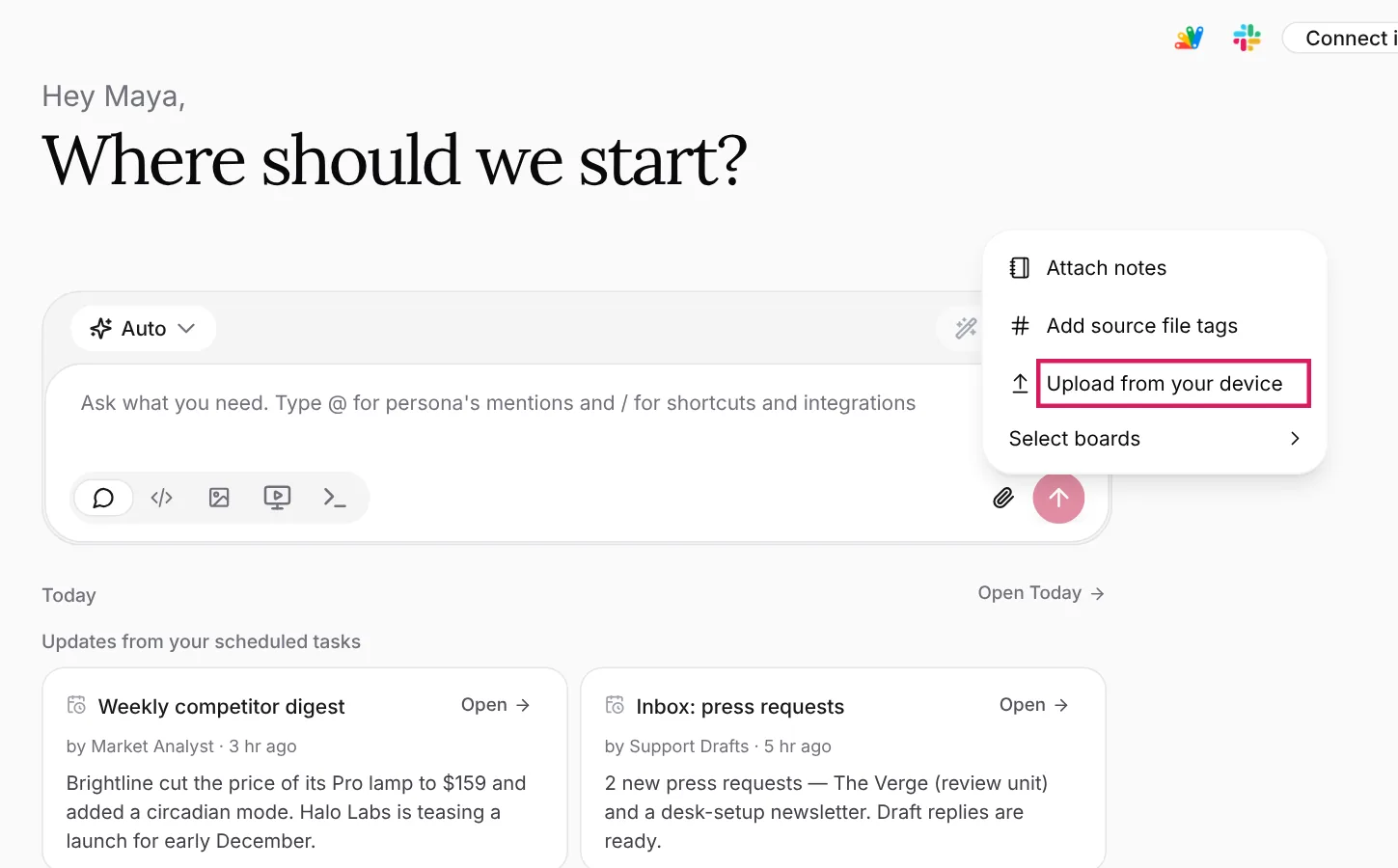
Start a new chat in Chat mode. Click the paperclip (Attachment options) and choose Upload from your device. Select the CSV (or XLSX) and the images together.
Step 2 — Write a specific prompt
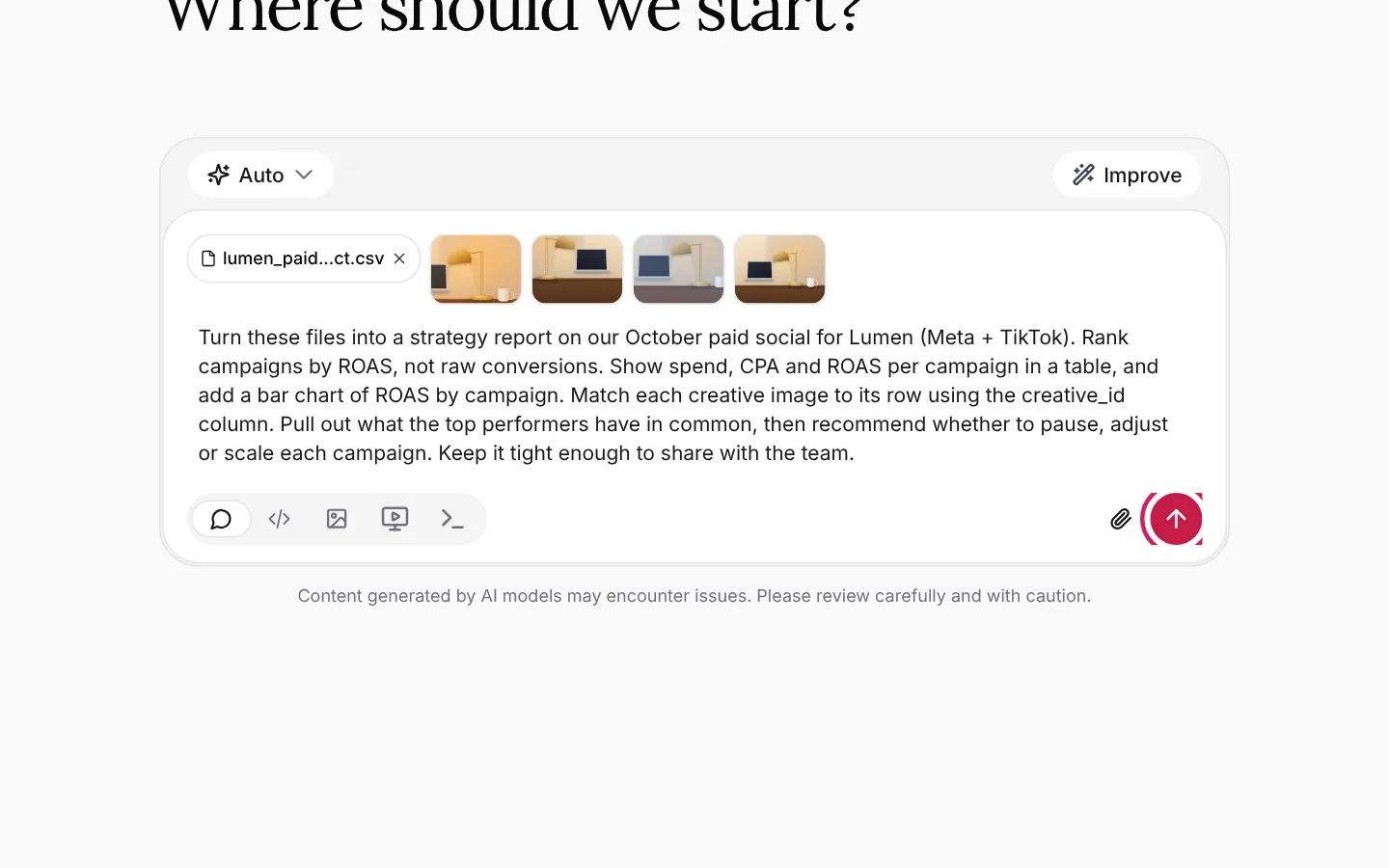
The file appears as a chip and each image as a thumbnail above the message box. Click the × on the file chip to remove a file you attached by mistake.
Vague prompts get generic summaries. Tell Axyen what to compare, which metric decides the ranking, which tables and charts you want, how to match the images, and what kind of recommendation you need:
Turn these files into a strategy report on our October paid social for Lumen (Meta + TikTok). Rank campaigns by ROAS, not raw conversions. Show spend, CPA and ROAS per campaign in a table, and add a bar chart of ROAS by campaign. Match each creative image to its row using the creative_id column. Pull out what the top performers have in common, then recommend whether to pause, adjust or scale each campaign. Keep it tight enough to share with the team.
Press send.
Step 3 — Check the ranking against what you know
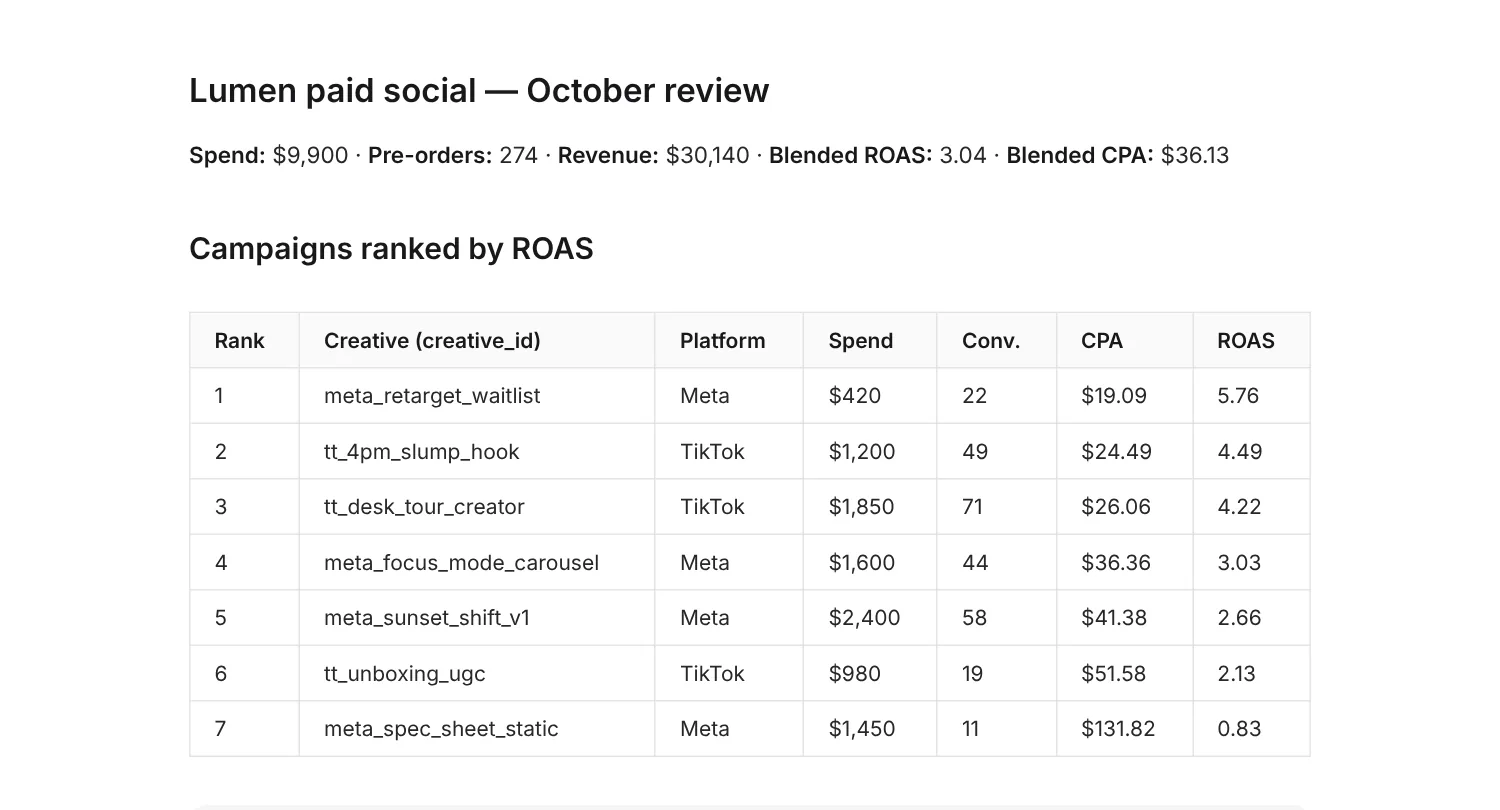
The reply opens with the totals and a table ranking every campaign by the metric you asked for. Treat it as a first draft. Check two or three numbers against your export before you trust the rest. If a total looks off, ask Axyen how it calculated it.
Look for rows that rank high for the wrong reason. Here, waitlist retargeting tops the table, but on only $420 of spend.
Step 4 — Read the chart
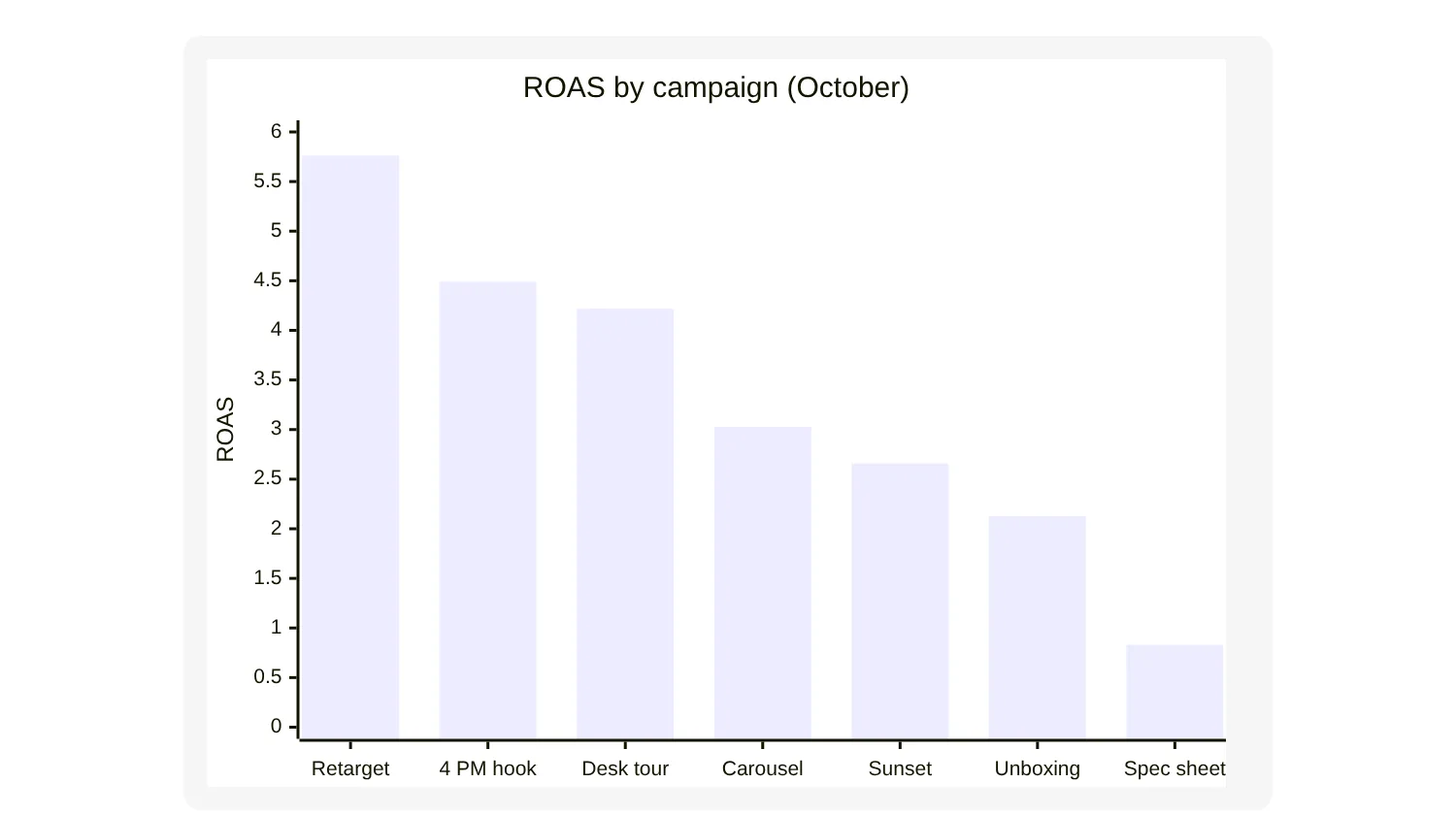
When you ask for a chart, Axyen draws it right in the reply. Chat replies can show bar and line charts, pie charts and quadrant charts. The chart appears once the reply has finished. While the answer is still streaming you’ll only see the text around it.
Name the chart you want in the prompt (“a bar chart of ROAS by campaign”, “a line chart of engagement rate by week”). If you leave it open, you may get a different chart than you expected, or none.
Step 5 — Turn the findings into decisions
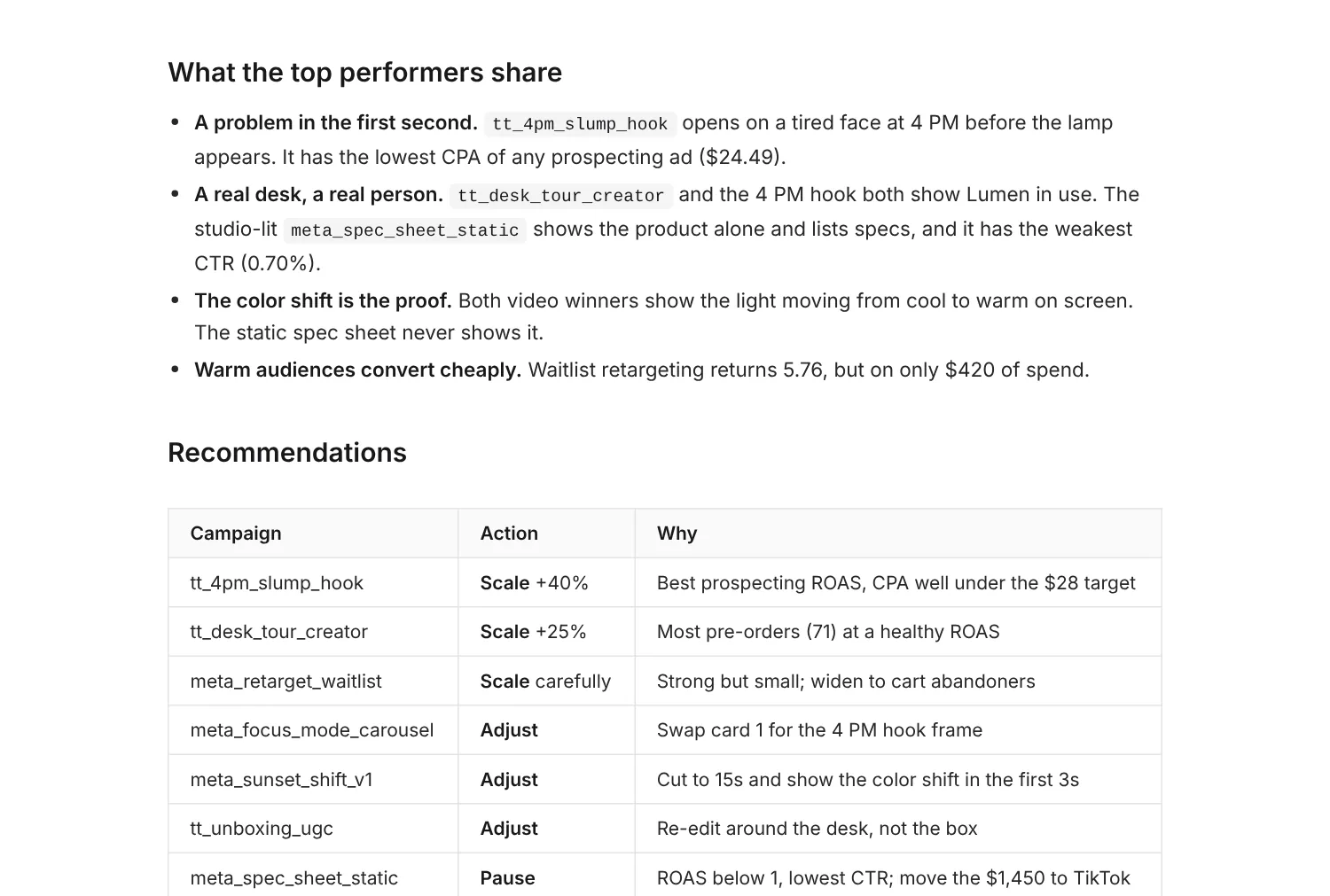
Below the chart, the reply lists what the best performers have in common and gives each campaign an action. Because the images were named after creative_id, the reply can talk about specific creatives: the two TikTok winners show a real person at a real desk, and the static spec sheet doesn’t.
Read each recommendation with what you know that the data doesn’t: budget limits, creative already in production, a test that just started. The table is a starting point for that conversation.
To keep the key findings where your team can find them, click Pin message under the reply and choose a board, for example Lumen launch.
Step 6 — Refine with follow-ups
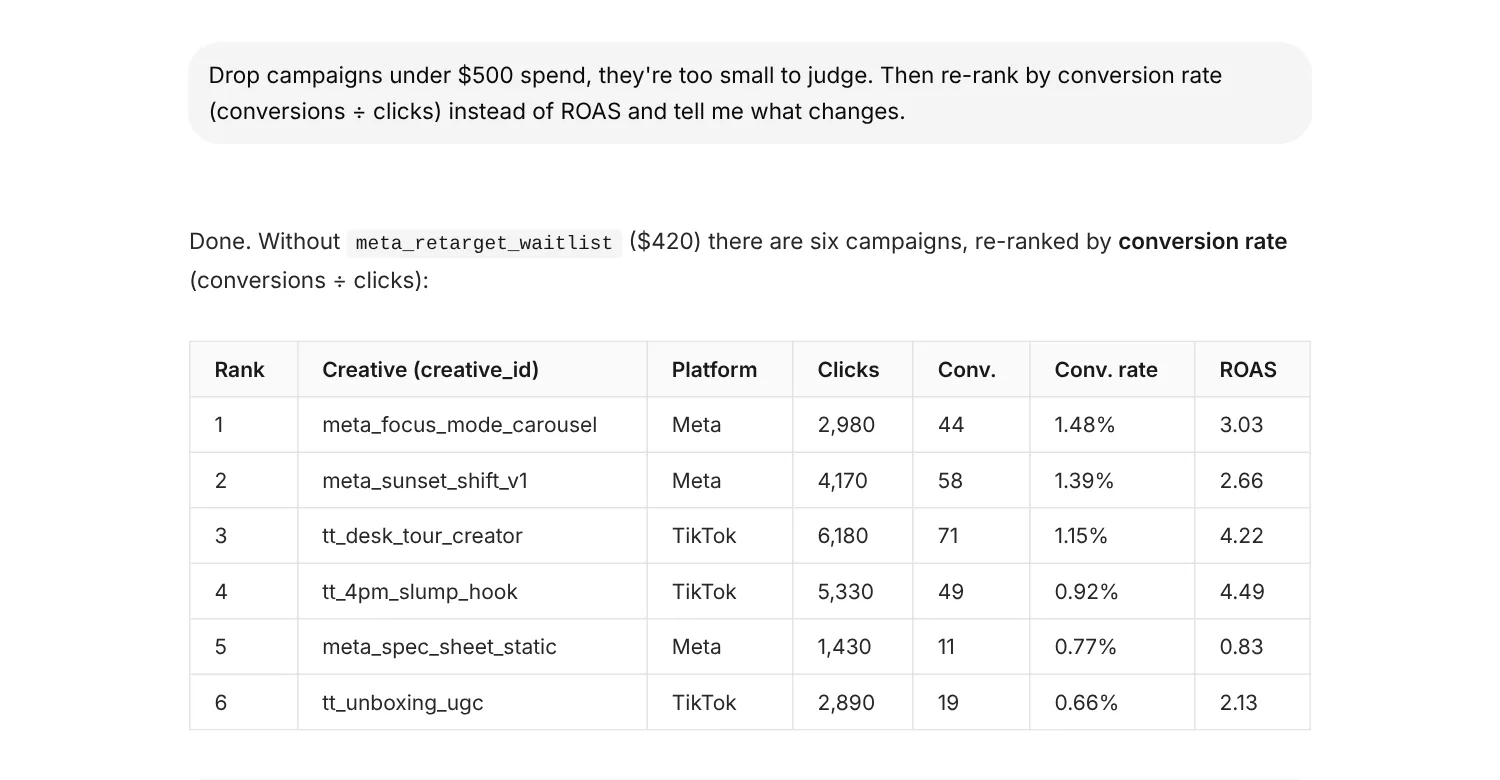
If you want a different cut, ask for it in the same chat. Axyen keeps the files and the earlier answer in context, so you don’t need to start over:
Drop campaigns under $500 spend, they're too small to judge. Then re-rank by conversion rate (conversions ÷ clicks) instead of ROAS and tell me what changes.
Other useful follow-ups:
- “Add a column for CTR and sort by it.”
- “Compare Meta and TikTok in one table: spend, CPA and ROAS per platform.”
- “Shorten the best practices to three bullets.”
Step 7 — Export the analysis to a file
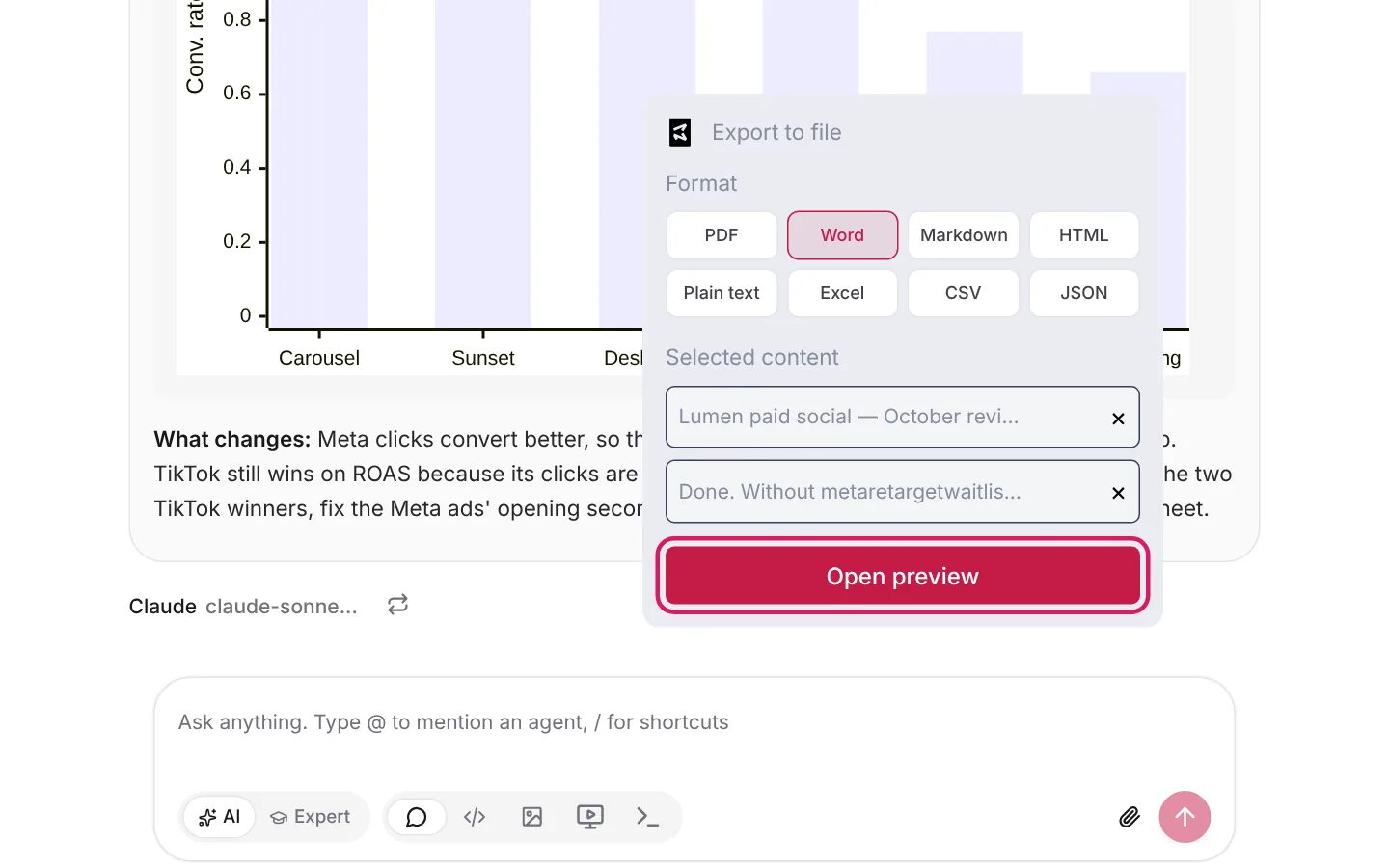
When the answer looks right, turn it into a report. To include more than one reply, click Select response under each reply you want first. Then click Extract to file under the last one.
In Export to file, pick a Format. PDF and Word suit a report. Excel and CSV export the tables. Check the replies under Selected content (click × to remove one), then click Open preview.
Step 8 — Edit the preview and download
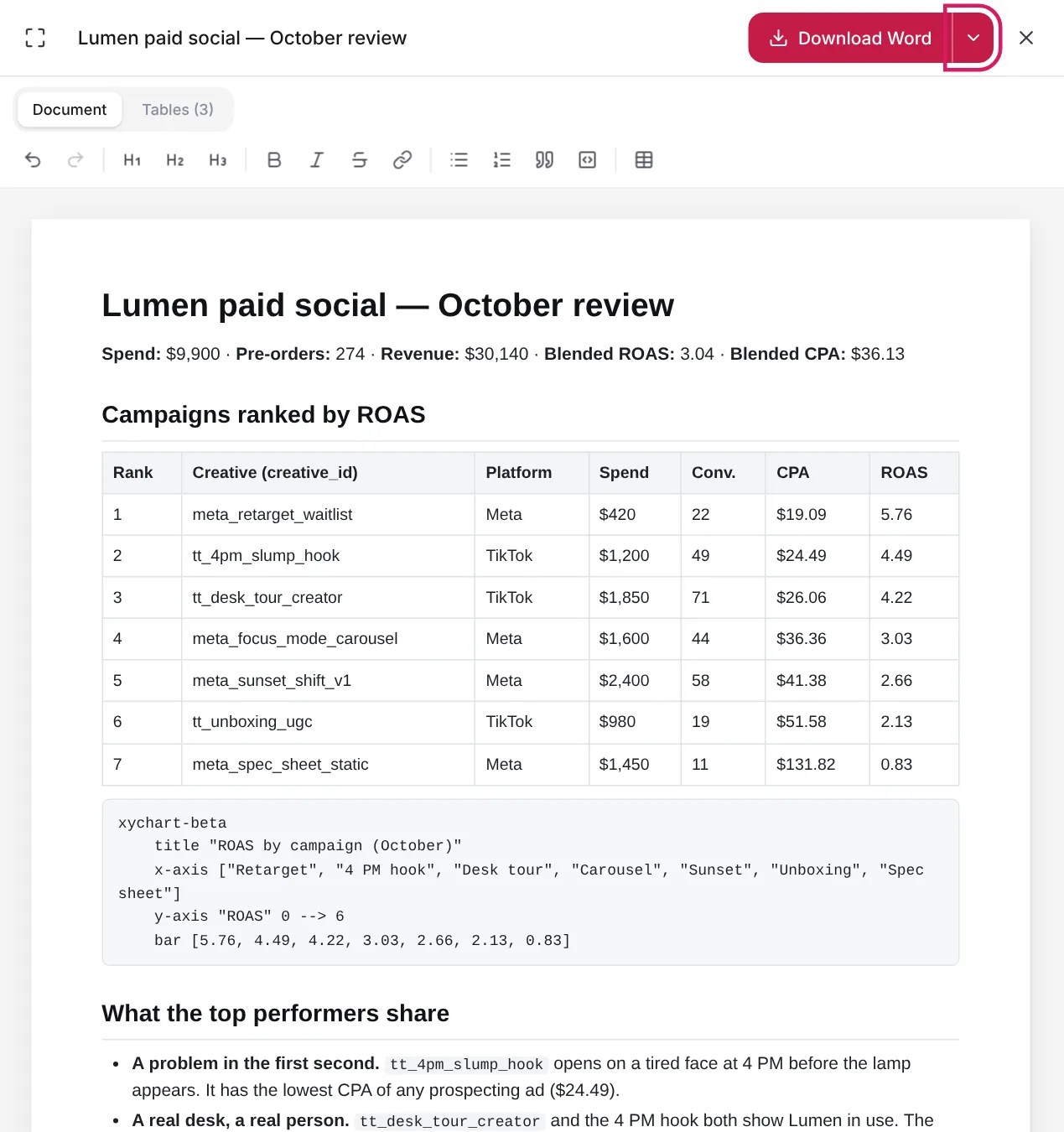
The preview opens beside the chat as an editable page, laid out the way the file will look. Click the title to rename the file. Use the toolbar to change headings, lists and tables, or type straight into the page. Tables (3) shows every table on its own.
Charts are drawn in the chat, so in the preview a chart can show up as a block of chart code, like the one under the table here. Delete it if you don’t want it in the file. Then click Download Word (or Download PDF), or use the arrow next to it (Download as) to pick another format.
Give the report a final read for tone and accuracy before it goes to anyone else. Axyen does the heavy lifting, but the report goes out under your name.
Try it yourself: worked examples
The prompt from Step 2 works as a general template. It gets better when you tailor it to the kind of performance you’re reviewing.
Example 1 — Ad performance by campaign and creative
What to attach: your ad platform’s export (spend, impressions, clicks, conversions, revenue) and the ad creative images or video thumbnails, named to match your campaign or ad ID.
Modified prompt
Analyze ad performance by campaign and by individual creative. Rank campaigns by ROAS in a table with spend, CPA and ROAS, and add bar charts of ROAS by campaign and CTR by creative. Match each creative image to its row using the filename. Tell me what's different about the creative, copy or targeting of the top performers. Flag underperforming campaigns and recommend whether to pause, adjust or scale each one.
Why the change: For ads you usually want the comparison at two levels, campaign and creative, with a spend-efficiency metric (ROAS) driving the ranking instead of raw conversions. Asking for pause, adjust or scale turns the summary into something you can act on.
Example 2 — LinkedIn post performance
What to attach: an export of post-level metrics (impressions, reactions, comments, shares, clicks) and screenshots of the posts, named to match a post ID or date.
Modified prompt
Analyze our LinkedIn post performance by post. Rank posts by engagement rate, not raw impressions, in a table. Add a line chart of engagement rate by week. Match each post screenshot to its row using the filename. Tell me which format, topic, hook or posting time shows up most often among the top performers, and recommend 3–4 concrete changes to our posting plan.
Why the change: Impressions on LinkedIn mostly follow follower count and reach, so they’re a misleading way to rank posts. Engagement rate shows what’s resonating. Naming format, topic, hook and timing steers the analysis toward patterns you can repeat.
The pattern to reuse
Both examples follow the same shape as the Step 2 prompt. They get more specific about three things: what to compare (campaign vs. creative, post vs. post), which metric drives the ranking (ROAS, engagement rate, not just volume), and what kind of recommendation you want (pause, adjust or scale, or concrete strategy changes). Start from the base prompt, tighten those three, name the table and chart you want, and export the result once it holds up to your own check.