Agents & automation
Save repeatable prompts as skills
Turn a prompt you keep rewriting into a skill with fill-in variables, then run it from the Skills page or by typing / in any chat.
The Rundown
A skill is a saved prompt with blanks to fill in. You write the instructions once, mark the parts that change each time as {{variables}}, and Axyen asks for those values whenever you run it. You can run a skill from the Skills page with Run in chat, or from any chat by typing / and choosing Skills.
Why it helps
- You stop rewriting the same long prompt and forgetting half of it.
- Each run asks for the same inputs, so results are consistent from one week to the next.
- Team skills give everyone the same proven prompt instead of their own copy.
- Agents can carry skills with them (see the Agents guide).
What you’ll need
- An Axyen account.
- A prompt you use often, with the parts that change each time clear in your head (product, audience, deadline…).
Step 1 — Open your skills
Go to Library in the sidebar and choose the Skills tab. Your skills lists the skills you’ve made or that your team shares. The table shows who can use each one (Access), how many Inputs it asks for, and how many Runs it has had. Switch to System to see the built-in skills that come with Axyen.
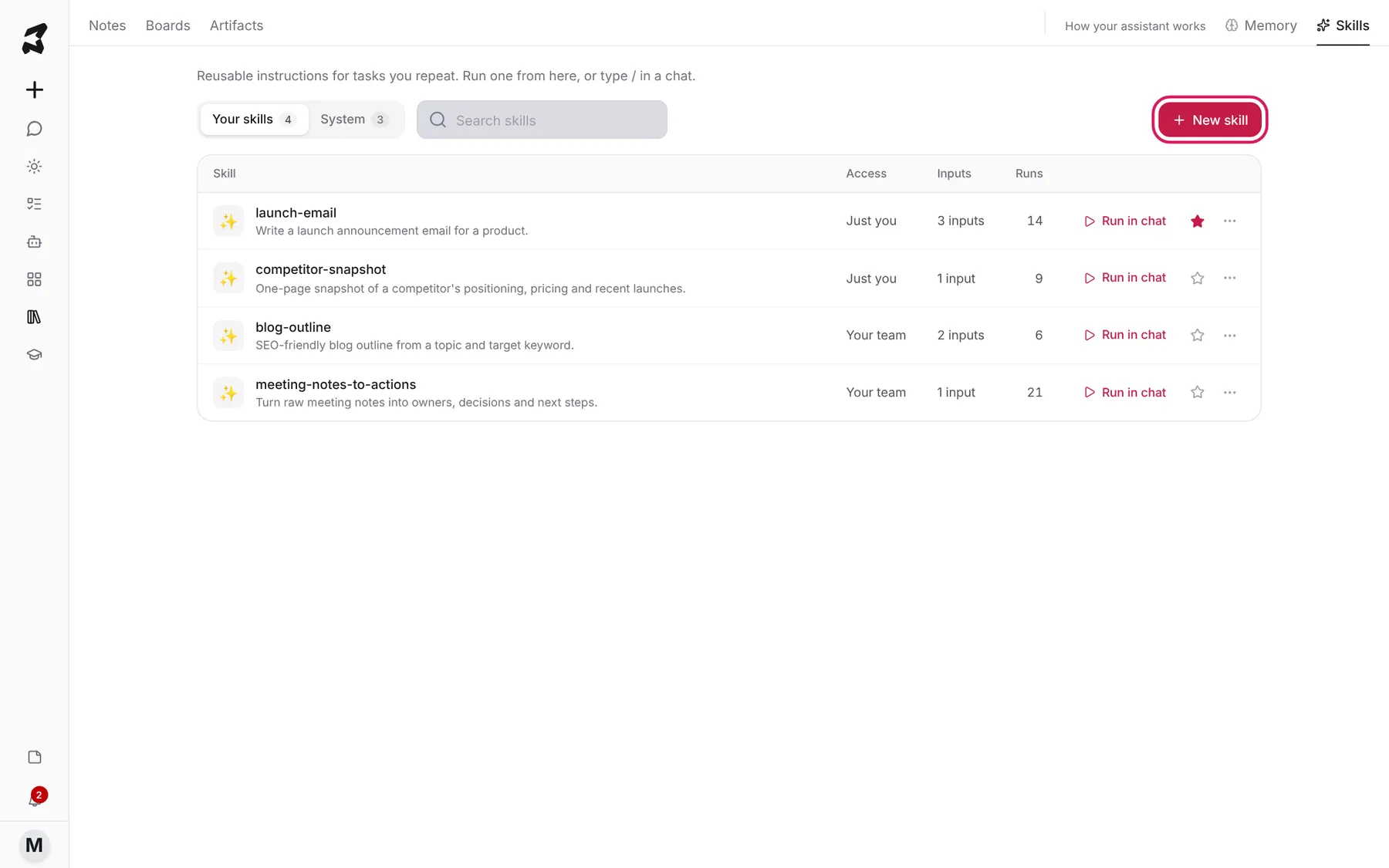
Each row has a Run in chat button and a star to favorite it.
Step 2 — Use the skill options menu
Click ⋯ at the end of a row to open the skill options. You can Run in chat, Favorite or Unfavorite, Duplicate, Edit or Delete it.
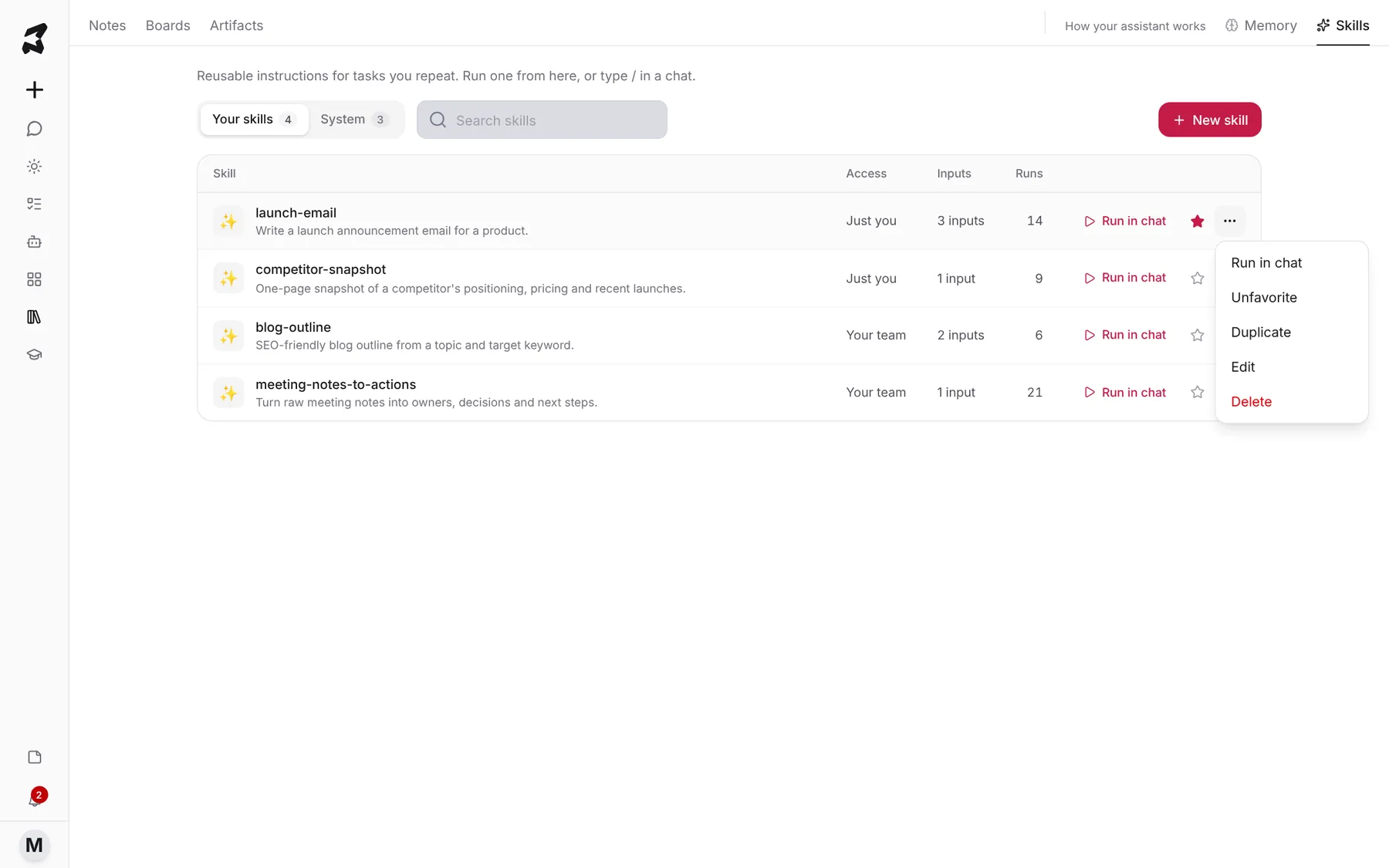
Duplicate is the quickest way to make a system skill your own: duplicate it, then edit the copy.
Step 3 — Create a skill by hand
Click New skill. Under Skill source you can Upload a Markdown file (or import one from GitHub), or choose Manual to write the skill in the form. Switching source clears the form, so pick one before you start typing.
With Manual selected, fill in:
- Skill name — short and hyphenated, like a command. This is what you’ll see after /.
- Description — one line on what it does.
- Icon — click Generate icon if you want one.
- Category — where it’s grouped.
- Skill visibility — Private user skill (just you) or Team skill (everyone on your team).
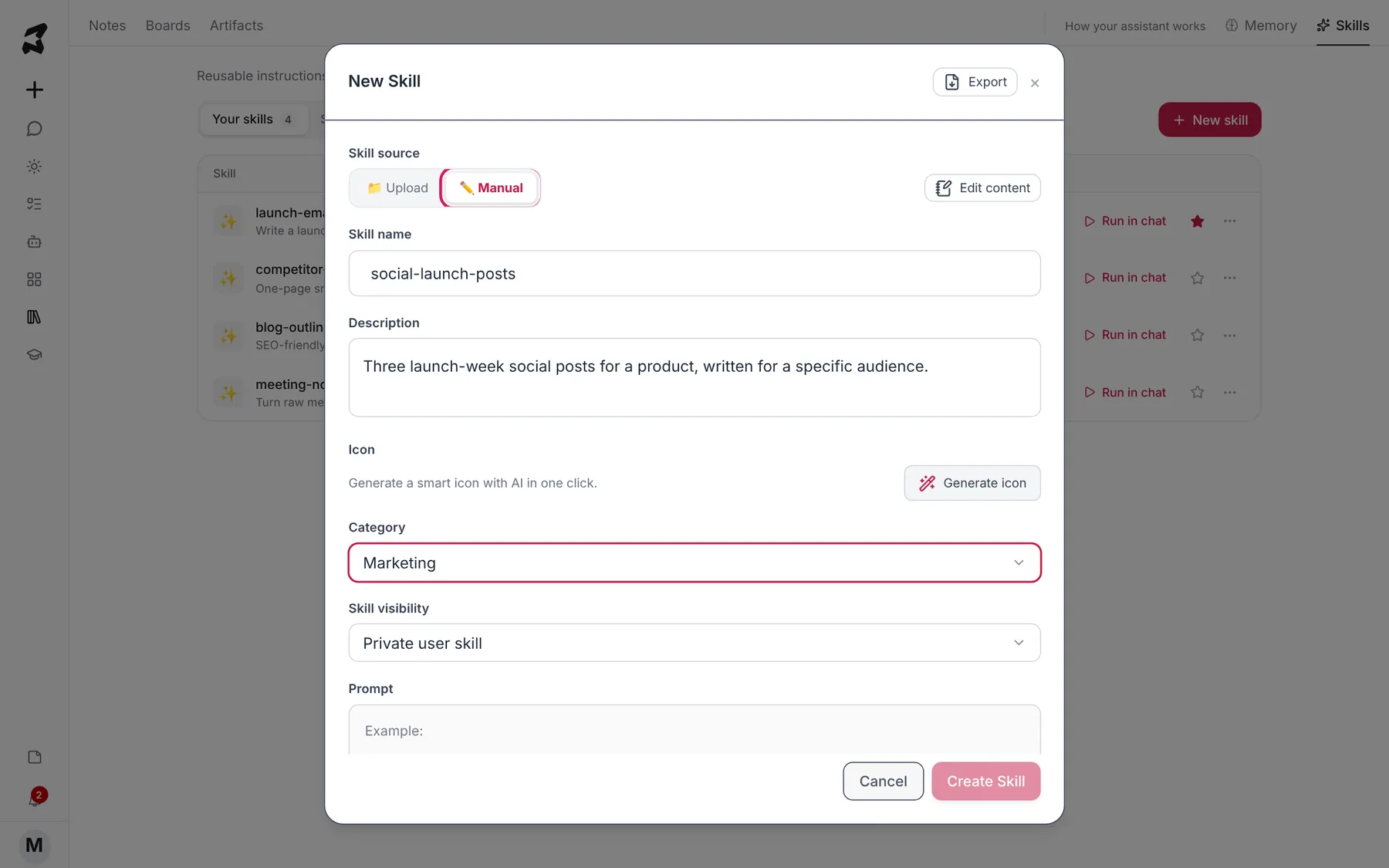
Skill name: social-launch-posts
Description: Three launch-week social posts for a product, written for a specific audience.
Step 4 — Write the prompt and add variables
In Prompt, write the instructions. Wrap anything that should change each run in double curly braces, like {{product}}.
Write three social posts announcing {{product}} for {{audience}} on {{platform}}.

Post 1 teases the problem, post 2 reveals the product, post 3 gives the offer.
Keep each under 40 words. Warm, plain-spoken, no exclamation marks.
Then click Suggest Variables. Axyen reads the prompt and proposes each variable with a type, a short description, an example placeholder, and whether it’s required. Click Apply on the ones you want, or Apply All. You can also add one yourself with + Add Variable.
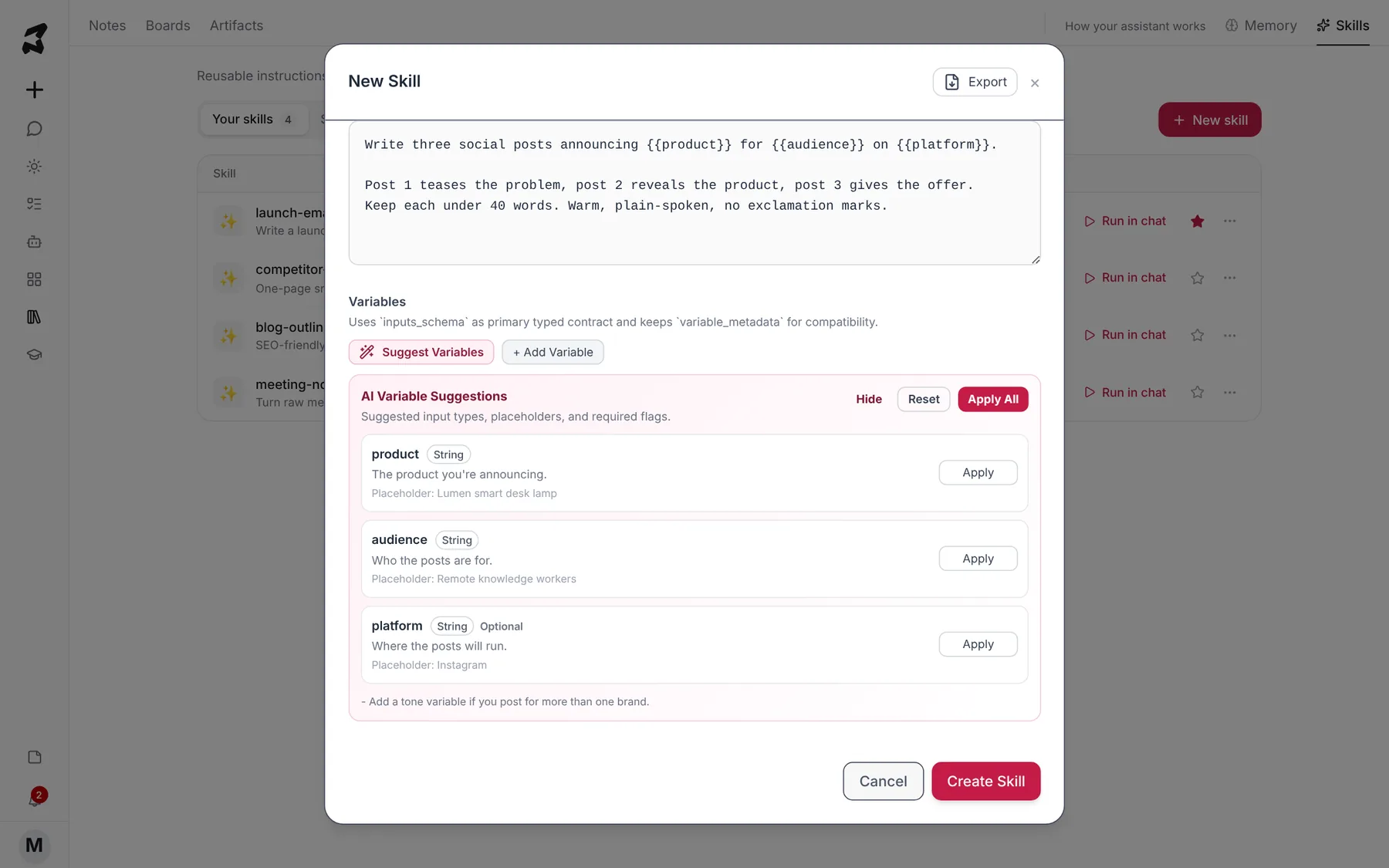
Click Create Skill to save it.
Step 5 — Run a skill from any chat
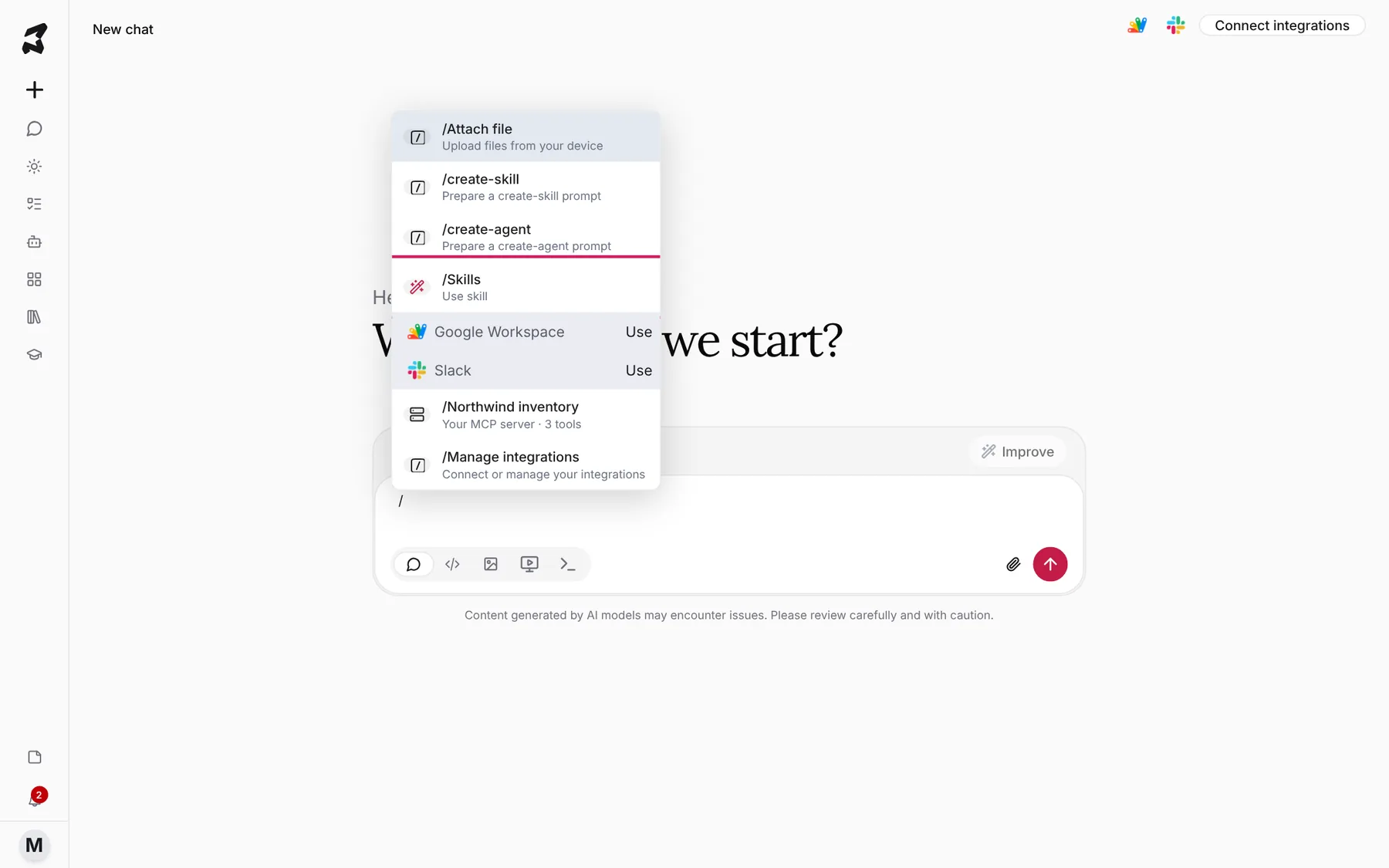
In the chat box, type /. A shortcut menu opens. Choose /Skills.
A Search Skills list appears with your recommended skills at the top. Type to filter, or click View all Skills to see everything.
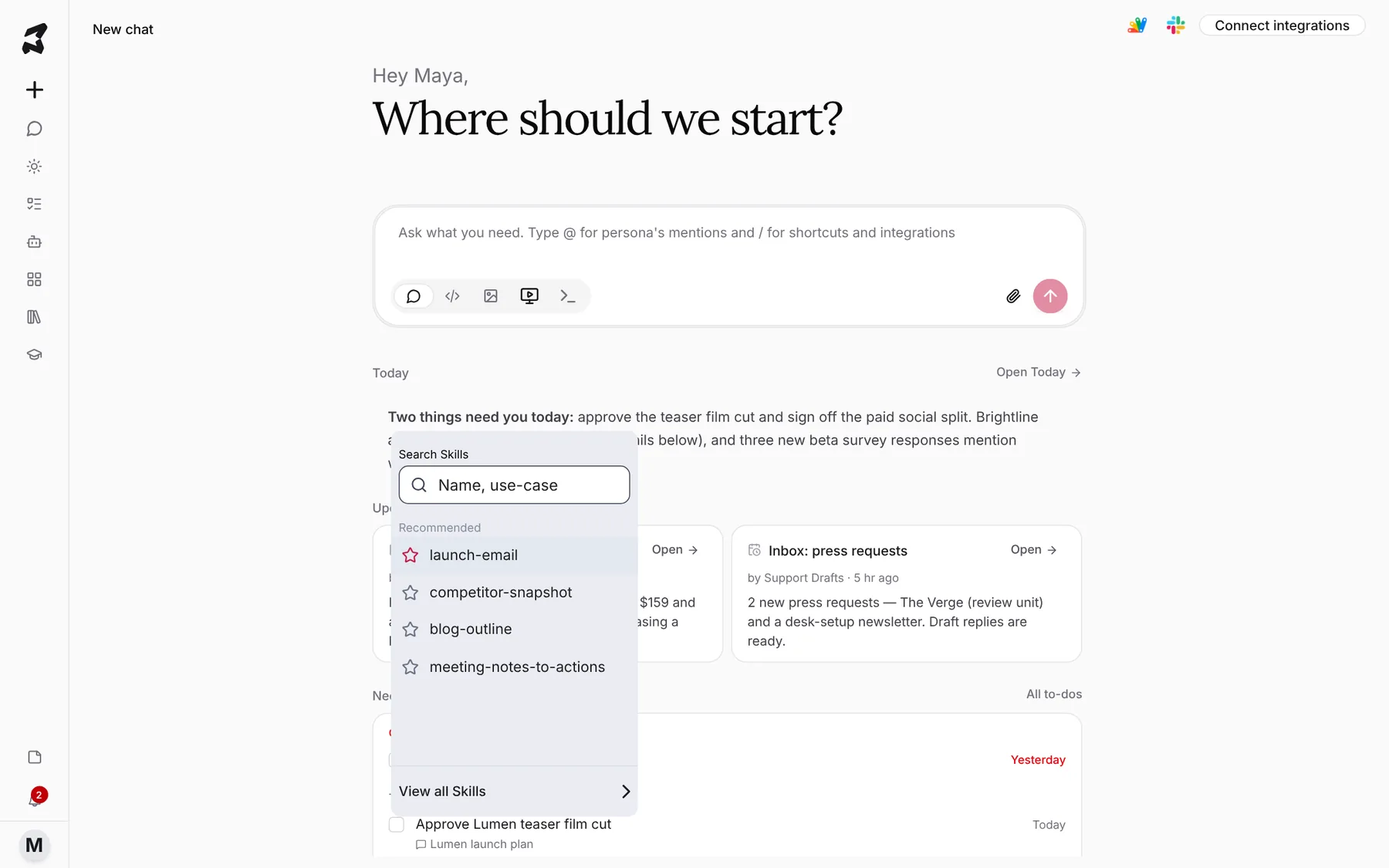
You can also start from the Skills page: Run in chat opens a new chat with that skill already picked.
Step 6 — Fill in the variables and send
If the skill has variables, a card opens with the heading Let’s use /skill-name. The Variables row shows each input and how many you’ve filled. Type a value, or click one of the Suggestions for this field. Use Next field to move on, or Fill all with suggestions to fill everything at once.
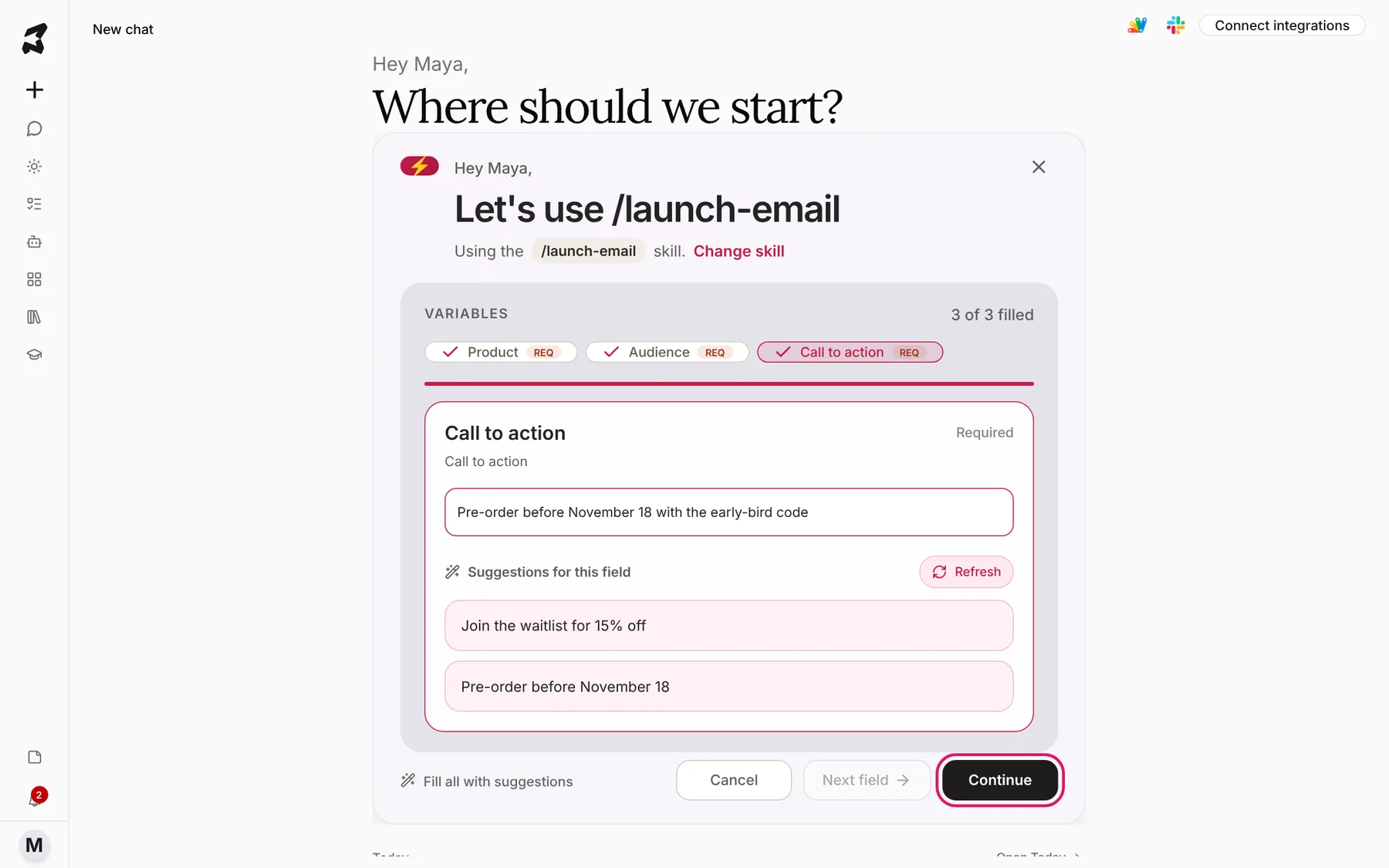
When every required field is filled, click Continue. Axyen sends the skill with your values, and the reply comes back in the chat. Not the right skill? Click Change skill at the top of the card.
Try it yourself: worked examples
Example 1 — A weekly competitor snapshot
Prompt:
Research {{competitor}} and give me a one-page snapshot: positioning,
pricing, last three launches, and one weakness we can exploit.
Why it works: a single variable makes this fast to run every Monday, and the fixed structure means you can compare snapshots week to week.
Example 2 — Meeting notes to action items (team skill)
Prompt:
From these notes, list decisions, then action items with an owner and
a due date for each. Flag anything without an owner.

Notes:
{{notes}}
Why it works: set Skill visibility to Team skill and everyone’s recap follows the same format, which makes them easy to scan.
Example 3 — A launch email in your voice
Prompt:
Write a launch email for {{product}} aimed at {{audience}}. Lead with
the main benefit, keep it under 150 words, end with one clear call to
action: {{cta}}.
Why it works: the rules (length, structure, one call to action) stay fixed, and only the facts change each time.
Tips
- Name skills like commands (
launch-email, not “My launch email prompt”). You’ll be typing them after /. - Keep rules in the prompt and facts in variables. If you find yourself editing the prompt every run, that part should be a variable.
- Use Suggest Variables after you write the prompt. It catches placeholders you forgot to define.
- Star the skills you use most so they’re easy to find.