Build & share
Share chats and work together
Share a chat publicly or with specific people, let them continue it, fork a chat to try another direction, and keep track of every link you've shared.
The Rundown
Any chat can be shared with a link. Make it Private to invite specific people by email as editors or viewers, or Public so anyone with the link can read it. You decide whether people can pick the conversation up and keep going. This guide also covers forking a chat, downloading it, filing it in a project, and managing all your shared links from Settings.
Why it helps
Instead of pasting an AI answer into a doc or a message, you send the conversation itself, with the prompt and context that produced it. Teammates can continue from where you stopped without re-explaining anything, and you can turn access off later from one place.
What you’ll need
- A chat worth sharing
- The email addresses of the people you want to invite (for private sharing)
Step 1 — Open the share dialog
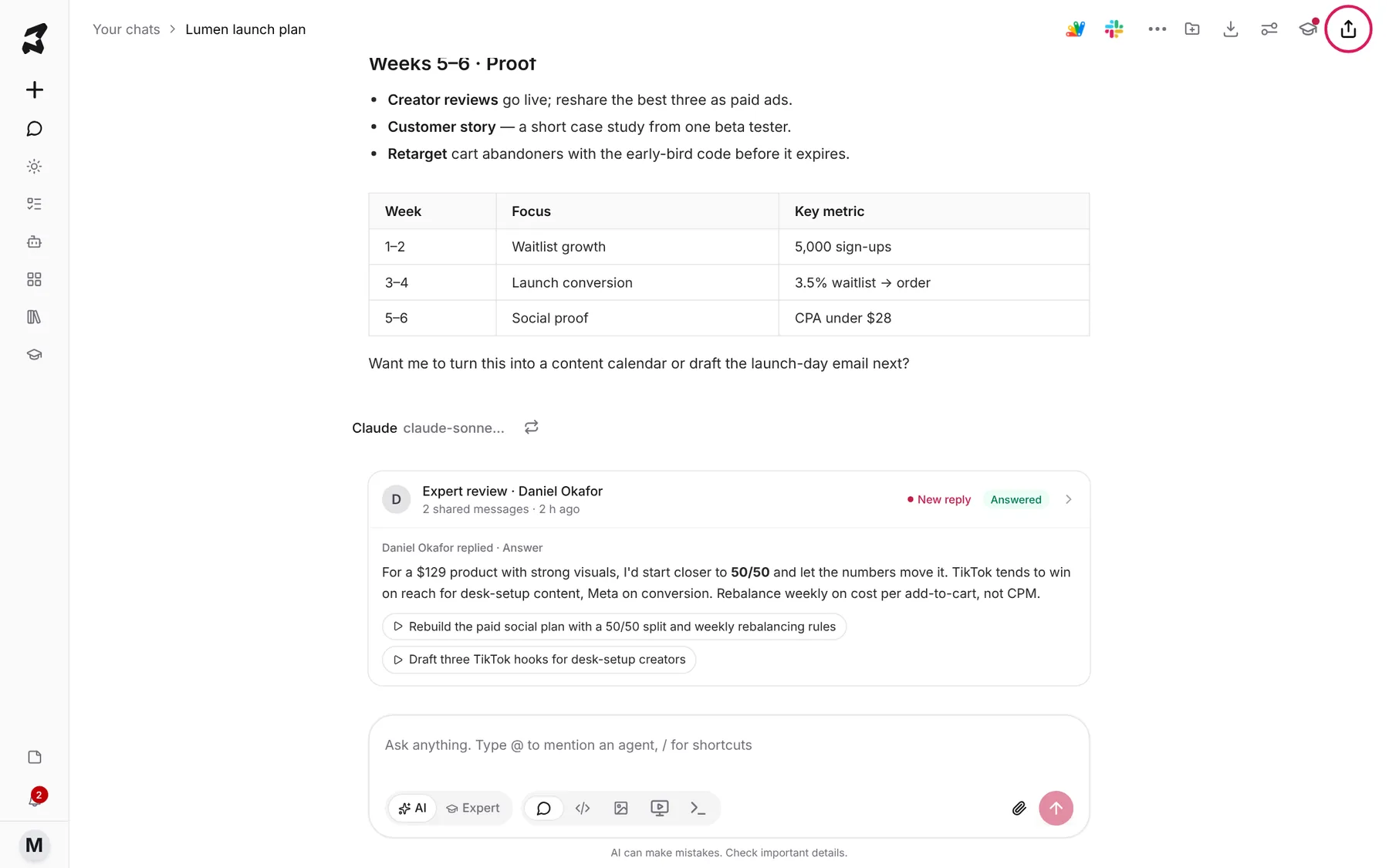
Open the chat you want to share and click the share button in the top right corner of the chat header (the arrow-out-of-a-box icon, tooltip Share chat).
Step 2 — Choose Private or Public
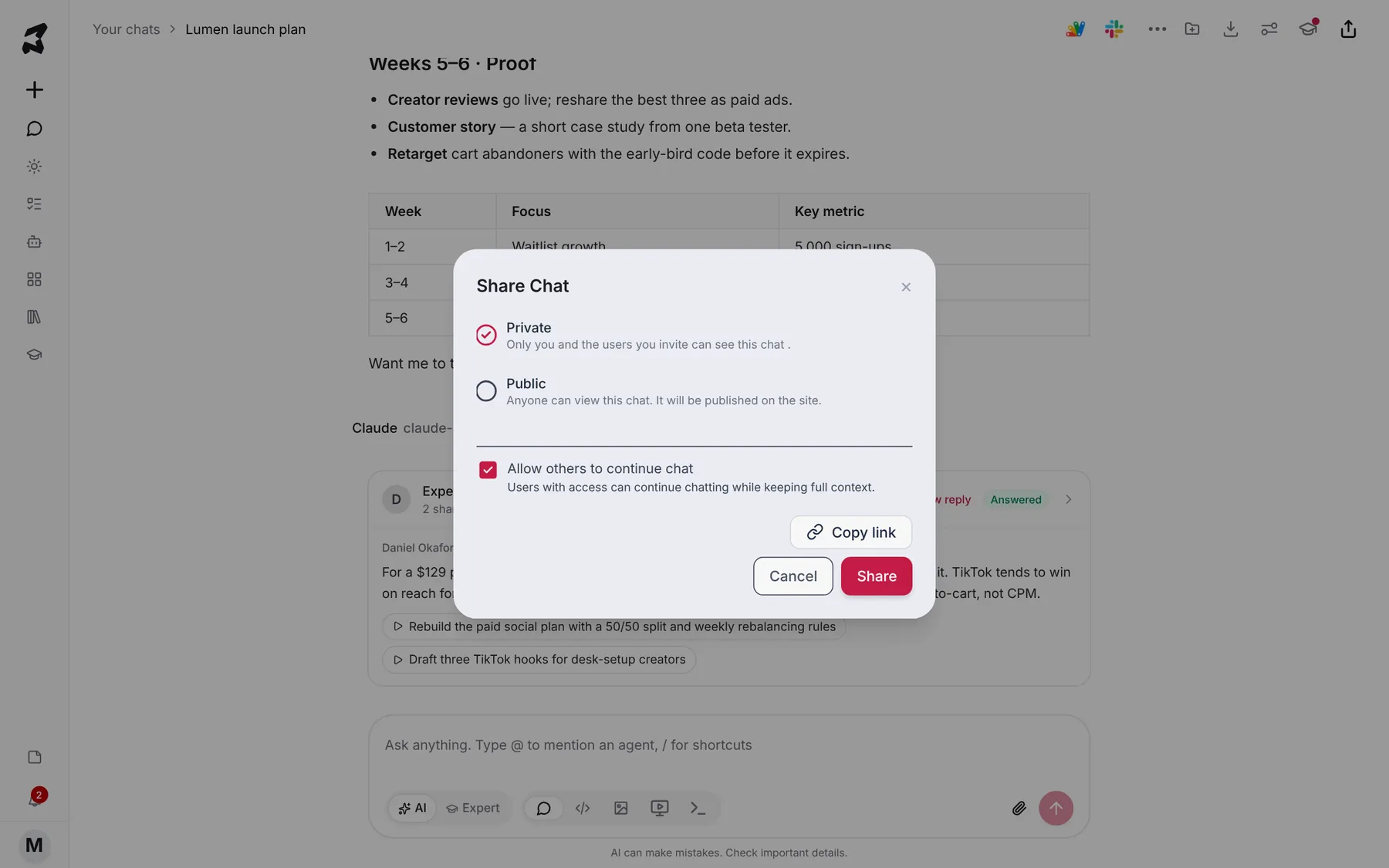
Share Chat asks who can see it:
- Private — only you and the people you invite can see this chat.
- Public — anyone can view this chat with the link.
Under the choice, Allow others to continue chat decides whether people with access can keep chatting from where you stopped, with the full context. Leave it off if you only want them to read.
Click Share to create the link. For a chat that already has a link, Copy link copies it again.
Step 3 — Invite people by email
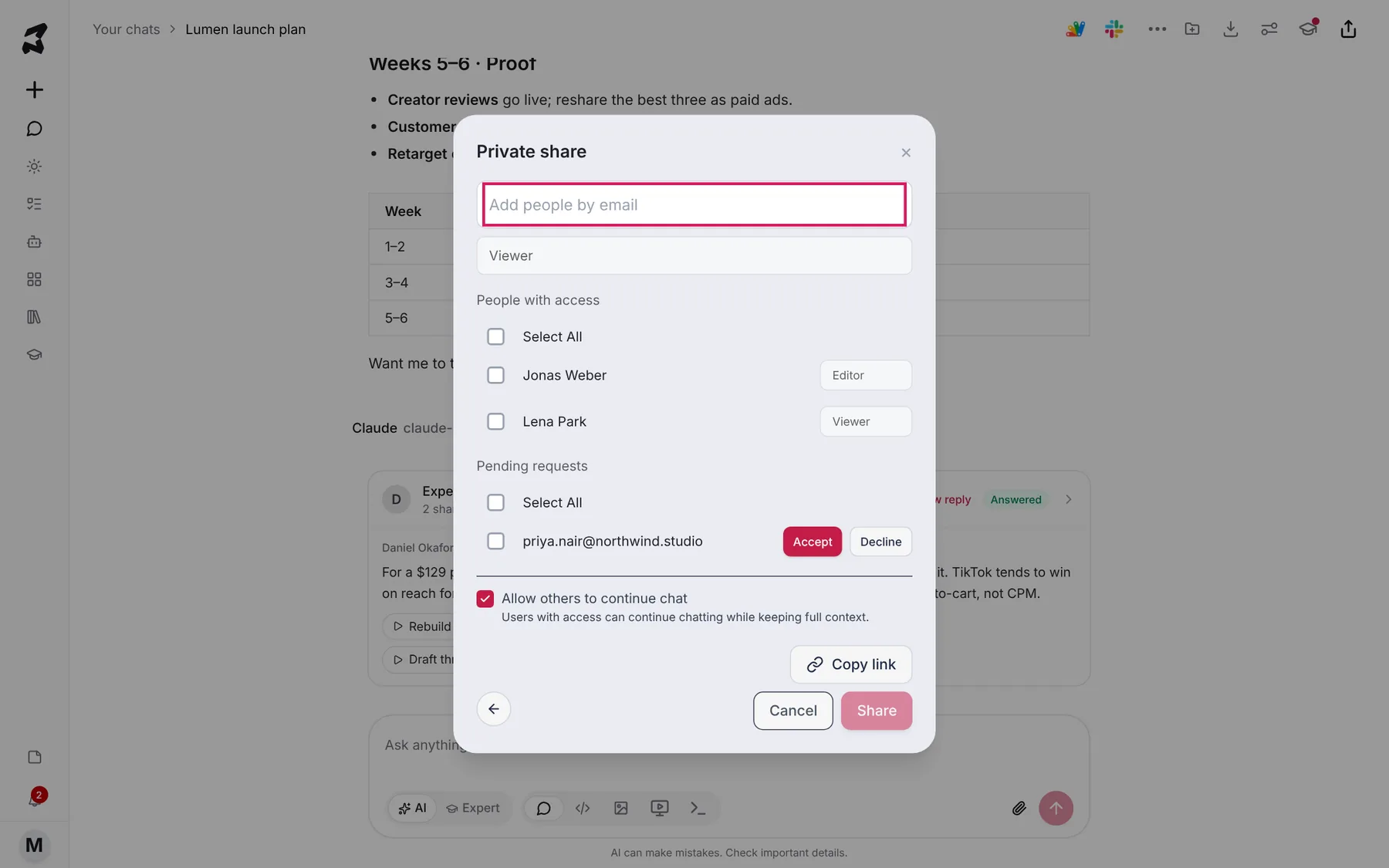
For a private chat, Private share opens next. Type an address into Add people by email, choose Viewer or Editor in the field below it, and click Share.
People with access lists everyone you’ve invited and their access. When someone without access opens your link, they can ask for it; their request appears under Pending requests with Accept and Decline. Tick several people (or Select All) to act on them together. Copy link copies the link, and the back arrow returns to Public or Private.
Step 4 — See what the people you share with get
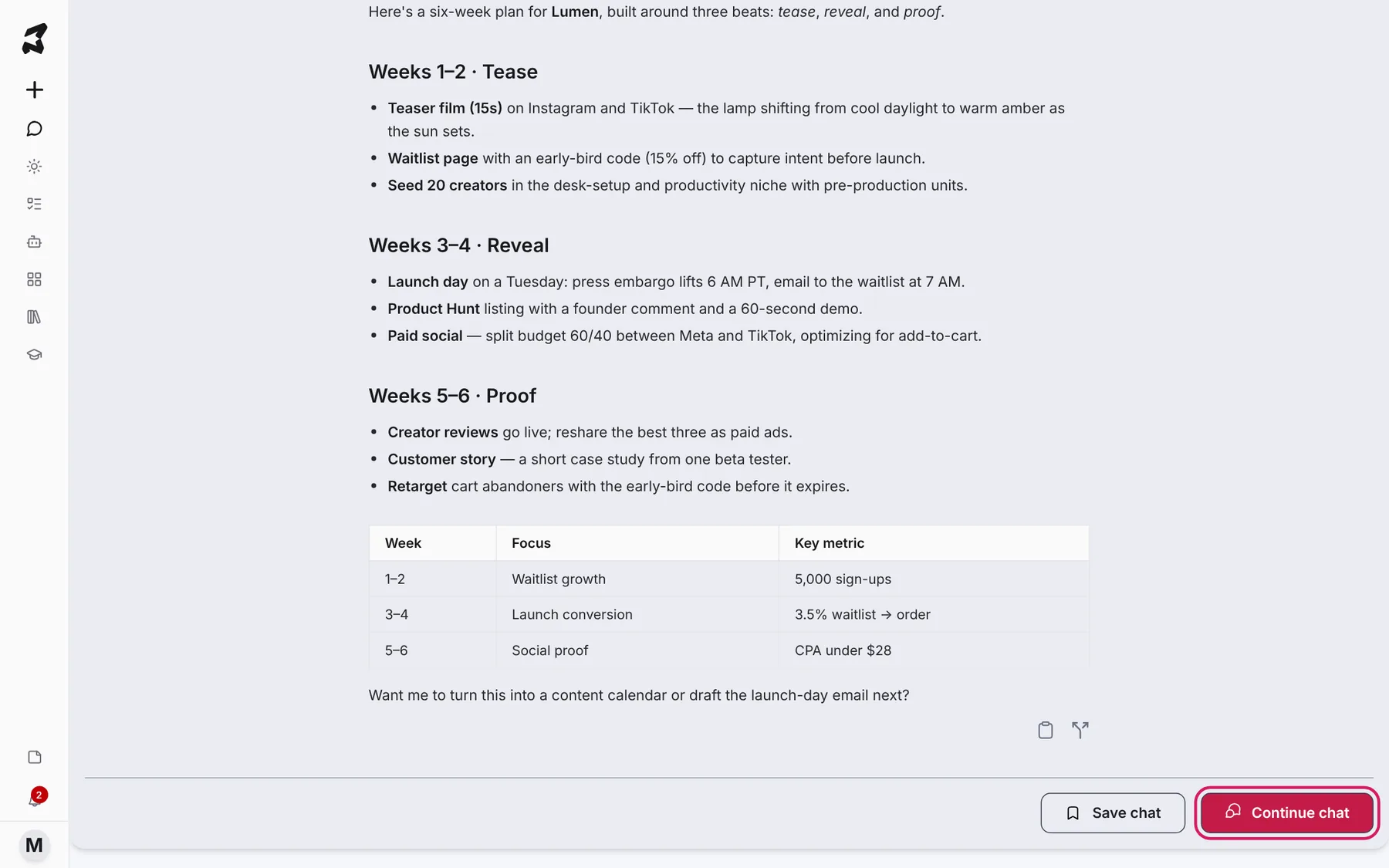
Opening the link shows the shared chat with an Overview at the top (a summary, the models used, tags, and how many times it’s been viewed and forked) and the full conversation under Preview.
At the bottom, recipients can click Save chat to keep it in their list, or Continue chat to pick it up in their own workspace, if you allowed others to continue.
Step 5 — Fork a chat to try another direction
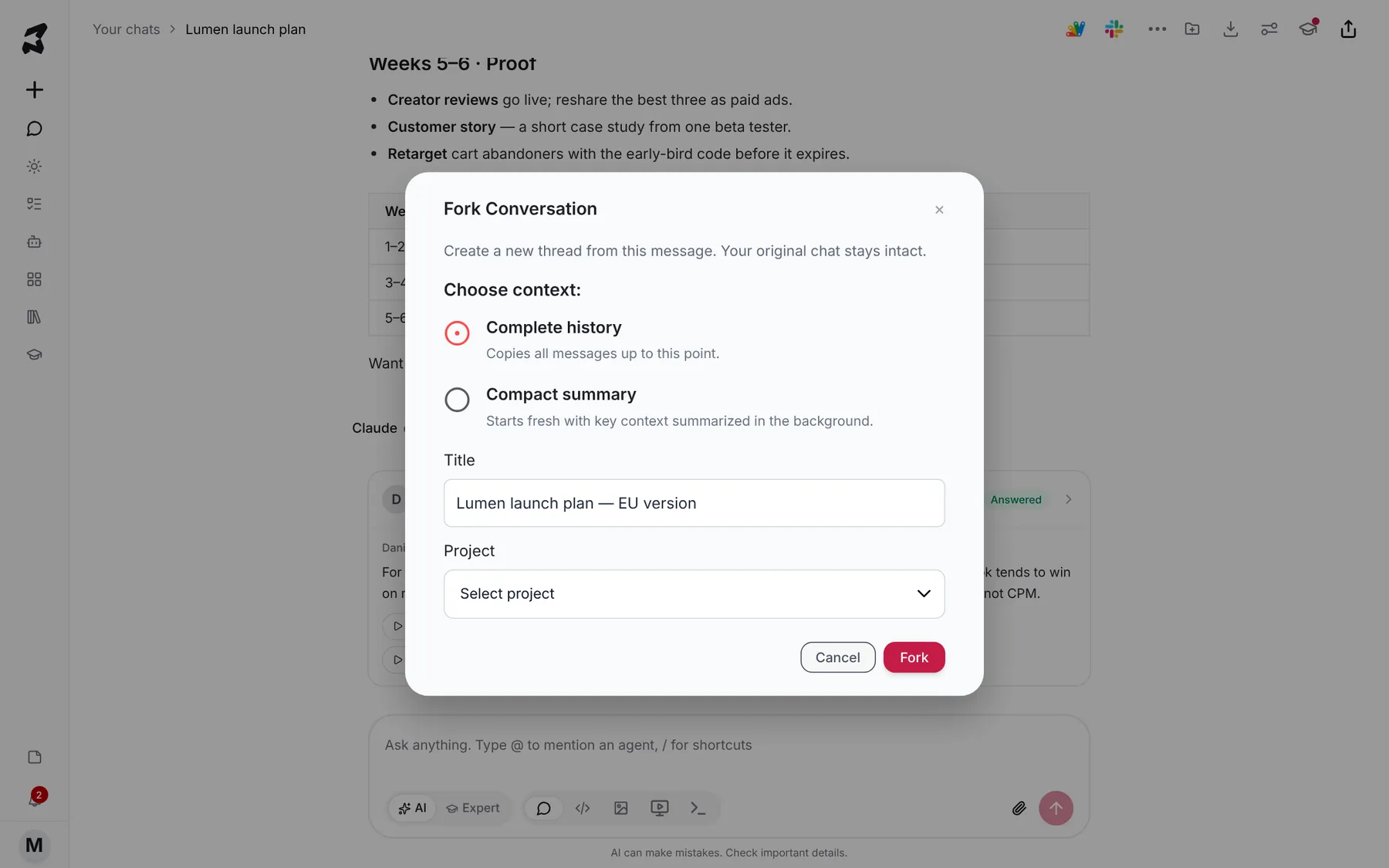
To branch off without changing the original, hover over a reply and click Fork chat in the actions under it. In Fork Conversation, choose the context the new chat starts with:
- Complete history — copies all messages up to this point.
- Compact summary — starts fresh with the key context summarized in the background.
Give it a Title, optionally pick a Project to file it in, and click Fork. Your original chat stays as it was.
Lumen launch plan — EU version
Step 6 — Download a chat or add it to a project
Two more buttons in the chat header help you keep a chat with the rest of your work:
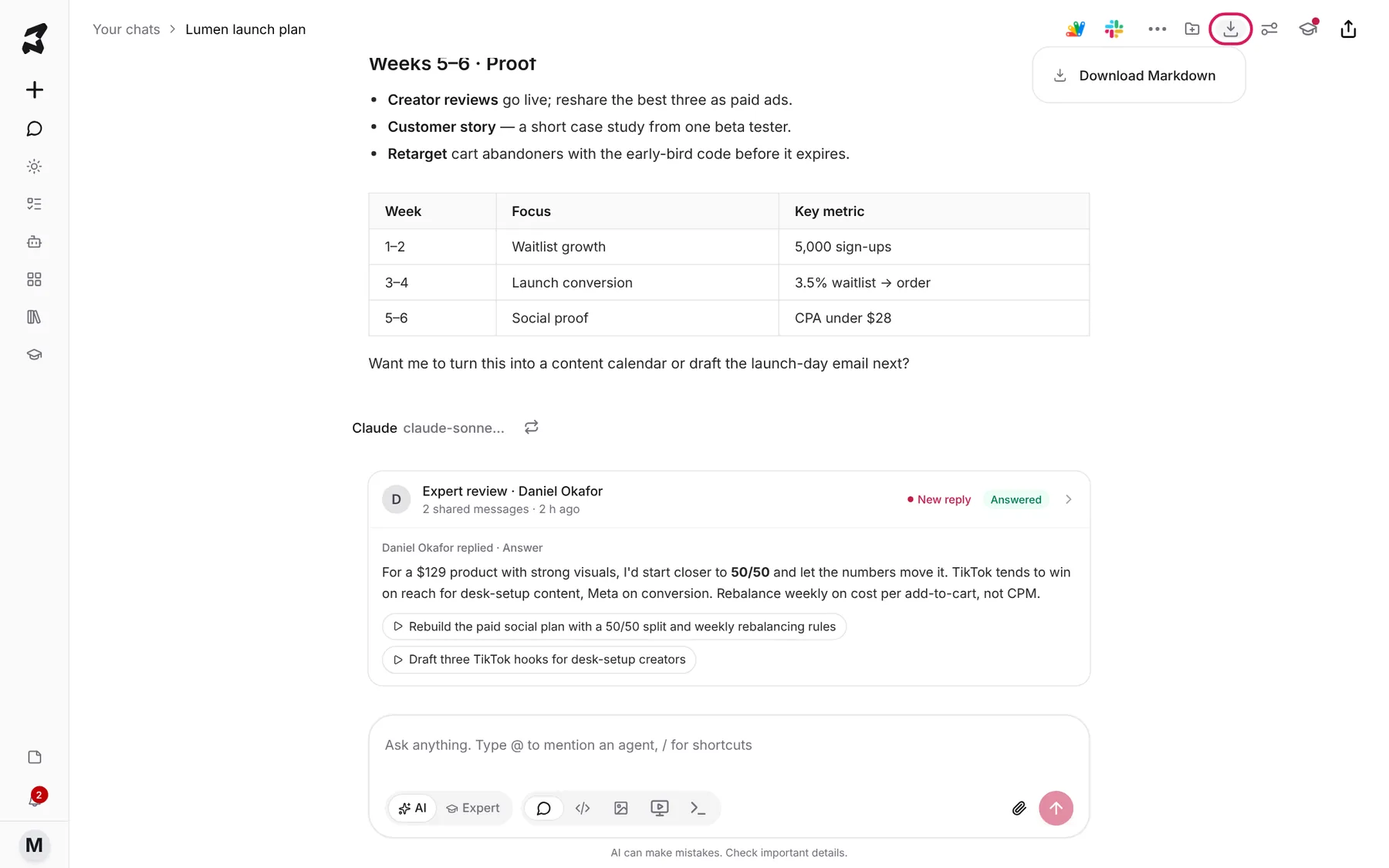
- Download chat (the download arrow) offers Download Markdown, a text file of the whole conversation you can paste into docs or keep as a record.
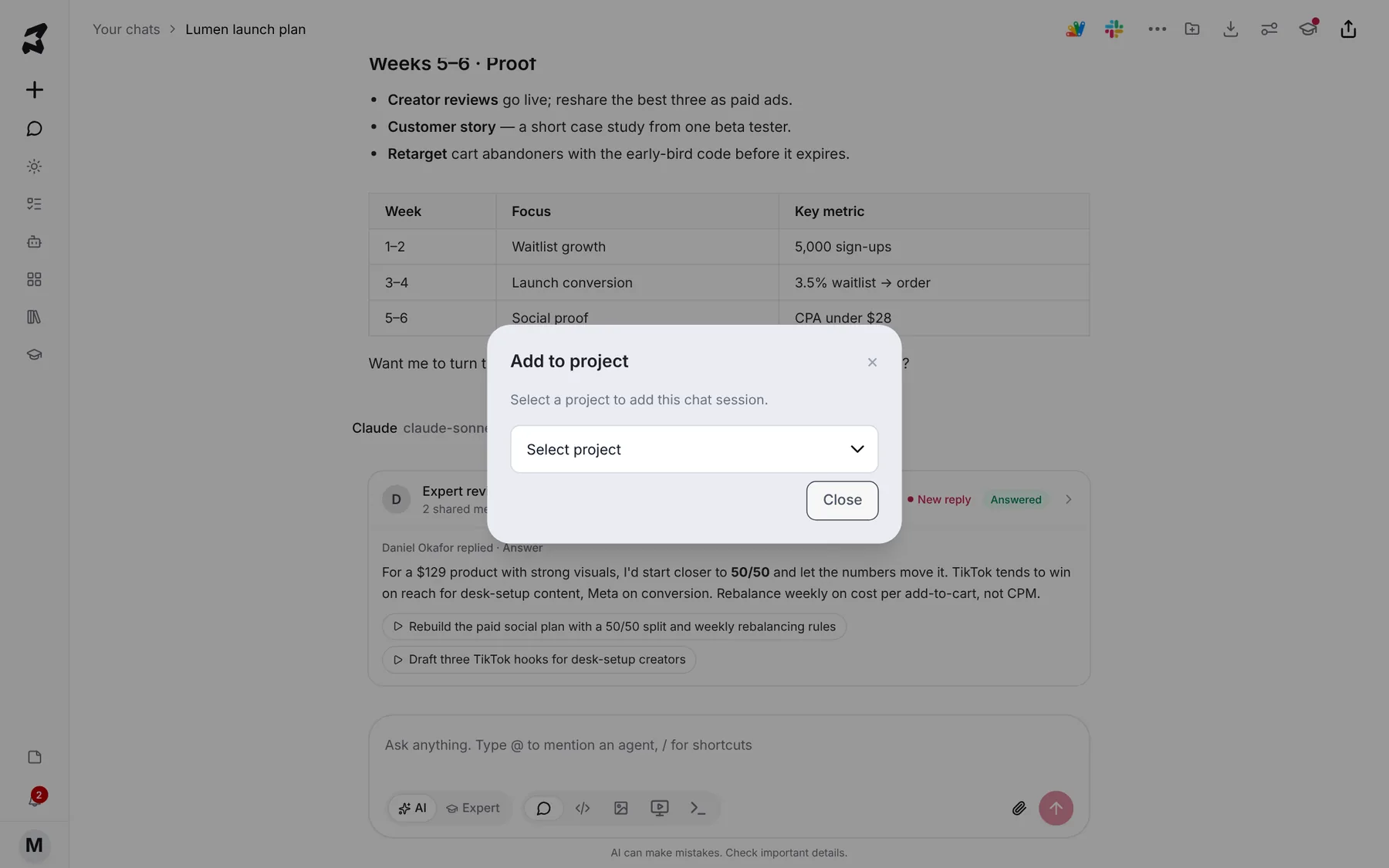
- Add to project (the folder with a plus) lets you Select project and file the chat in it, so it sits alongside the project’s other threads and files.
Step 7 — Manage every shared link in one place
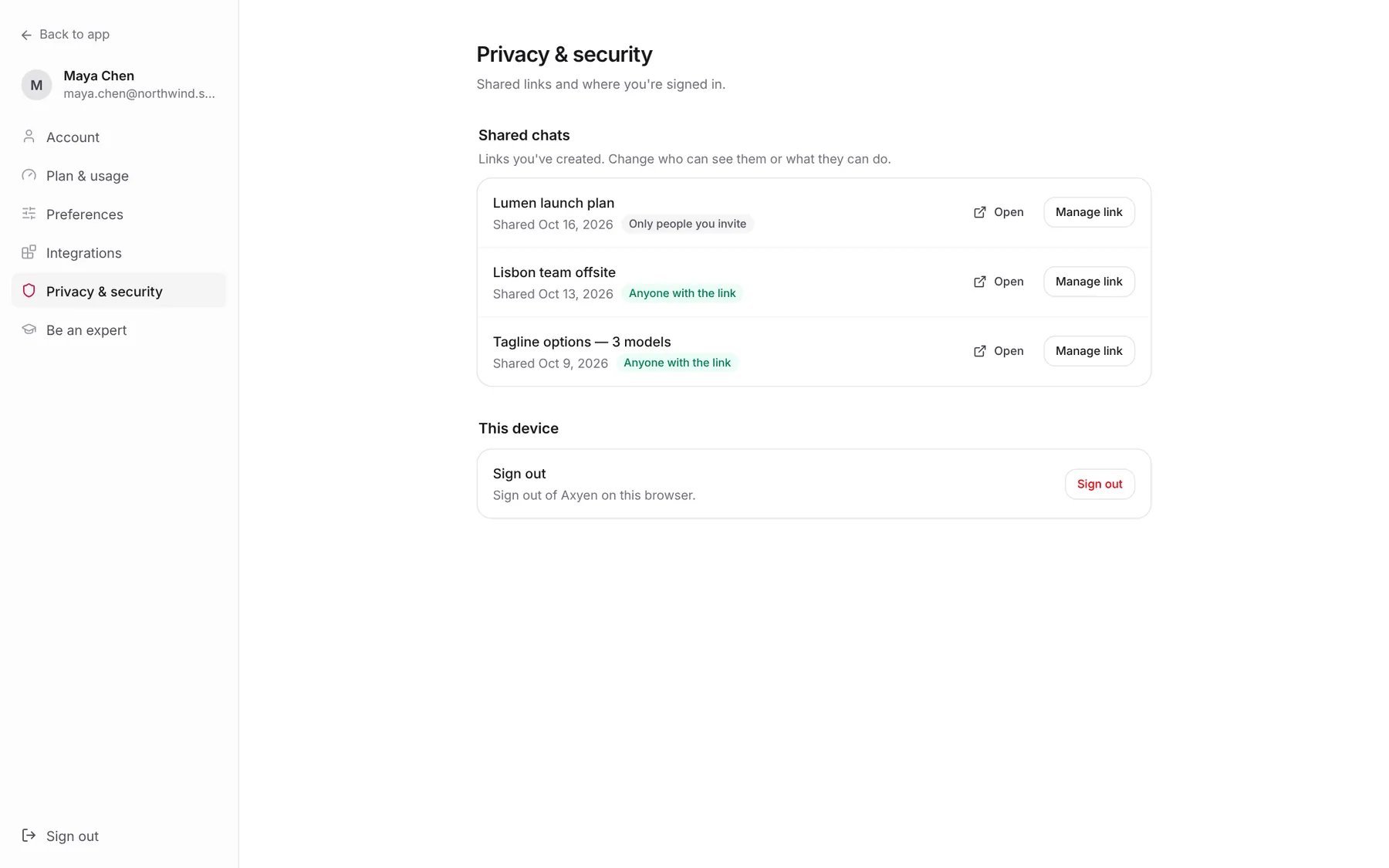
Open Settings and choose Privacy & security. Shared chats lists every link you’ve created, the date you shared it, and who can see it: Only people you invite or Anyone with the link. Click Open to view a shared chat, or Manage link to switch it between Private and Public or change whether others can continue it.
Sharing projects and boards
Projects and boards are shared the same way: the share button opens the same Private or Public choice, and private sharing uses the same invite-by-email dialog. See Run a bigger piece of work as a project and Organize research with Boards. Projects shared with you are marked Shared with you in your list.
Try it yourself: worked examples
Example 1 — Hand a plan to a teammate to finish
Share your launch-plan chat as Private, add your teammate as Editor, and keep Allow others to continue chat on. They continue with:
Turn weeks 3–4 into a day-by-day schedule for launch week, with owners
for each task.
Why it works: they pick up the chat with all of your context, so they don’t need to re-brief the model.
Example 2 — Publish a read-only reference
Share a research chat as Public with Allow others to continue chat off, and post the link in your team channel.
Why it works: everyone can read the reasoning behind a decision, but nobody can change the record.
Example 3 — Explore a variant without losing the original
Fork from the reply you like with Compact summary, then ask:
Adapt this plan for a European launch: EUR pricing, GDPR-friendly
waitlist, and a 10-day shipping window.
Why it works: the fork starts light, with the key context but not every message, and your original plan stays untouched.
Tips
- Give people the least access they need: Viewer to read, Editor only for those who will work in the chat.
- Check Pending requests after you share a link widely. Access requests wait there until you accept them.
- Review Privacy & security now and then, and switch old public links to private.
- Fork before you take a chat in a very different direction. It keeps both versions easy to find.