Getting started
Get started with Axyen
Create your account, find your way around the sidebar, and know where everything lives before you send your first message.
The Rundown
This guide gets you from a new account to knowing your way around Axyen. You’ll sign up, see what the home screen shows you, learn what each icon in the sidebar opens, and find your settings, plan and help. It takes about five minutes, and every other guide builds on it.
Why it helps
Axyen puts a lot in one place: chat with 20+ AI models, image and video generation, agents that work on a schedule, and a library for everything you want to keep. Knowing where each part lives means you spend your time on the work, not on looking for the right screen.
What you’ll need
- An email address, or a Google account
- A desktop browser (Axyen also works on mobile, but the screenshots here are from the desktop app)
Step 1 — Create your account
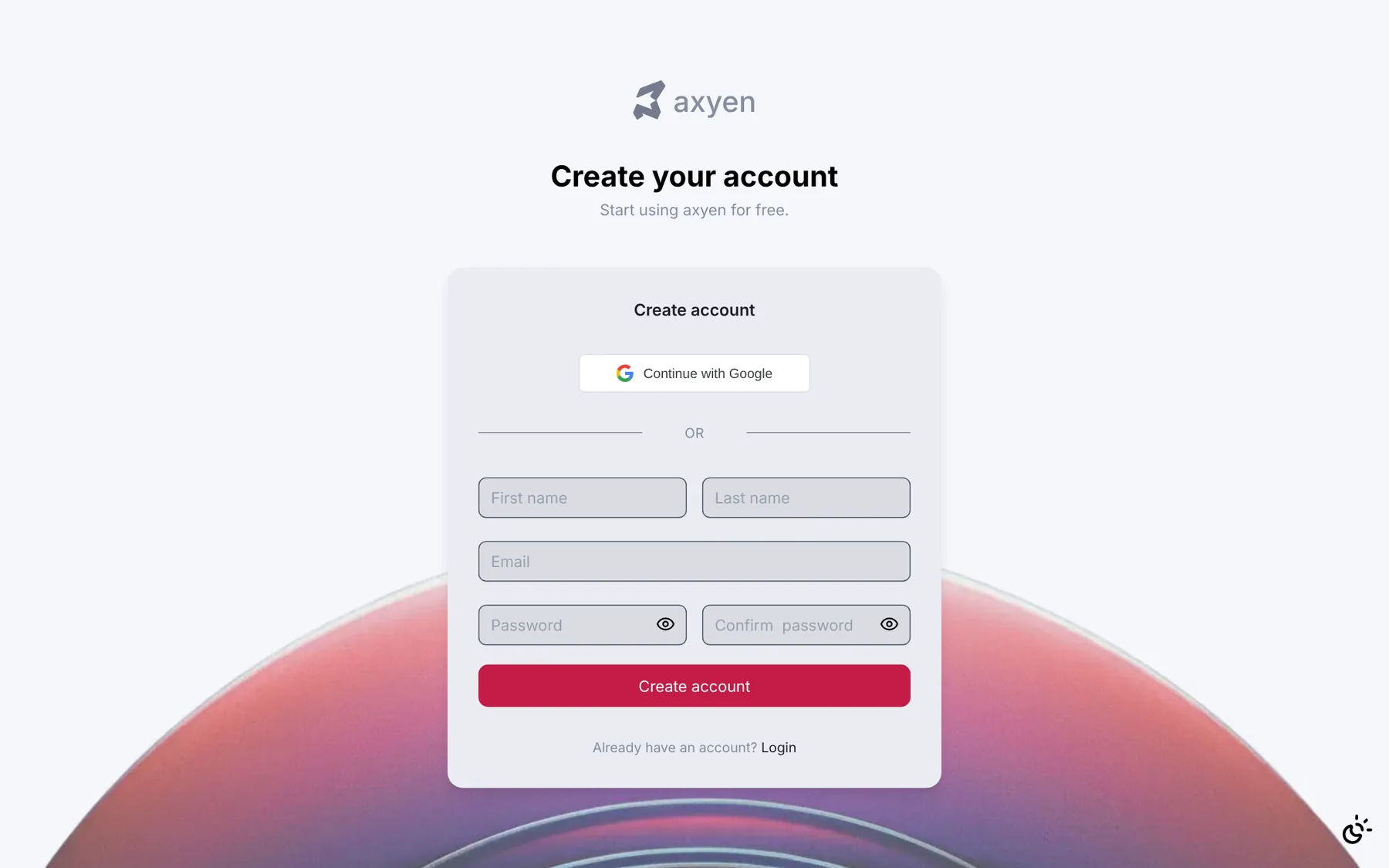
Go to the sign-up page and either click Continue with Google or fill in your first name, last name, email and a password, then click Create account. If you sign up with email, Axyen sends you a 6-digit code to confirm your address.
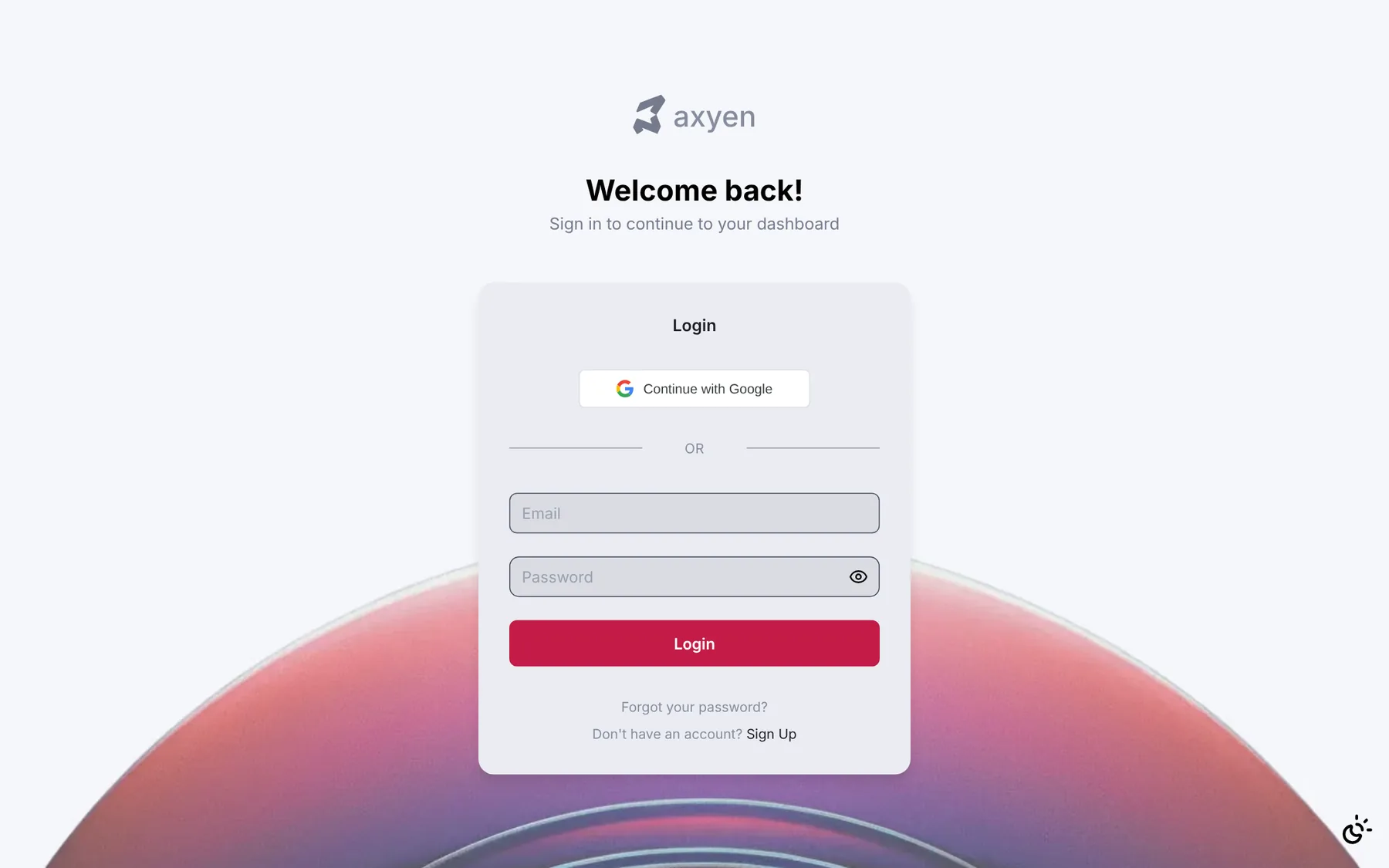
Next time, sign in from the Welcome back! screen with the same method. If you forget your password, use Forgot your password? under the Login button.
Step 2 — Get to know the home screen
After you sign in you land on the home screen. The headline asks Where should we start?, and the box underneath is where you type. Below it, the Today panel shows your daily brief, the latest results from your scheduled tasks, and the to-dos that need you.
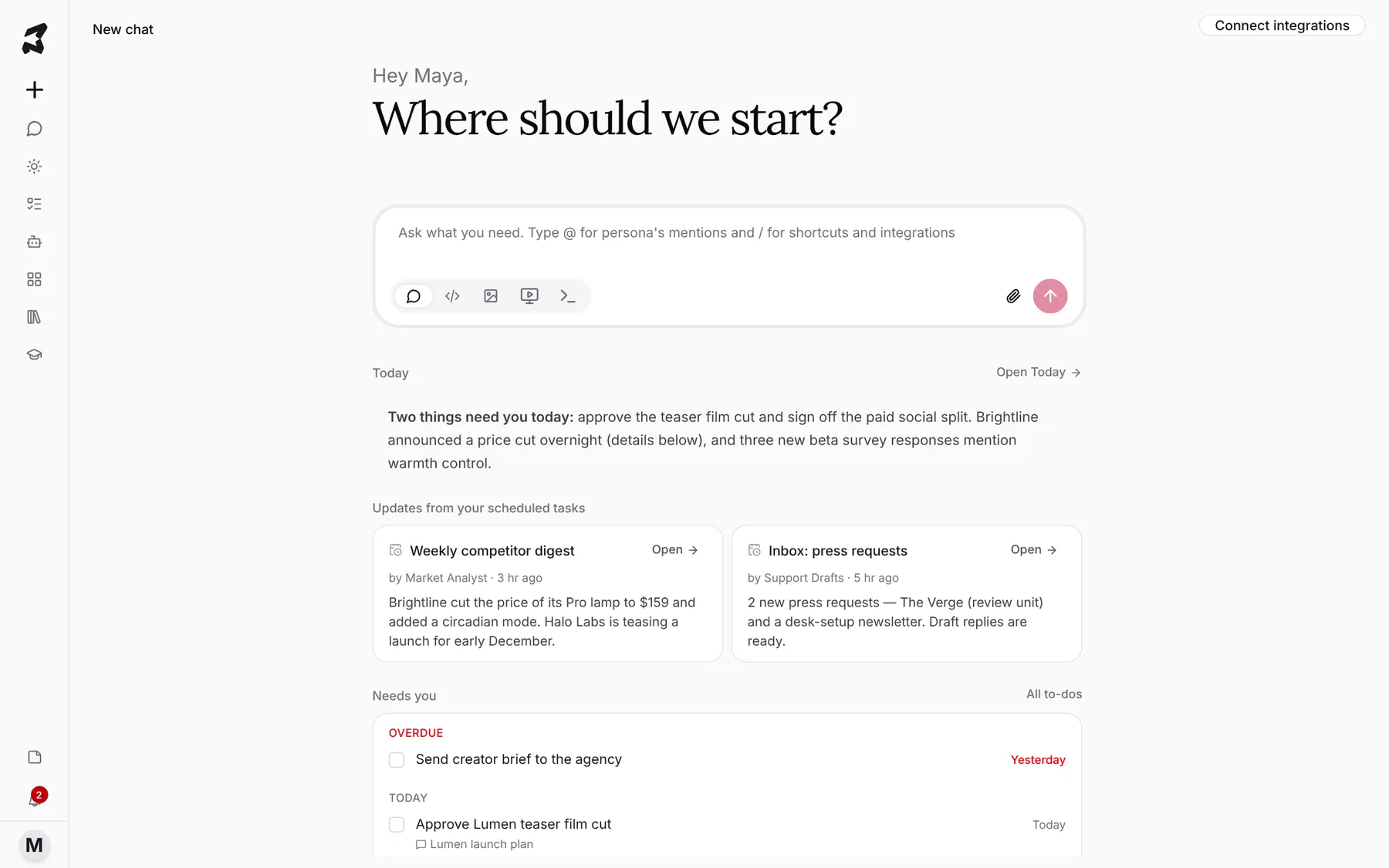
The row of icons at the bottom of the message box switches between modes — Chat, Code, Image, Video and Orchestration. You’ll use Chat most of the time; the other modes have their own guides.
Step 3 — Learn the sidebar
The narrow sidebar on the left takes you everywhere else. Hover over any icon to see its name. From top to bottom:
- New chat (the plus) — start a fresh conversation
- Chats — every conversation you’ve had
- Today — your daily brief, updates and to-dos
- To-dos — your full to-do list
- Agents — your agents and their scheduled tasks
- Apps — micro-apps you’ve built and shared
- Library — notes, boards, artifacts, memory and skills
- Experts — requests you’ve sent to human experts
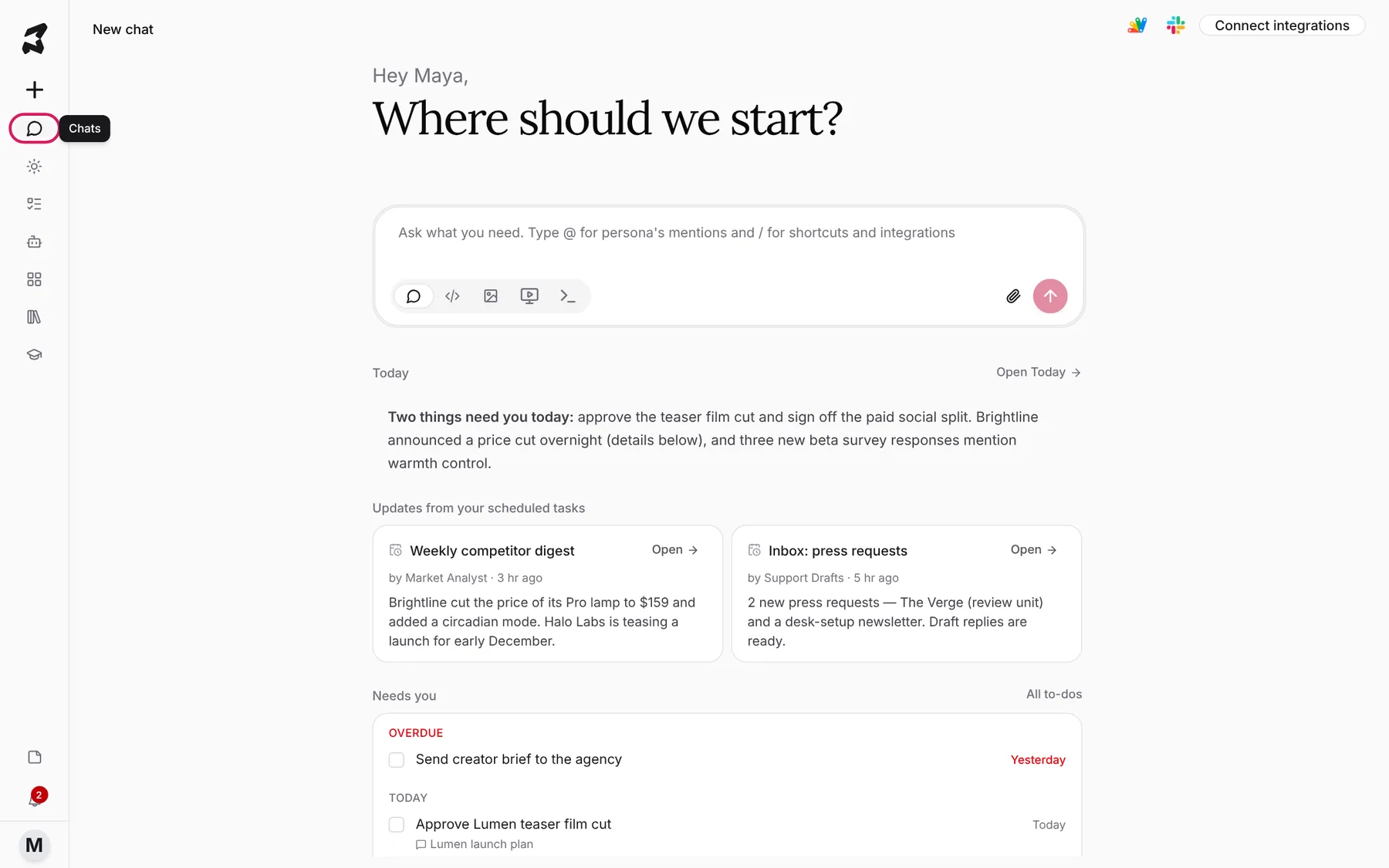
At the bottom of the sidebar you’ll find the Quick note button (or press Alt + N), your notifications, and your avatar.
Step 4 — Open your account menu
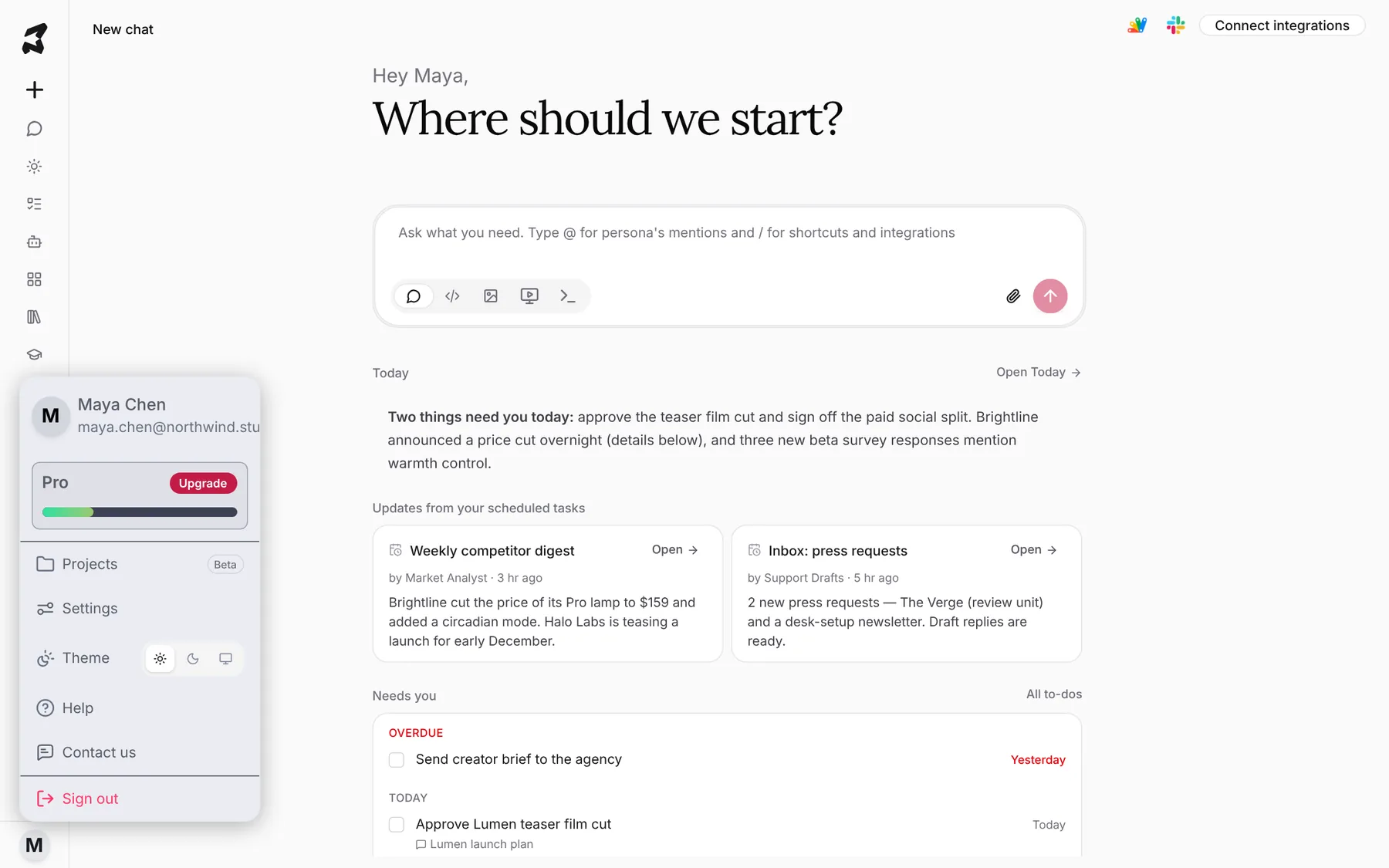
Click your avatar at the bottom of the sidebar. The menu shows your plan and how many credits you’ve used this period, with an Upgrade button if you’re not on the top plan. From here you can open Projects, Settings, switch the Theme between light, dark and system, get Help, Contact us, or Sign out.
Step 5 — Take the tour, or look up a feature
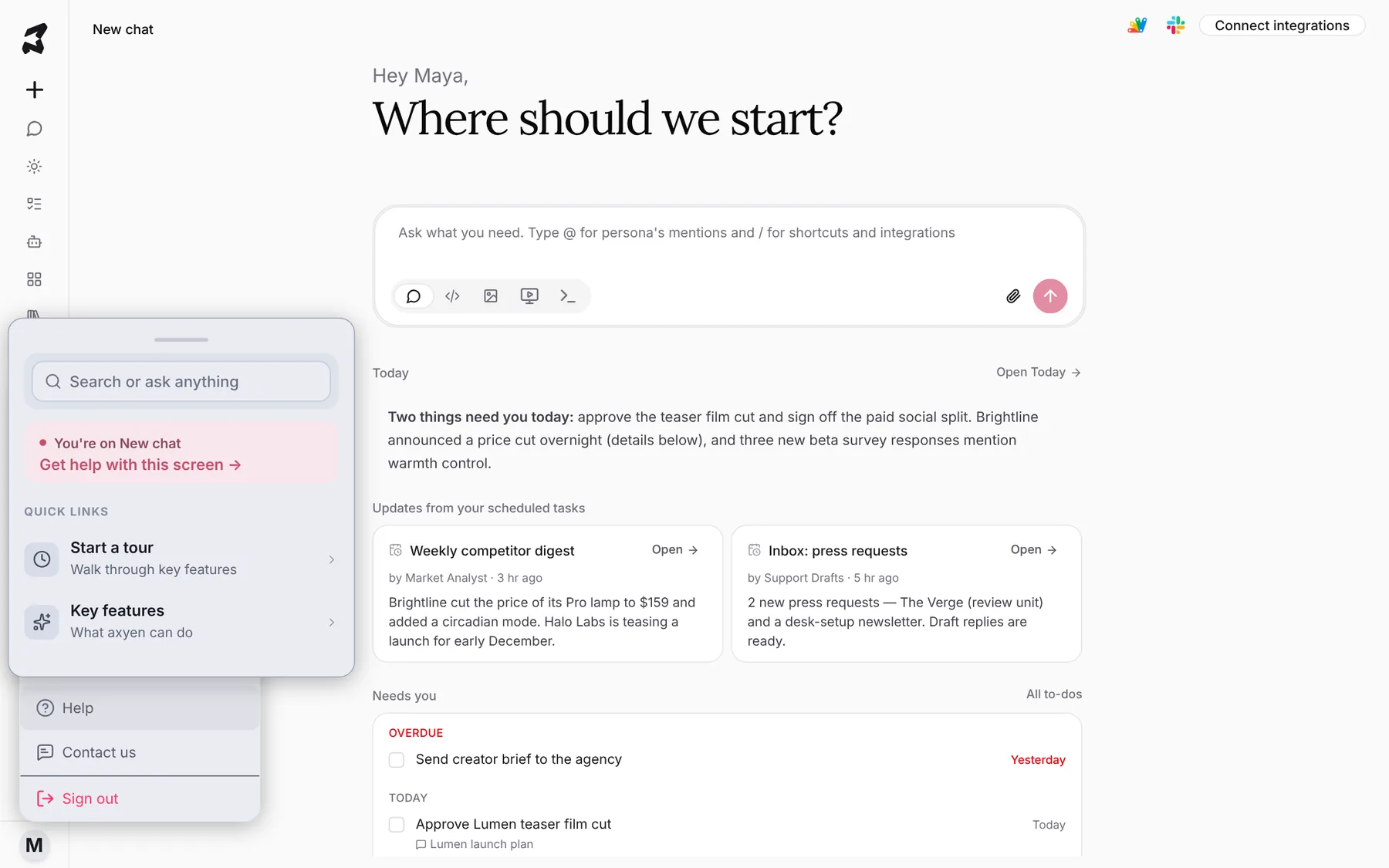
Click Help in the account menu. Start a tour walks you through the main features on the screen you’re on, and Key features lists what Axyen can do. You can also type into Search or ask anything to jump straight to a feature.
Try it yourself: worked examples
Example 1 — Set up for your first week
Sign up, then open Settings from the account menu and connect the apps you use every day (Google Workspace, Slack, GitHub and more) under Integrations. Agents and chats can then read from and act in those apps when you ask them to.
Example 2 — Send a first message that’s actually useful
Instead of “hello”, give Axyen something real from your week:
I'm launching a smart desk lamp called Lumen on November 18. Our audience
is remote knowledge workers and the budget is $40k. What should I do in
the next two weeks?
You’ll get a plan you can keep working on in the same chat. The Chat basics guide covers what to do next.
Example 3 — Find a feature you’ve heard about
Open Help, type “compare” into Search or ask anything, and pick the result. It’s the fastest way to find a screen when you know what you want but not where it lives.