Organize your work
Capture ideas with Notes
Jot sticky notes from anywhere in Axyen, color and pin the ones that matter, and attach them to a chat when you want the AI to use them.
The Rundown
Notes are quick sticky notes for ideas, to-dos and context. You add them on the Notes board or from any page with Quick note (Alt + N). Give them colors, pin the important ones, and attach notes to a chat when you want Axyen to work from them.
Why it helps
- Writing something down takes seconds, without leaving the page you’re on.
- Notes can hold images and files as well as text.
- Attaching a note to a chat saves you re-typing context like brand voice rules or a checklist.
What you’ll need
- An Axyen account
Step 1 — Add a note on the Notes board
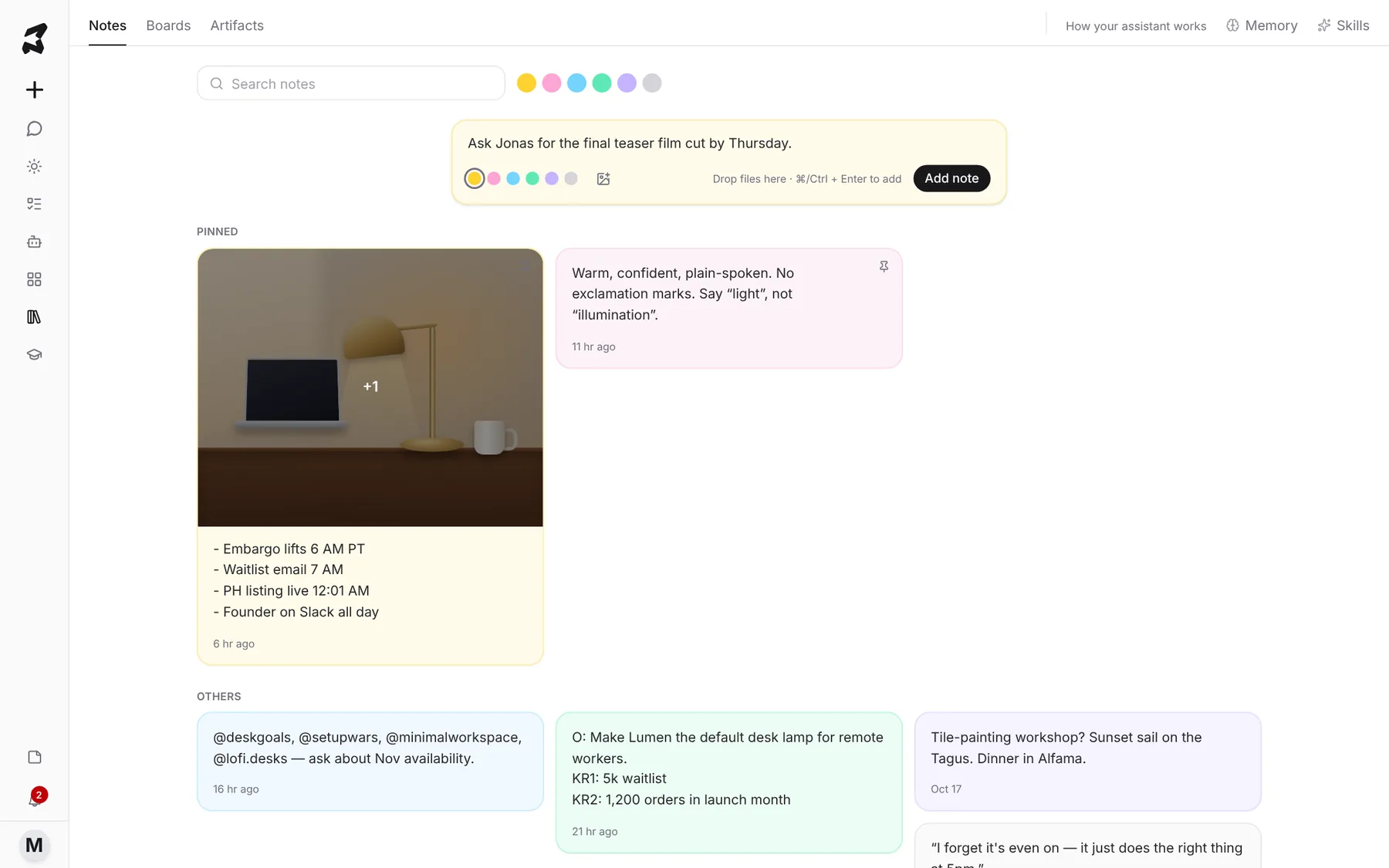
Click the library icon in the sidebar and open the Notes tab. Click the box that says Jot something down, or paste an image… and type. Pick a color with the dots below the text, attach files with the image icon, then click Add note (or press Ctrl + Enter, ⌘ + Enter on a Mac). You can also drop files straight onto the box.
Ask Jonas for the final teaser film cut by Thursday.
Step 2 — Change a note’s color
Hover a note to show its tools along the bottom. Click the palette icon and pick one of six colors: yellow, pink, blue, green, purple or gray. To show only one color, click a dot next to Search notes at the top of the board.
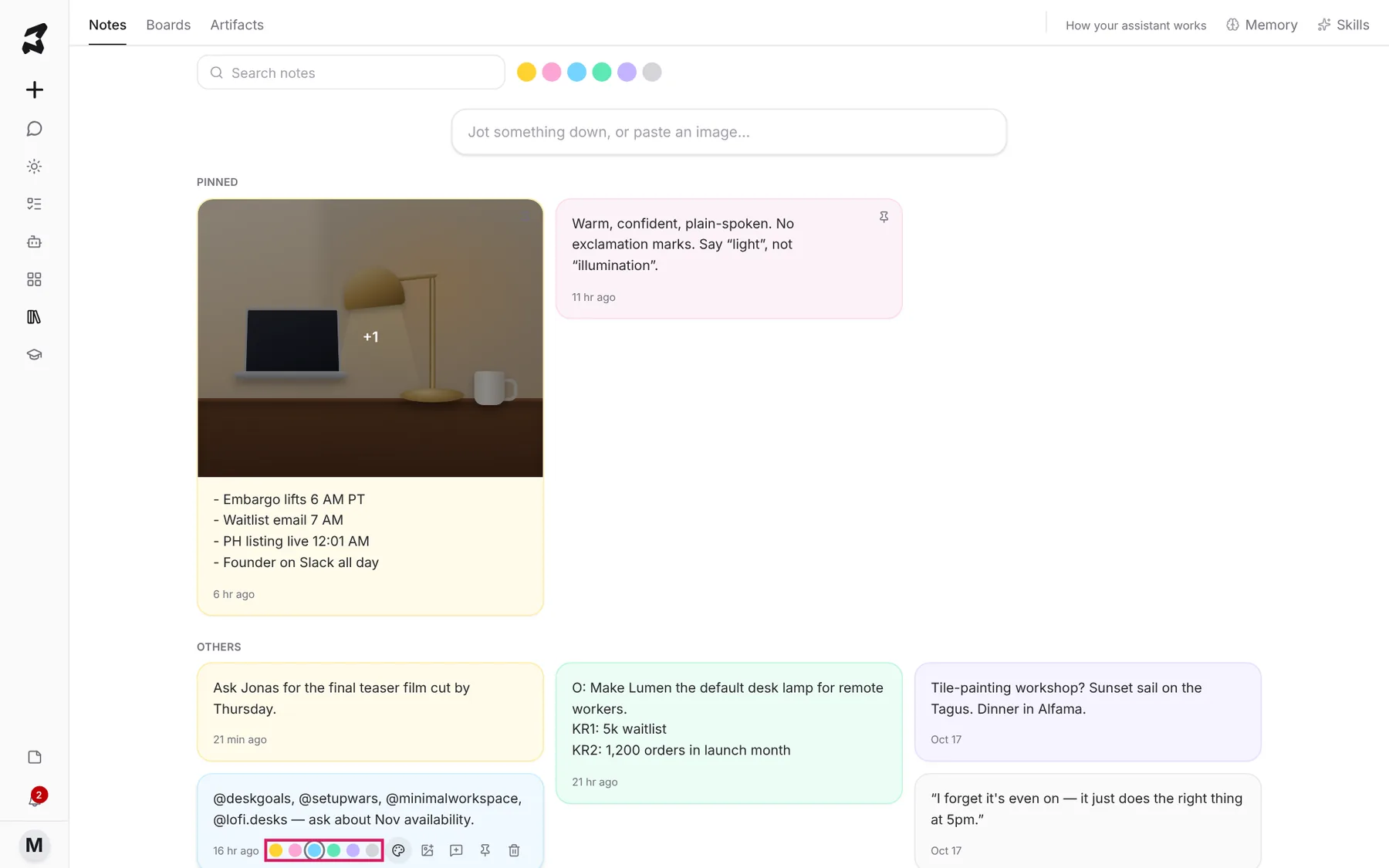
The other tools in that row let you attach files or images, use the note in a new chat, pin it and delete it. You can edit a note’s text by clicking into it. Changes save as you type.
Step 3 — Pin the notes you use most
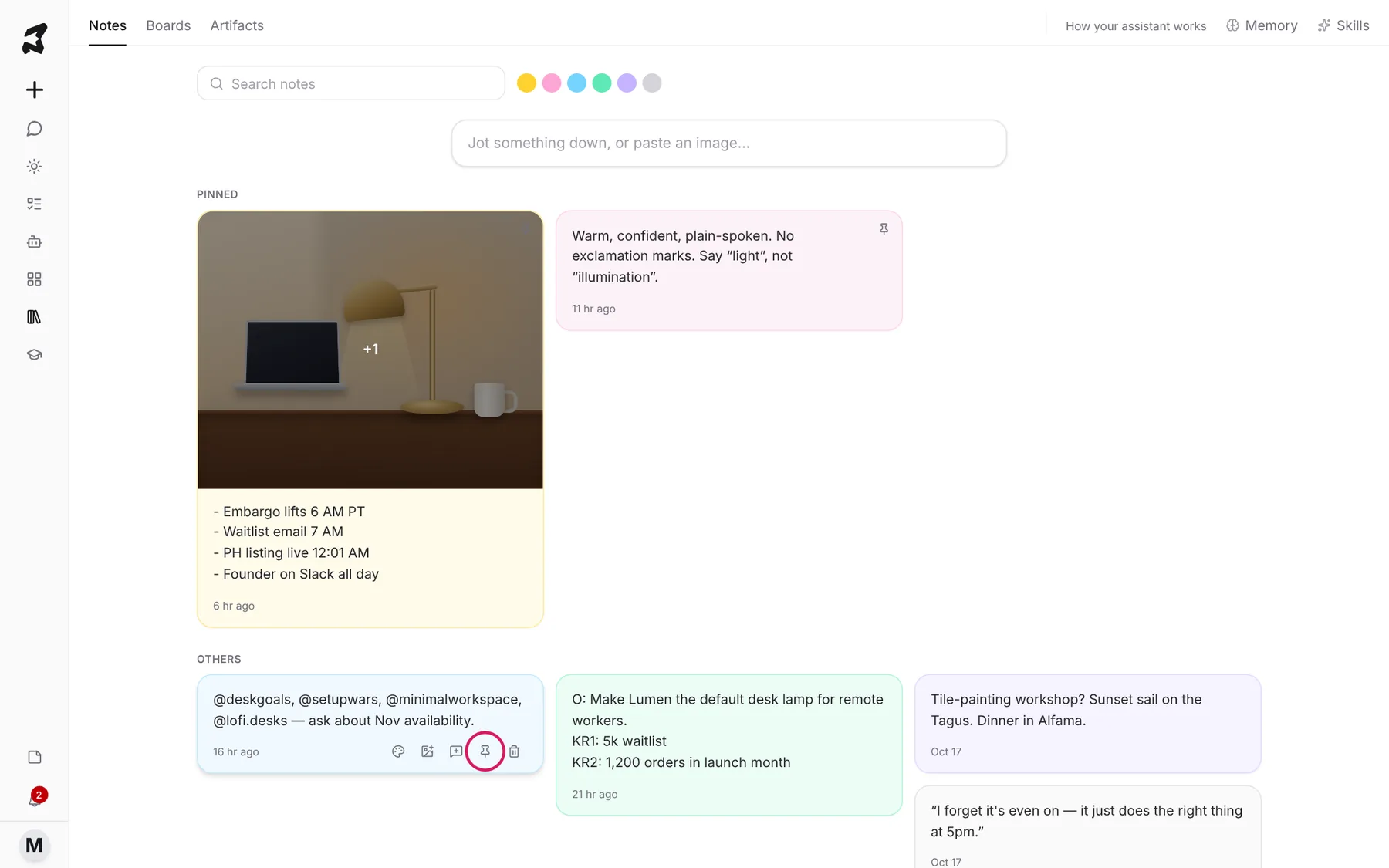
Click the pin icon (Pin) on a note to move it to the Pinned section at the top of the board. Click it again (Unpin) to move it back to Others.
Step 4 — Search your notes
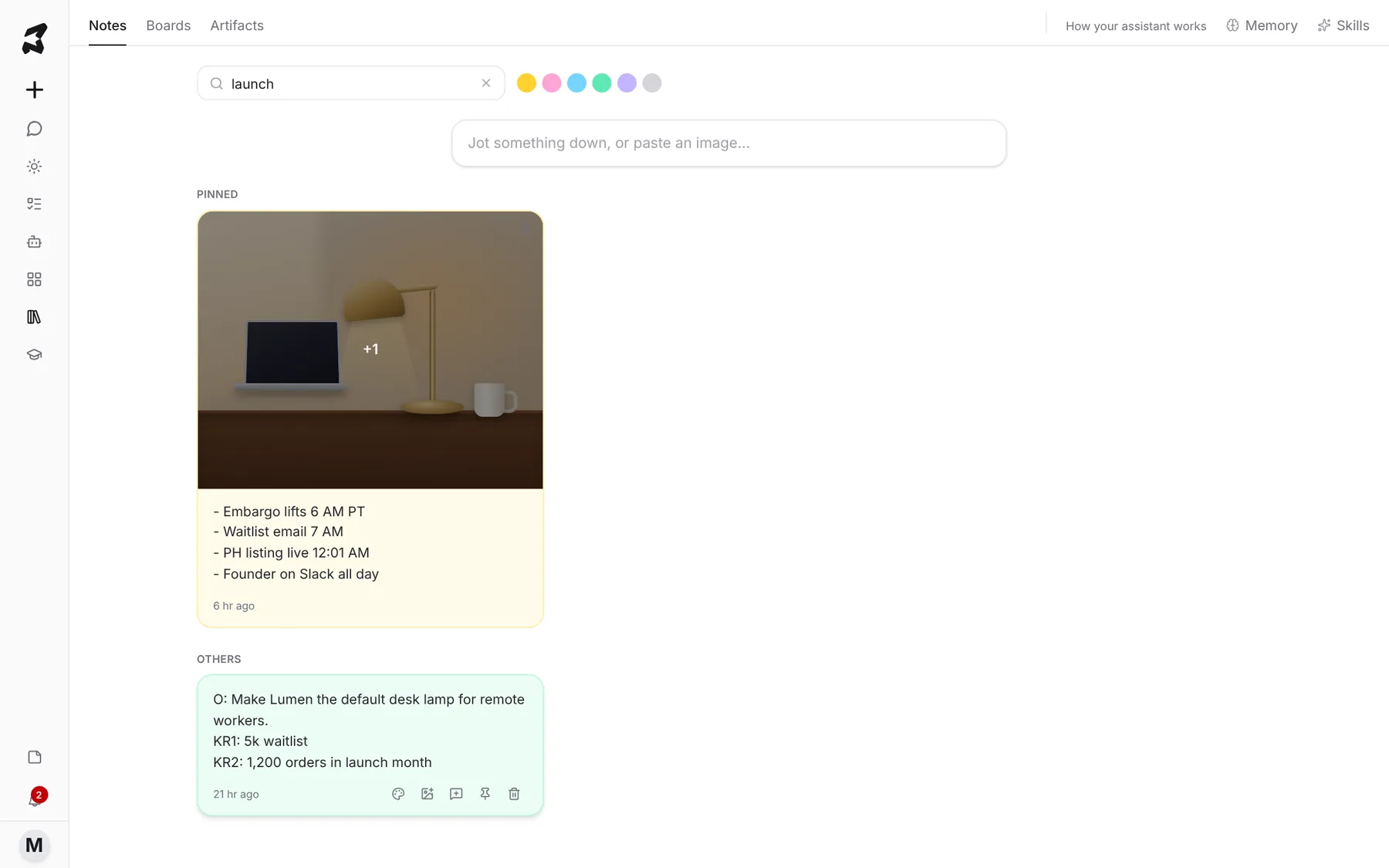
Type in Search notes to filter the board. Click the × in the box to clear it.
Step 5 — Use Quick note from anywhere
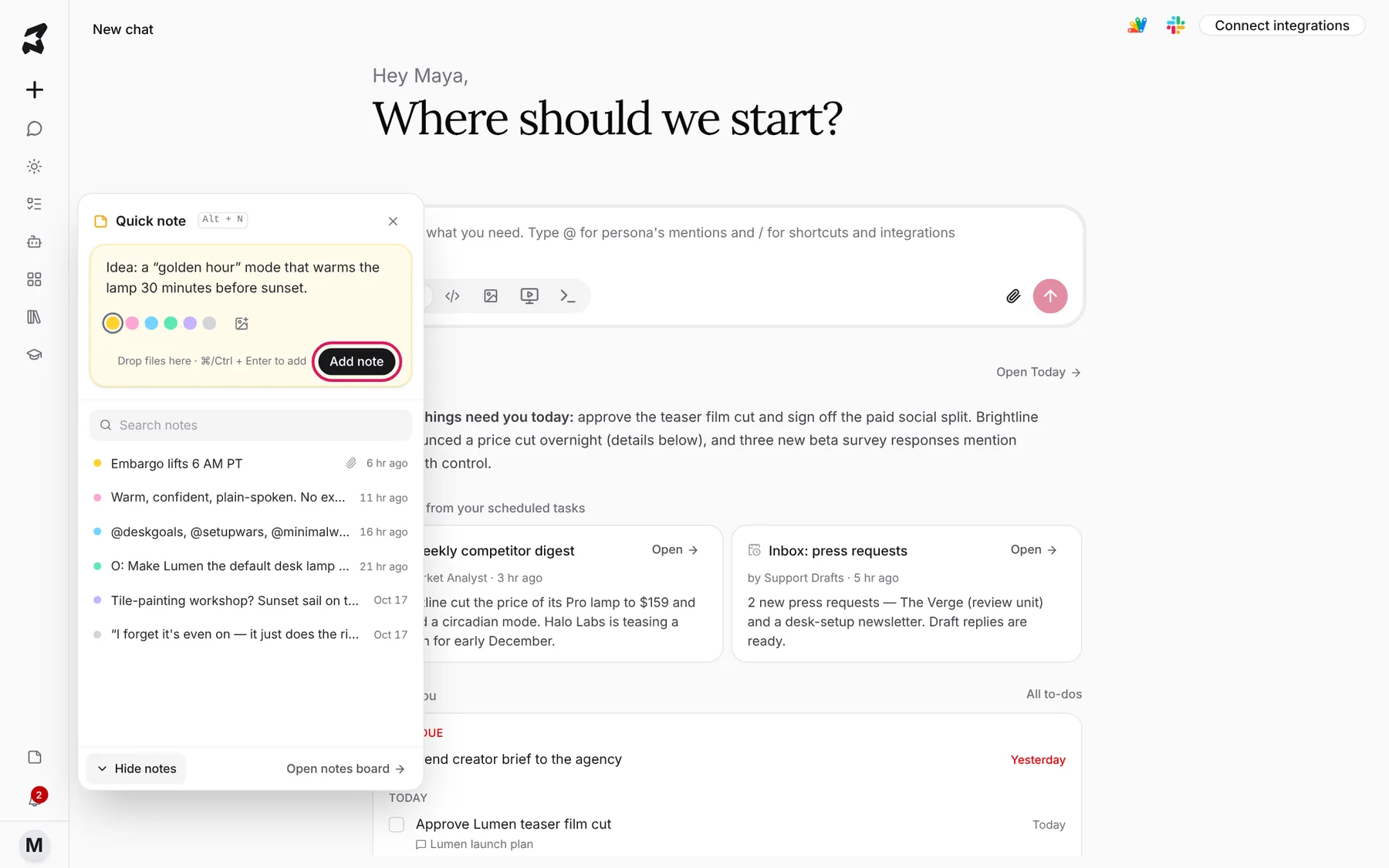
Click Quick note at the bottom of the sidebar, or press Alt + N, on any page. Type the note, pick a color and click Add note. Click Your notes to search and open recent notes without leaving the page, or Open notes board to go to the full board.
Idea: a “golden hour” mode that warms the lamp 30 minutes before sunset.
Step 6 — Open a note in full
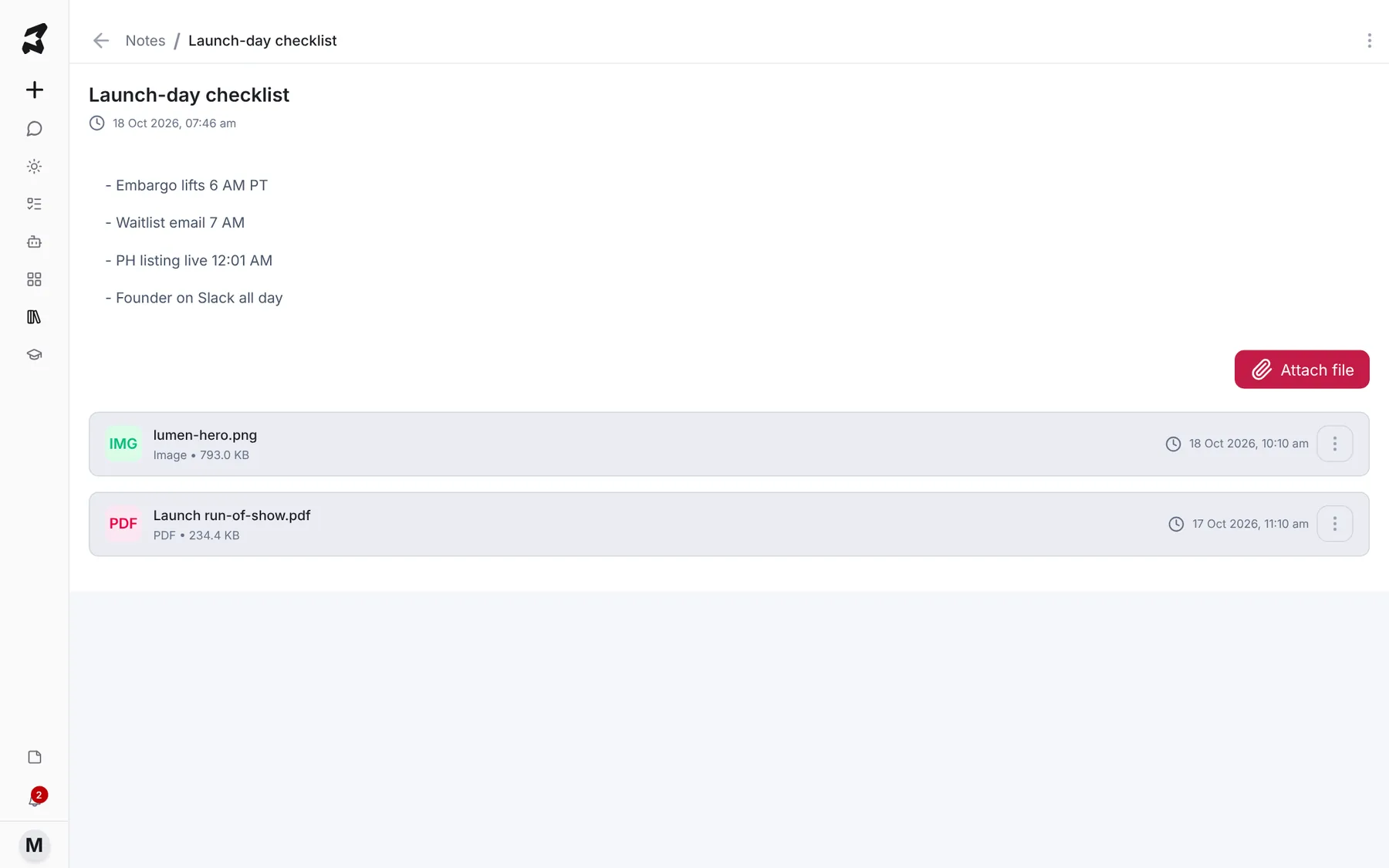
Open a note from the Quick note list, or click the +1 on a note’s image. The full note shows its text and every file attached to it. Click Attach file to add another.
Step 7 — Attach notes to a chat
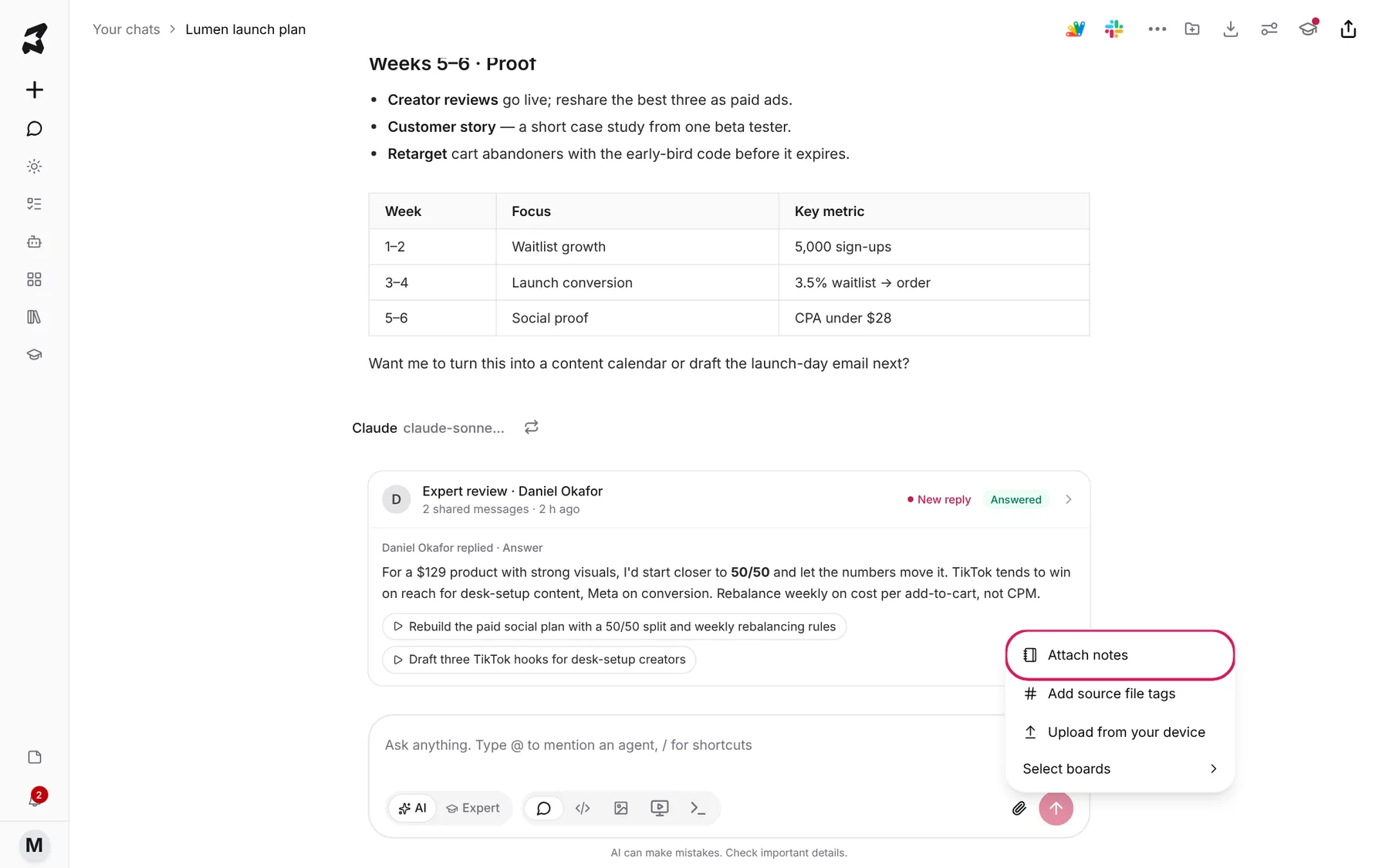
In any chat, click the + (Attachment options) in the composer and choose Attach notes.
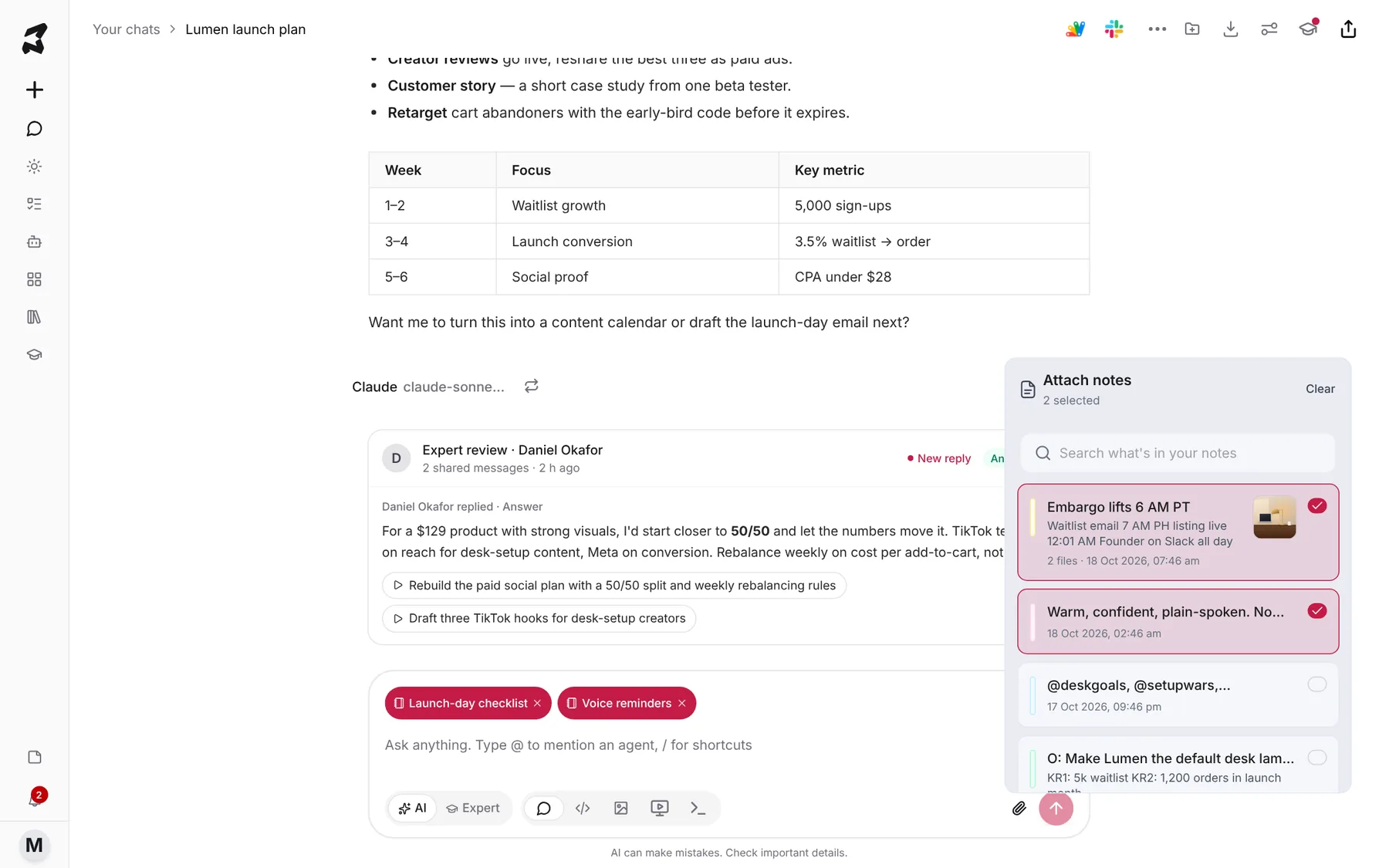
Select the notes you want. You can Search what’s in your notes to find them. Each one appears as a chip above the composer. Then ask your question as usual:
Using my launch-day checklist and voice notes, draft the 7 AM waitlist email.
Try it yourself: worked examples
Keep your brand voice handy
Write a note with your voice rules, such as “Warm, confident, plain-spoken. No exclamation marks.” Pin it. Attach it whenever you ask for copy:
Write three Instagram captions for the Lumen teaser film. Follow the voice note.
Why: the rules travel with the request, so you don’t have to repeat them.
Turn meeting scraps into tasks
During a call, press Alt + N and jot down action items as they come up. Afterwards, attach the note to a chat:
Turn this note into a list of to-dos with an owner and a due date for each.
Why: you capture fast and tidy up later.
Save a reference image
Paste a screenshot into a new note with a caption like “Competitor packaging, nice use of warm tones.” Use it later as a reference in an image chat.
Why: notes keep images and the reason you saved them together.
Tips
- Use colors as categories, for example yellow for to-dos and pink for brand rules, then filter by color.
- To start a fresh chat from a note, use the Use in a new chat icon in the note’s toolbar.
- Notes with images show the first image on the card. Click the +1 on it to open the note and see everything attached.