Agents & automation
Automate work with orchestration and scheduled tasks
Describe a recurring job in plain words with Orchestration mode, then manage every scheduled task, its timing and its run history from Agent Automations.
The Rundown
Orchestration mode lets you hand Axyen a multi-step job, including jobs that should happen later or on a schedule. You describe it in plain words (“every Monday at 8am, check… and email me…”). Axyen plans the steps, asks for anything it’s missing, and asks for your approval before it acts. Once a job is set up it becomes a scheduled task, and you manage all of them from Agent Automations: change the timing, run one now, skip the next run, or look back at what each run did and how many credits it used.
Why it helps
- Routine work (weekly digests, price checks, monthly reports) happens without you opening a chat.
- You set it up in one sentence instead of filling in a scheduler form.
- Every task shows where its results go, when it runs next, and which chat it came from.
- Run history and analytics show what each run cost and whether anything needs your attention.
What you’ll need
- An Axyen account.
- For tasks that send email or post to Slack, the matching integration connected (see Manage your account, integrations and credits).
- Scheduled runs use credits each time they run. You can see the cost per run under Recent executed.
Step 1 — Switch the composer to Orchestration mode
Start a new chat. The row of icons under the message box switches the composer’s mode: Chat, Code, Image, Video and Orchestration. Hover over the last icon (>_) to see what it does, then click it.
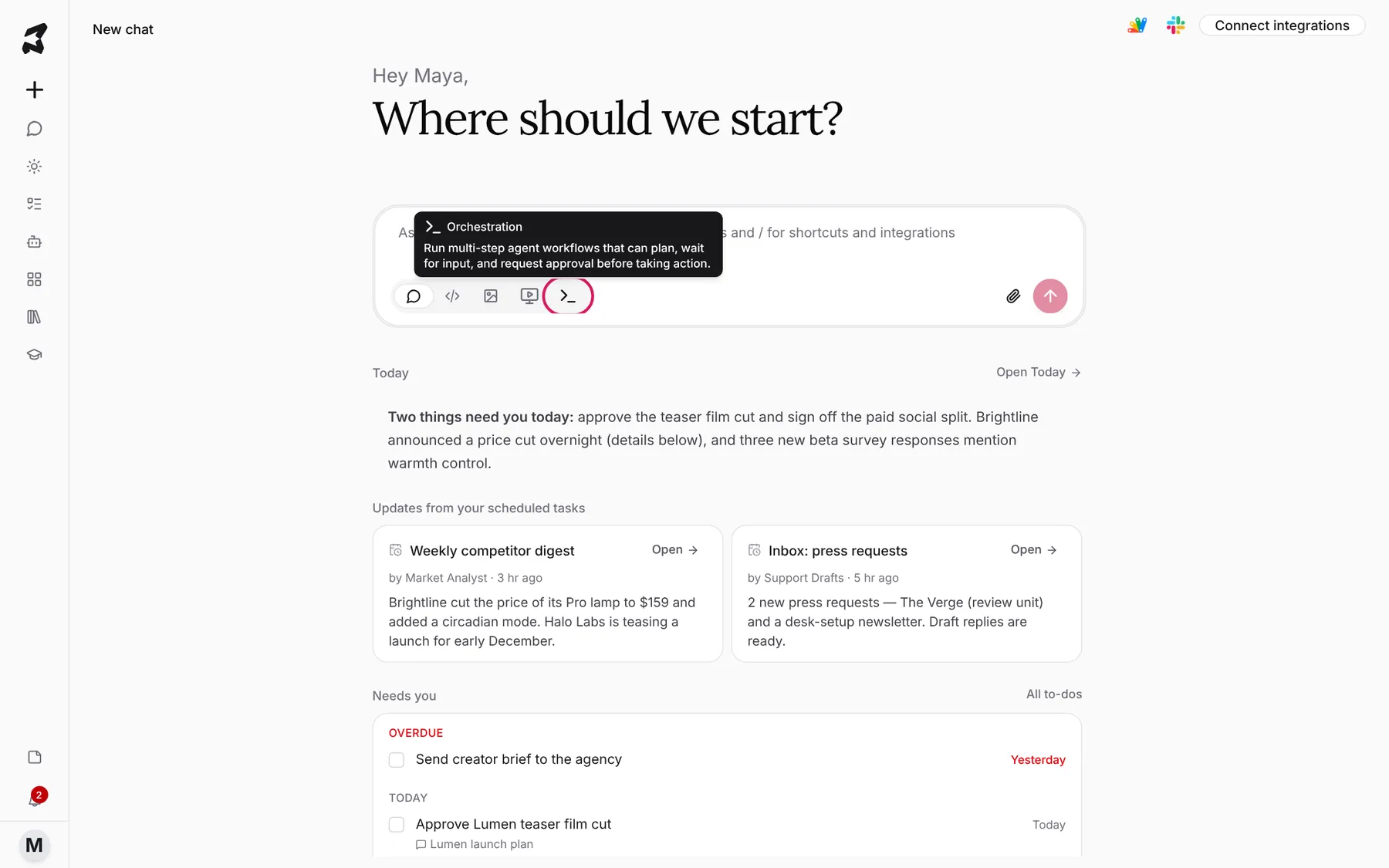
Use Orchestration mode when the job has several steps, needs to wait for a time or an event, or should take an action like sending an email. For a one-off question, Chat mode is enough.
Step 2 — Describe the job, including when it should run
Write what you want done, when, and where the result should go. Be specific about the schedule and the destination. You can pick the model from the menu above the message box.
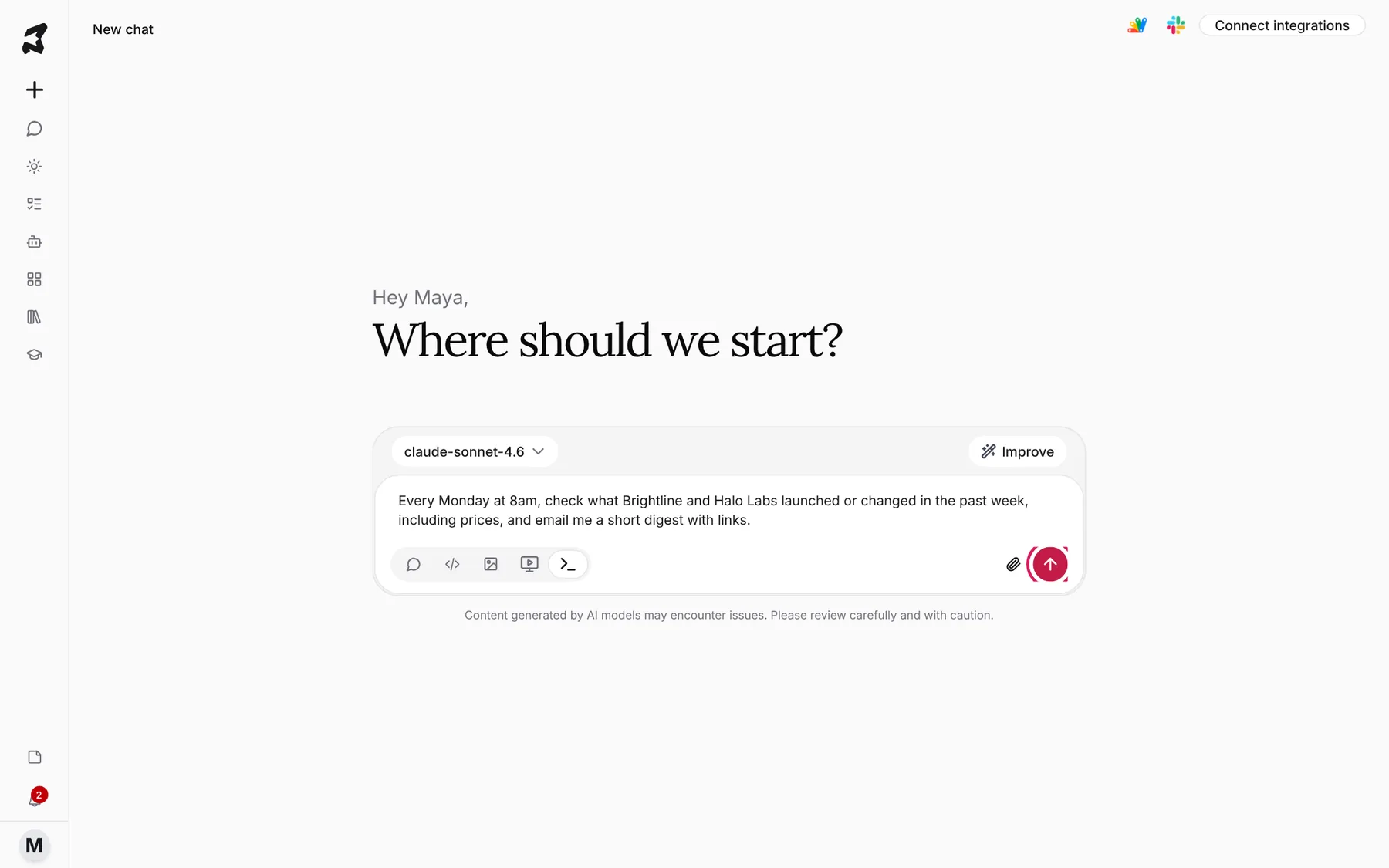
Every Monday at 8am, check what Brightline and Halo Labs launched or
changed in the past week, including prices, and email me a short
digest with links.
Send it. Axyen plans the steps. If something’s missing, such as which email address to use, it asks. Before it schedules anything or takes an action, it asks you to approve.
Step 3 — Check the scheduled task in the chat
Once it’s set up, the reply shows a scheduled-task card with the task name and its next run. Click the card to expand it. You’ll see the status (SCHEDULED), when it runs, where results go (for example Email), and the Next run.
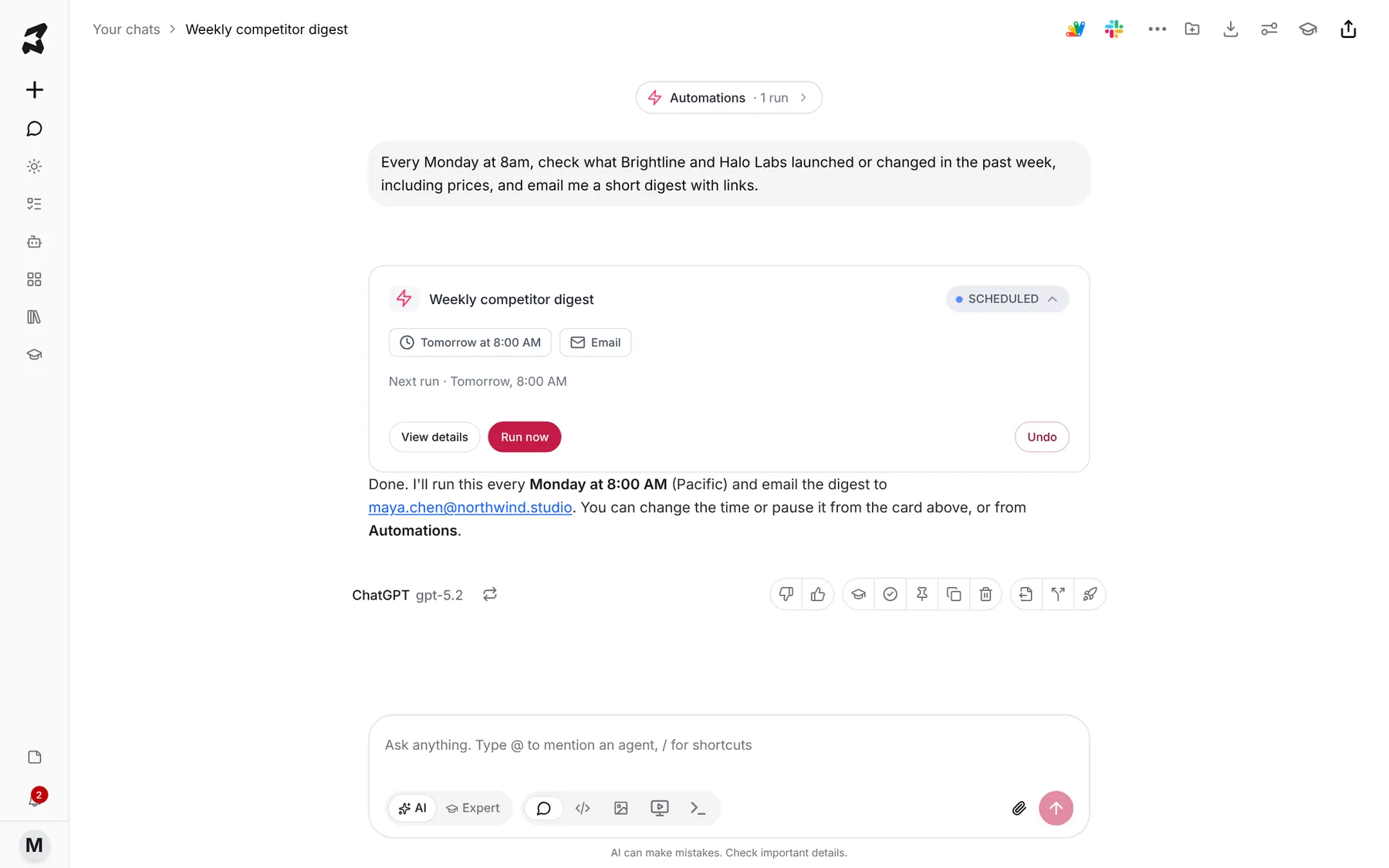
From the card you can:
- View details to see the plan.
- Run now to try it straight away instead of waiting for the schedule.
- Undo to cancel the task if it isn’t what you wanted.
The Automations pill at the top of the chat shows how many runs this chat has and opens them.
Step 4 — See all your scheduled tasks in Agent Automations
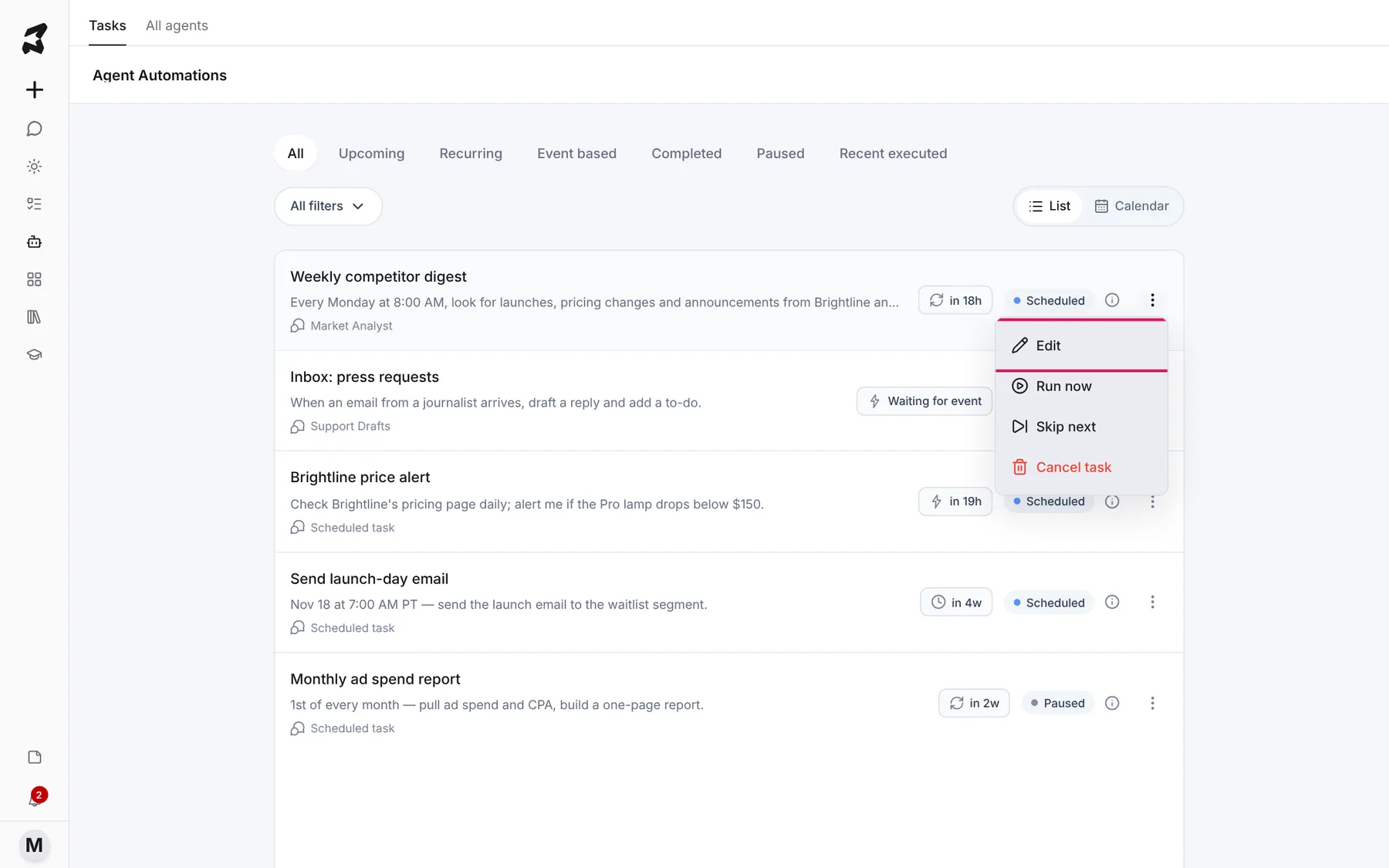
Click Agents in the sidebar (the robot icon). It opens on the Tasks tab. Agent Automations lists every scheduled task with what it does, the agent or chat it belongs to, when it runs next, and its status.
Use the tabs to filter: Upcoming, Recurring, Event based (tasks that wait for something to happen, like an email arriving), Completed and Paused. Switch between List and Calendar on the right to see tasks laid out by date.
Click ⋮ on a task to Edit it, Run now, Skip next (skip just the next run) or Cancel task.
Step 5 — Open a task to see its details
Click a task to open its page. It shows the Goal (the instructions it runs each time), Sends to (where results go), the Trigger (type, date and time), the chat it was Created from, and Activity (created, last run, next run).
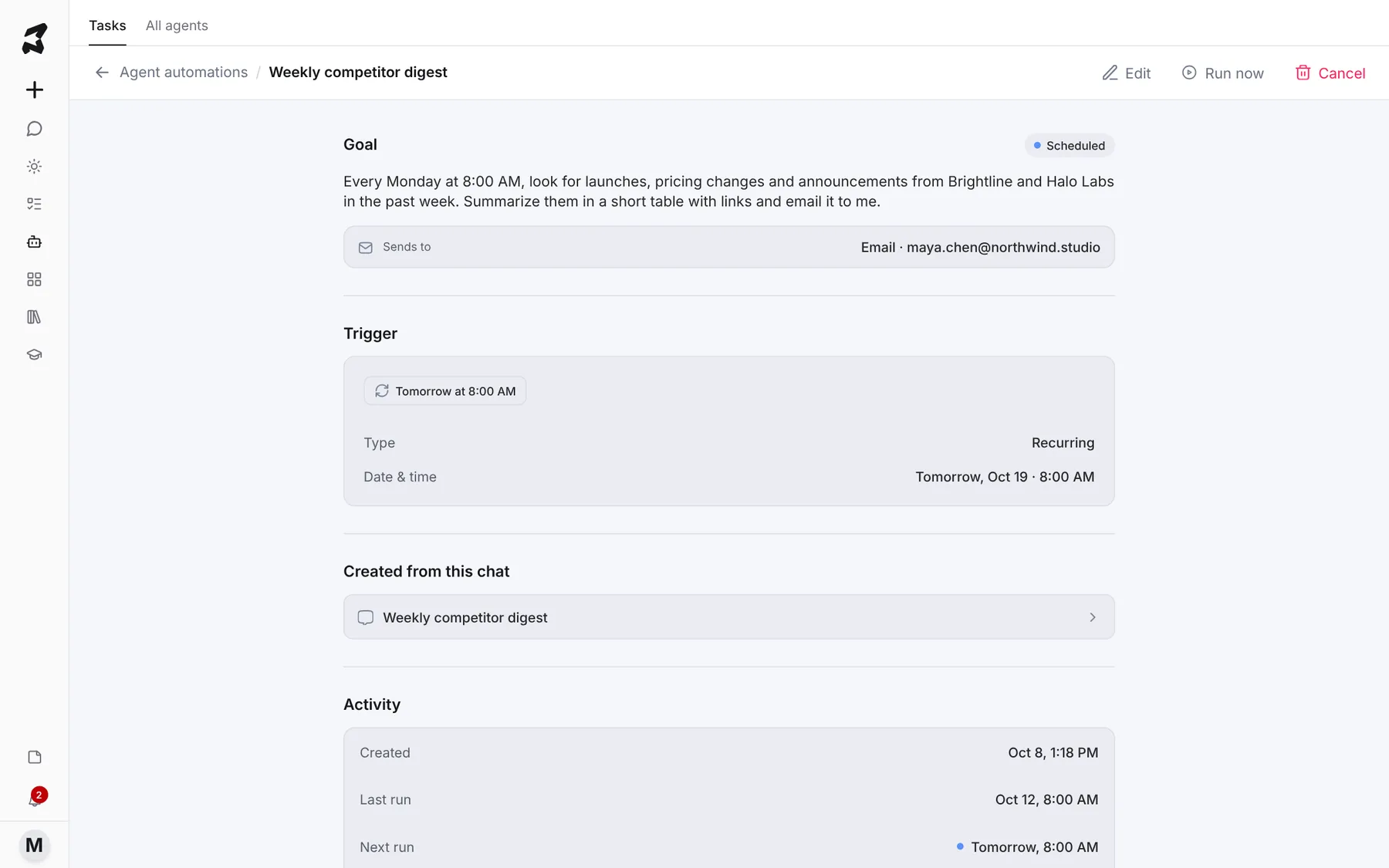
Edit, Run now and Cancel are also at the top right of this page. Click the chat under Created from this chat to go back to the conversation where you set it up. Each run posts its results there.
Step 6 — Change when it runs
Click Edit. The Edit workflow window opens. Under Trigger type, choose One-time or Recurring. For a recurring task, set the Frequency, Timezone, how often it repeats (Repeat every), which days (On days), the Time, and when it Ends. Tick Skip weekends and public holidays if it should only run on working days.
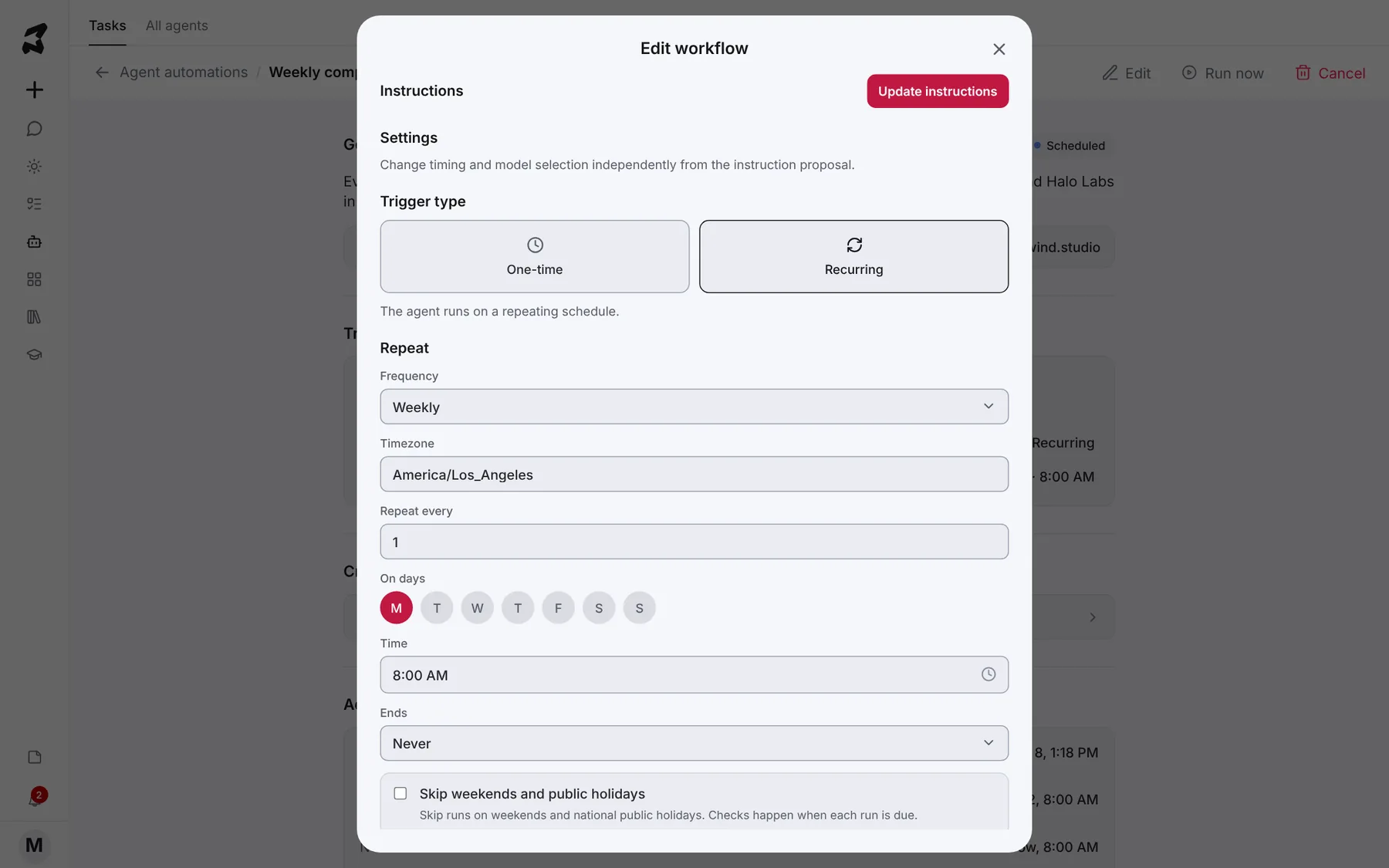
To change what the task does rather than when, click Update instructions at the top and describe the change.
Step 7 — Review recent runs and their cost
Open the Recent executed tab. Each run shows the agent, the prompt it ran, when it ran, its status (for example Completed or Waiting For Confirmation), the credits it used and how many calls it made. Click a run to see its outcome and timeline.
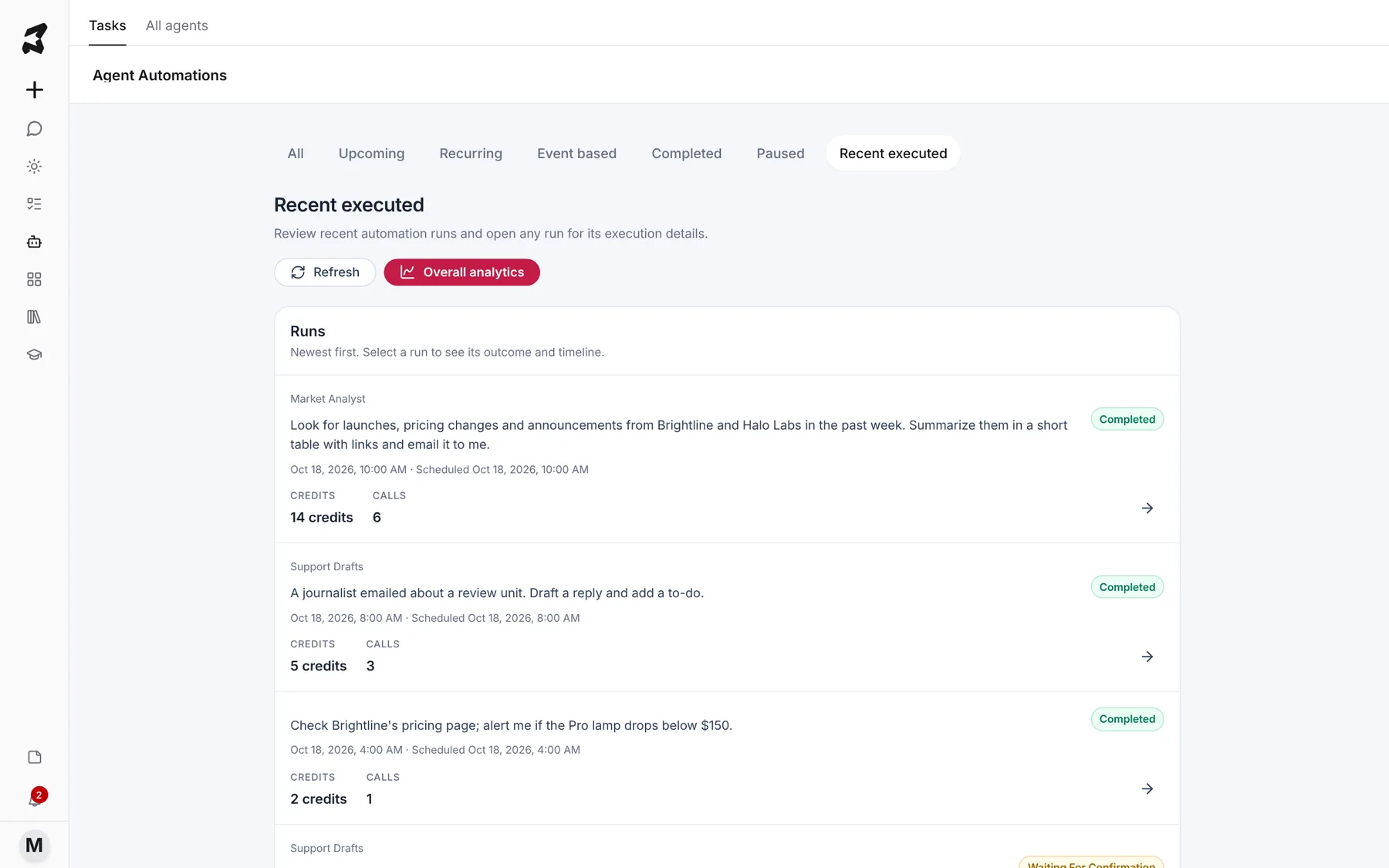
Click Overall analytics to see totals across all runs: Matching runs, Credits used, Success rate, Recorded calls, and Needs attention (runs waiting for your input, confirmation or sign-in). Credits per run shows the average cost.
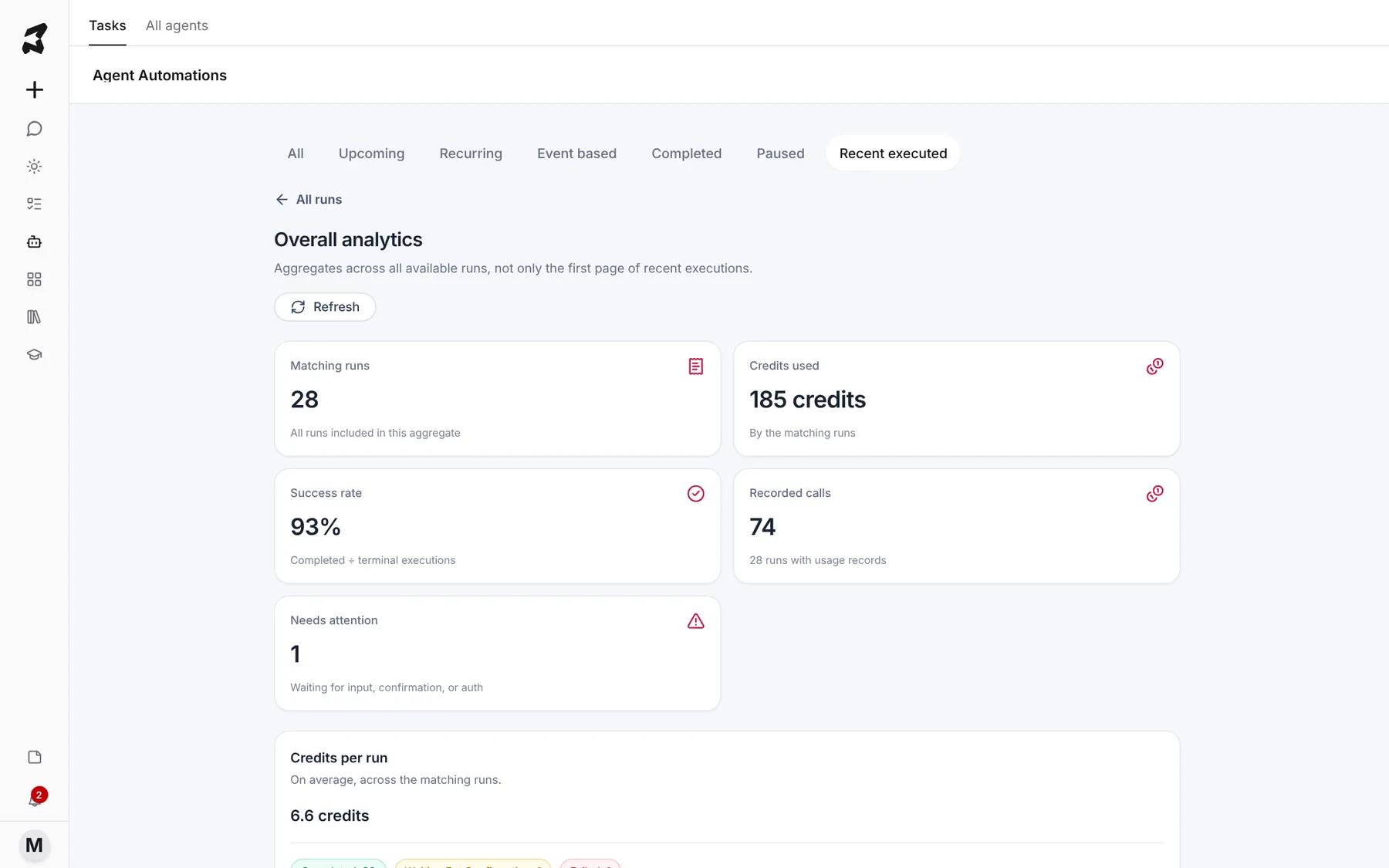
If Needs attention isn’t zero, open that run. It’s usually waiting for you to approve something.
Try it yourself: worked examples
Example 1 — A price alert
Check Brightline's pricing page every morning at 9. If the Pro lamp
drops below $150, message me with the new price and a link.
Why it works: it gives a clear condition and a clear action, so the task only bothers you when something actually changes.
Example 2 — A one-time launch-day send
On November 18 at 7:00 AM Pacific, send the launch email draft from
this chat to the waitlist segment.
Why it works: a one-time trigger with an exact date, time and time zone. Axyen asks you to approve before anything is sent, and the task shows under Upcoming until then.
Example 3 — A monthly report
On the 1st of every month at 9am, pull last month's ad spend and CPA
from our ad accounts, build a one-page summary with the three biggest
changes, and email it to me and Jonas.
Why it works: it names the timing, the inputs, the output format and the recipients. If you go on holiday, use Skip next or pause it from Agent Automations instead of deleting it.
Tips
- Always say when it should run and where the result should go. “Every weekday at 7am, email me…” works better than “keep me posted.”
- Use Run now right after setting up a task to check the output before the first real run.
- Give an agent its own scheduled tasks from the agent’s edit screen (see the Agents guide). The task then uses that agent’s instructions and skills.
- Check Needs attention in Overall analytics now and then. A run waiting for approval won’t finish on its own.