Organize your work
Run a bigger piece of work as a project
Set up a project in a short conversation, let threads handle the separate parts, and keep every decision in one facts sheet you can turn into a plan or a brief.
The Rundown
A project is one conversation for a piece of work that’s too big for a single chat, like a product launch or a team trip. You set it up by answering two questions, pick what kind of project it is, and Axyen opens threads for the parts that need their own space. What you settle along the way is saved as facts, and you can turn those facts into a plan or a finished document.
Why it helps
- You talk in one place. What you say is filed into the thread it belongs to.
- Decisions don’t get lost in scrollback. They sit on the Facts sheet, with a link back to where they were made.
- When two chats disagree, Axyen asks you to pick one instead of quietly using either.
- Teammates can join, read every thread and work on the brief and plan with you.
What you’ll need
- An Axyen account
- A goal for the project, plus anything that matters: dates, budget, audience
- Optional: existing chats you want to bring in
Step 1 — Open Projects and start a new one
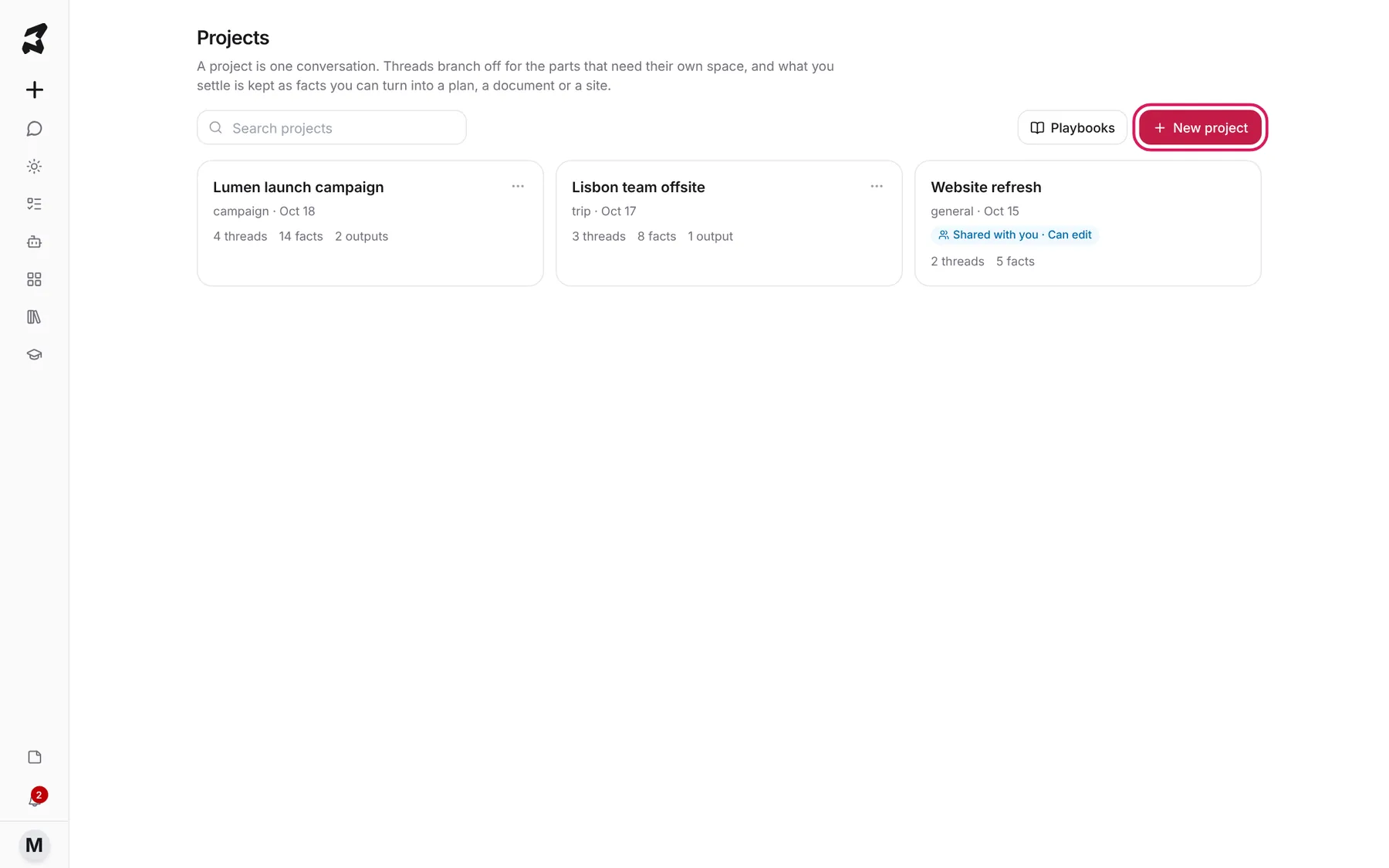
Open Projects from the sidebar. Each card shows the project’s kind, when it was last updated, and how many threads, facts and outputs it has. Projects someone shared with you are marked Shared with you.
Click New project to start one.
Step 2 — Answer two questions and pick a kind
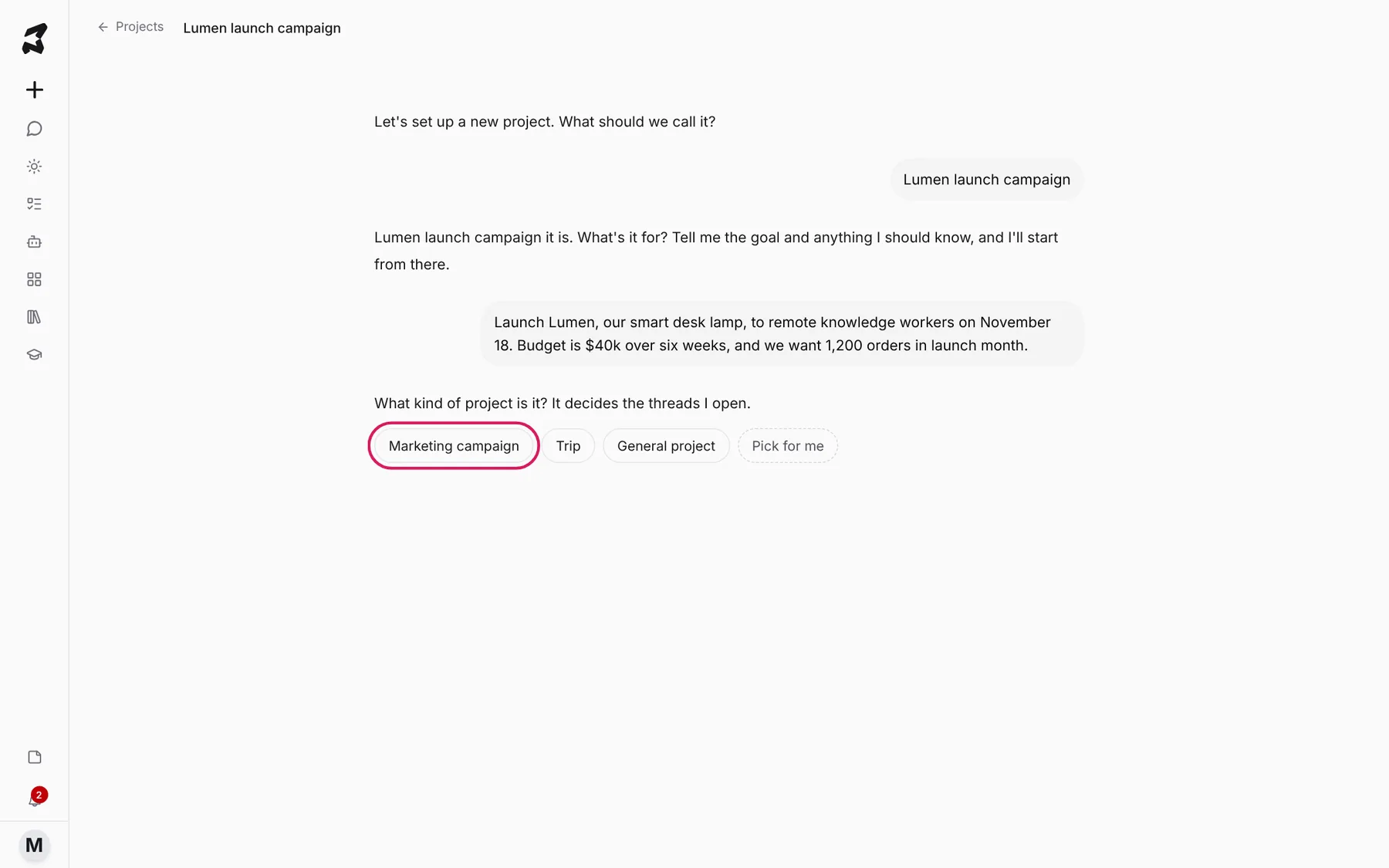
Setup is a short conversation. Axyen asks what to call the project, then what it’s for. Give it the goal and anything it should know. If you’d rather explain later, click Skip, I’ll explain in the chat.
Launch Lumen, our smart desk lamp, to remote knowledge workers on November 18. Budget is $40k over six weeks, and we want 1,200 orders in launch month.
Then Axyen asks What kind of project is it? It decides the threads I open. It marks one choice as Suggested based on what you wrote. Pick it, pick another kind such as Trip or General project, or click Pick for me. Axyen sets the project up and opens it, starting from what you told it.
Step 3 — Move between threads
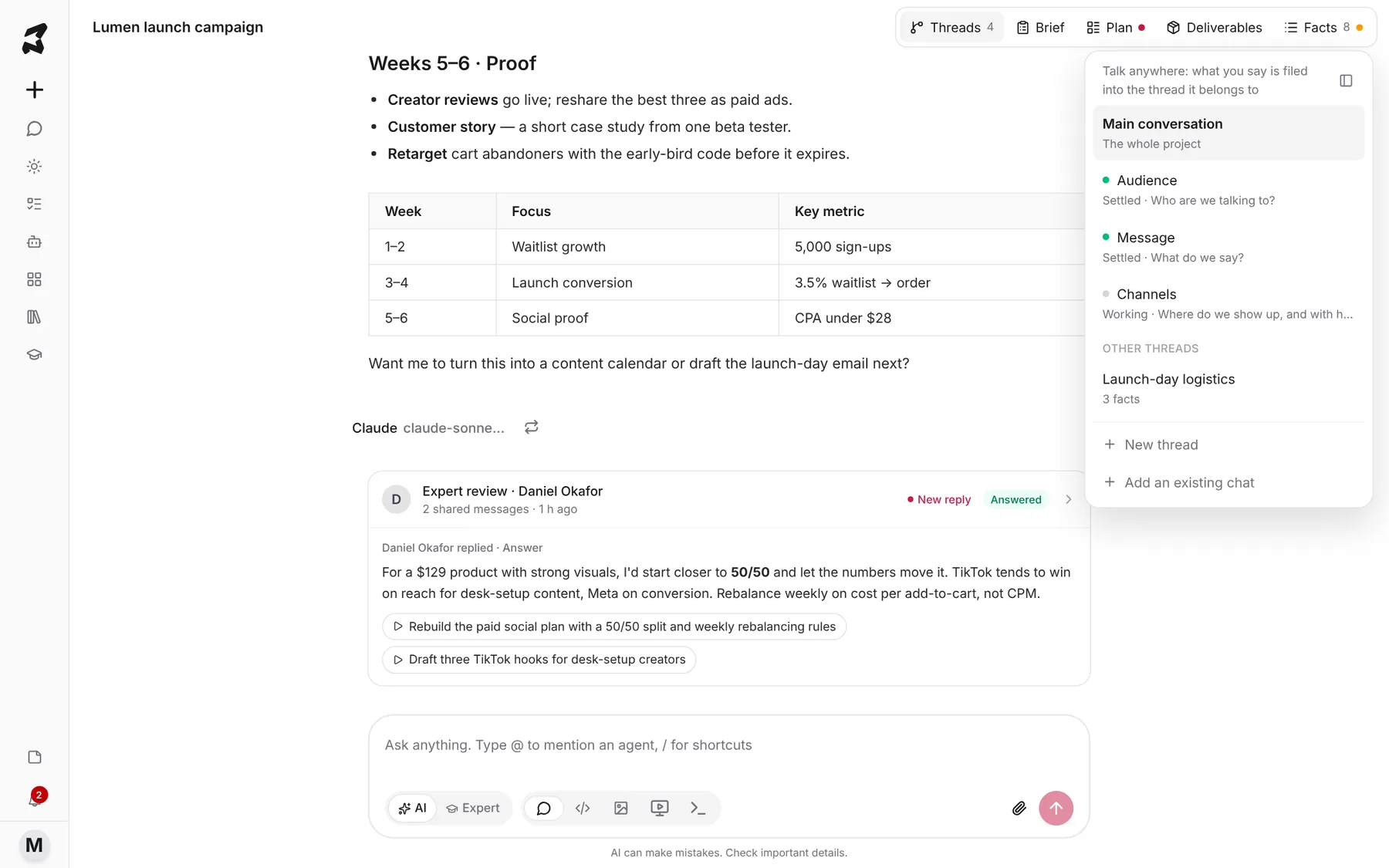
The project opens on its main conversation. The buttons at the top right open everything else: Threads, Brief, Plan, Deliverables and Facts.
Click Threads to see them all. The Main conversation covers the whole project. Below it are the threads the project kind opened, such as Audience, Message and Channels, each with its status and the question it should settle. Under Other threads are ones you opened yourself.
You don’t have to switch threads to talk about something. As the list says: Talk anywhere: what you say is filed into the thread it belongs to.
- New thread asks for a name and what the thread should settle.
- Add an existing chat lists your recent chats outside the project. Pick one and Axyen reads it for facts.
Step 4 — Check the brief, playbook and people
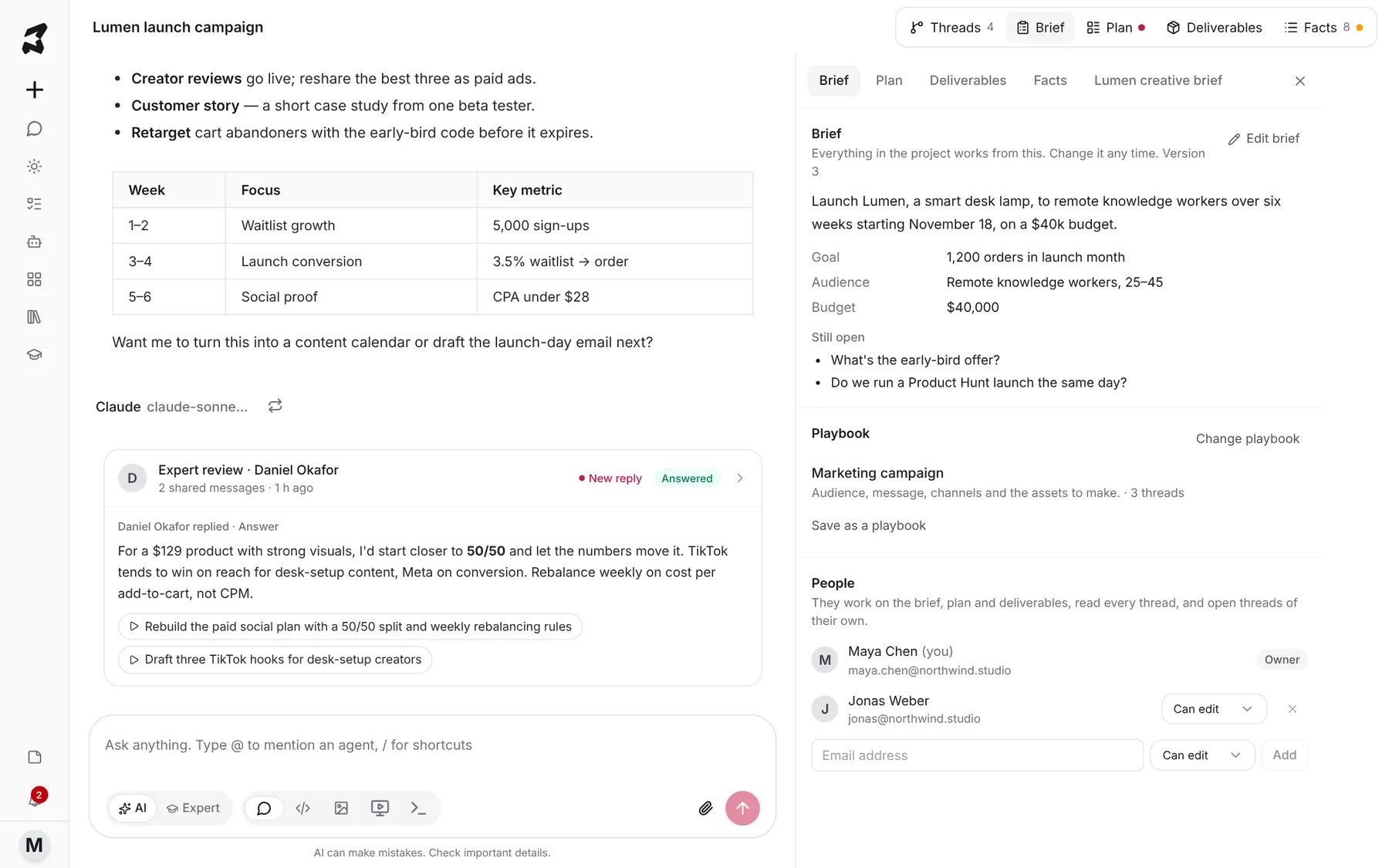
Click Brief to open the side panel. The brief is a short summary of the project with its key fields (here Goal, Audience and Budget) and questions that are Still open. Click Edit brief to change any of it.
Below the brief you’ll see the Playbook the project uses, with Change playbook and Save as a playbook, and People. To invite a teammate, type their email address, choose Can edit or another role, and click Add.
Step 5 — Review the plan
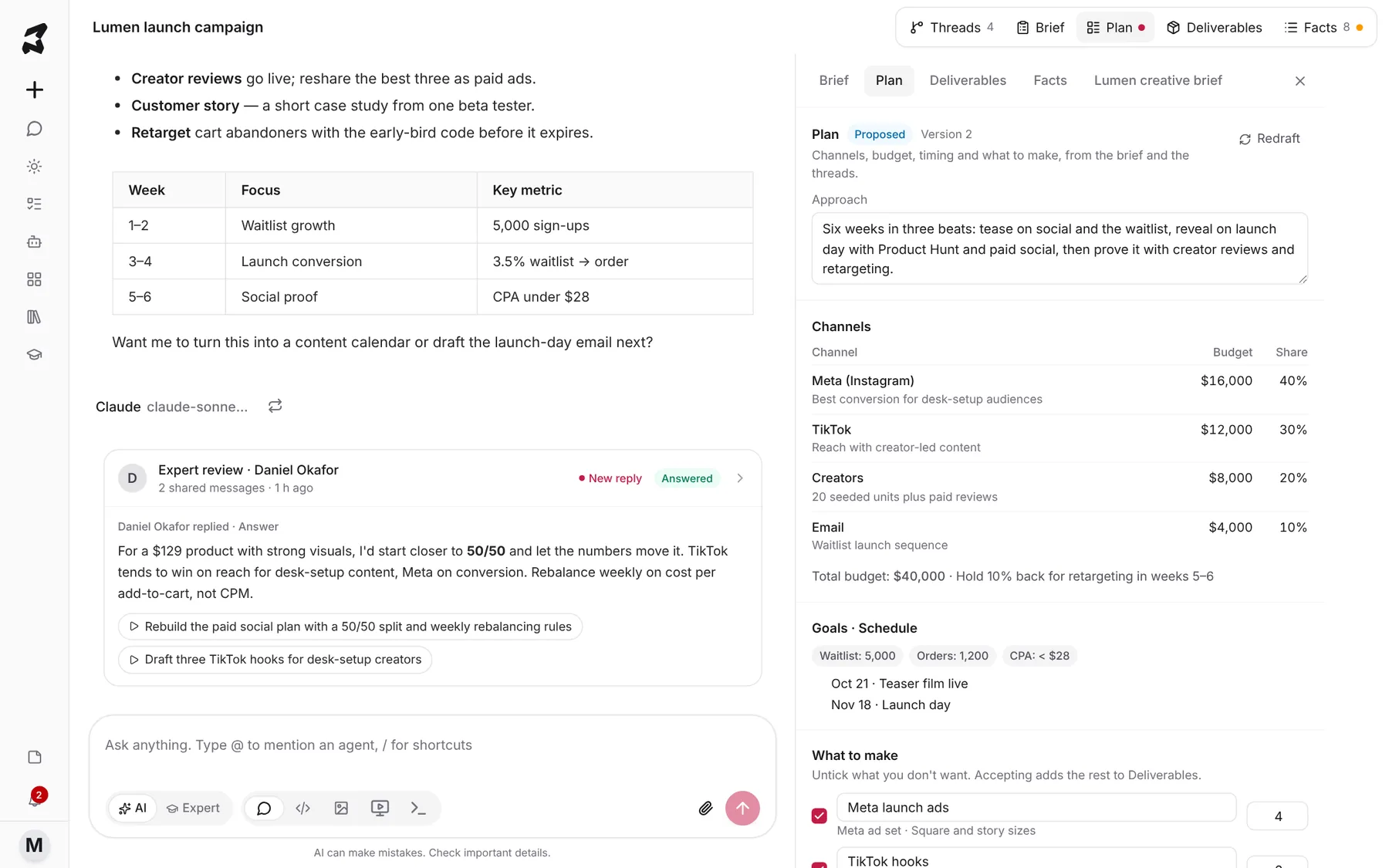
Open the Plan tab. A Proposed plan lays out the approach, the channels with budget and share, goals and milestones, and What to make. Edit the approach or the list, untick anything you don’t want, and accept the plan to add the rest to Deliverables. Click Redraft for a fresh version.
Step 6 — Settle the facts
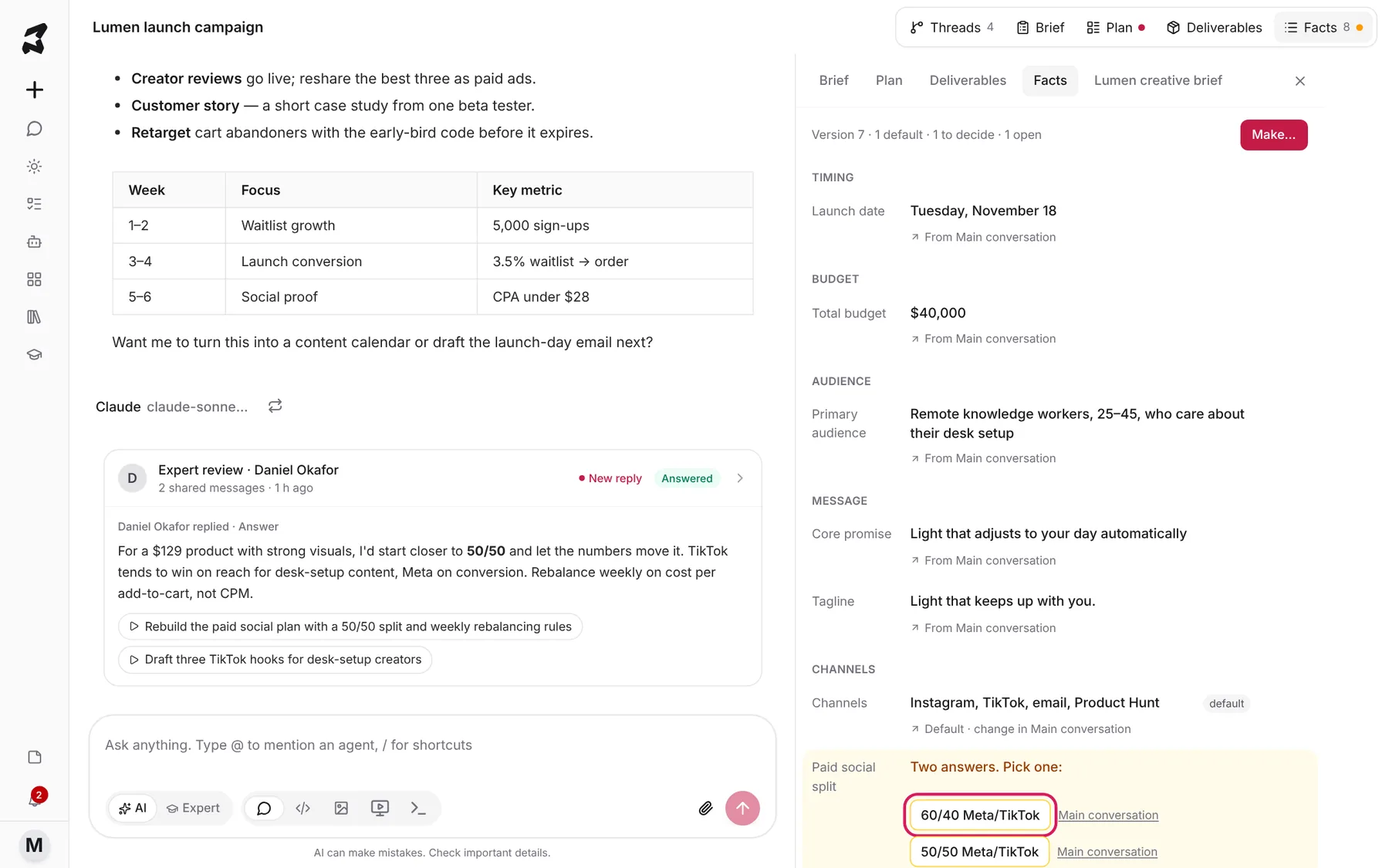
Open the Facts tab. Facts are grouped by topic, and each one says where it came from, for example From Main conversation. Click that link to jump to the source. Facts marked default are assumptions you can change later.
When two parts of the project gave different answers, the fact is highlighted with Two answers. Pick one:. Click the answer you want to keep. The Facts button at the top shows an amber dot while something needs a decision.
Step 7 — Make something from the facts
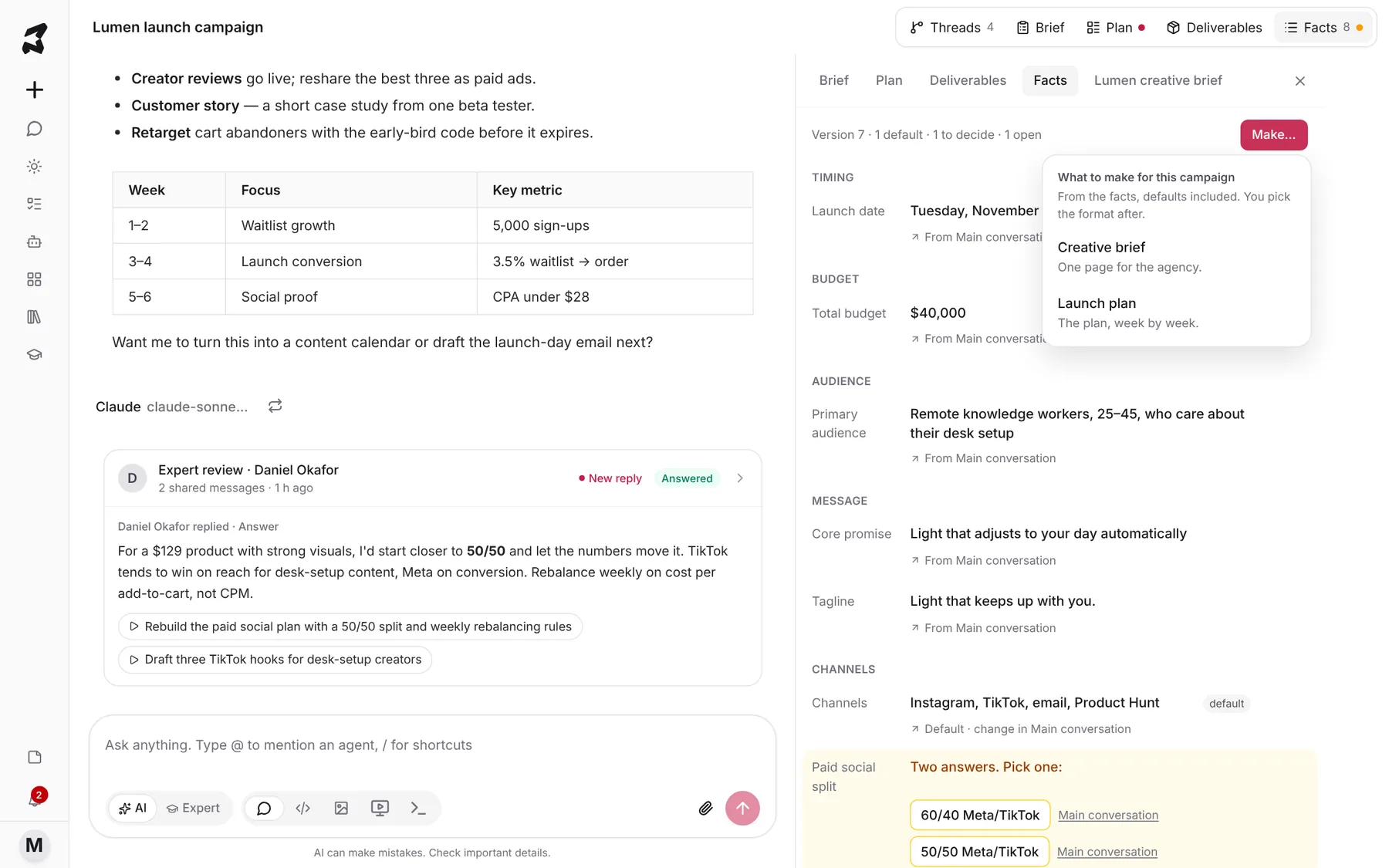
Click Make… at the top of the Facts panel. Axyen lists what it can make for this kind of project, such as a Creative brief or a Launch plan. It builds from the facts, defaults included.
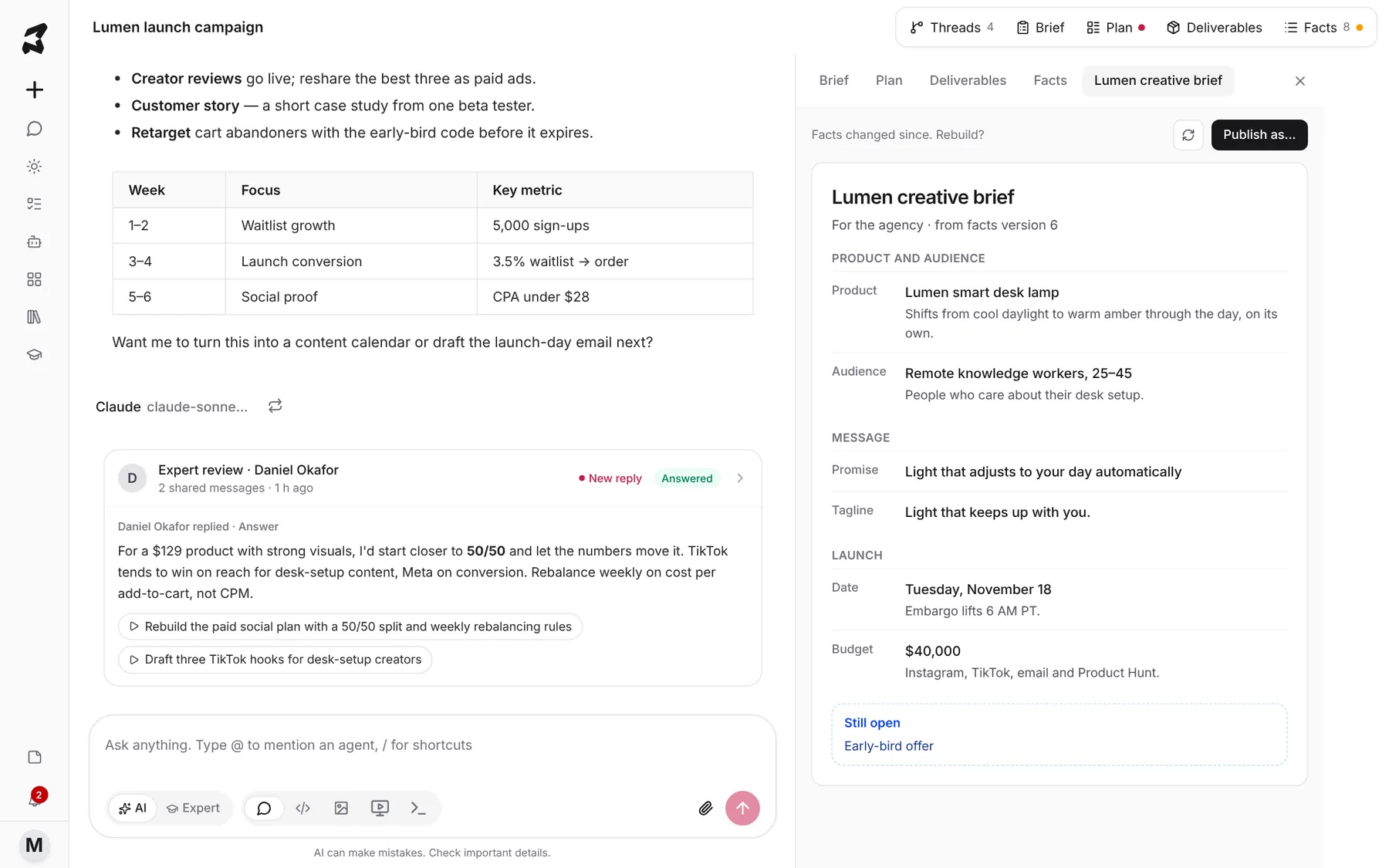
The result opens as its own tab. Anything not settled yet is listed under Still open. If facts change afterwards, the output says Facts changed since. Rebuild? so you know it’s out of date. Click Publish as… to get it in another format.
Try it yourself: worked examples
Plan a team offsite
Create a project, pick Trip, and describe it:
A 3-day offsite in Lisbon for 8 people in early March. We want one workshop day, one free day, and a budget of about $1,500 per person including flights.
Why: a trip project opens threads for the route and where to stay, so venue research and the day plan don’t tangle together.
Pull in work you already did
You’ve already compared smart lamps in a separate chat. Open Threads, click Add an existing chat, and pick it. Then ask in the main conversation:
Using the competitor research we just added, which two features should lead our launch message?
Why: the chat becomes a thread, and what it settled shows up on the Facts sheet.
Close the open questions
The brief lists What’s the early-bird offer? under Still open. Ask in the main conversation:
Let's settle the early-bird offer: 15% off for waitlist sign-ups, valid for the first 72 hours after launch.
Why: once it’s settled it becomes a fact, and the next output you make includes it.
Tips
- Say things wherever you are in the project. You don’t need to find the right thread first.
- Watch for the amber dot on Facts. An output built while answers disagree may use the wrong one.
- Use Save as a playbook when a project’s setup worked well, so the next one starts the same way.
- Removing a chat from a project doesn’t delete it. It stays in your chats.