Chat & models
Choose the right model, or compare several at once
Let Auto pick a model for you, lock in a favorite with Preferred, merge three top models with Omni, or put up to four answers side by side with Compare.
The Rundown
Axyen gives you 20+ AI models from OpenAI, Anthropic, Google, xAI, Mistral and others in one place. This guide shows the four ways to decide which one answers: Auto picks for you, Preferred always uses the model you choose, Omni asks Claude, ChatGPT and Gemini together and merges their answers, and Compare shows two to four answers side by side so you can pick the best one.
Why it helps
Models have different strengths. One writes tighter copy, another is better with long documents, another is faster and cheaper. Instead of keeping several subscriptions and copying prompts between tabs, you choose per message — and when it matters, you see the answers next to each other.
What you’ll need
- An Axyen account
- For Compare: a plan that includes model comparison (the plan page lists it as “Model comparison (side-by-side outputs)”). Each compared answer uses its own credits.
Step 1 — Open the model menu
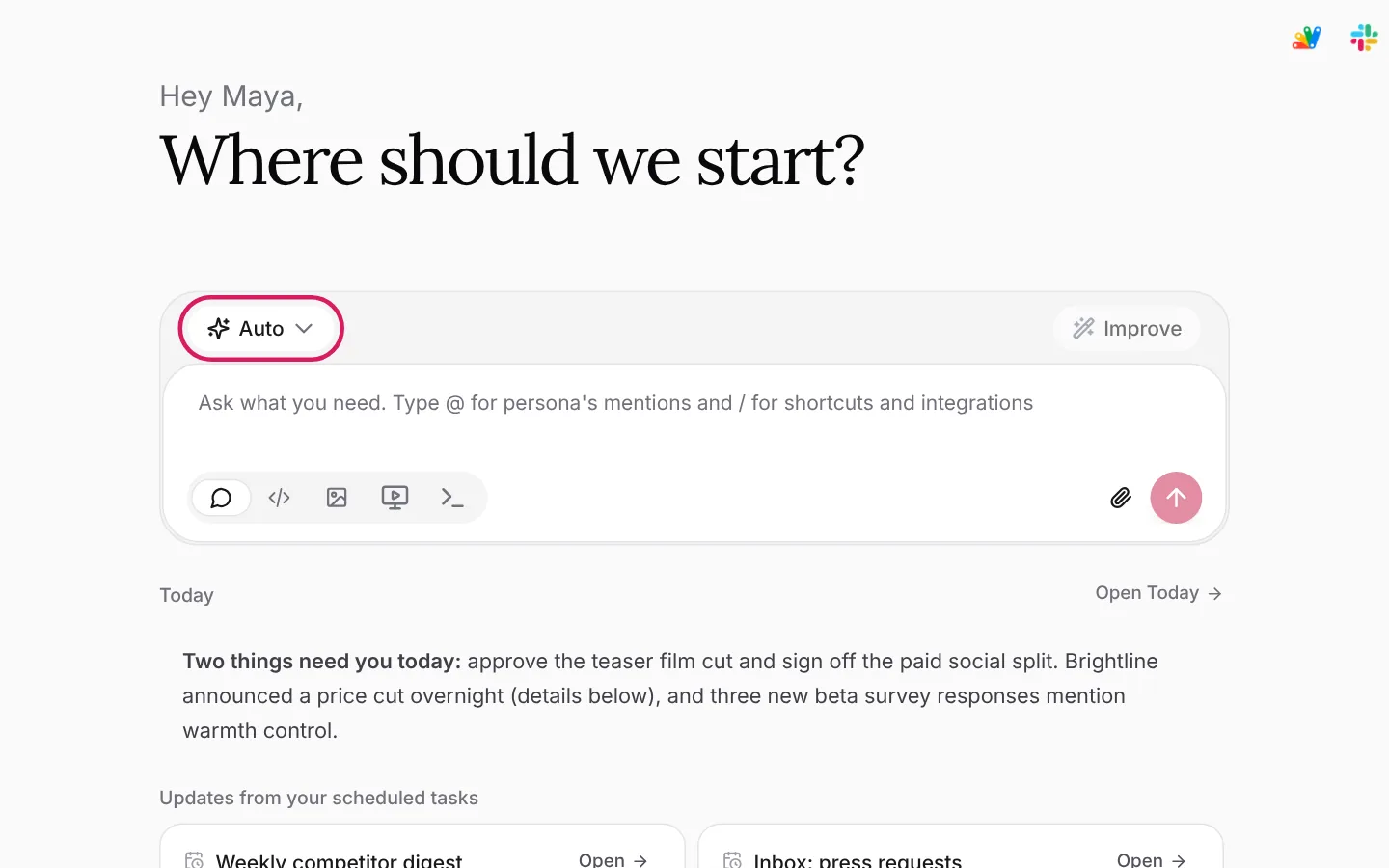
Click into the message box. The model button appears above it, on the left — it says Auto until you change it. Click it.
Step 2 — Pick a model for this chat, or leave it on Auto
The menu lists Auto (“We pick the model for each question”) and your most-used models with a one-line description of each. Click a model to use it, or keep Auto and let Axyen route each message — quick questions go to fast, light models and harder ones go to the most capable models, which keeps your credit use down.
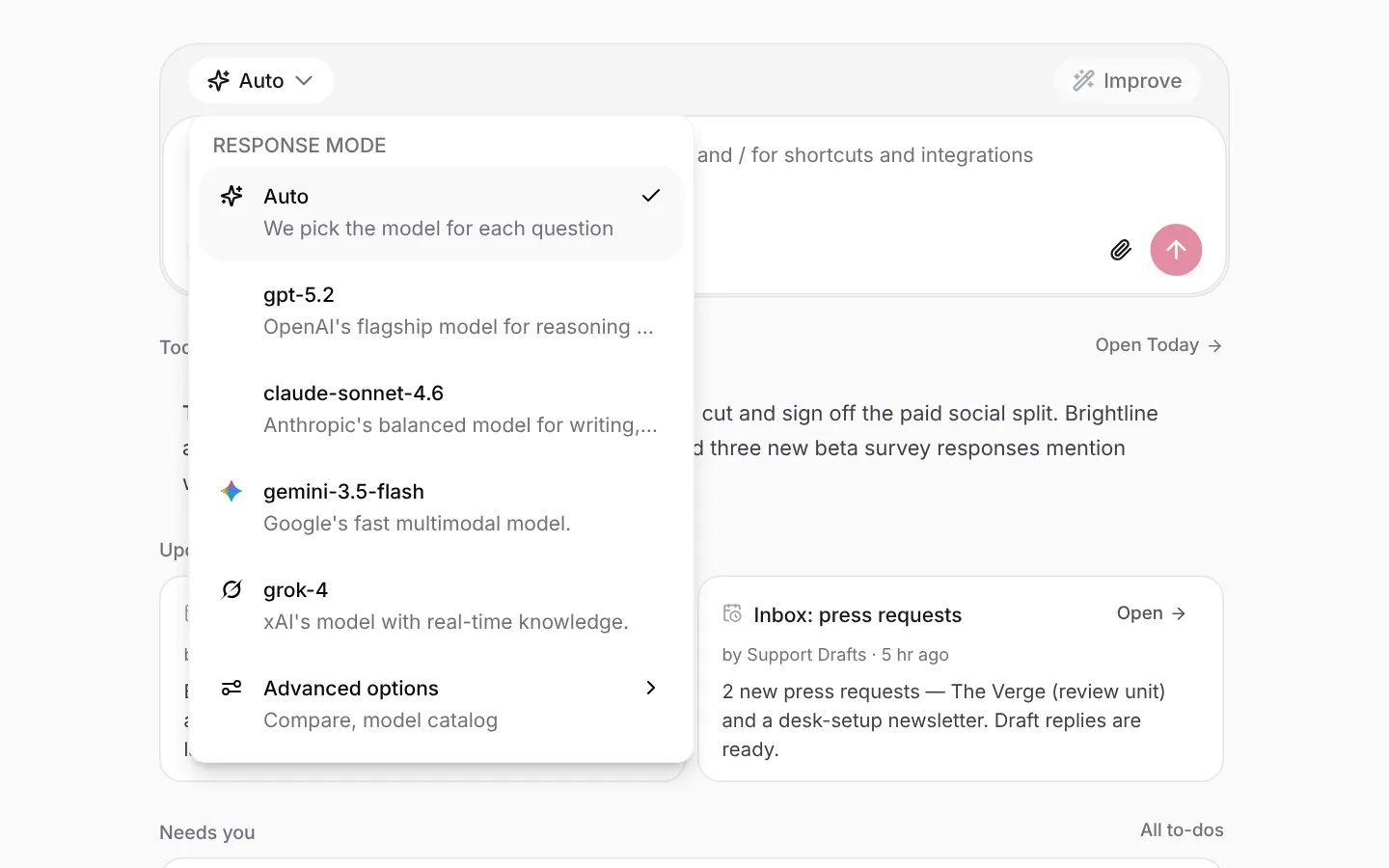
For everything else, click Advanced options at the bottom of the menu.
Step 3 — Understand the response modes
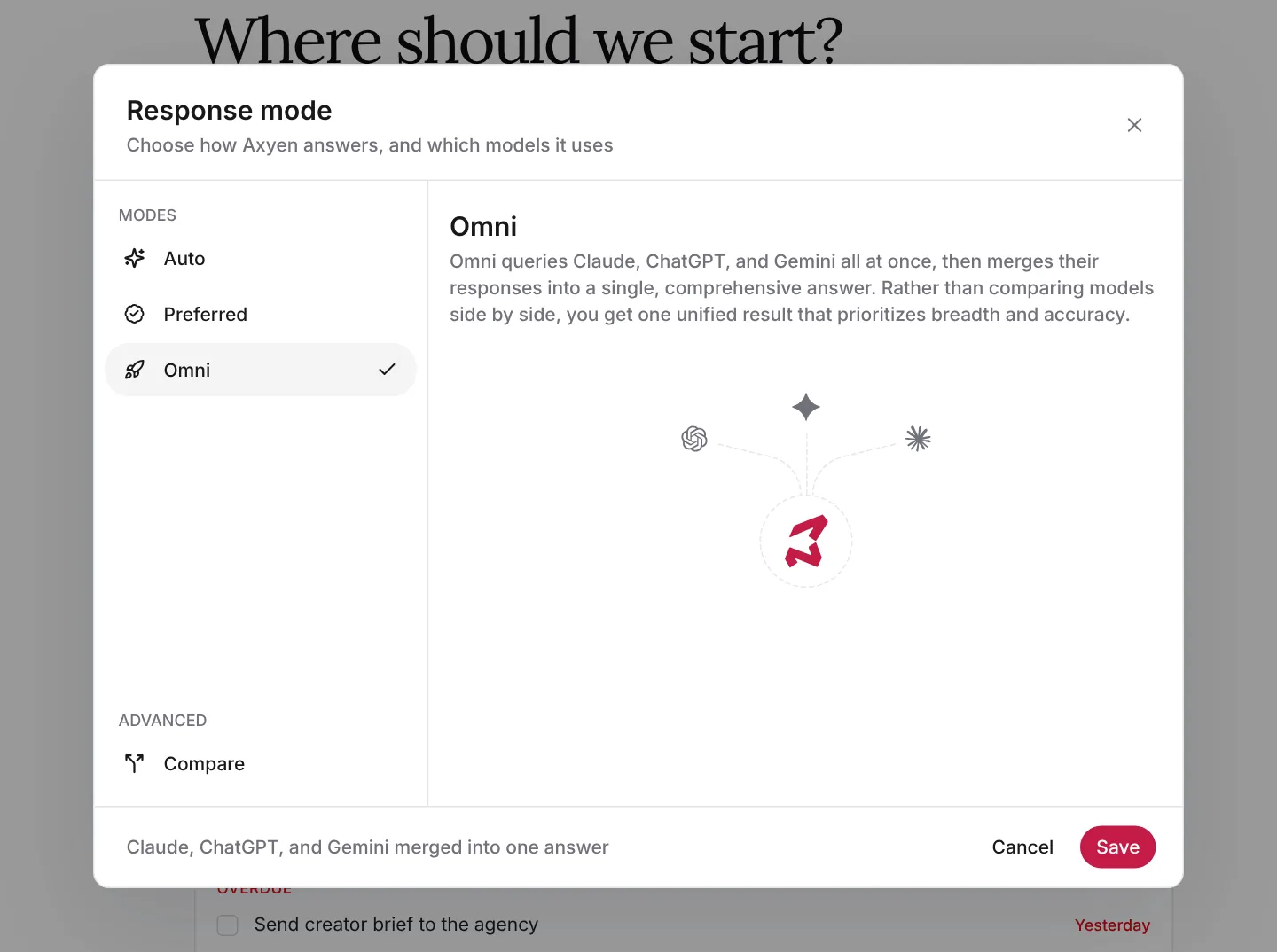
Advanced options opens the Response mode window: “Choose how Axyen answers, and which models it uses.” The modes are listed on the left.
Auto is the default. Axyen picks the model for each question based on how complex it is.
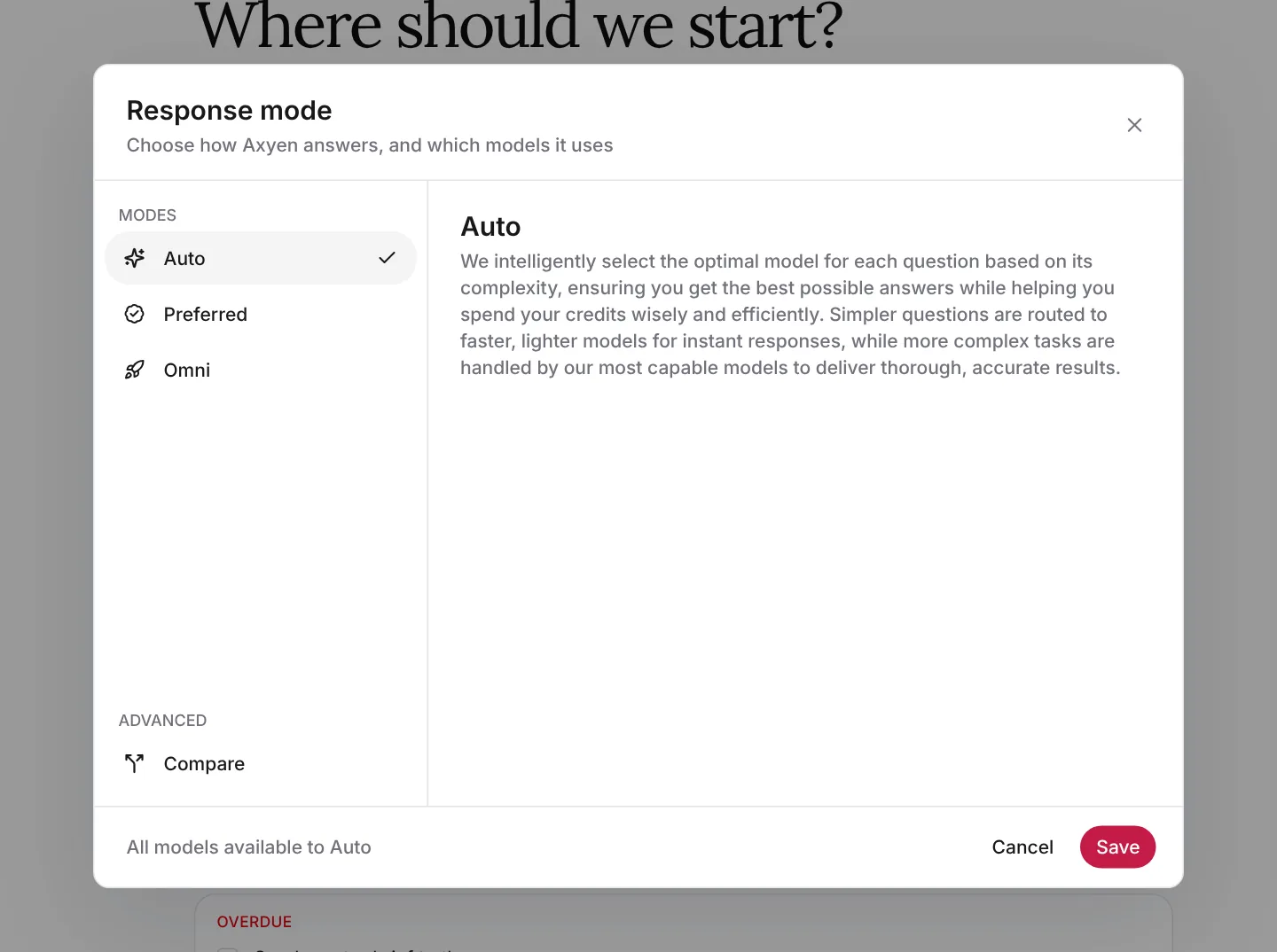
Preferred sends everything to one model you choose. Use the search box or the provider tabs (Gemini, Grok, Mistral, ChatGPT, Claude) to find it, select it, and click Save.
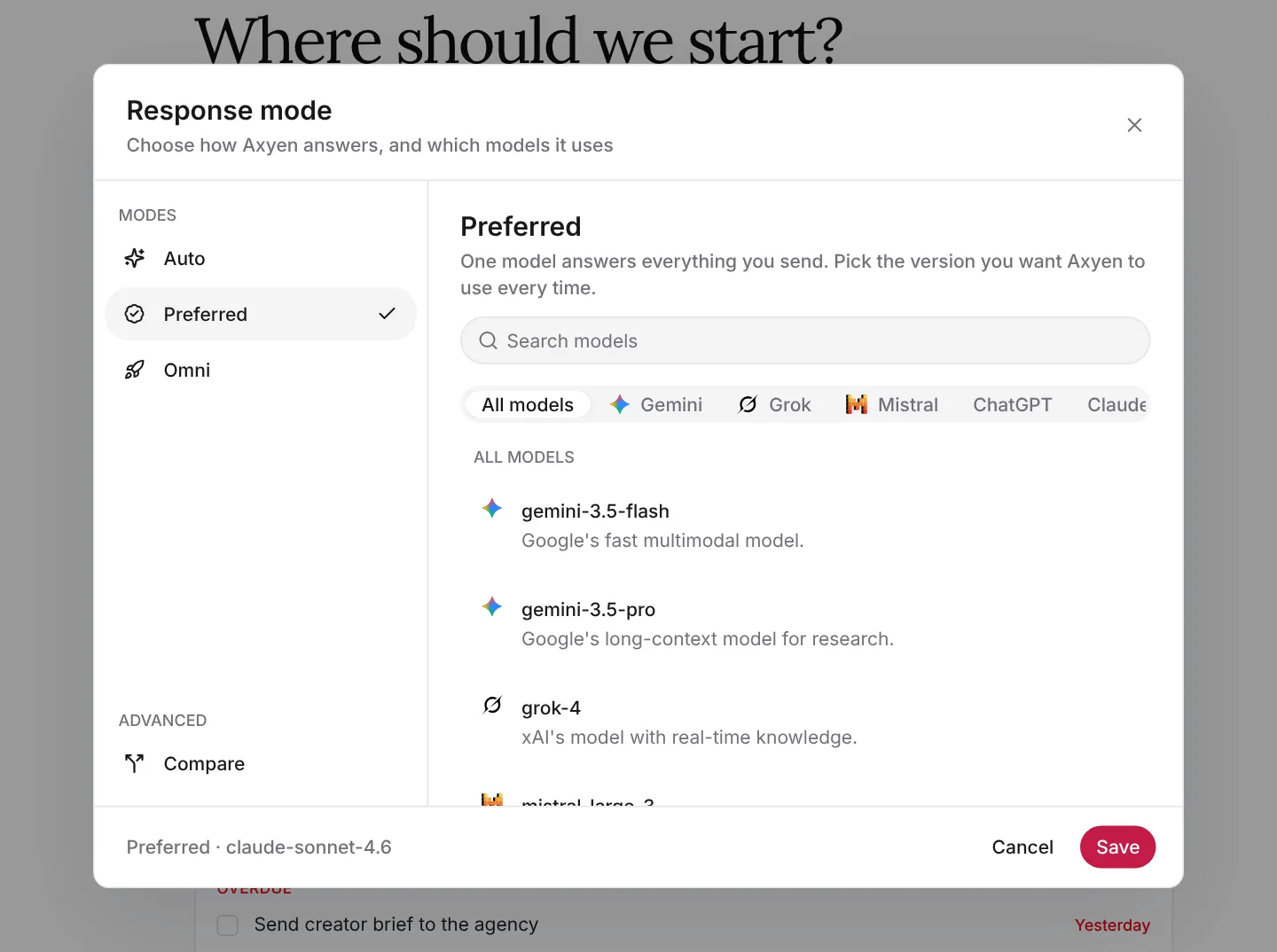
Omni asks Claude, ChatGPT and Gemini at the same time, then merges their responses into one answer. Use it for questions where you want breadth — research, planning, tricky judgment calls.
Step 4 — Set up Compare
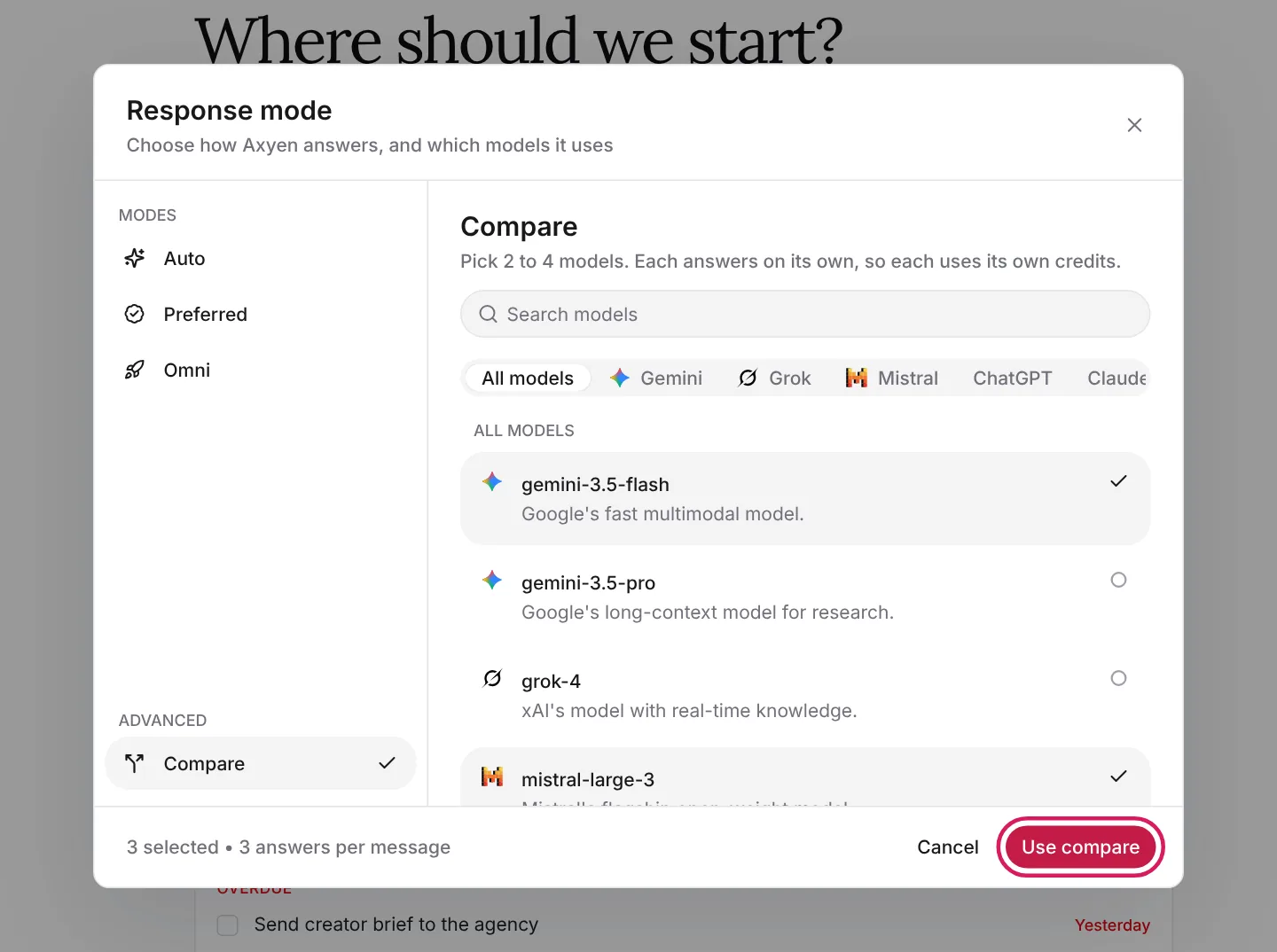
Under Advanced, click Compare. Pick two to four models from the list — each one answers on its own, so each uses its own credits. The footer counts your selection (“3 selected • 3 answers per message”). Click Use compare.
Step 5 — Send a message and pick the best answer
Type your prompt and send it. The answers stream in side by side, one card per model, each with its own feedback, pin and copy buttons. Read them, then click Select Answer on the one you want to keep.
Give me five taglines for Lumen, our smart desk lamp that shifts color
temperature through the day. Keep them under eight words.
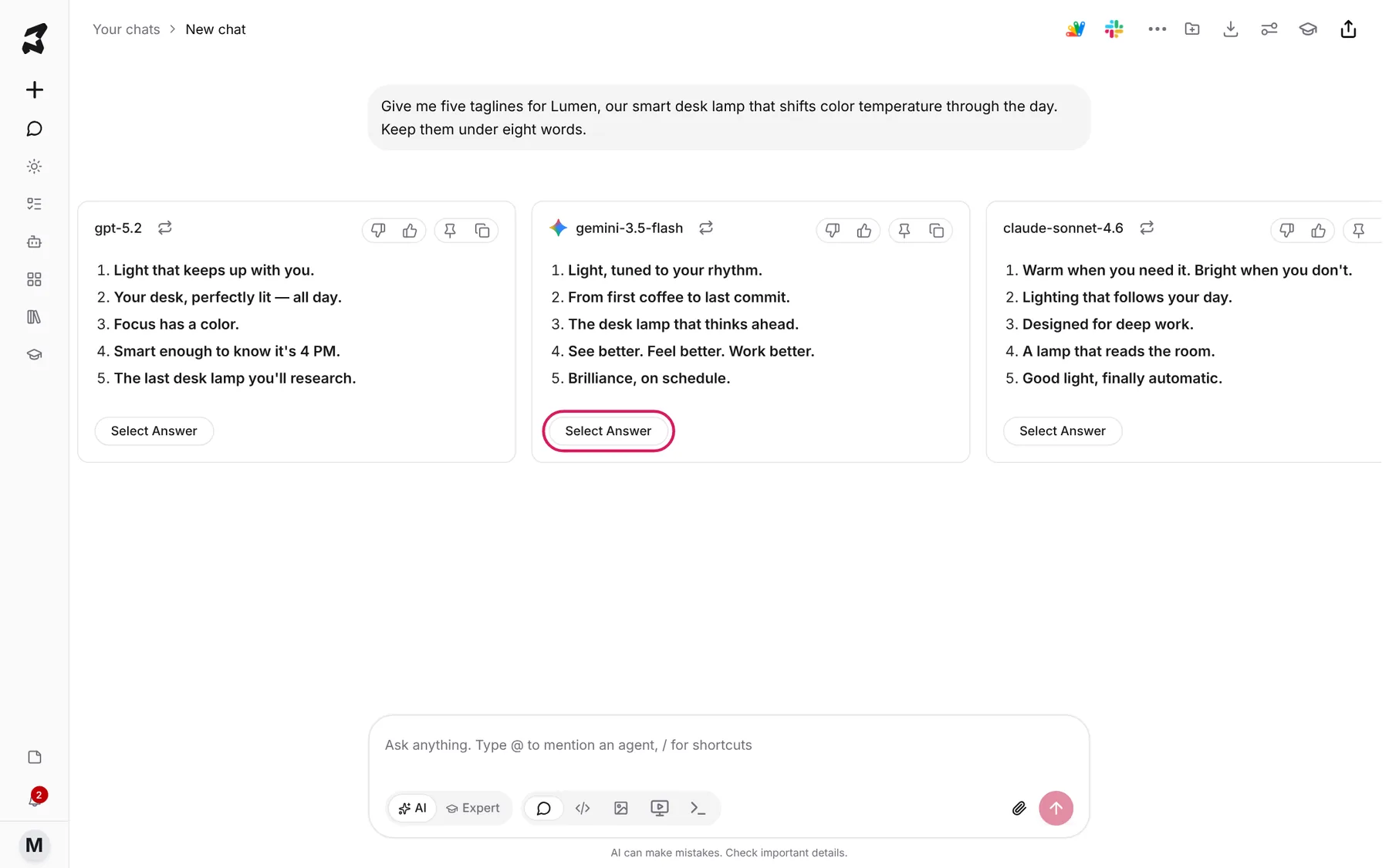
The answer you select becomes the reply the chat continues from.
Step 6 — Revisit the other answers later
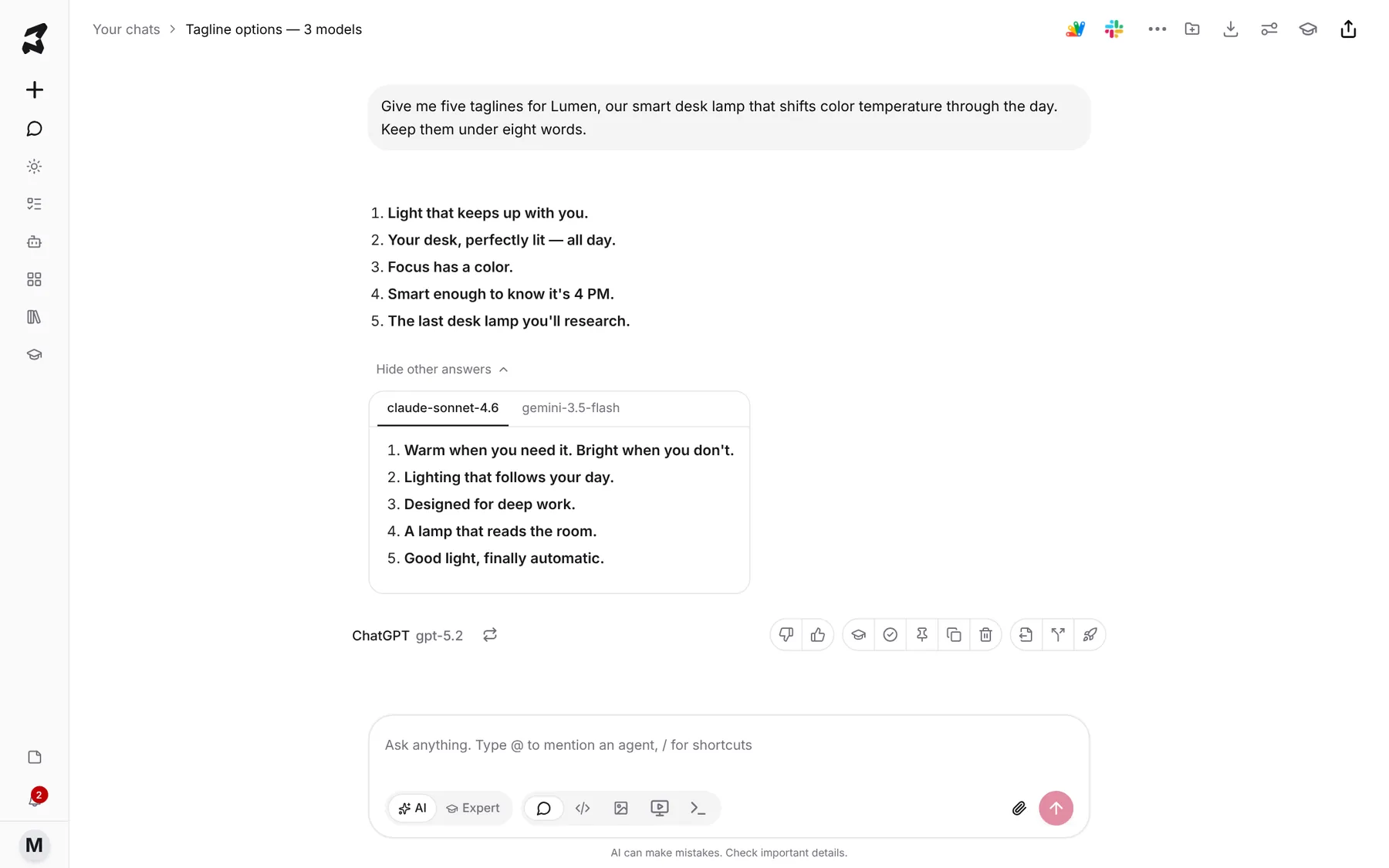
The answers you didn’t pick aren’t thrown away. Under the chosen reply, click See 2 other answers to read them again — each model gets its own tab. Click Hide other answers to collapse them.
Try it yourself: worked examples
Example 1 — Copy that has to land
Use Compare with three models for headlines, taglines, subject lines or ad copy. Writing styles differ more between models than you’d expect, and seeing them side by side makes the choice easy.
Write four subject lines for our launch email to 5,000 waitlist
sign-ups. Under 45 characters, no exclamation marks.
Example 2 — A big question you want covered from every angle
Switch to Omni for research or planning where you’d otherwise ask three models and merge the answers yourself.
What are the main risks of launching a $129 consumer hardware product
in Q4, and how do teams usually reduce them?
Example 3 — A model you trust for a specific job
If you always want a particular model for code or long documents, set it as Preferred for that chat. You can also set default text, image and video models for every new chat in Settings → Preferences (see Manage your account, integrations and credits).
Tips
- Start on Auto. Switch only when you have a reason — it’s usually the best balance of quality and credits.
- In Compare, judge on the task, not the length. The longest answer isn’t always the best.
- Under any reply, the swap icon next to the model name lets you re-run that single answer on a different model.
- Compare is a plan feature; if it’s not on your plan, the app tells you when you try to use it.