Organize your work
Control what Axyen remembers
See what Axyen has learned about you, approve or dismiss suggestions, add memories yourself, and turn memory on or off for everything or a single chat.
The Rundown
Memory is what Axyen remembers about you across chats: your role, how you like answers, what you’re working on. The Memory page shows every memory, where it came from, and how strong it is. You can add memories, change or forget them, decide on suggestions, and turn memory off for everything or for one chat.
Why it helps
- You don’t have to re-explain who you are and what you’re working on in every chat.
- Long-term memories fade when they stop coming up, and short-term ones end on their own, so old details don’t hang around.
- Everything is visible and editable. Nothing is hidden from you.
What you’ll need
- An Axyen account
- A few chats, so Axyen has had a chance to learn something (or add memories yourself)
Step 1 — Open Memory
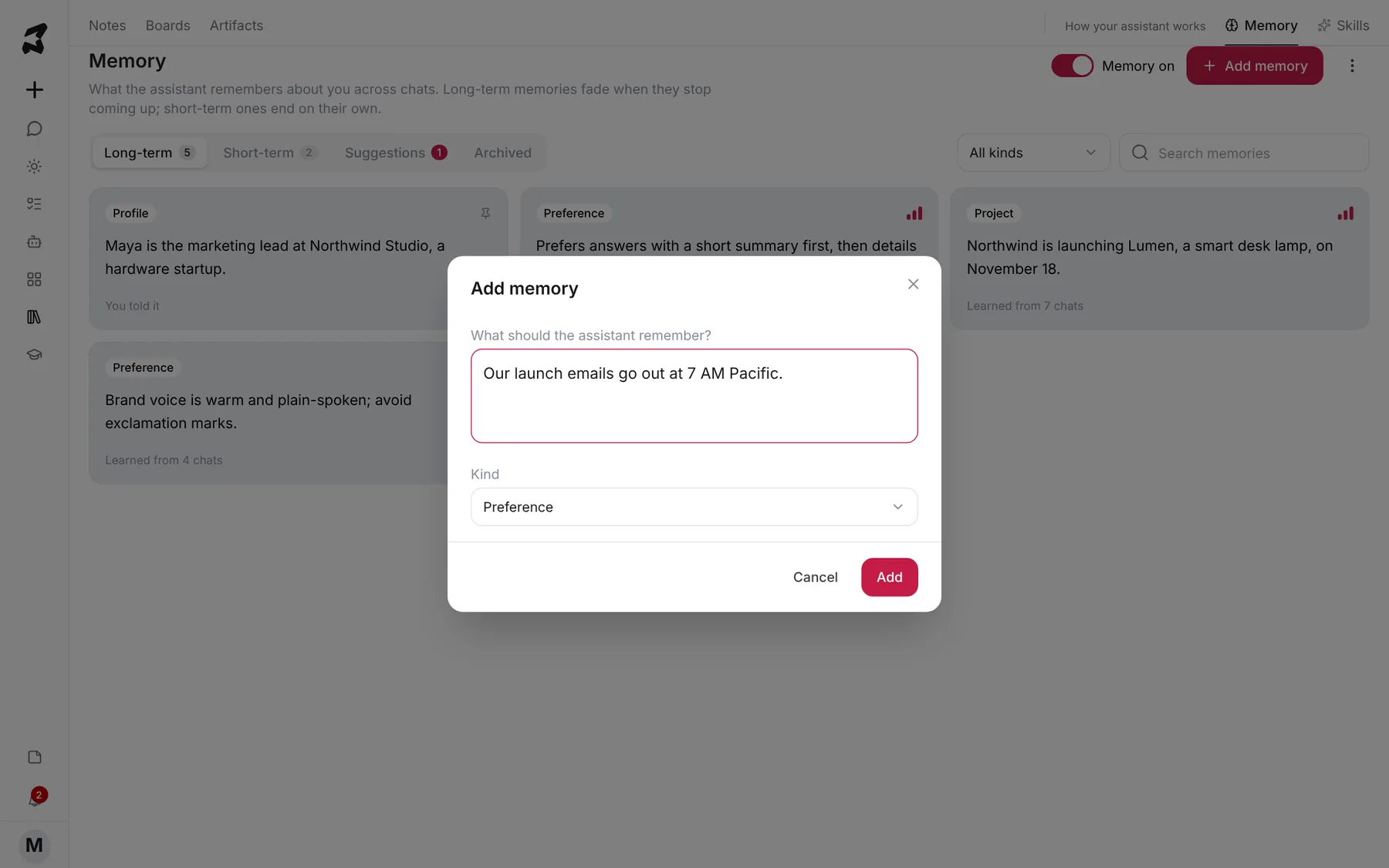
Click the library icon in the sidebar, then Memory at the top right. Long-term shows lasting facts about you. Each card has a kind, such as Profile, Preference, Project or Goal, and where it came from: You told it, Added by you, or Learned from 6 chats. The bars show how strong a memory is.
The Memory on switch at the top controls memory for all your chats. When it’s off, chats don’t use or learn anything from memory, but saved memories are kept.
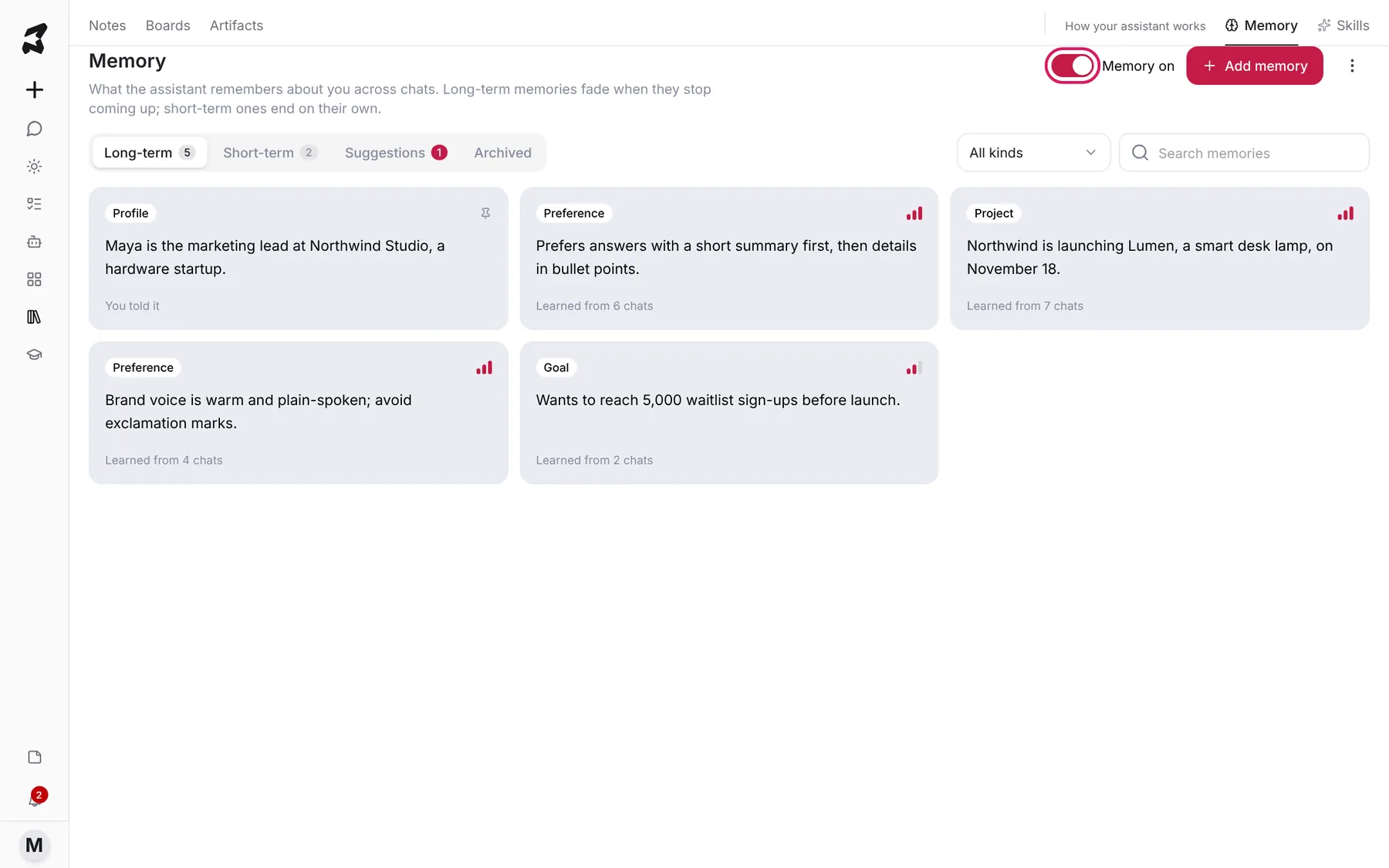
Use All kinds to filter by kind, or Search memories to find one.
Step 2 — Check short-term memories
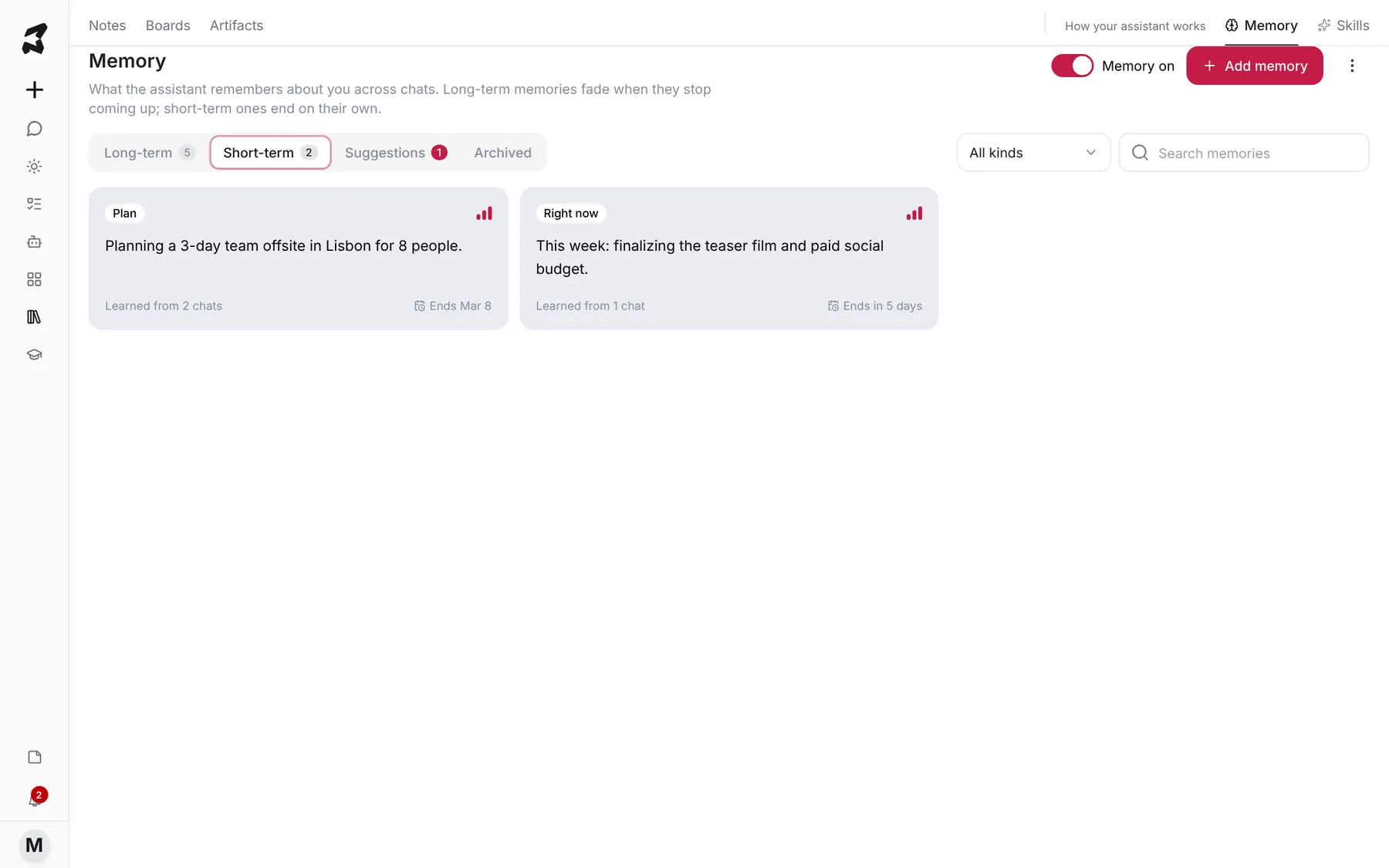
Open Short-term. These are plans and situations that end, like a trip or this week’s priorities. Each shows when it ends, for example Ends Mar 8 or Ends in 5 days. After that it moves to Archived, where memories that ended, faded or were replaced stay for 90 days.
Step 3 — Review suggestions
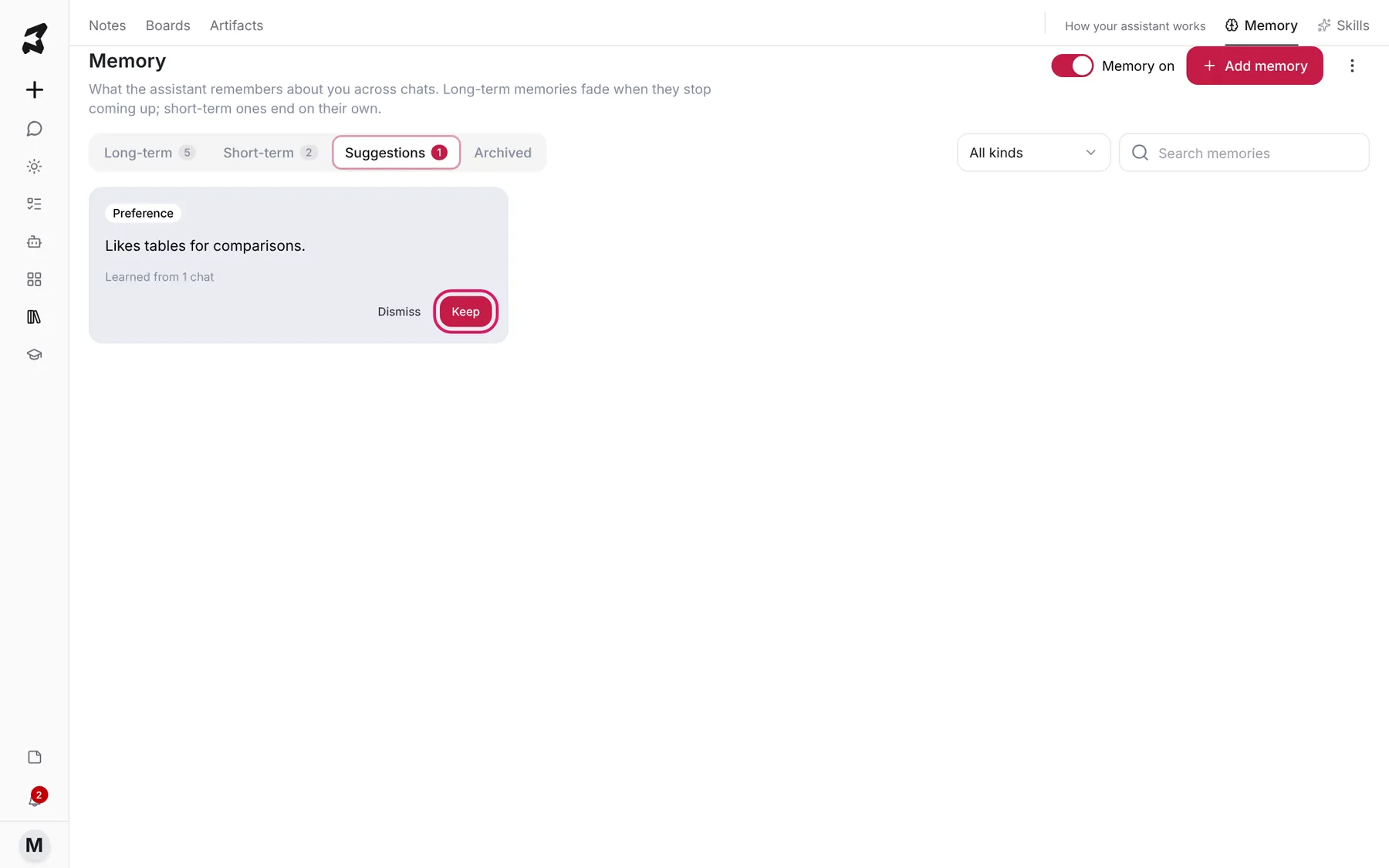
When Axyen isn’t sure about something, it waits in Suggestions for your OK. The red count on the tab tells you how many are waiting. Click Keep to save it, or Dismiss to drop it.
Step 4 — Open a memory
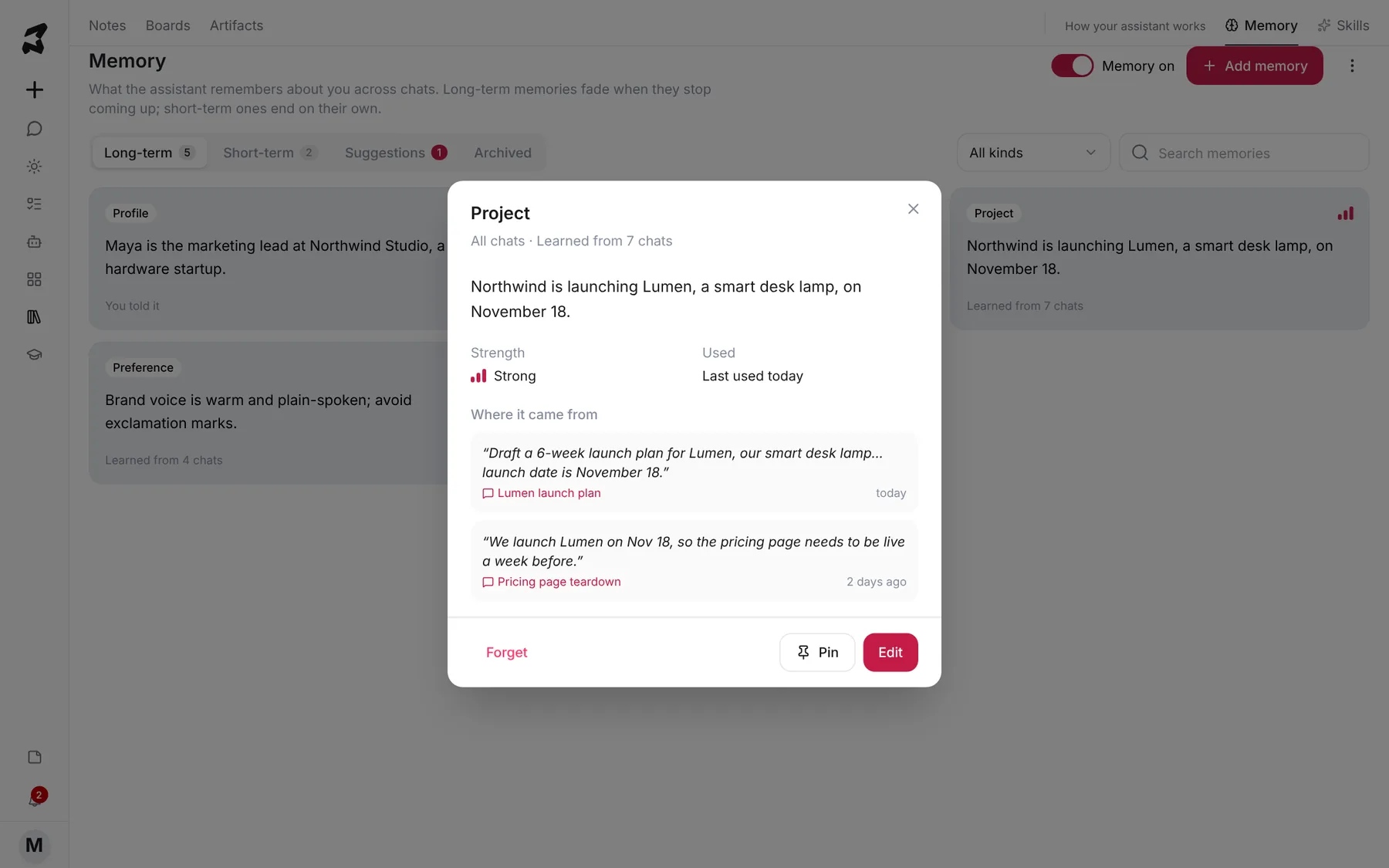
Click any card to see the details: where it applies (All chats), its Strength, when it was last Used, and Where it came from, with quotes from the chats it was learned in. Click a chat name to open it.
From here you can:
- Edit the wording.
- Pin it. Pinned memories are always used and never fade or end.
- Forget it. It’s deleted permanently.
For a short-term memory you can also change Ends on, or click Keep long-term so it doesn’t end.
Step 5 — Add a memory yourself
Click Add memory. Type what Axyen should remember, choose a Kind, and add an Ends on (optional) date if it’s temporary. Click Add.
Our launch emails go out at 7 AM Pacific.
Step 6 — Turn memory off for one chat
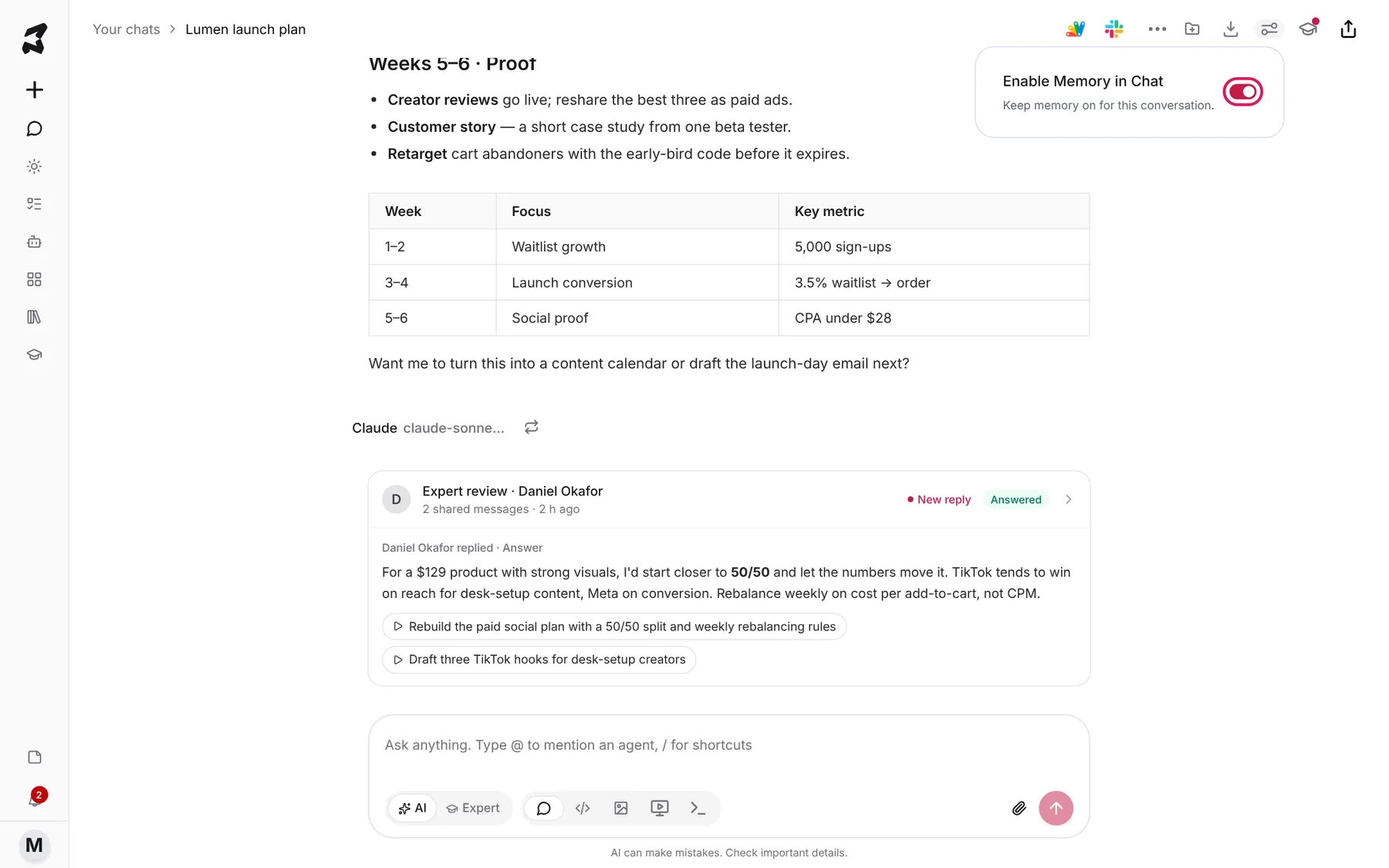
To keep a single conversation out of memory, open the chat and click Chat settings (the sliders icon at the top right). Switch off Enable Memory in Chat. The other chats aren’t affected.
Try it yourself: worked examples
Teach a preference once
In any chat, tell Axyen directly:
From now on, when I ask for a comparison, give it to me as a table.
Check Memory afterwards. Memories you state outright are marked You told it. If it shows up under Suggestions instead, click Keep.
Why: one clear sentence saves you repeating the request in every chat.
Add a temporary plan
Click Add memory, choose Plan, and set an end date:
I'm on leave from December 20 to January 3. Don't schedule anything for me in that window.
Why: it applies until it ends, then moves to Archived without you doing anything.
Keep a sensitive chat out of memory
Before you start brainstorming salary bands or a personal topic, open Chat settings and switch off Enable Memory in Chat.
Why: that chat won’t use or add memories, and the rest of your chats behave as usual.
Tips
- Pin the two or three memories that should always apply, like your role and your preferred format.
- Read Where it came from before editing. It shows exactly what Axyen based a memory on.
- Forget everything (in the ⋮ menu next to Add memory) deletes every memory for good, including suggestions and archived ones.