Use cases
Track prices and get an alert when they drop
Set up a daily price check in Orchestration mode that searches the web, compares what it finds with your target, and emails you only when something comes in under it.
The Rundown
Prices for flights, event tickets and products change from day to day. In this guide you’ll set up a recurring task in Axyen’s Orchestration mode that checks the price on a schedule, compares it with your target, and emails you only when something comes in under it. The example is Maya at Northwind Studio, watching round-trip fares from San Francisco to Lisbon for the team offsite in early March. The same steps work for concert or game tickets, a product you’re waiting to buy, or a hotel rate.
Why this matters
- You stop checking the same search every morning. The task does it at a set time and writes down what it found.
- You only hear about it when it matters. The condition (“under $900 per person”) lives in the task’s instructions, and you approve them before anything runs.
- Every run leaves a record: the prices found, where they came from, and whether you were emailed.
- You stay in control. The task searches and alerts. It doesn’t book, buy or hold anything.
What you’ll need
- An Axyen account.
- A clear target: what to check (route and dates, event date and section, or exact product), the price you’d act on, and how often to look.
- For email alerts, the email address you want them sent to. The approval card shows the recipient before you approve.
- Each run uses credits. You can see the cost per run in Agent Automations under Recent executed.
- Realistic expectations: results depend on what a web search can find at the time of the run. Some sites hide prices behind a login or a booking flow, and prices can change between the check and the moment you book.
Step 1 — Switch to Orchestration mode
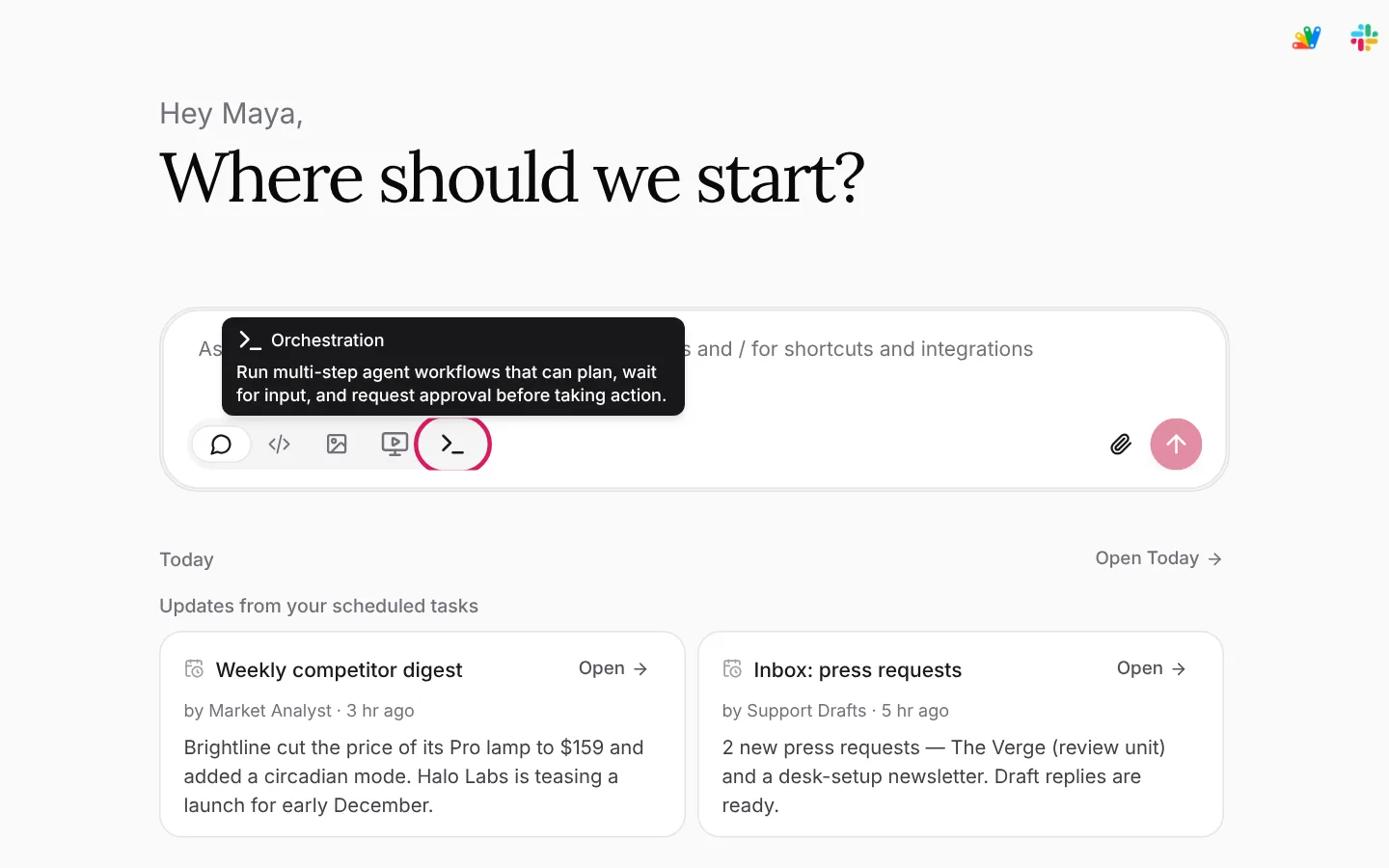
Start a new chat and pick Orchestration from the mode icons under the message box. It’s the >_ icon at the end of the row. Hover it to see what it does: it runs multi-step agent workflows that can plan, wait for your input, and ask for approval before taking action.
A normal chat answers once. Orchestration mode can turn a request into a task that runs on a schedule, which is what a price watch needs.
Step 2 — Describe what to check, when, and when to tell you
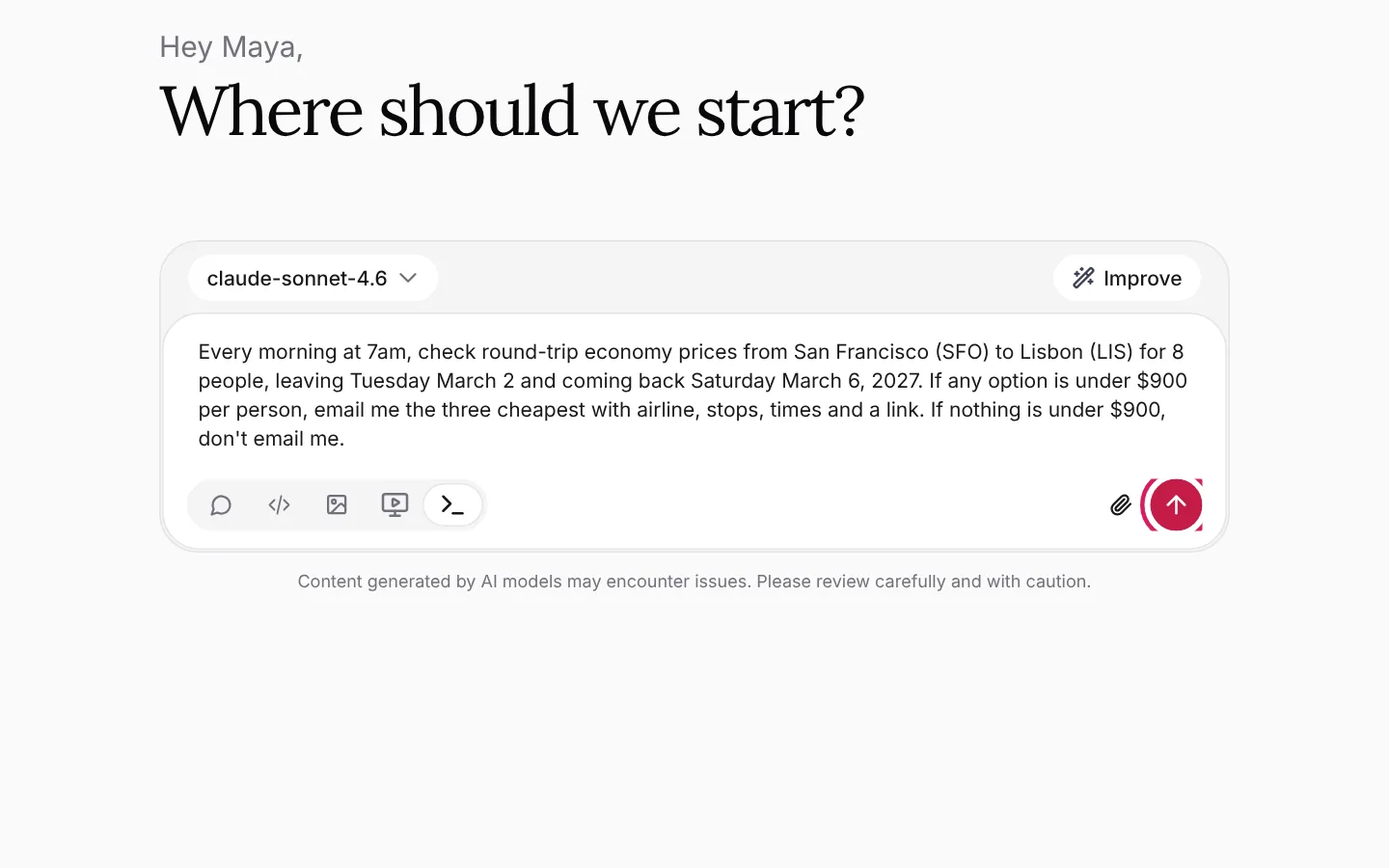
Write the request the way you’d brief a colleague. Put four things in it:
- What to check. Be exact: route and dates, number of travelers, cabin.
- How often. “Every morning at 7am” or “every Monday”.
- The target. A number, and whether it’s per person or in total.
- Where to send the alert, and when not to. Say “email me only if…” and also what should happen otherwise.
Maya is booking flights for the eight-person Lisbon offsite:
Every morning at 7am, check round-trip economy prices from San Francisco (SFO) to Lisbon (LIS) for 8 people, leaving Tuesday March 2 and coming back Saturday March 6, 2027. If any option is under $900 per person, email me the three cheapest with airline, stops, times and a link. If nothing is under $900, don't email me.
Press send.
Step 3 — Review the plan and approve the schedule
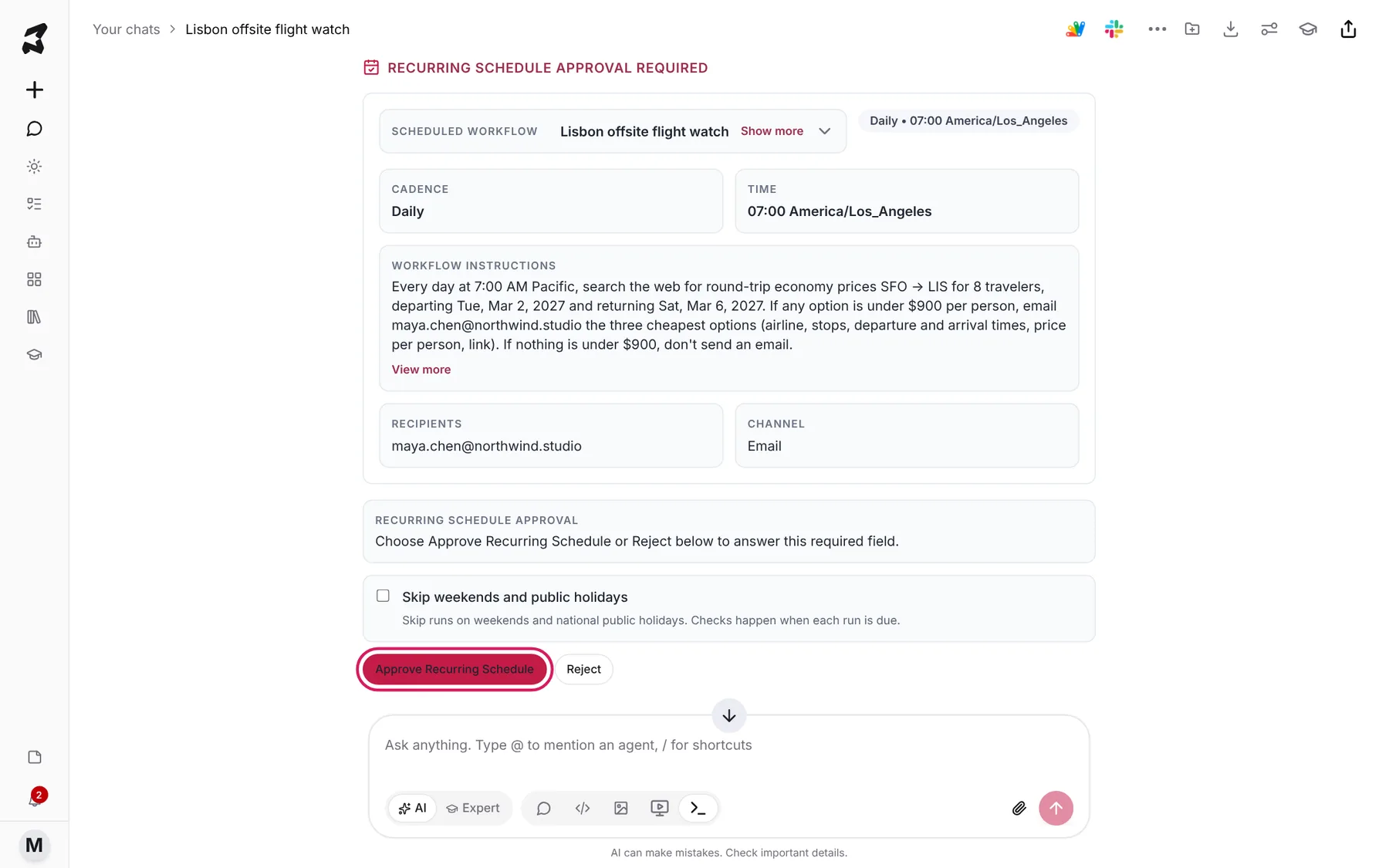
Axyen plans the task and stops to ask before it schedules anything. The run shows Waiting on you, and a Recurring Schedule Approval Required card lists what it will do:
- Cadence and Time: here, Daily at 07:00 in your time zone.
- Workflow Instructions: the instructions every run will follow, rewritten from your request. Read these carefully. This is where the “only email me if…” rule lives. Use View more if they’re cut off, and Show more next to the task name for the full proposal.
- Recipients and Channel: who gets the alert, and how.
If you don’t want runs on Saturdays and Sundays, tick Skip weekends and public holidays. Then choose Approve Recurring Schedule. If something is wrong, choose Reject (or Cancel run) and send a corrected request.
Step 4 — Find your task card in the chat
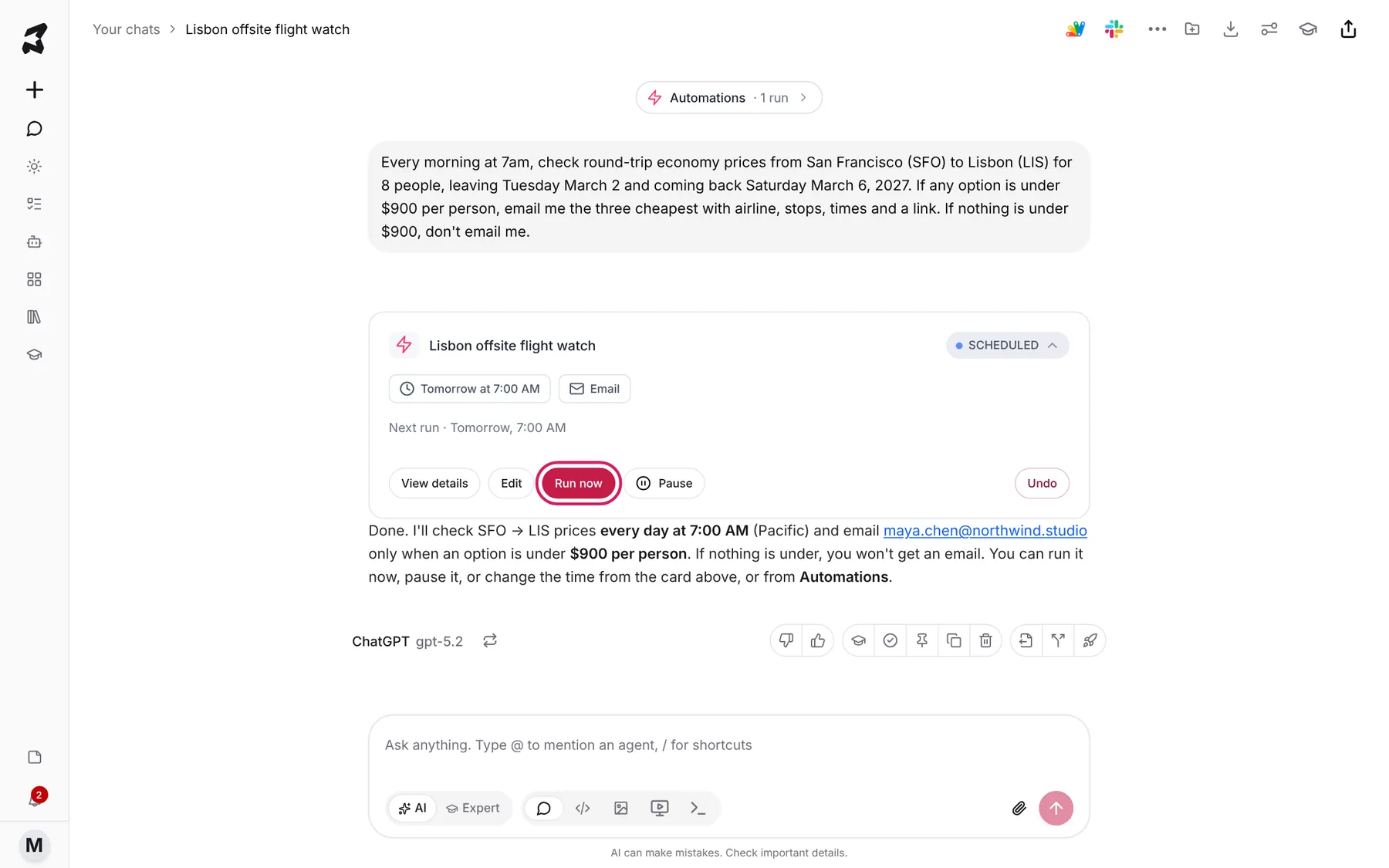
Once you approve, the chat shows a card for the task with a SCHEDULED status. Click the card to open it. It shows when the next run is (Next run · Tomorrow, 7:00 AM) and where results go (Email). The buttons:
- View details shows the full instructions.
- Edit changes the timing.
- Run now runs a check straight away, without waiting for the schedule.
- Pause stops the daily runs until you resume them.
- Undo cancels the task.
Click Run now to see a check happen before you rely on it.
Step 5 — Watch a run work through its steps
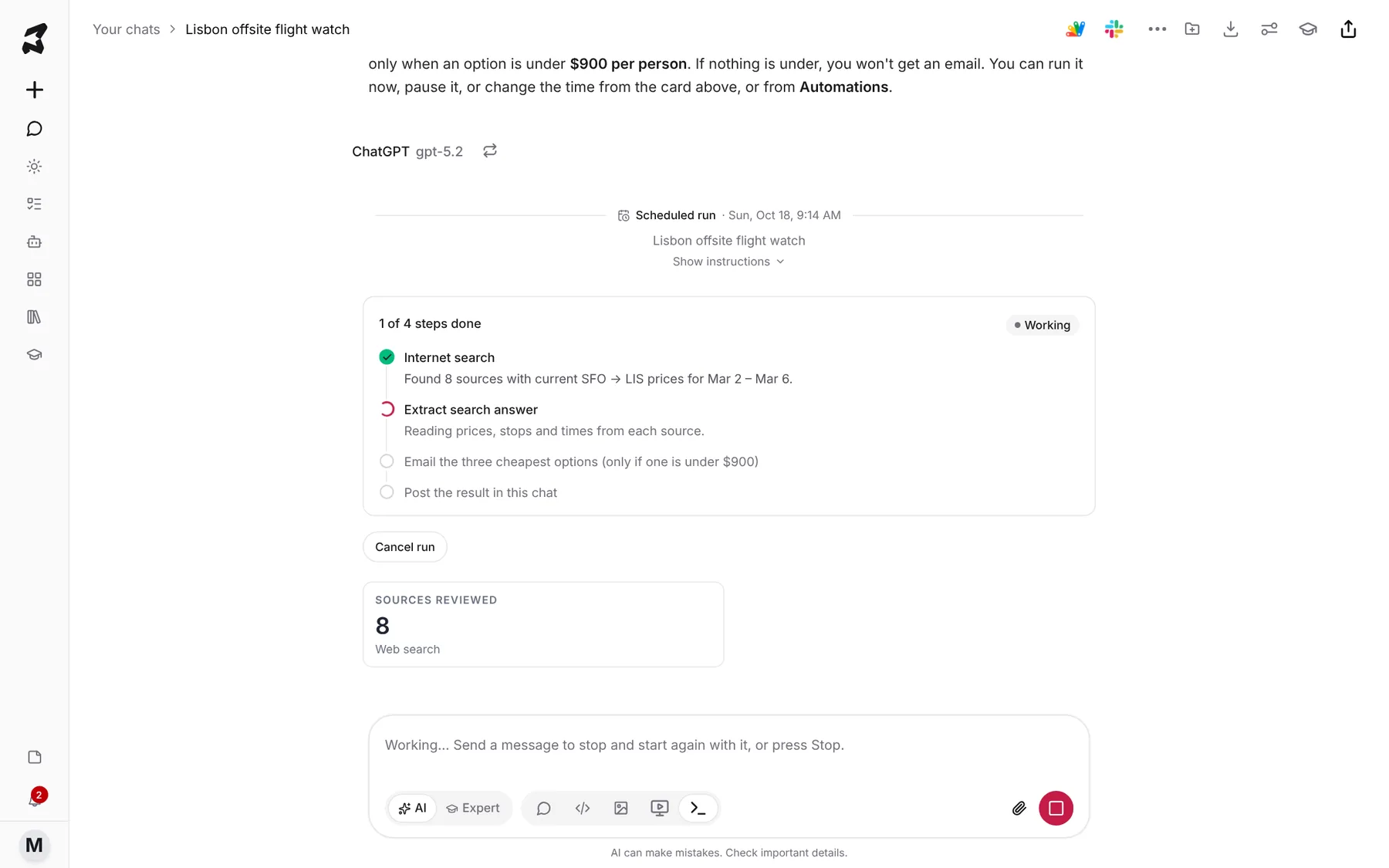
Each run appears in the same chat, under a divider with the run time and the task name. Show instructions shows what the run was told to do. While it works, a progress card shows each step and a count like 1 of 4 steps done:
- Internet search looks up current prices on the web.
- Extract search answer pulls out the airline, stops, times and price for each option.
- An email step that only sends if something is under the target.
- A final step that posts the result in the chat.
Sources Reviewed shows how many web results the run read. If you need to stop a run, use Cancel run.
Step 6 — Read the result
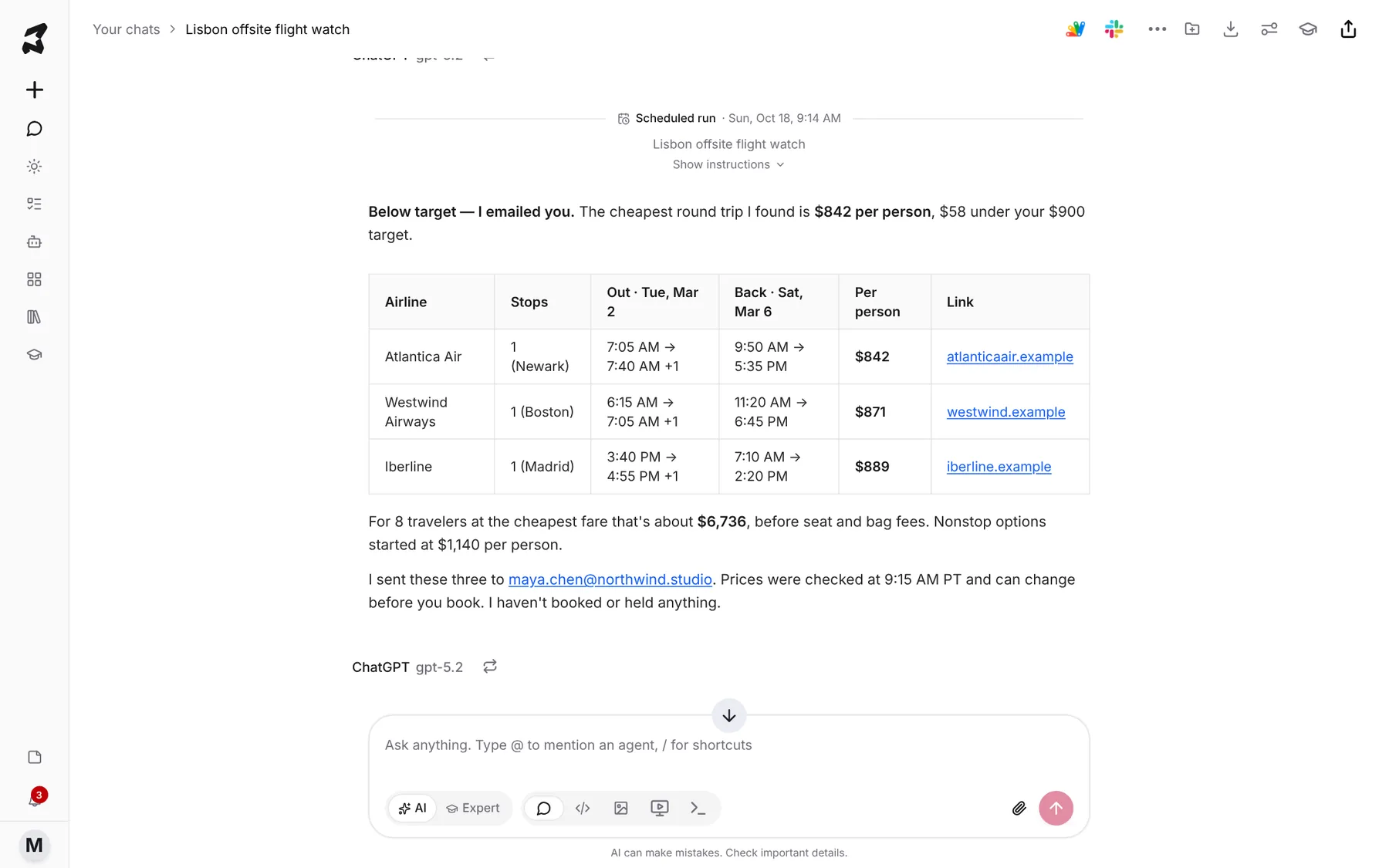
When the run finishes, its reply opens with a clear verdict (“Below target — I emailed you.” or that nothing is under target yet). Below it is a table of the cheapest options with links, so you can check each price on the source site.
On a day when nothing is under your target, the run’s reply in the chat says so and no email goes out, because that’s what the instructions say. Scroll back through the runs to see how the price has moved.
Prices change, sometimes within minutes. Treat the table as a lead, and check the price on the airline or ticket site before you buy. Axyen won’t book or buy anything for you.
Step 7 — See where the alert shows up
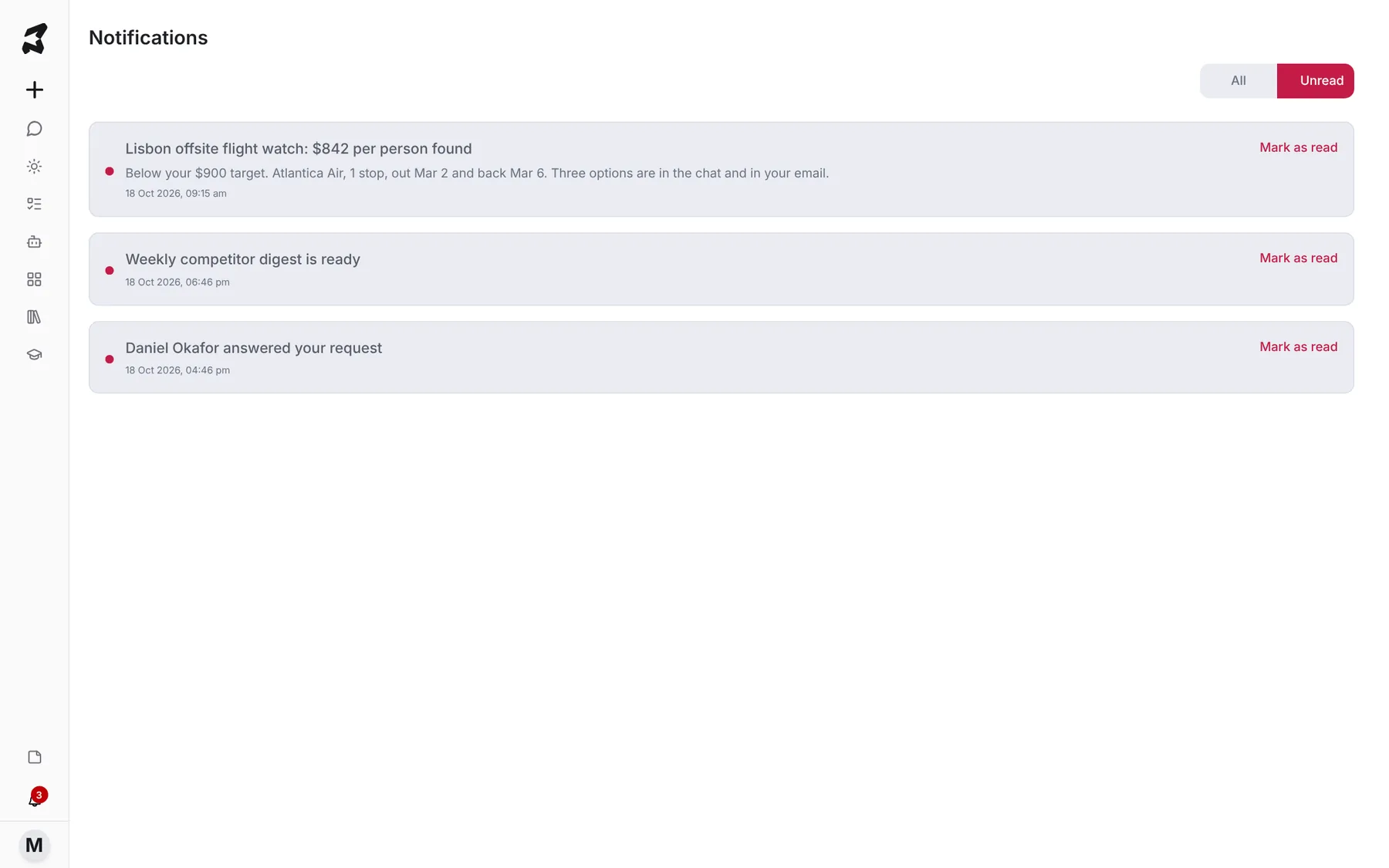
Besides the email, finished runs show up in two places in Axyen:
- Notifications (the bell at the bottom of the sidebar). Click the alert to go back to the chat with the full results.
- The Today section on the home screen, under Updates from your scheduled tasks, with a short summary of the latest result and an Open link.
Step 8 — Pause, change or cancel the task
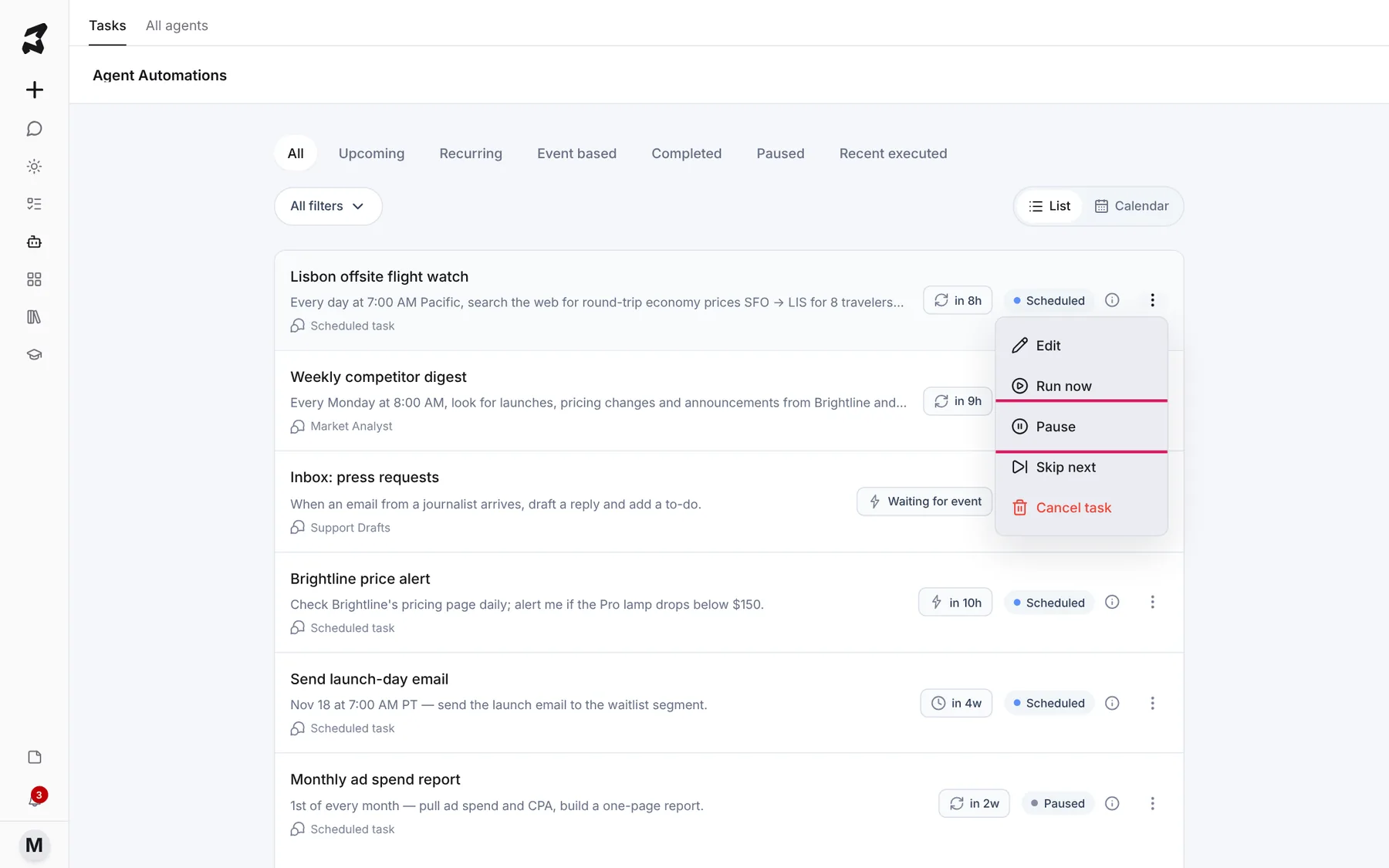
All your scheduled tasks are listed in Agent Automations. Find the price watch and open its menu with the three dots:
- Edit opens the workflow settings, where you can change the frequency, time and time zone, or skip weekends and public holidays.
- Run now runs a check immediately.
- Pause stops it for now. Choose Resume later to start it again.
- Skip next skips only the next run.
- Cancel task removes it for good. Do this once you’ve booked, so you don’t keep paying credits for checks you no longer need.
Try it yourself: worked examples
Example 1 — Tickets for a specific date and section
You want two seats in the lower bowl for a Saturday show, and resale prices keep moving. Name the event, date, section and quantity exactly, so the run doesn’t compare prices for different seats.
Modified prompt
Every day at 9am and 6pm, check resale prices for 2 seats together in the lower level (sections 101–120) for the Harbor Lights concert at Bayview Arena on Saturday, April 17, 2027. If any pair is under $150 per ticket including fees, email me the three cheapest with section, row, total price and a link. Otherwise don't email me.
Why the change: “Including fees” and “2 seats together” keep the comparison fair. Many listings show a lower price before fees, or count single seats. Two checks a day suit tickets, whose prices move faster than most products.
Example 2 — A product price drop
Maya wants to know if a competitor cuts the price of its desk lamp before the Lumen launch on November 18. The same prompt works for anything you’re waiting to buy, like a monitor.
Modified prompt
Every Monday and Thursday at 8am, check the price of the Brightline Pro desk lamp on Brightline's own site and at two large online retailers. If the price is under $150 anywhere, email me the price, the store and a link. If it hasn't changed, don't email me.
Why the change: A named product and a short list of places to check give steadier results than “find the cheapest anywhere”. Twice a week is enough for prices that don’t change daily, and it uses fewer credits.
Example 3 — A hotel rate for the same trip
The team also needs rooms near the Lisbon offsite venue.
Modified prompt
Every morning at 7:30am, check the price for 4 double rooms, March 2 to March 6, 2027, at hotels rated 4 stars or higher within 1 km of Praça do Comércio in Lisbon. If any hotel is under €160 per room per night with free cancellation, email me the three cheapest with the rate, the cancellation terms and a link. Otherwise don't email me.
Why the change: Hotel rates depend on terms as much as on price. Putting “free cancellation” and the number of rooms in the request means you only hear about rates you could actually book.
The pattern to reuse
Every price watch needs the same four parts: exactly what to check (dates, quantity, section or model), how often, a target with its unit (per person, per ticket including fees, per night), and when to alert and when to stay quiet. Read the Workflow Instructions on the approval card before you approve, use Run now once to test it, and cancel the task when you’ve bought.