Organize your work
Keep files and sources in Artifacts
Upload files once, tag them, and make them searchable so Axyen can find and quote them in any chat that uses those tags.
The Rundown
Artifacts is where your files live: the ones you uploaded and the ones Axyen made for you in chats. Tag your files, make them searchable, and then add those tags to a chat. Axyen can then find and quote the right files in its answers without you attaching them every time.
Why it helps
- Upload brand guidelines or research once and use them in many chats.
- Tags let you choose which group of files a chat can draw on, such as brand or research.
- Documents, spreadsheets and exports Axyen creates are kept in one place, not scattered across chats.
What you’ll need
- An Axyen account
- A file to upload, such as a PDF, spreadsheet or CSV
Step 1 — Open Artifacts
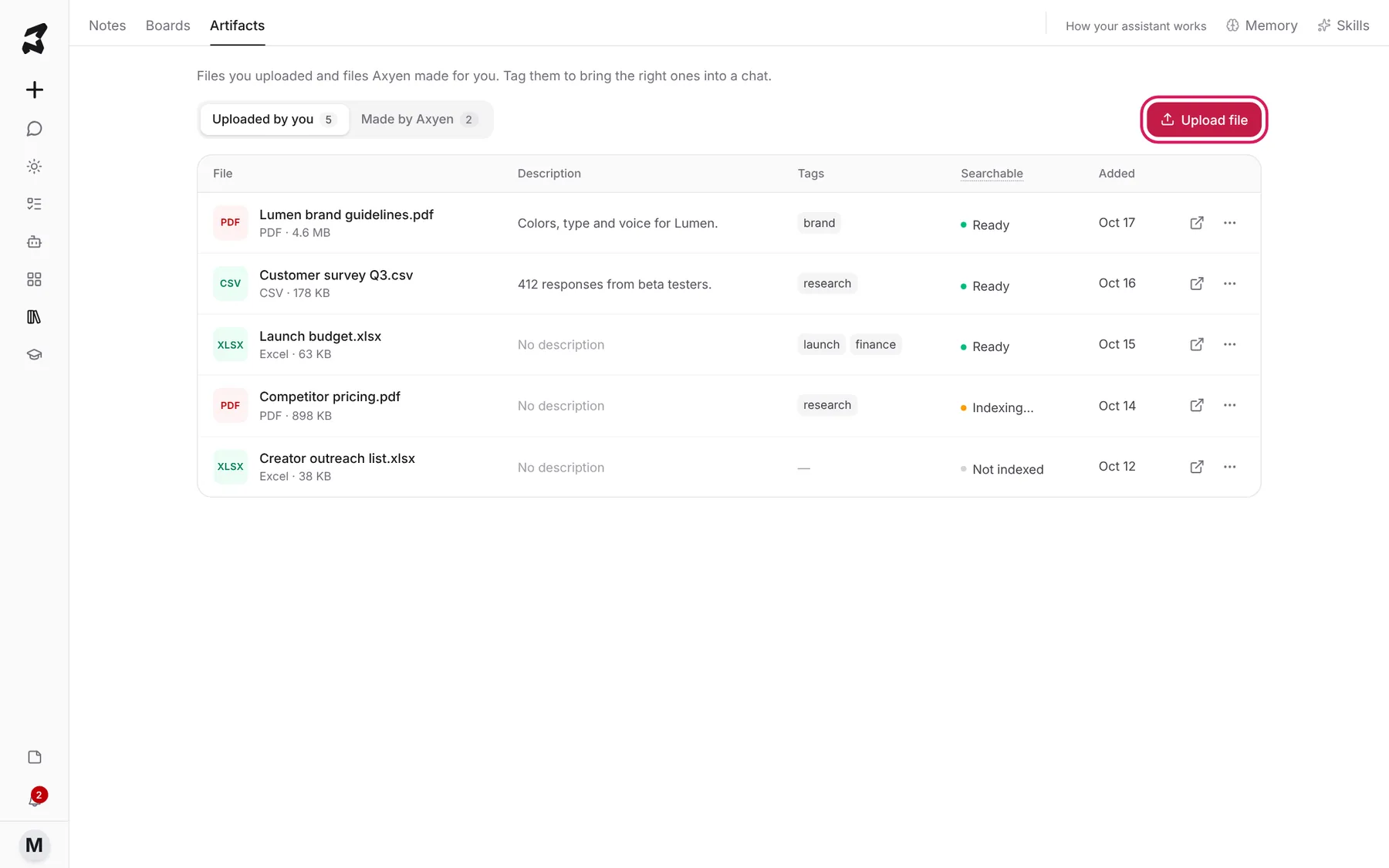
Click the library icon in the sidebar and open the Artifacts tab. Uploaded by you lists your files with their description, tags, whether they’re searchable, and when you added them. The icons at the end of each row open the file or show more actions.
Step 2 — Find files Axyen made
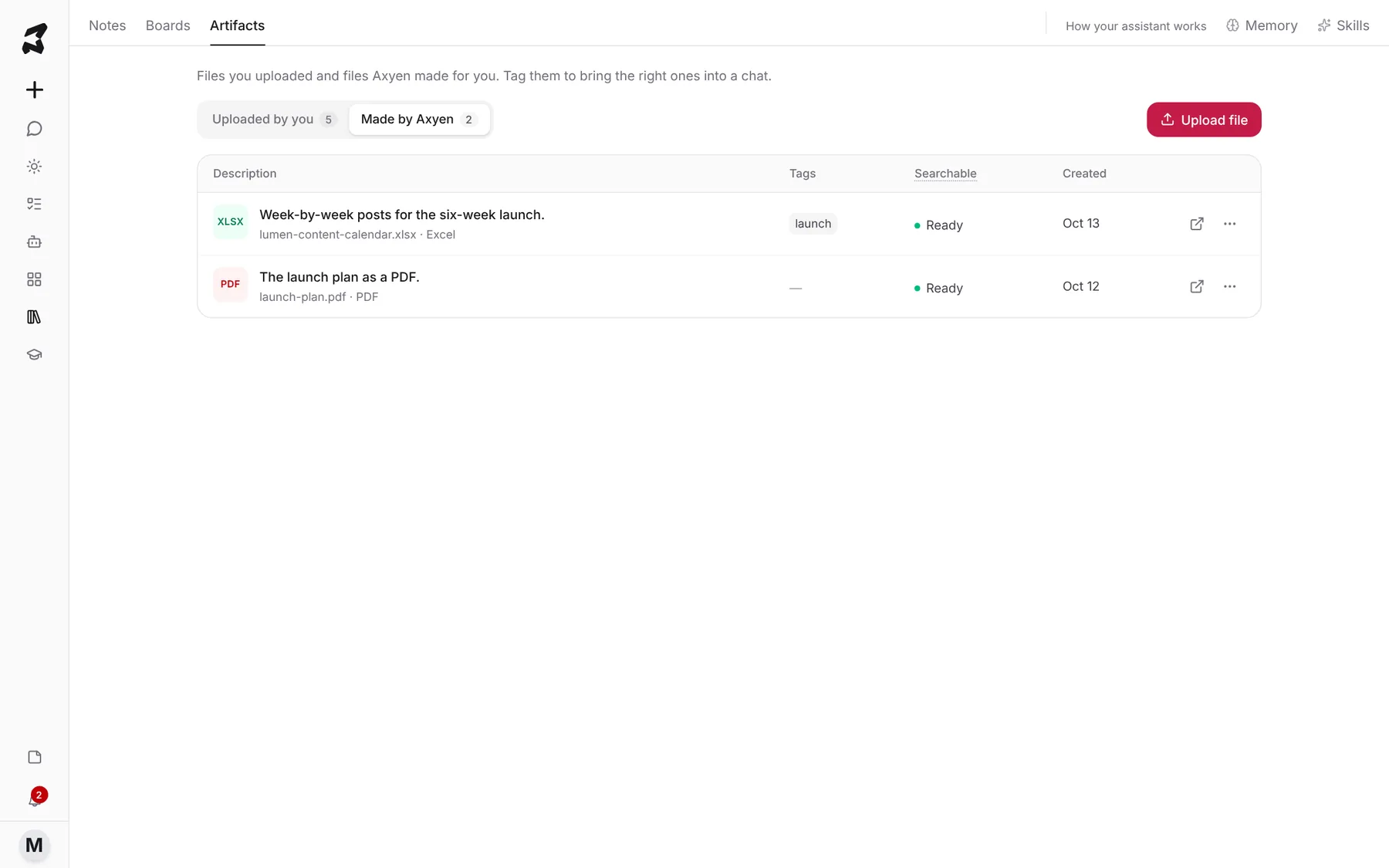
Click Made by Axyen to see files created in your chats, such as documents, spreadsheets and exports. You can open and tag them the same way as your uploads.
Step 3 — Upload and tag a file
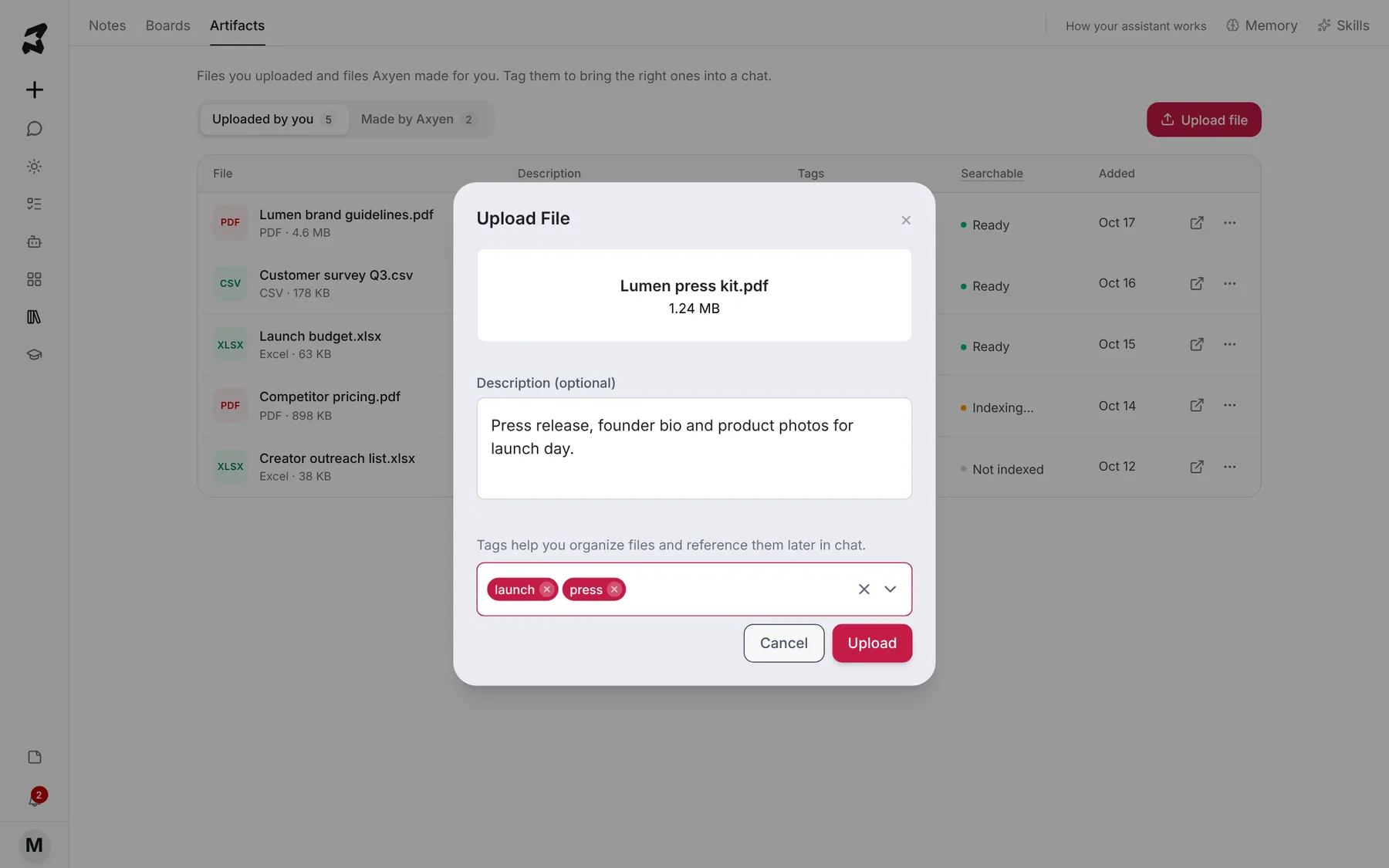
Click Upload file and choose a file, or drop one onto the page. In Upload File, add a Description (optional) and type tags, pressing Enter after each. As the dialog says, Tags help you organize files and reference them later in chat. Click Upload.
Description: Press release, founder bio and product photos for launch day.
Tags: launch, press
Step 4 — Make a file searchable
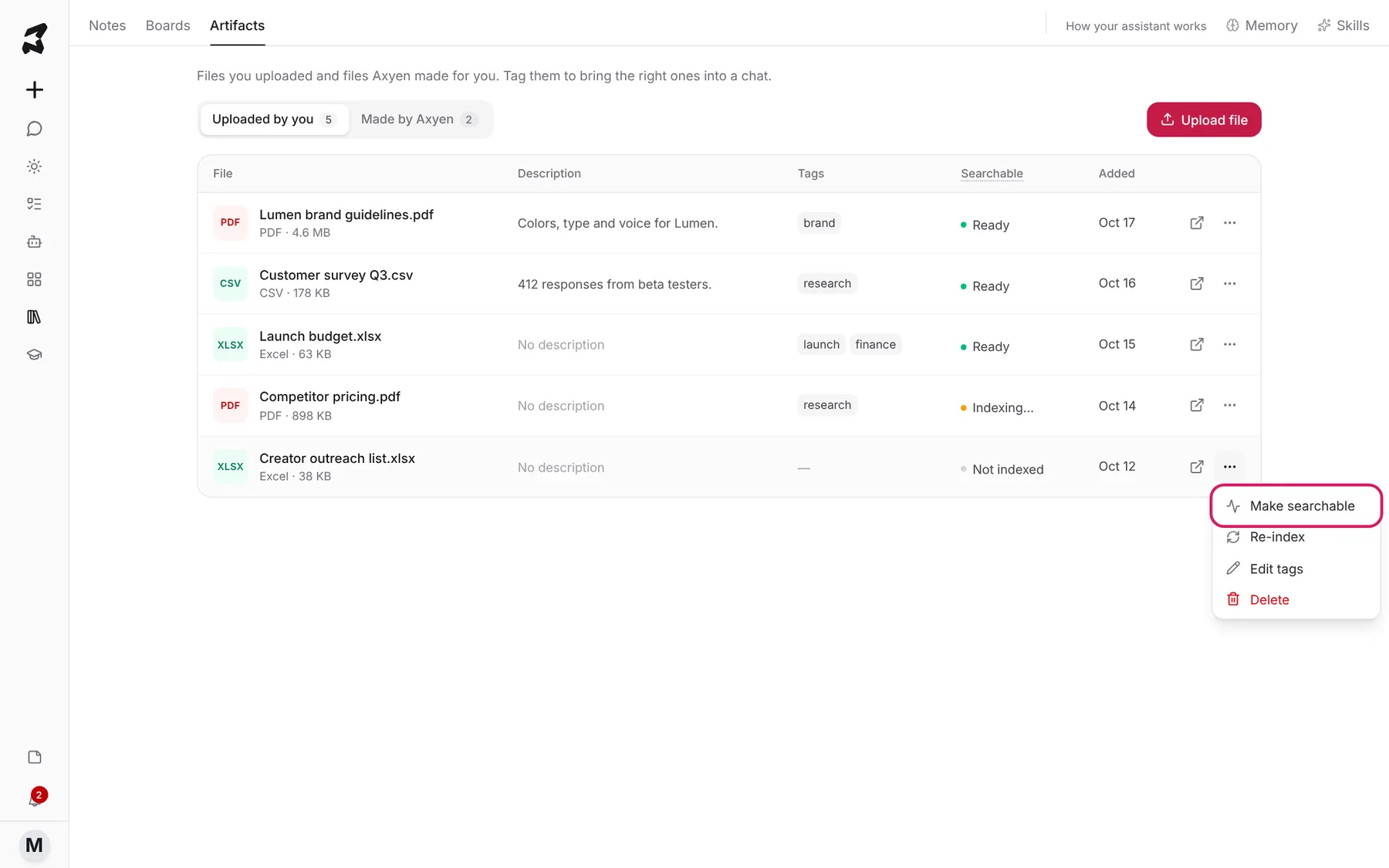
The Searchable column shows each file’s status:
- Ready: the file can be found and quoted in chats that include its tags.
- Indexing…: Axyen is still reading it.
- Not indexed: chats can’t search it yet.
For a file that says Not indexed, click the ⋯ (More actions) on its row and choose Make searchable. The same menu has Re-index, Edit tags and Delete.
Step 5 — Add file tags to a chat
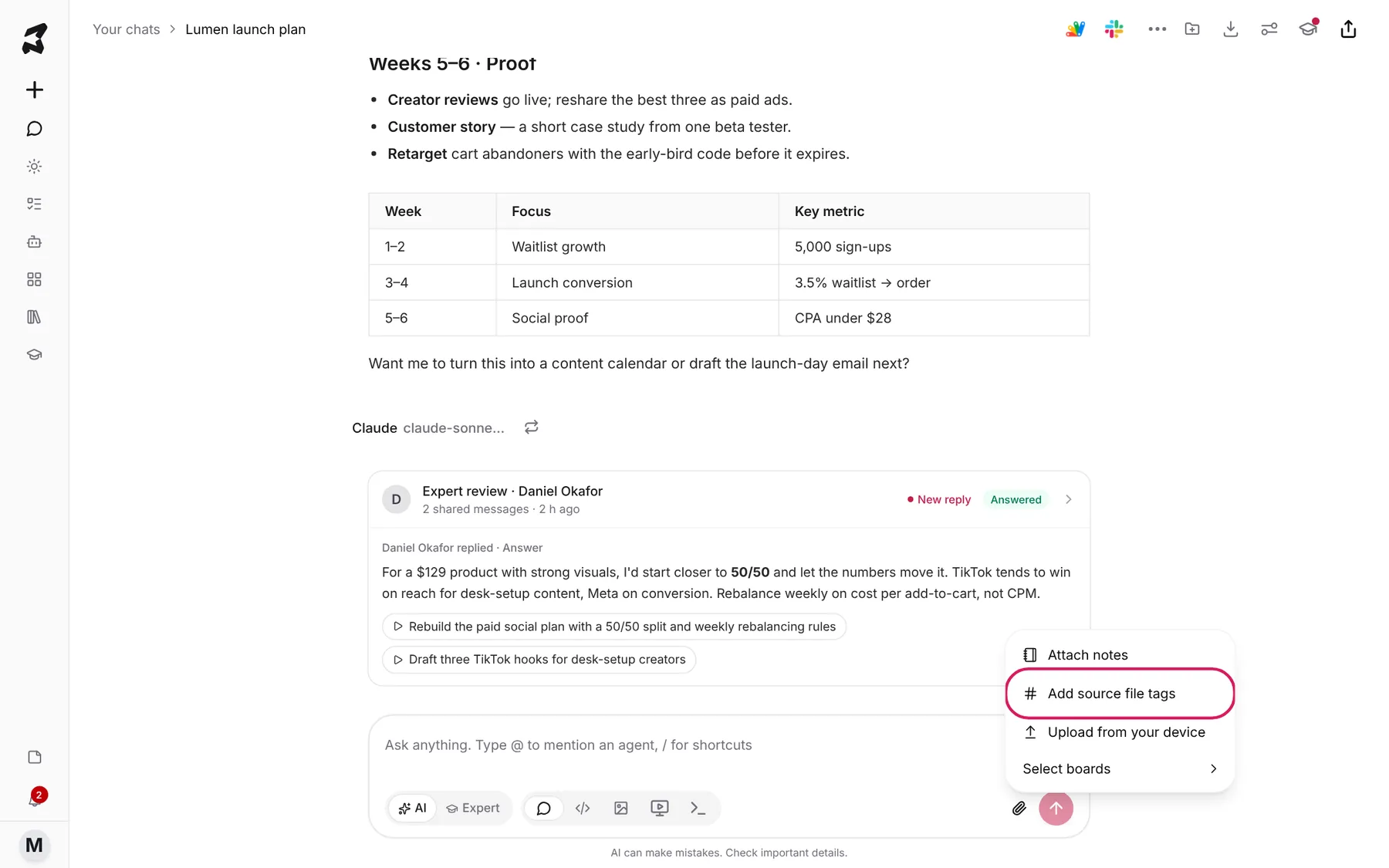
Open a chat and click the + (Attachment options) in the composer. Choose Add source file tags.
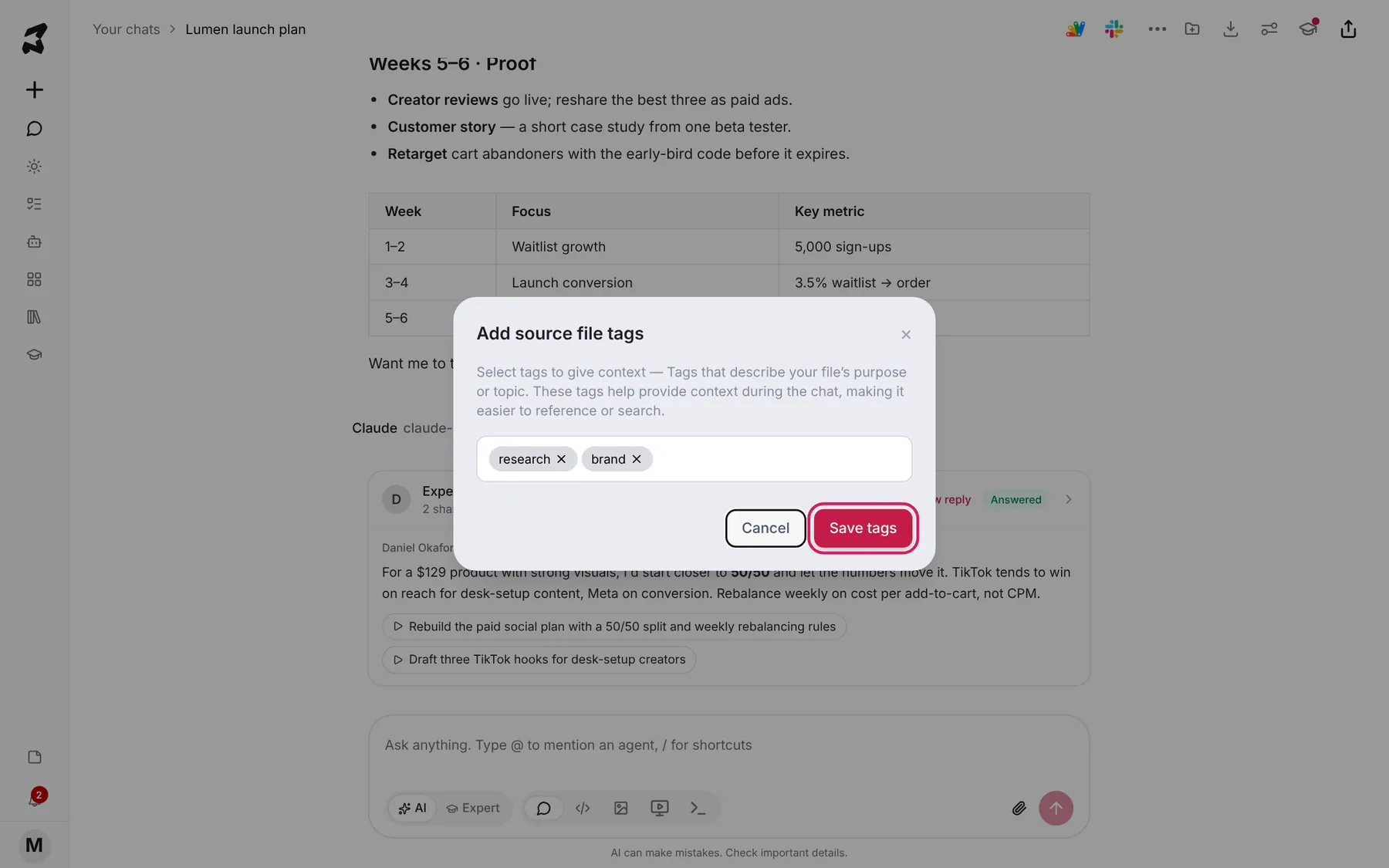
Pick the tags whose files this chat should use, then click Save tags. Now ask questions that need those files:
Using our brand guidelines and the Q3 survey, which three benefits should lead the launch email?
Try it yourself: worked examples
Ground copy in your brand guide
Upload your brand guidelines with the tag brand. In a new chat, add the brand tag and ask:
Rewrite this product description in our brand voice: "Lumen is an intelligent lighting solution with adaptive color temperature."
Why: Axyen checks the guide instead of guessing at your voice.
Ask questions of research data
Upload a survey export tagged research, wait until it shows Ready, then add the tag to a chat:
What are the top three complaints in the survey, with one quote for each?
Why: answers come from your data, with quotes you can check.
Reuse something Axyen made
Find a content calendar under Made by Axyen, tag it launch, and add the tag to a new chat:
Turn weeks 3 and 4 of the content calendar into a shot list for our video team.
Why: you build on earlier work without hunting for the chat it came from.
Tips
- Keep tags short and broad, like brand, research or finance. A few good tags beat many narrow ones.
- Wait for Ready before relying on a file in chat.
- A one-line description makes files much easier to recognize later.