- Home
- /
- Guides
Guides
From your first prompt to work you can ship.
Follow one real launch through Axyen: a plan drafted in chat, three models compared, a waitlist page published, a weekly report that runs itself. Every step shows the screen you'll see, and every prompt is ready to copy.
Start here
Your first day, in 12 minutes.
Find your way around, then learn the three shortcuts that turn a vague answer into one you can use.
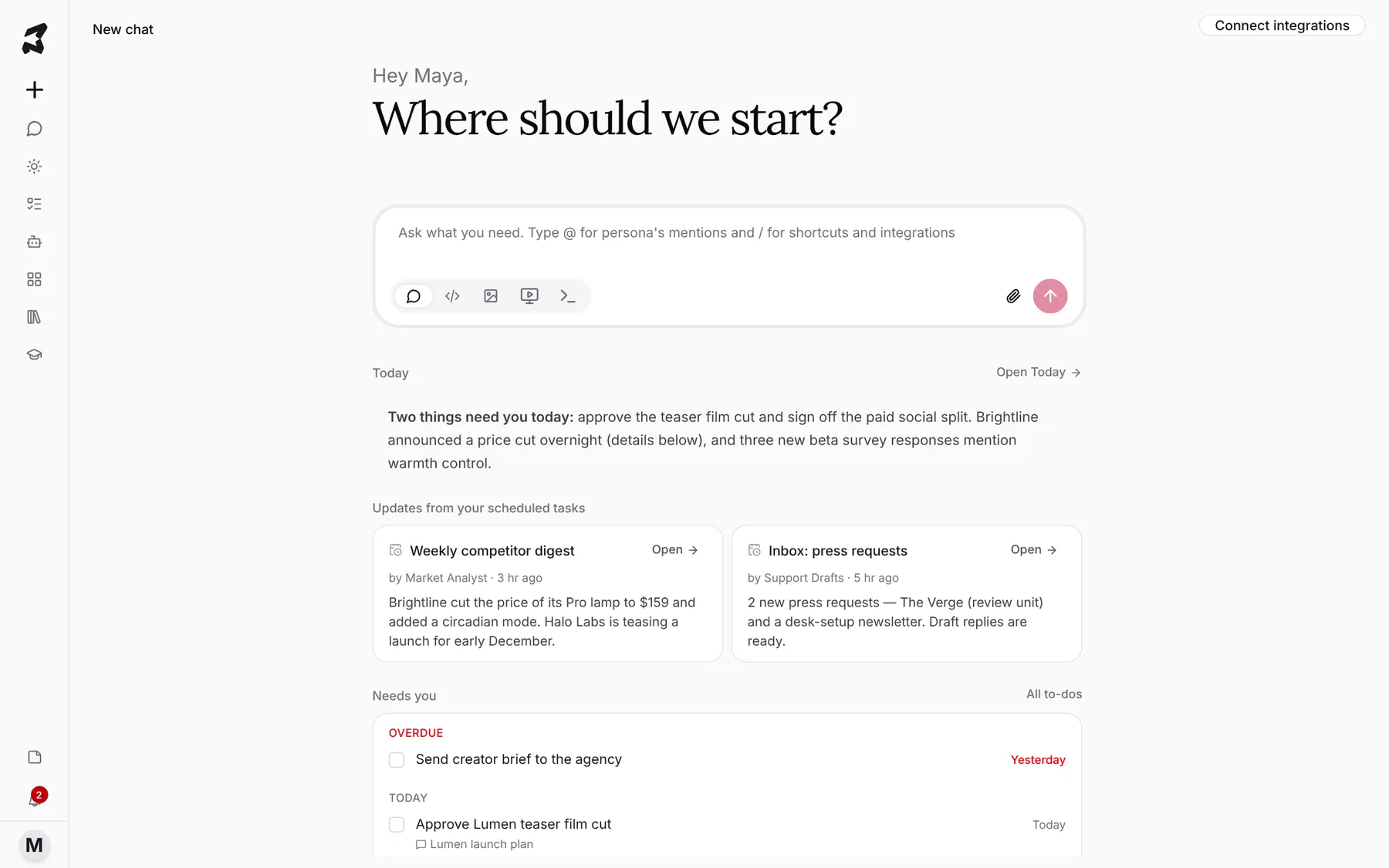
Chat & models
Pick the right model, compare answers, and generate images and video.
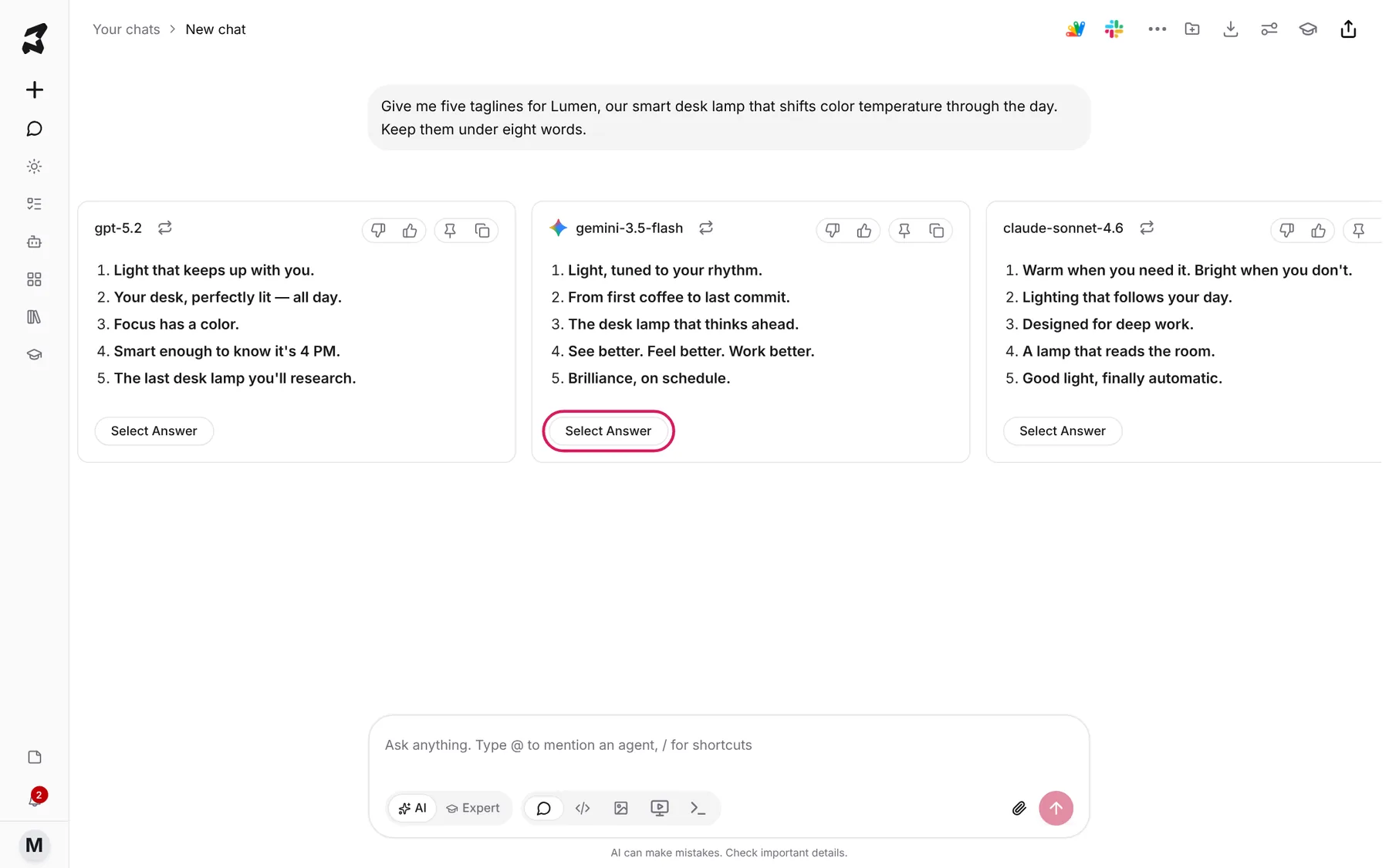
Choose the right model, or compare several at once
Let Auto pick a model for you, lock in a favorite with Preferred, merge three top models with Omni, or put up to four answers side by side with Compare.
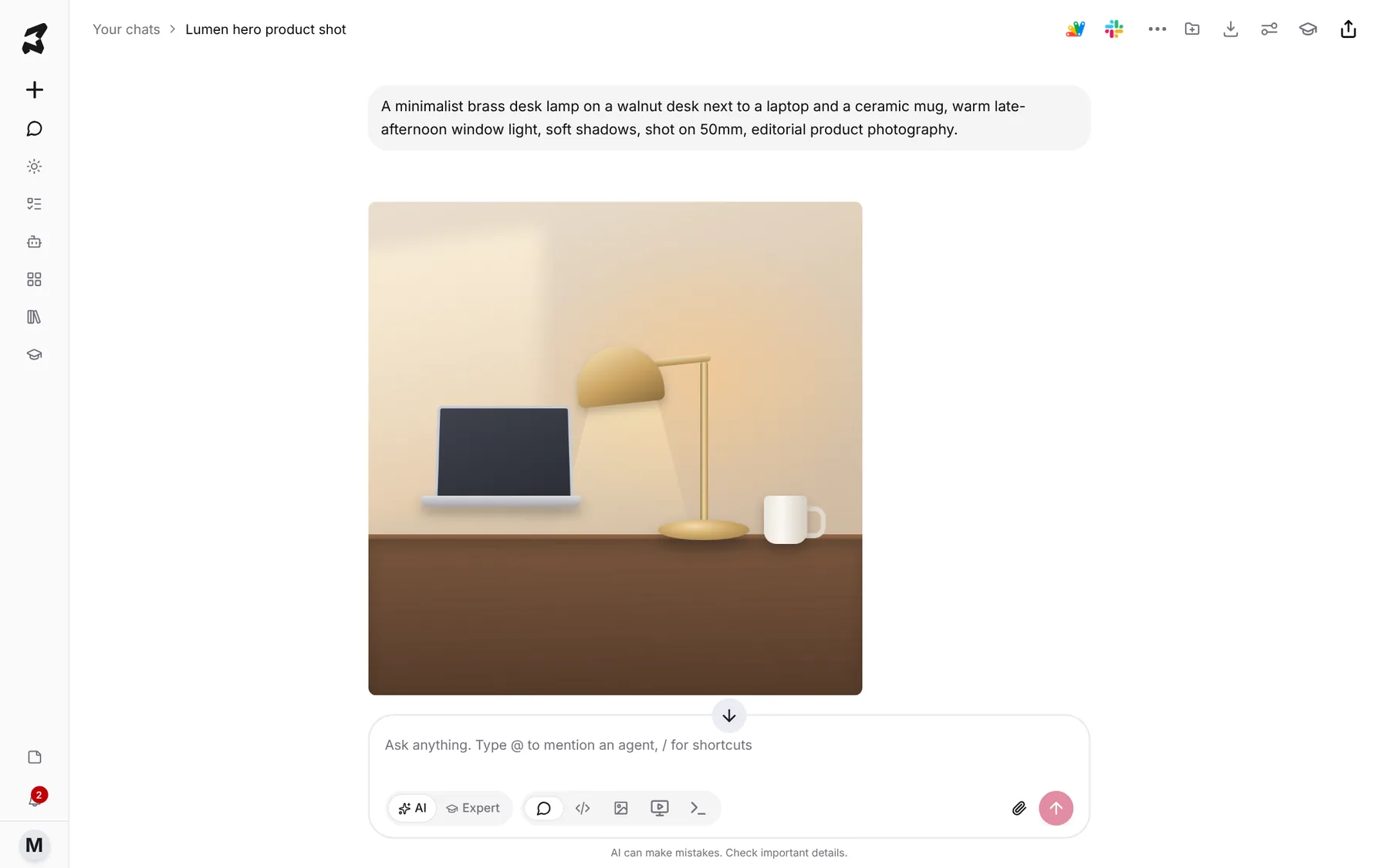
Generate images and videos
Switch the message box to Image or Video mode, pick a model and size, and turn a written description into a picture or a short clip.
Organize your work
Keep projects, notes, files, pinned answers and memory in one place.
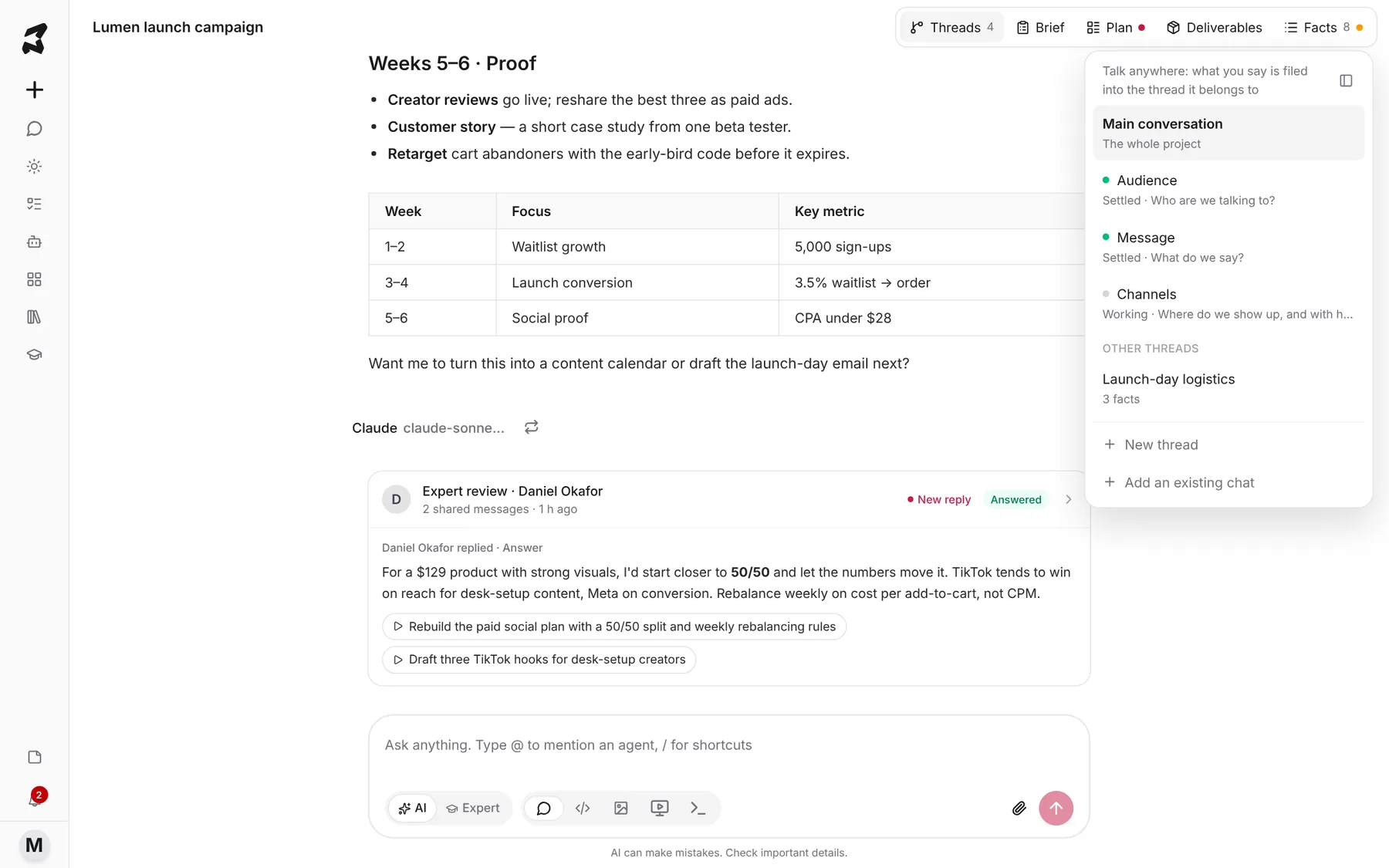
Run a bigger piece of work as a project
Set up a project in a short conversation, let threads handle the separate parts, and keep every decision in one facts sheet you can turn into a plan or a brief.
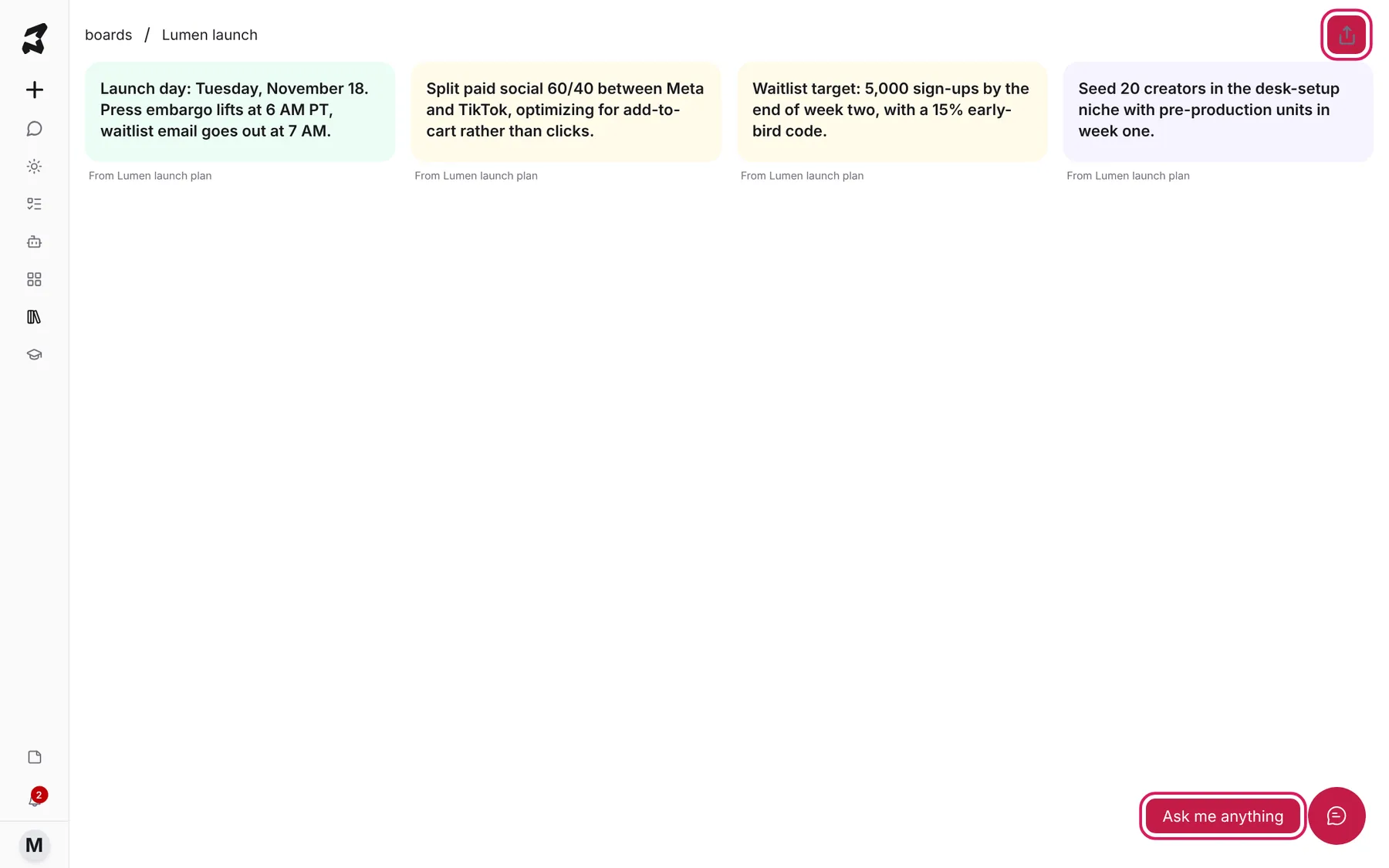
Organize research with Boards
Pin the replies worth keeping from any chat onto a board, then ask questions across everything you've collected or share the board with others.
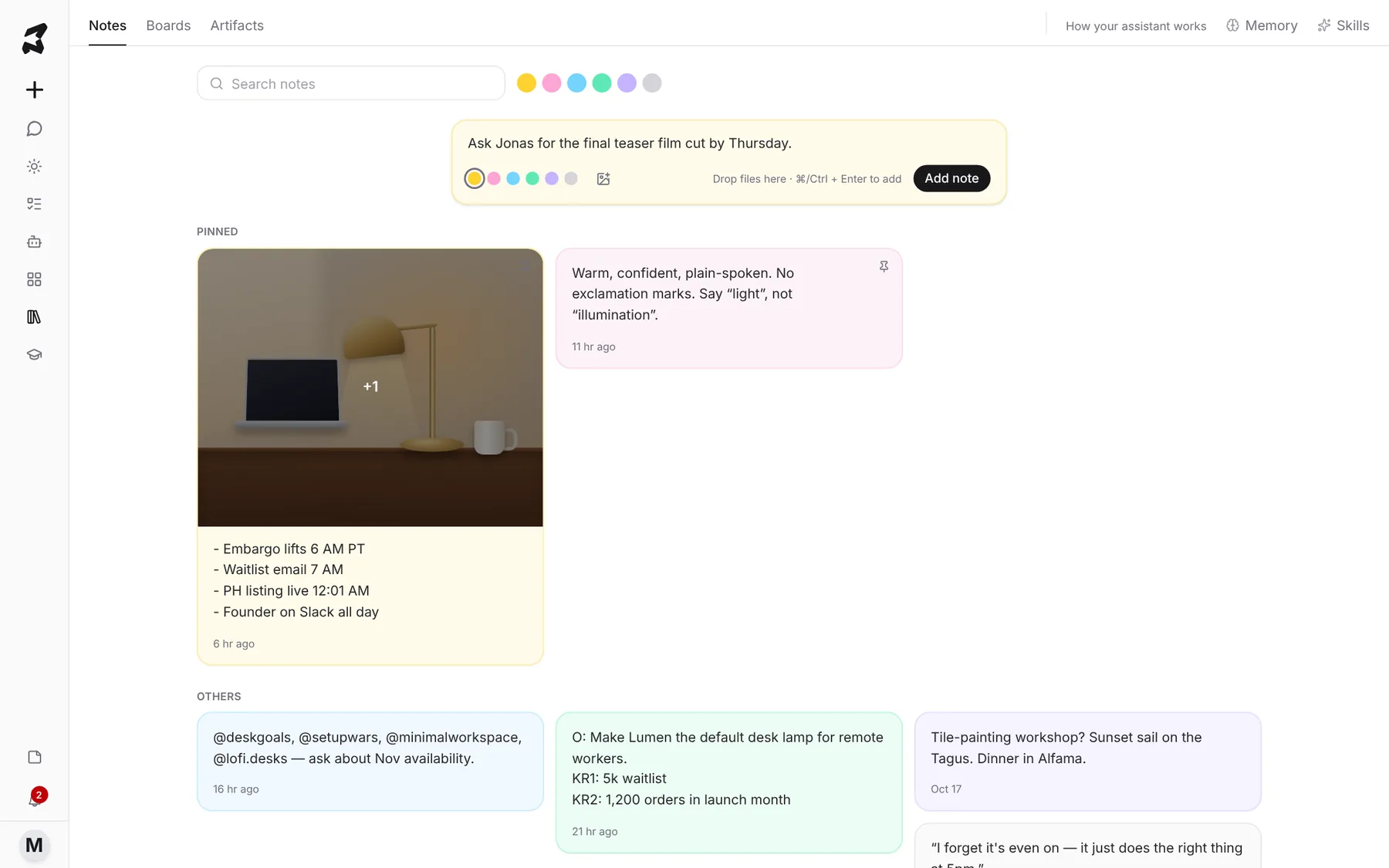
Capture ideas with Notes
Jot sticky notes from anywhere in Axyen, color and pin the ones that matter, and attach them to a chat when you want the AI to use them.
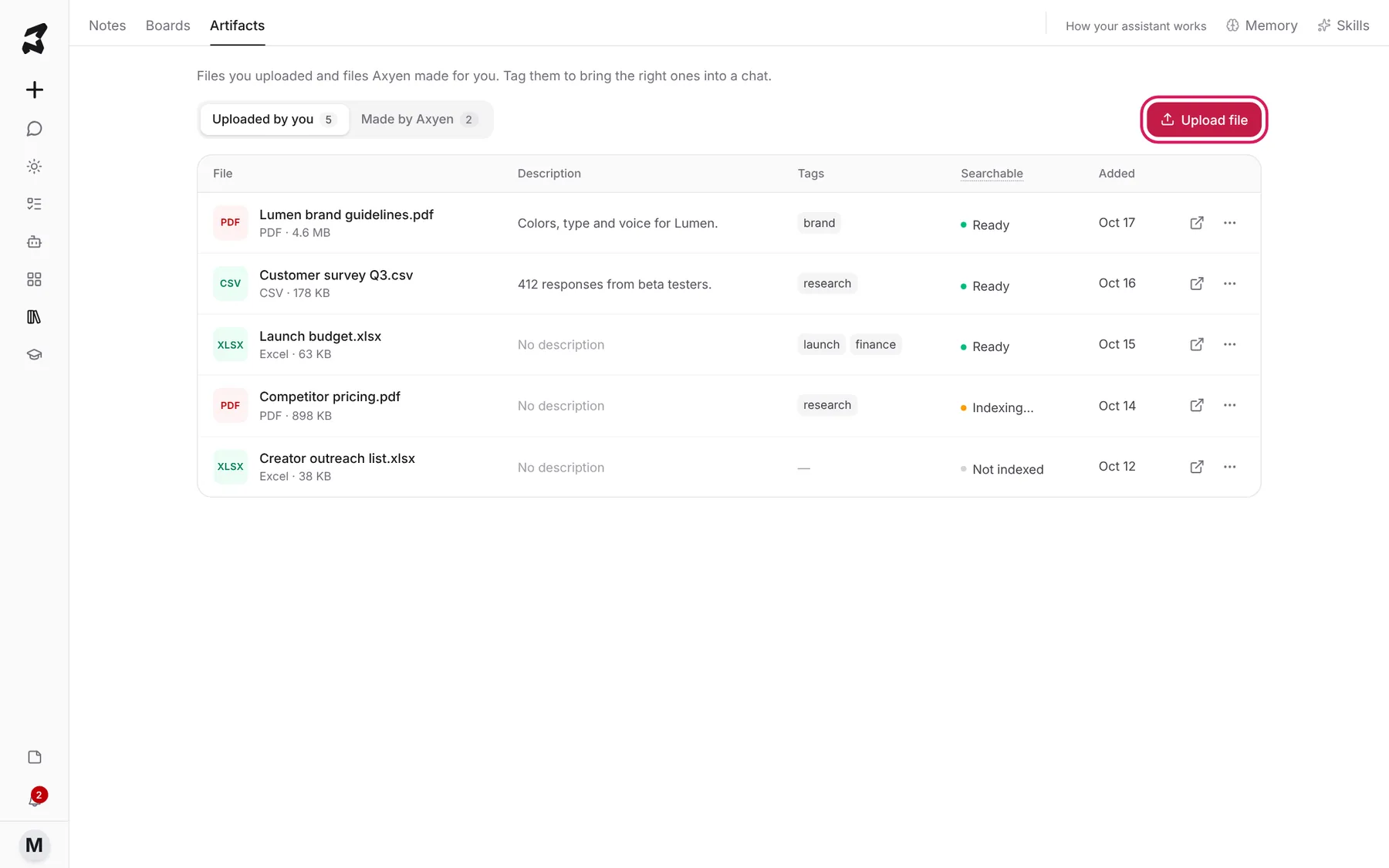
Keep files and sources in Artifacts
Upload files once, tag them, and make them searchable so Axyen can find and quote them in any chat that uses those tags.
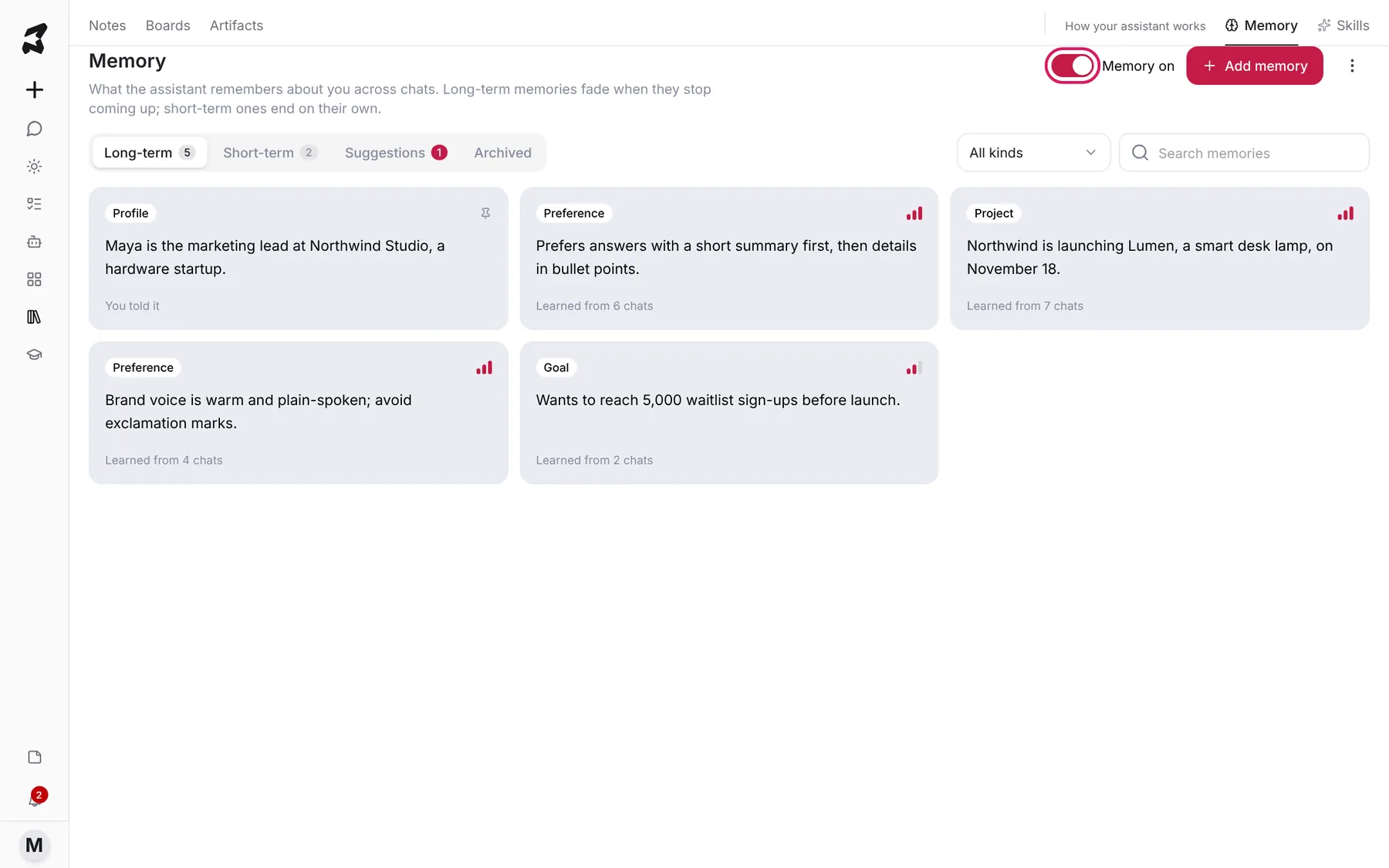
Control what Axyen remembers
See what Axyen has learned about you, approve or dismiss suggestions, add memories yourself, and turn memory on or off for everything or a single chat.
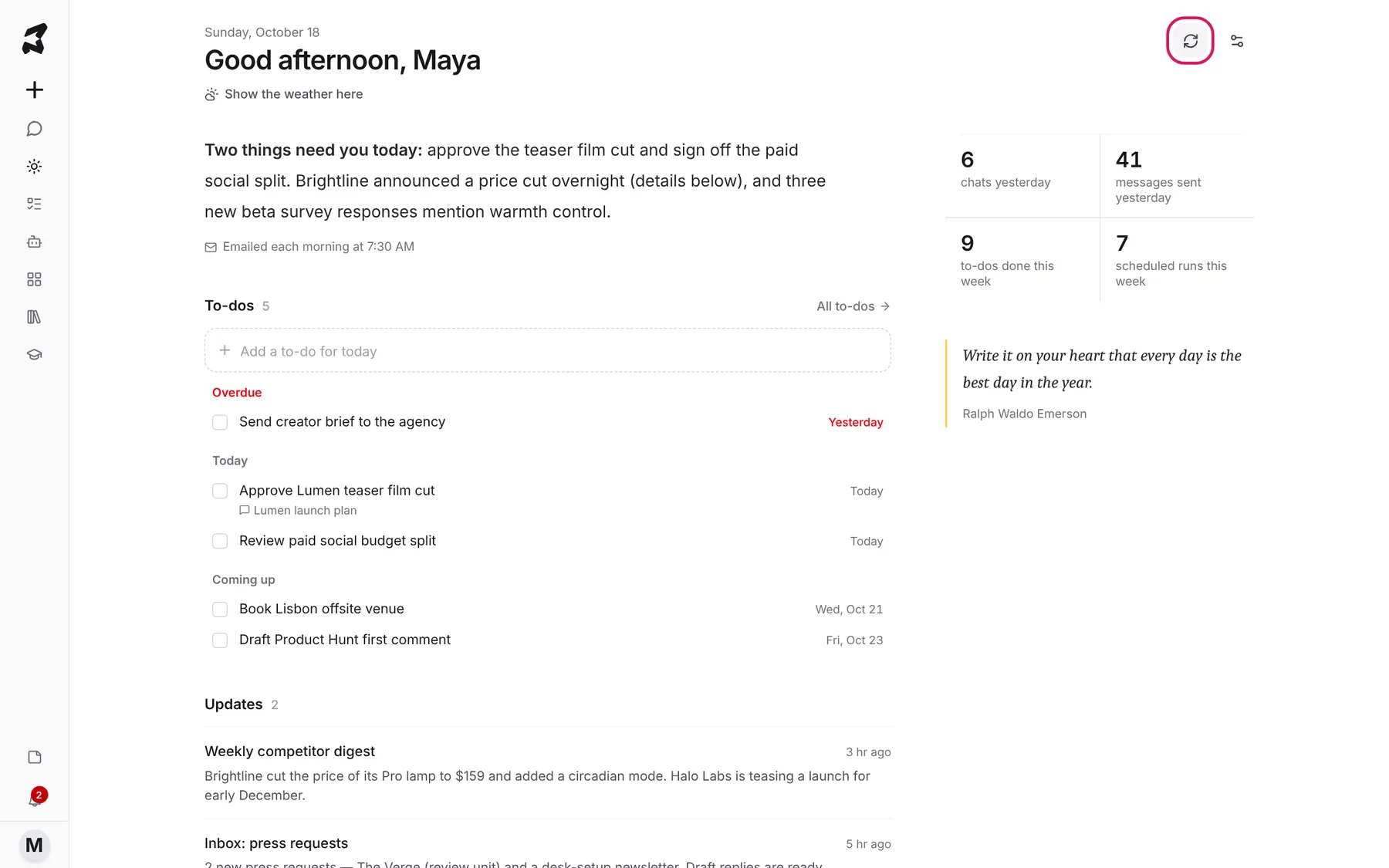
Start your day with Today and to-dos
Read a short daily brief, see what your scheduled tasks found overnight, and keep your to-dos in one list with due dates.
Agents & automation
Build agents, save reusable skills, and let work run on a schedule.
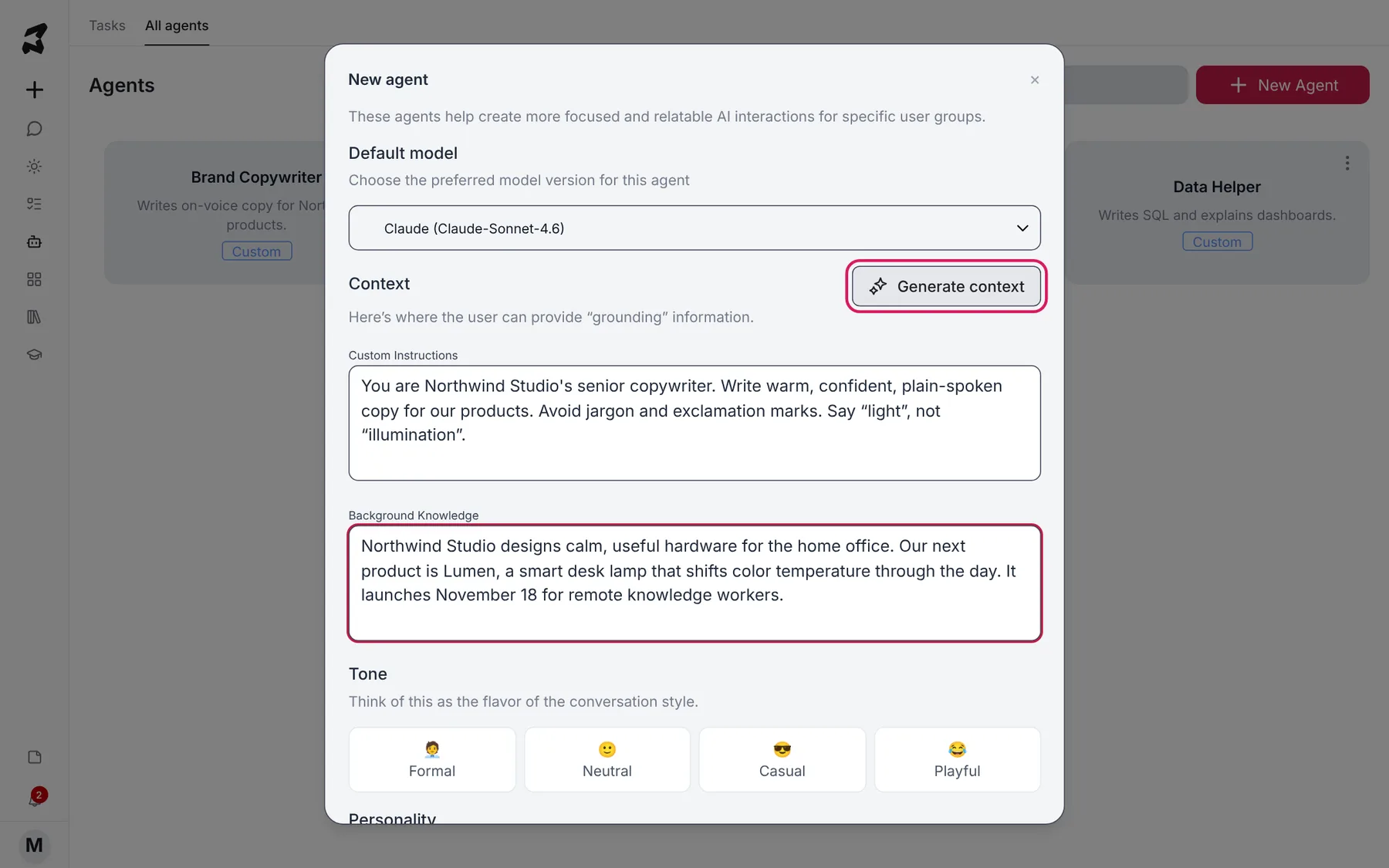
Build agents for the work you repeat
Create an agent with its own instructions, background knowledge, tone, skills and integrations, then call it into any chat with @.
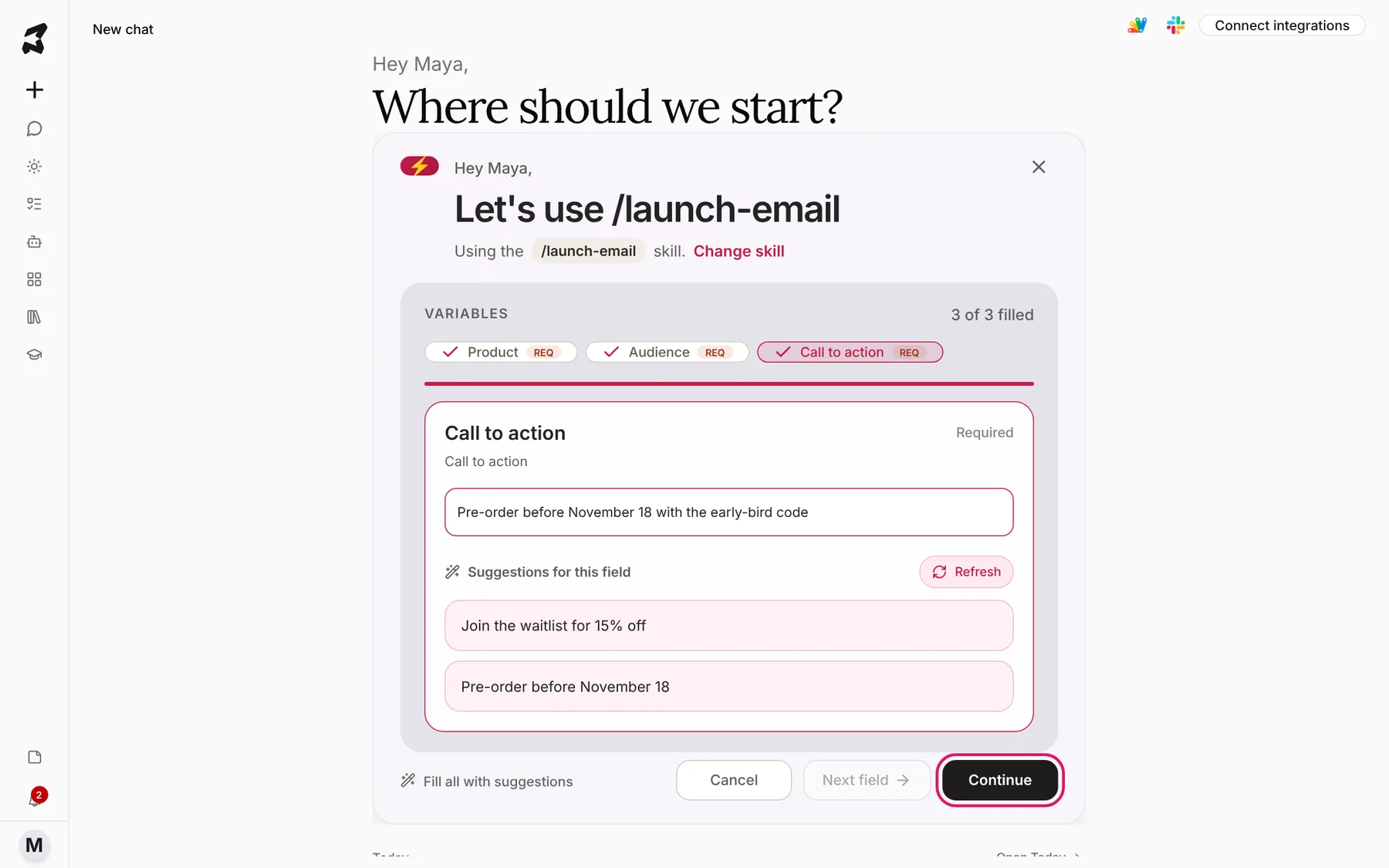
Save repeatable prompts as skills
Turn a prompt you keep rewriting into a skill with fill-in variables, then run it from the Skills page or by typing / in any chat.
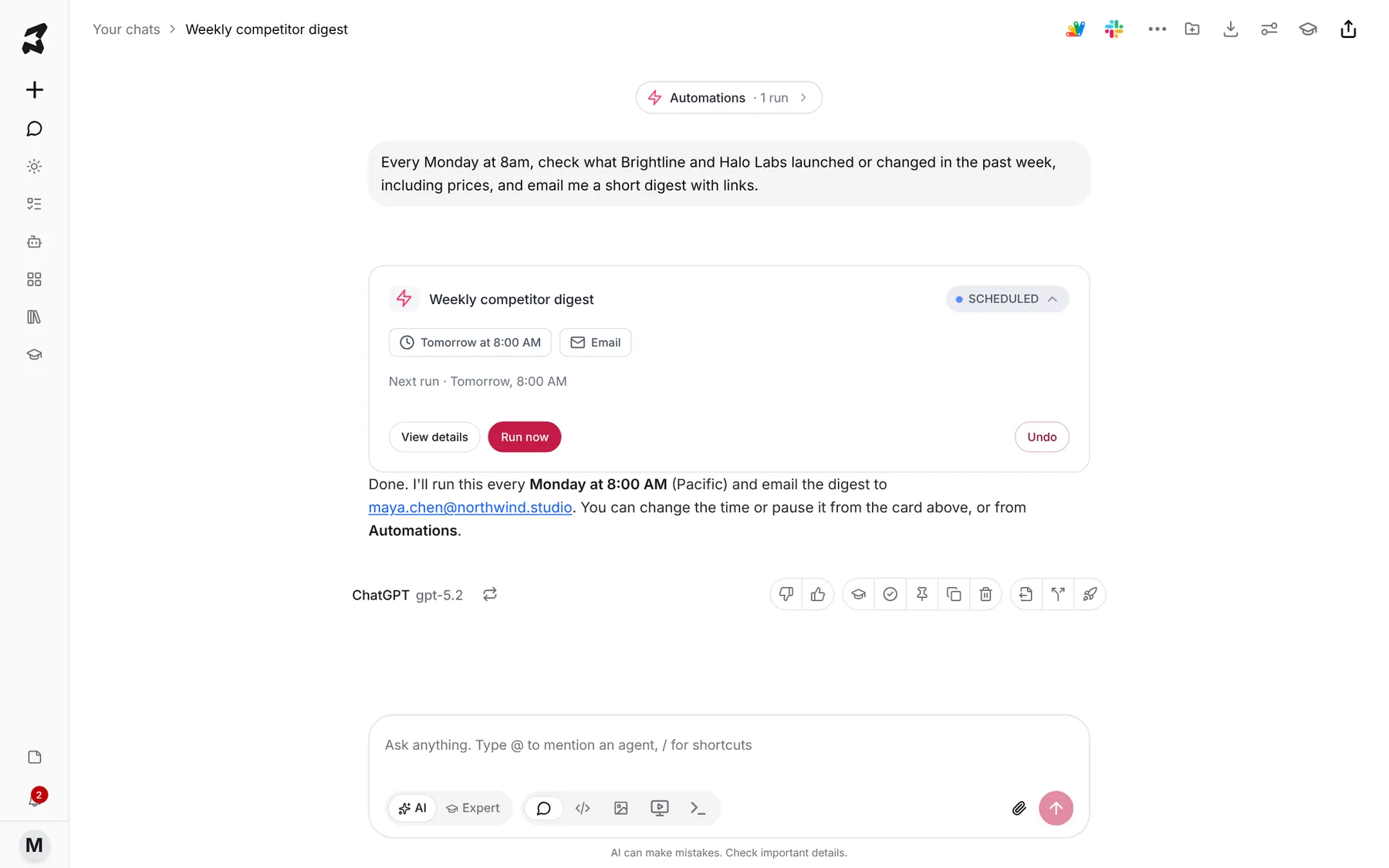
Automate work with orchestration and scheduled tasks
Describe a recurring job in plain words with Orchestration mode, then manage every scheduled task, its timing and its run history from Agent Automations.
Build & share
Publish micro-apps, bring in human experts, and work with your team.
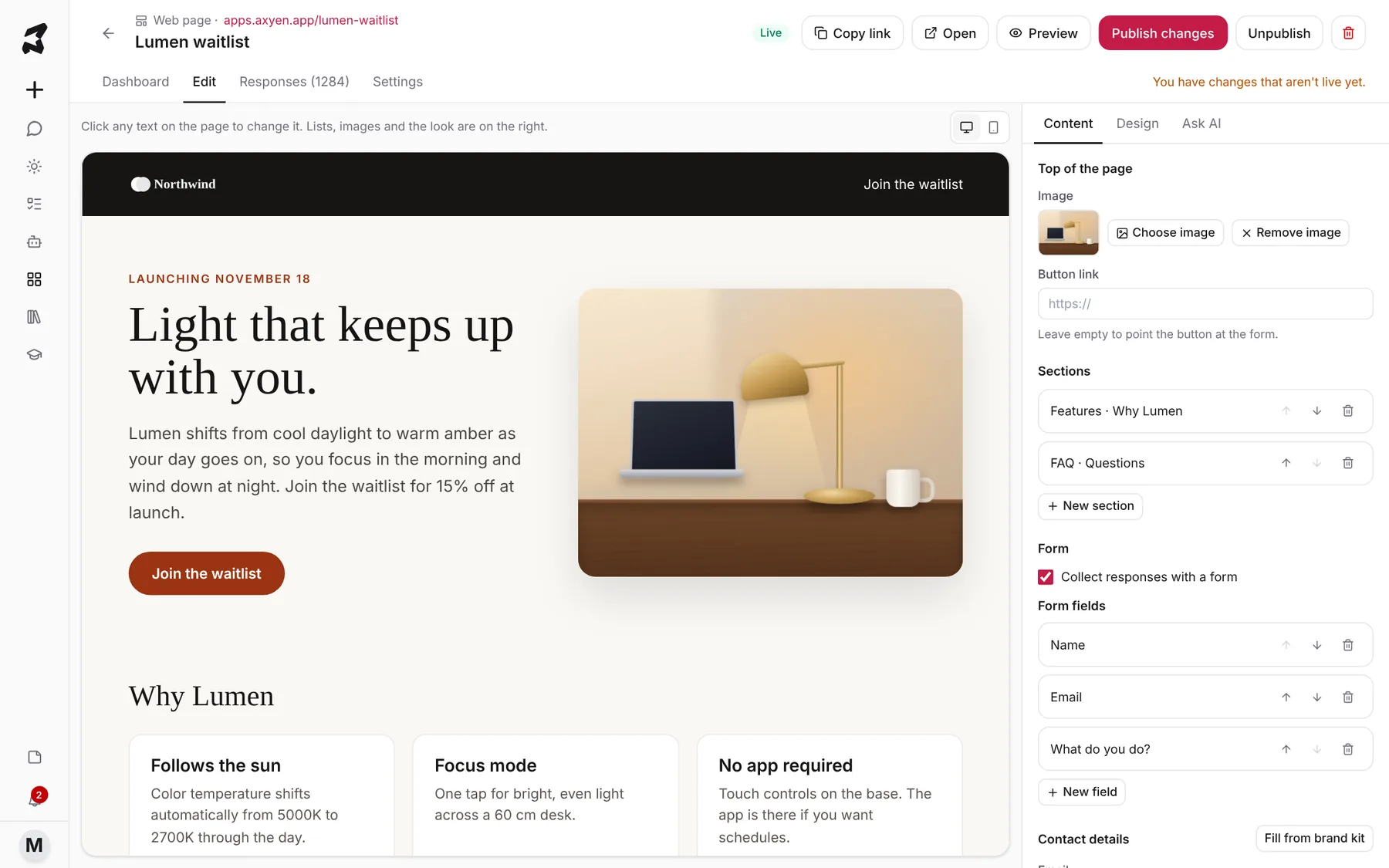
Build a waitlist page or survey with micro-apps
Describe a page, survey or sign-up in a sentence, edit it on the page itself, publish it with a link, and watch the responses come back.
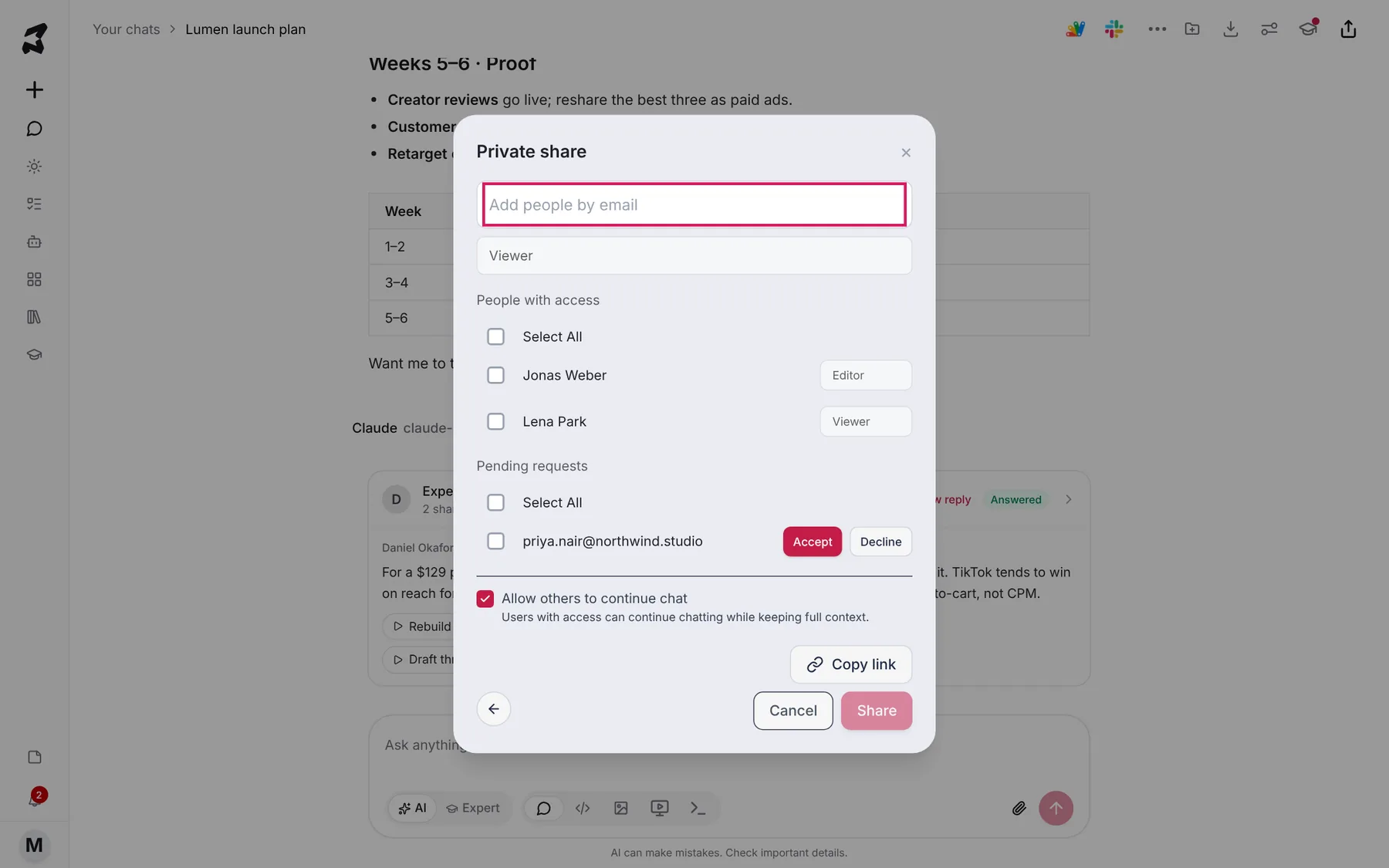
Share chats and work together
Share a chat publicly or with specific people, let them continue it, fork a chat to try another direction, and keep track of every link you've shared.
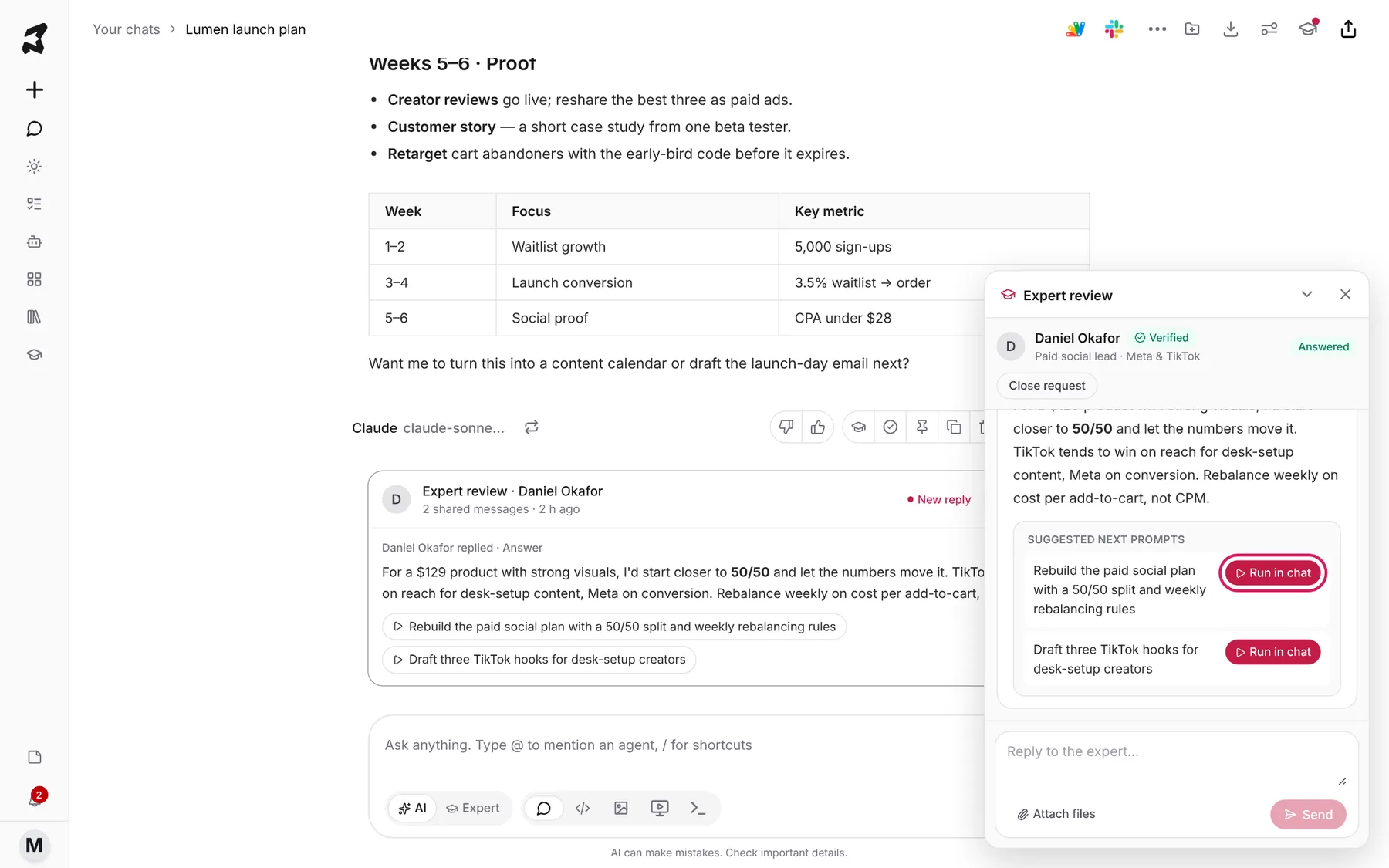
Get a human expert's review on an AI answer
Send part of a chat to a human expert, get their answer and suggested next prompts back in the same chat, or list yourself as an expert.
Account & settings
Manage your profile, plan, credits and connected apps.
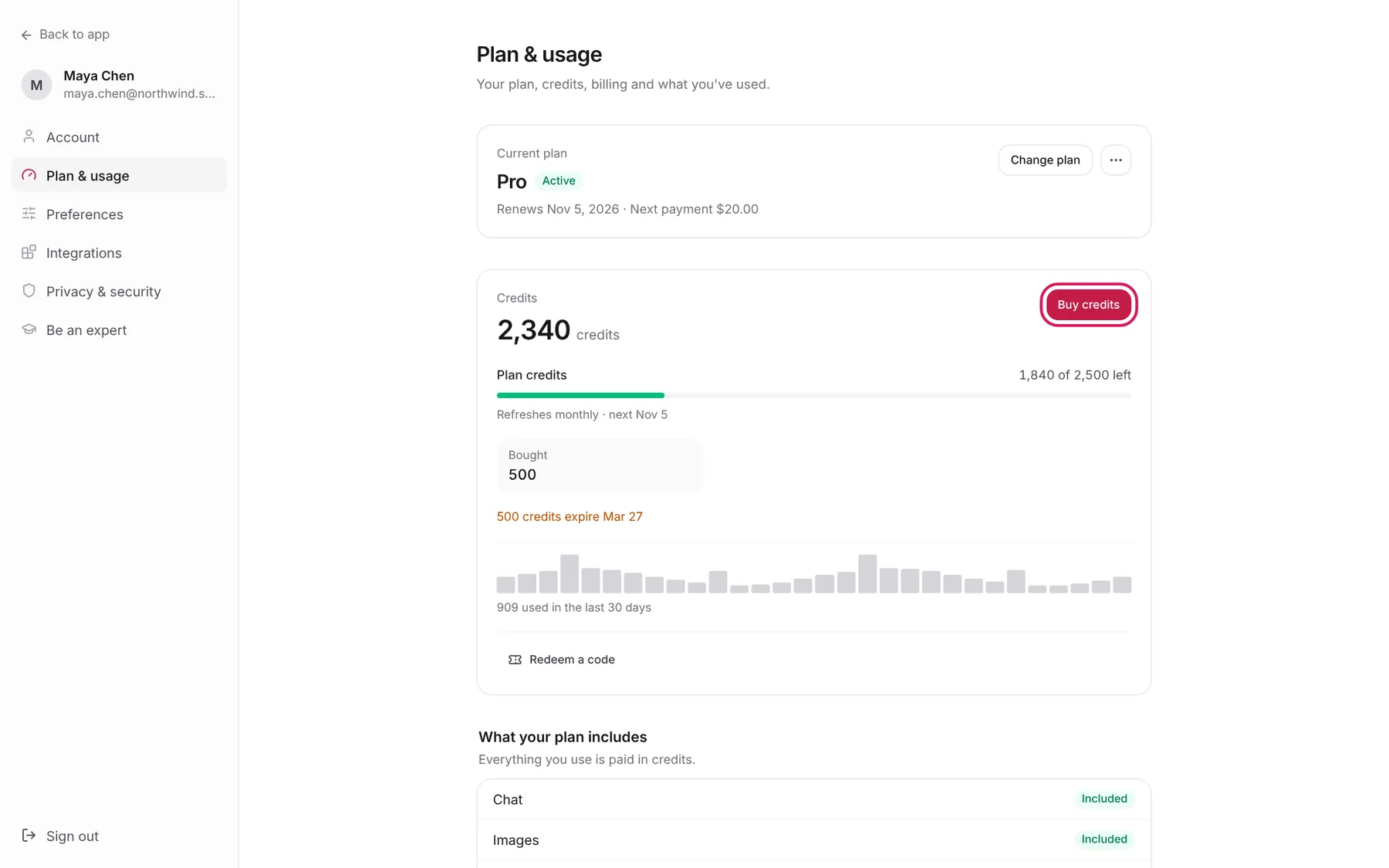
Manage your account, integrations and credits
A tour of Settings: your profile, plan and credits, default models and chat memory, connected apps and MCP servers, and privacy.
Use cases
End-to-end walkthroughs of real tasks, start to finish.
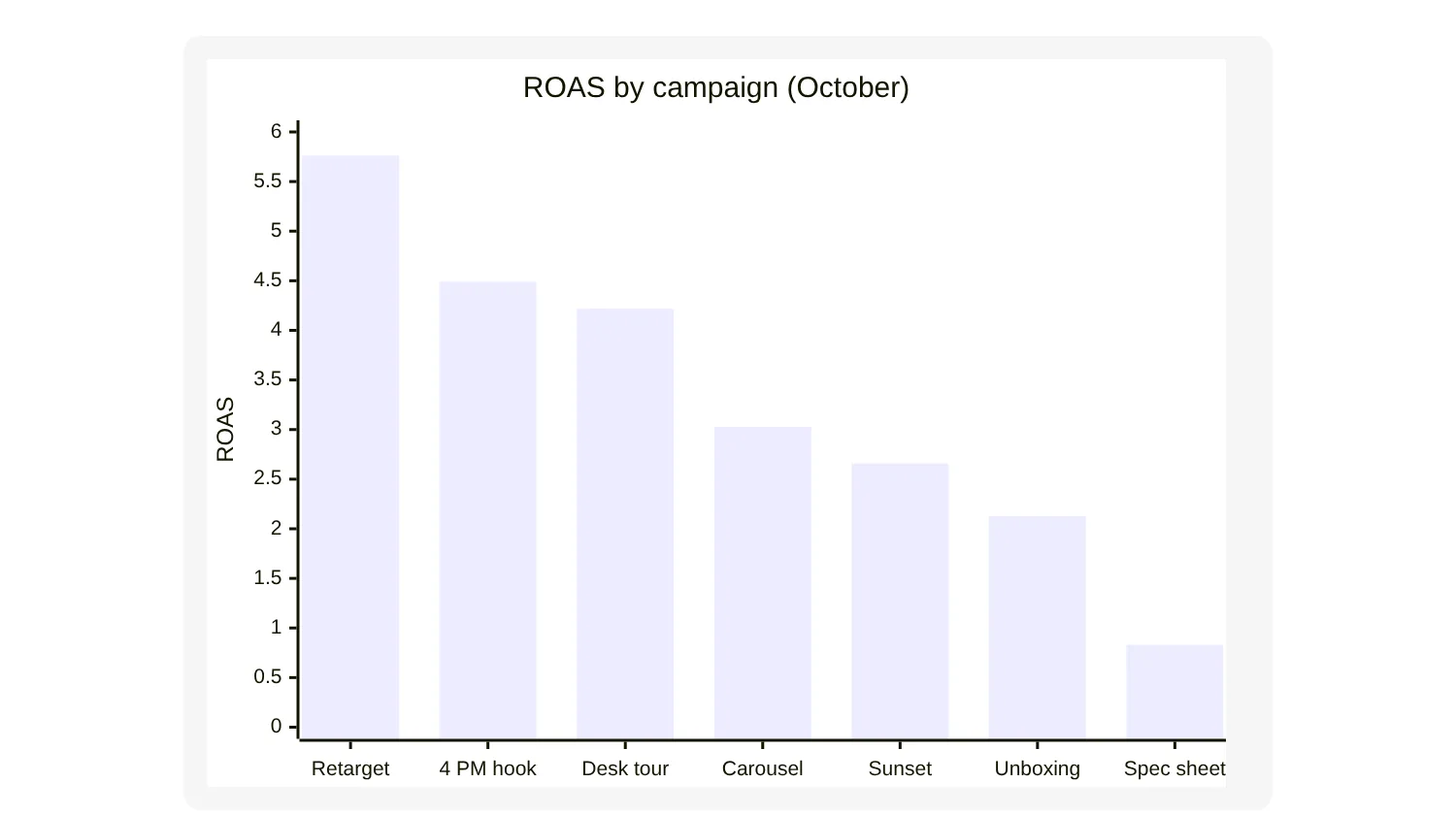
Turn your data files into a strategy report
Attach a performance export and your creative files to a chat, get back a ranked analysis with charts and pause, adjust or scale calls, then export it as a PDF or Word report.
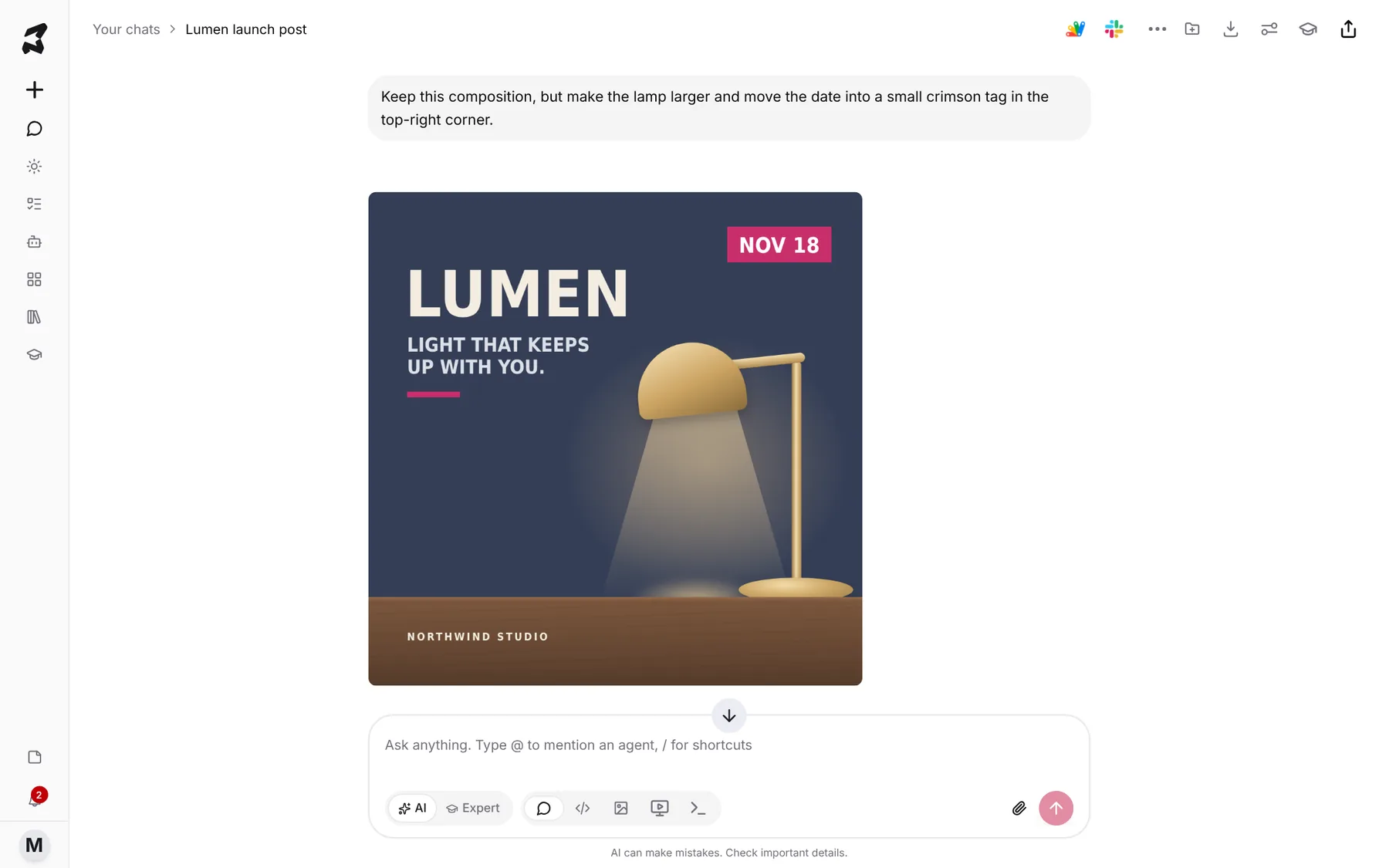
Generate on-brand images from your own references
Attach a few brand references in Chat, get back a design language and a short style block, save it as a note, then use it in Image mode to generate, compare and refine images that look like your brand.
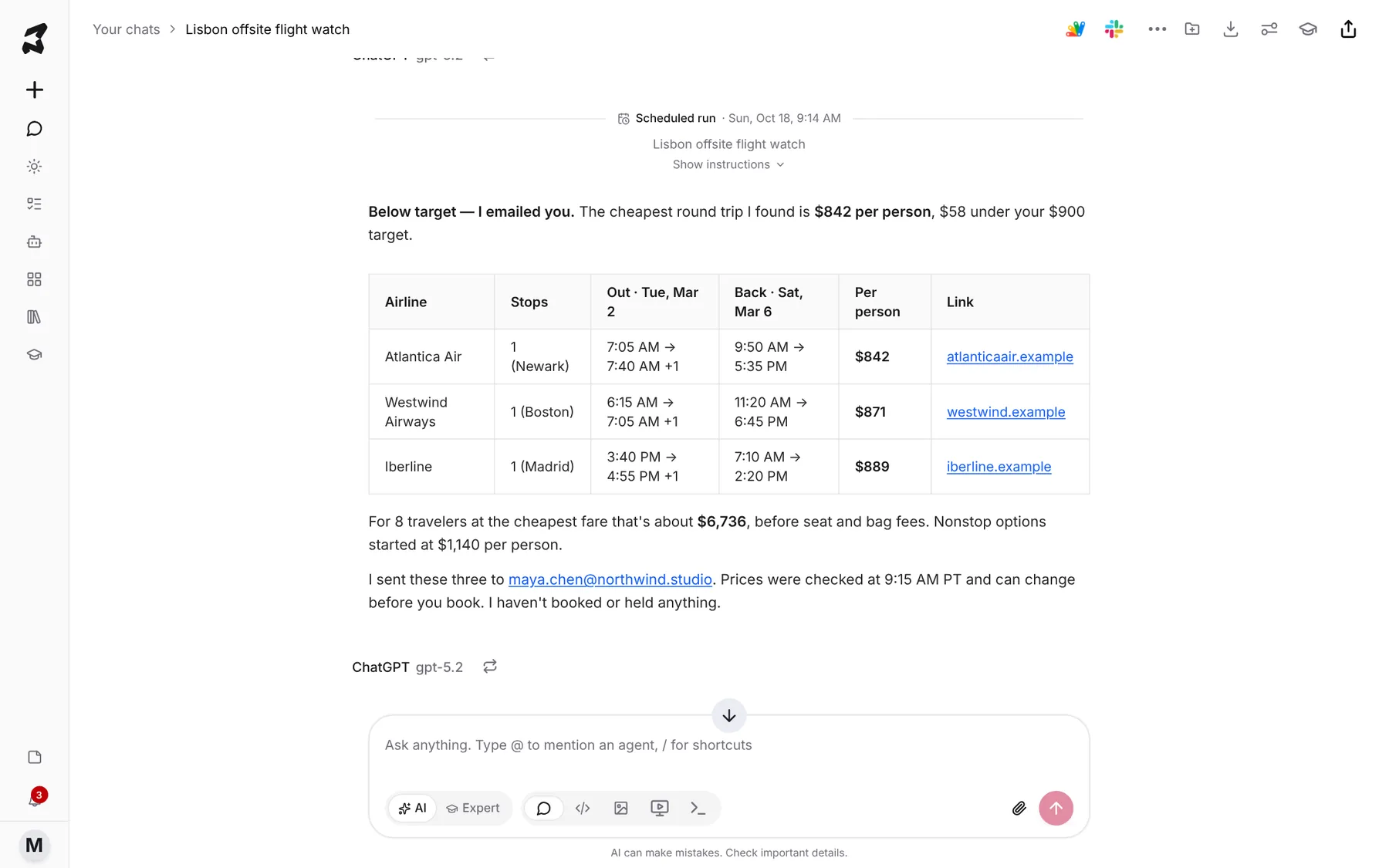
Track prices and get an alert when they drop
Set up a daily price check in Orchestration mode that searches the web, compares what it finds with your target, and emails you only when something comes in under it.