Build & share
Build a waitlist page or survey with micro-apps
Describe a page, survey or sign-up in a sentence, edit it on the page itself, publish it with a link, and watch the responses come back.
The Rundown
Micro-apps are small, finished apps you share with a link: a landing or waitlist page, a survey, an event sign-up, a quiz. You describe what you want in a sentence or two, Axyen builds it, and you adjust it by clicking on the page, using a side panel, or asking AI for changes. Once it’s published, every view, sign-up and answer comes back to a dashboard in Axyen.
Why it helps
You don’t need a website builder, a form tool and a spreadsheet to run a waitlist or a quick survey. Your brand details, colors and images are set once and reused by every new app, so each page looks like yours from the start. Responses land in one table you can export as CSV.
What you’ll need
- An Axyen account
- A clear idea of who the page is for and what it should ask (dates, prices and places help)
- Optional: your logo and a few product photos to upload under Brand & images
Step 1 — Open Apps and start a new micro-app
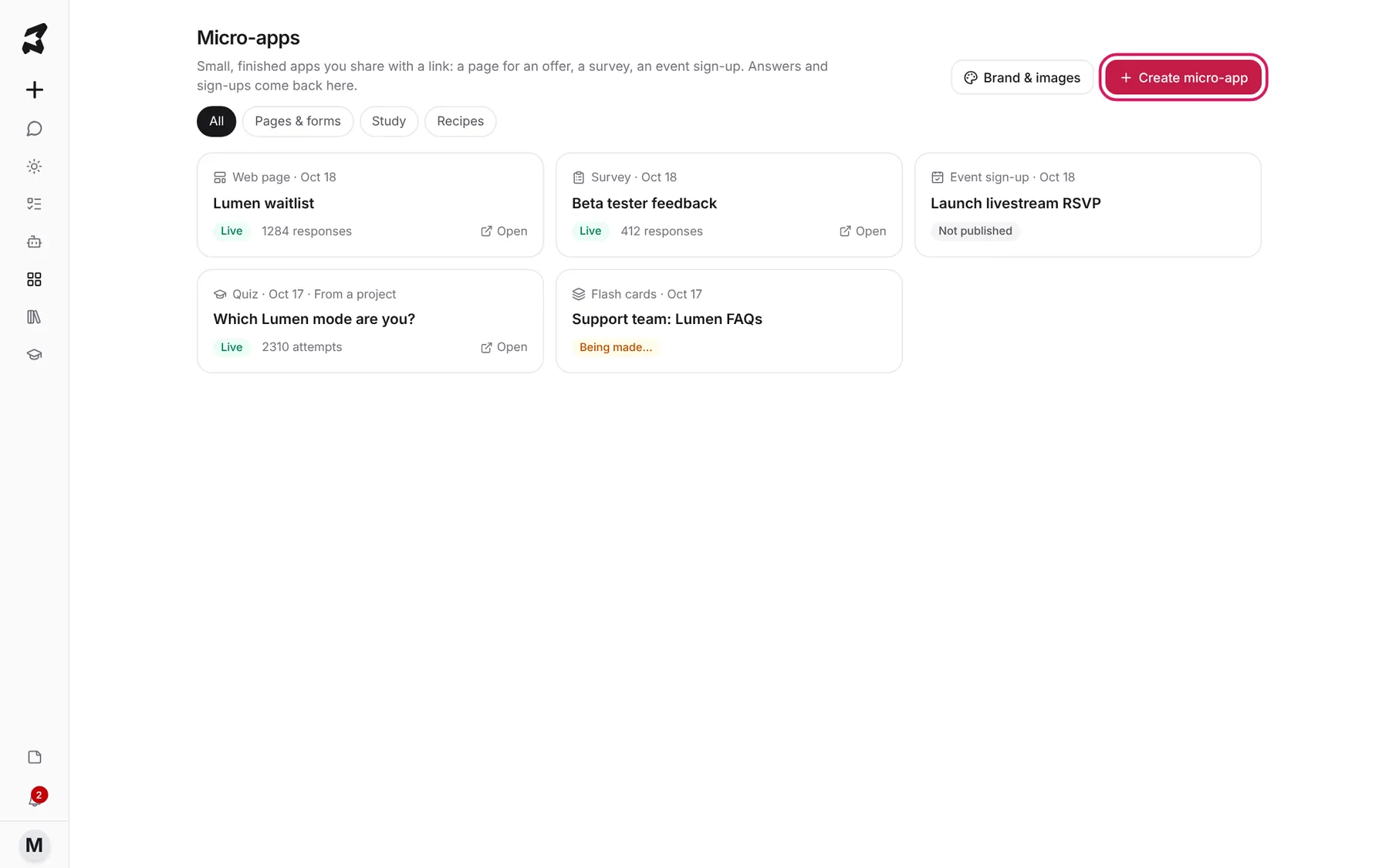
Click the Apps icon in the sidebar. The Micro-apps page lists everything you’ve made, each card showing its kind, when it was last changed, its status and how many responses it has. Live means the page is published, Not published means it’s still a draft, and Being made… means Axyen is still building it. Once you have more than one kind of app, filters appear above the list: All, Pages & forms, Study and Recipes.
Click Create micro-app to start.
Step 2 — Pick what you’re making
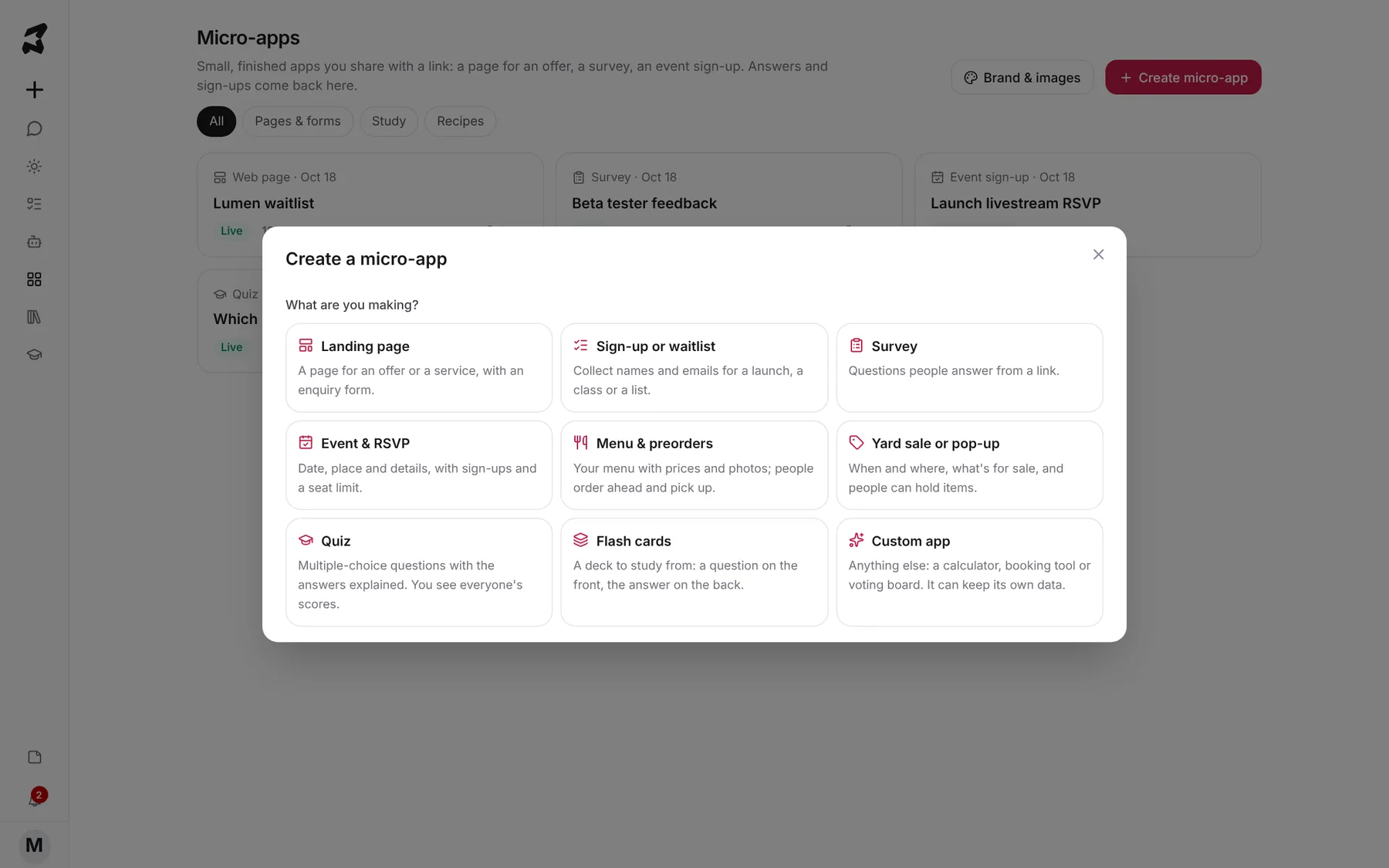
The Create a micro-app dialog asks What are you making? Pick the idea closest to what you need, such as Landing page, Sign-up or waitlist, Survey, Event & RSVP, Menu & preorders or Yard sale or pop-up. Each card says in a line what it makes.
Step 3 — Describe it and create it
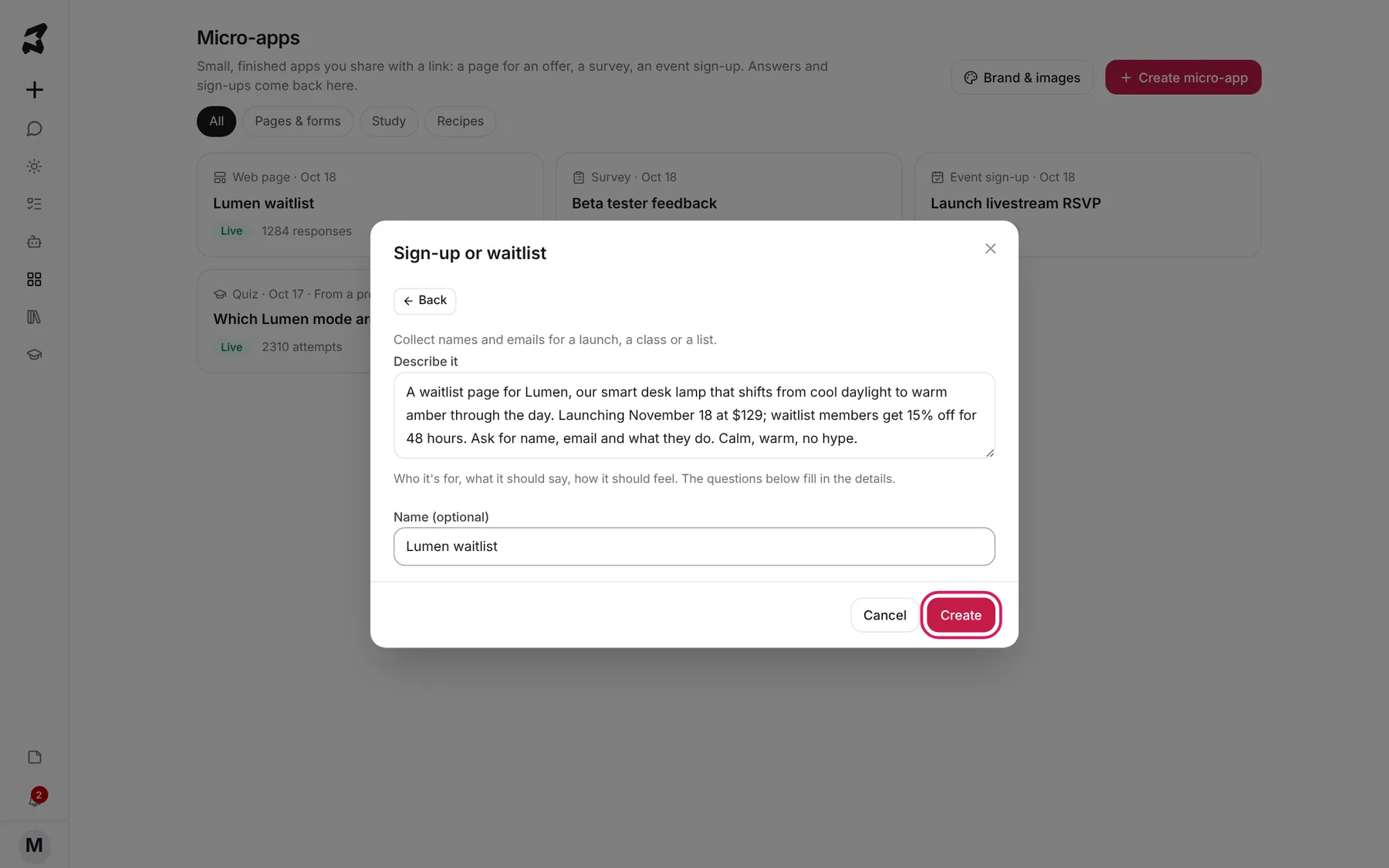
Under Describe it, write a few sentences: who it’s for, what it should say or ask, and any details like dates, prices and places. Say how it should feel too. Add a name under Name (optional), or leave it empty and Axyen names it for you. Then click Create.
A waitlist page for Lumen, our smart desk lamp that shifts from cool
daylight to warm amber through the day. Launching November 18 at $129;
waitlist members get 15% off for 48 hours. Ask for name, email and what
they do. Calm, warm, no hype.
Building takes about a minute. You land in the editor as soon as it’s ready.
Step 4 — Edit text on the page and lists in the panel
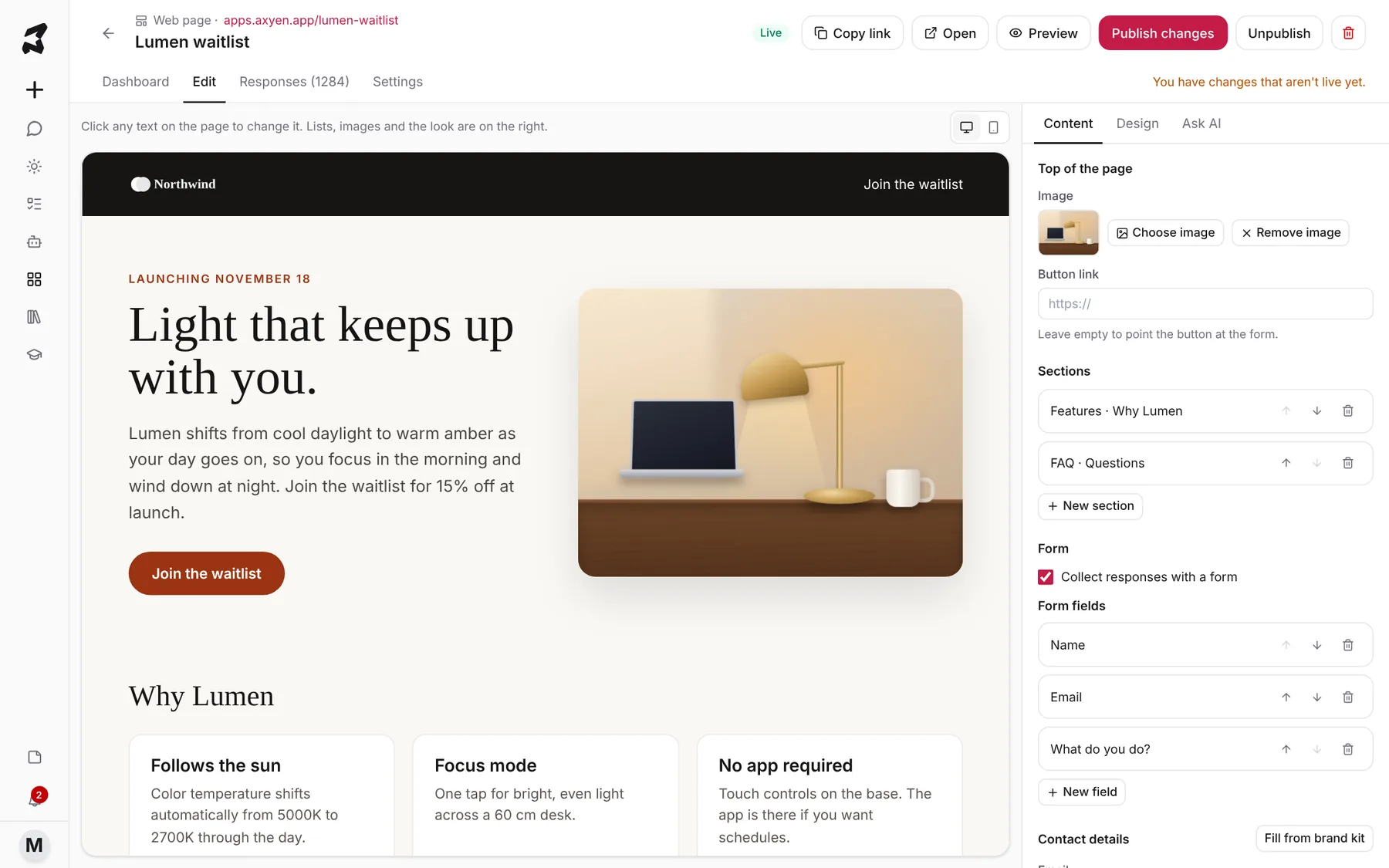
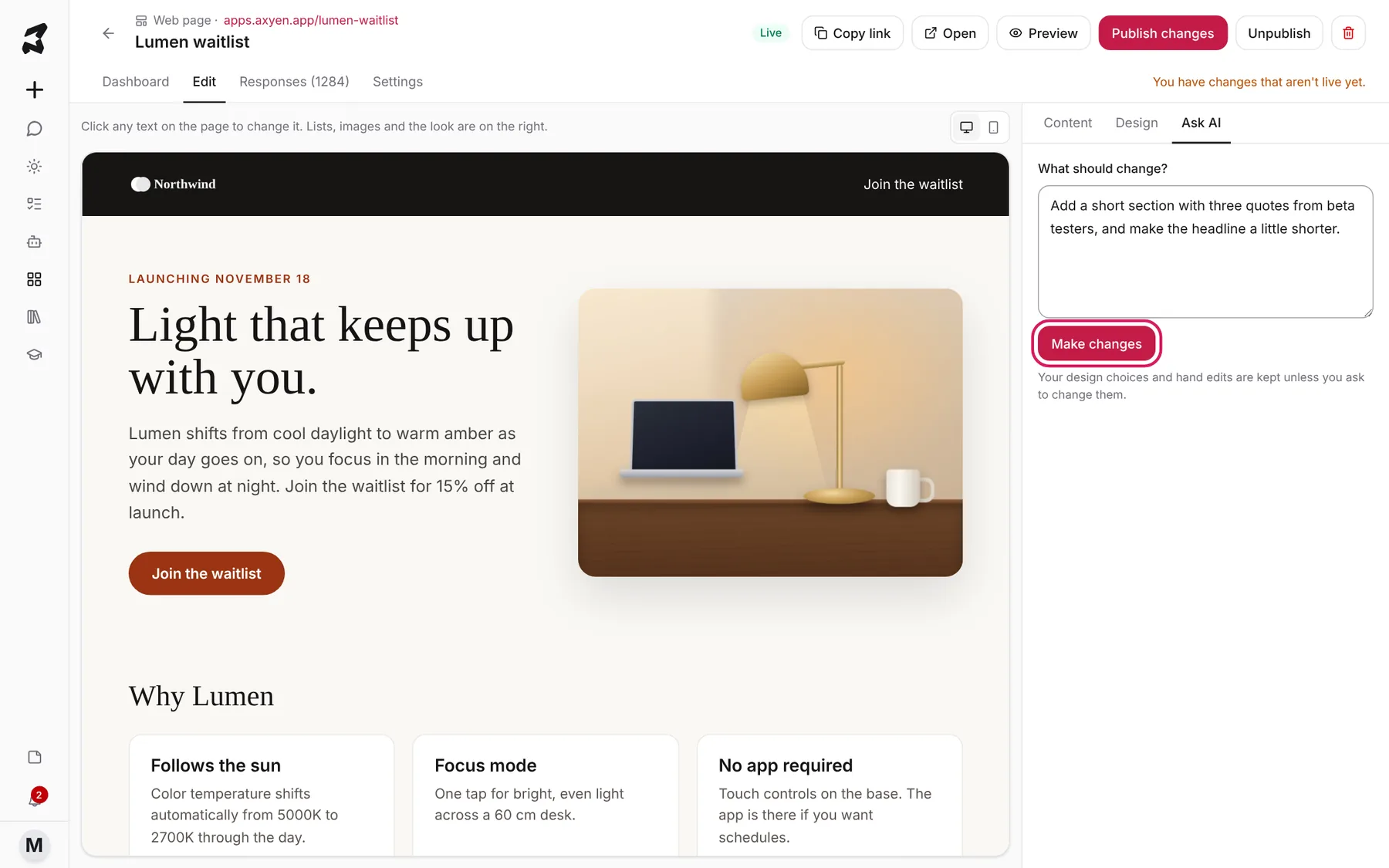
The Edit view shows your page on the left. Click any text on the page (the headline, a button label, a feature card) and type to change it. Use the desktop and phone icons above the page to check both sizes.
The panel on the right has three tabs:
- Content — the structured parts: the image at the Top of the page, the Button link, Sections you can reorder or add with New section, the Form and its Form fields, and Contact details (use Fill from brand kit to copy them in).
- Design — the Theme, Layout (Bold header or Editorial), Fonts, Accent color and Logo.
- Ask AI — describe a bigger change in words (see the next step).
Changes save as you go; the status next to the device icons says Saving… and then Saved.
Step 5 — Ask AI for bigger changes
When a change is easier to describe than to make by hand (a new section, a different tone, an extra question), open Ask AI, write it under What should change? and click Make changes. Your design choices and hand edits are kept unless you ask to change them.
Add a short section with three quotes from beta testers, and make the
headline a little shorter.
Step 6 — Publish and share the link
The buttons at the top of the app are how you take it live:
- Preview opens the page full screen, at desktop or phone width, exactly as visitors will see it.
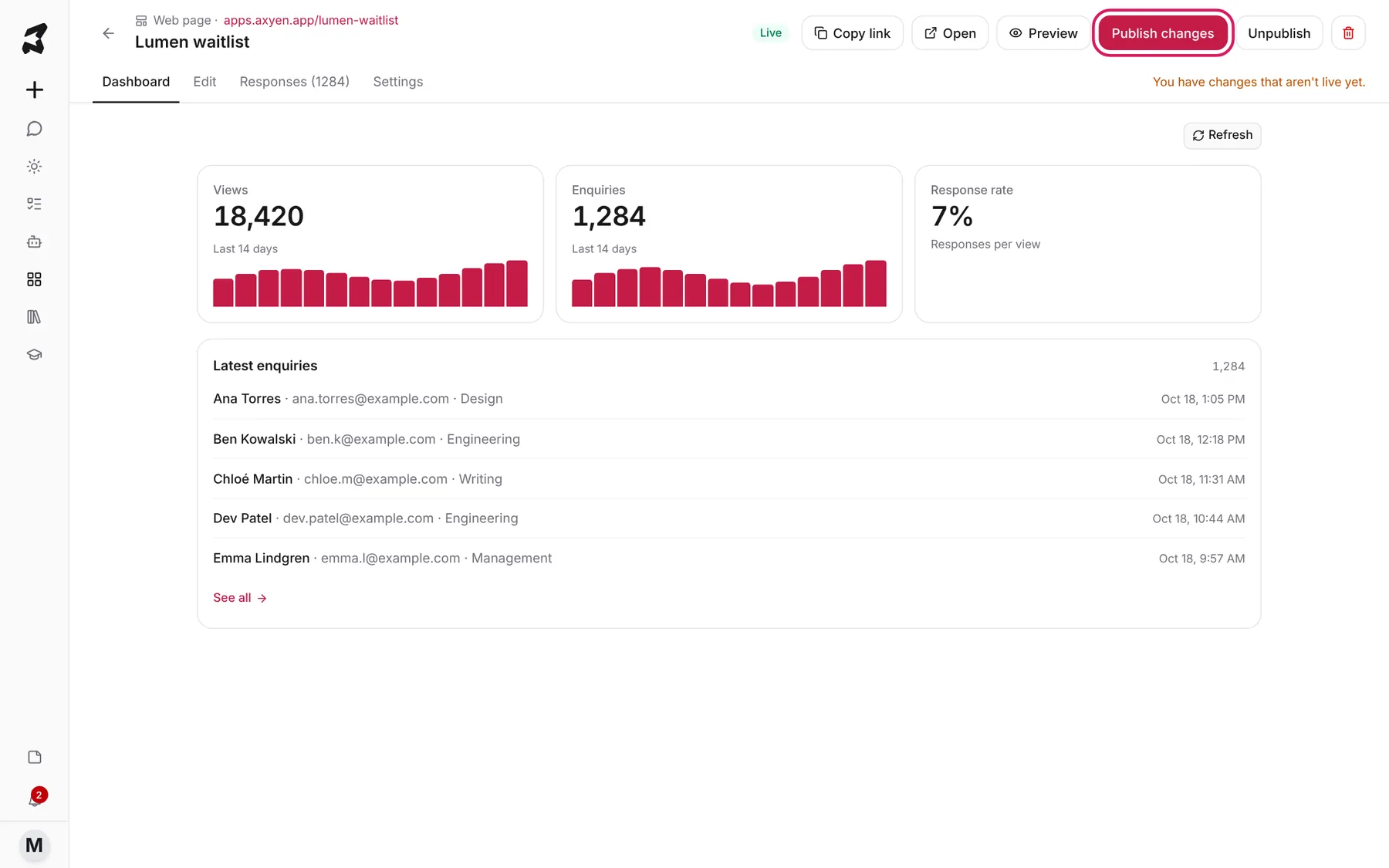
- Publish makes it live and gives it a link. After you edit a live app, the button reads Publish changes and the header says You have changes that aren’t live yet.
- Copy link and Open appear once the app is live. Unpublish takes it offline again.
The Dashboard tab shows how it’s doing: Views and sign-ups over the last 14 days, the Response rate (responses per view), and the latest entries. Click See all for every one.
Step 7 — Review responses and export them
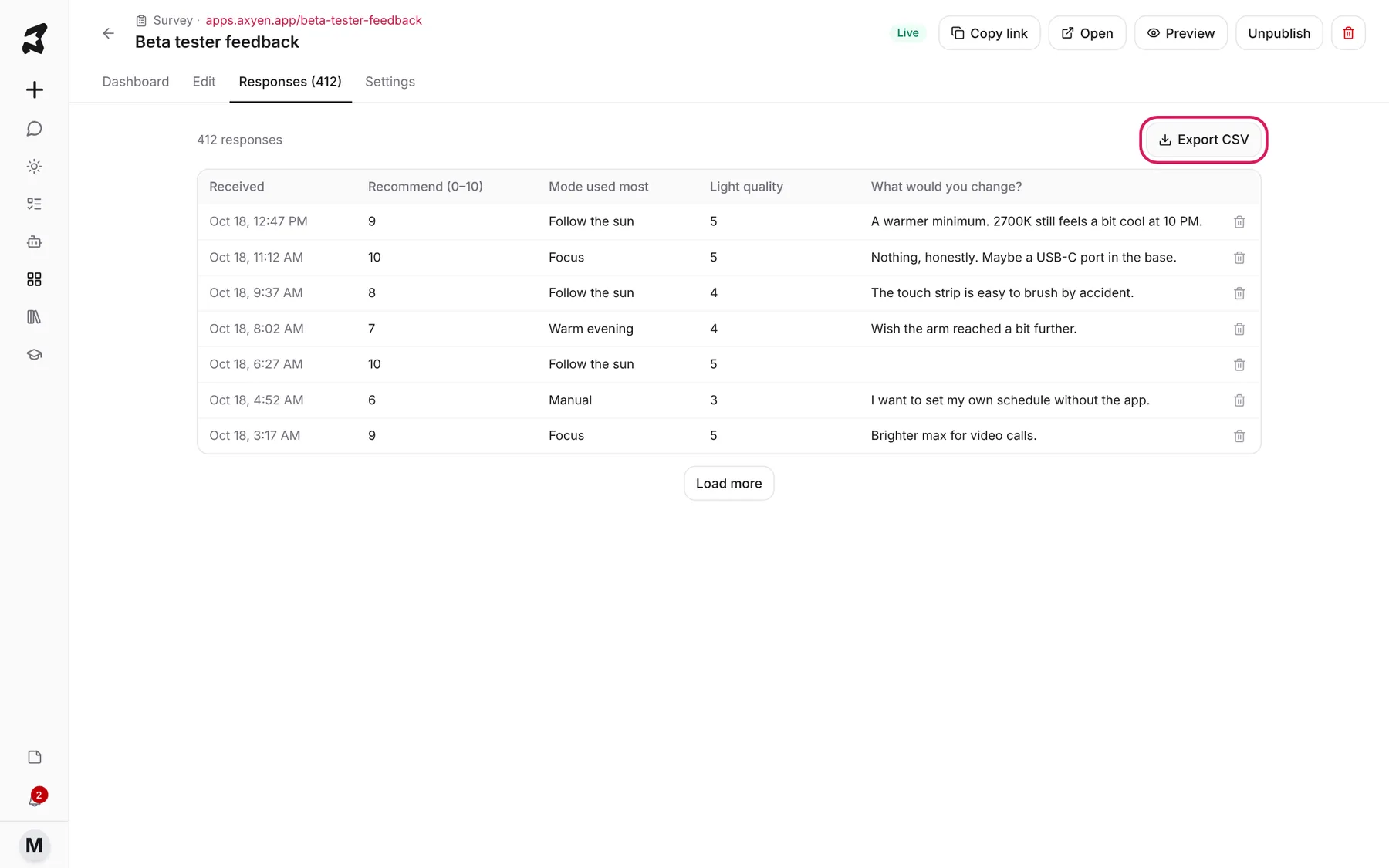
Open Responses to see every answer in a table, newest first, with one column per question. Click Export CSV to download them for a spreadsheet, or use the bin icon on a row to delete a response. For surveys, the Dashboard also charts each question: choice breakdowns, averages, the Net promoter score and the latest written answers.
Under Settings you can set a date the app Closes on, close it right away with Closed, and (for surveys) choose Show results after answering.
Step 8 — Set up Brand & images once
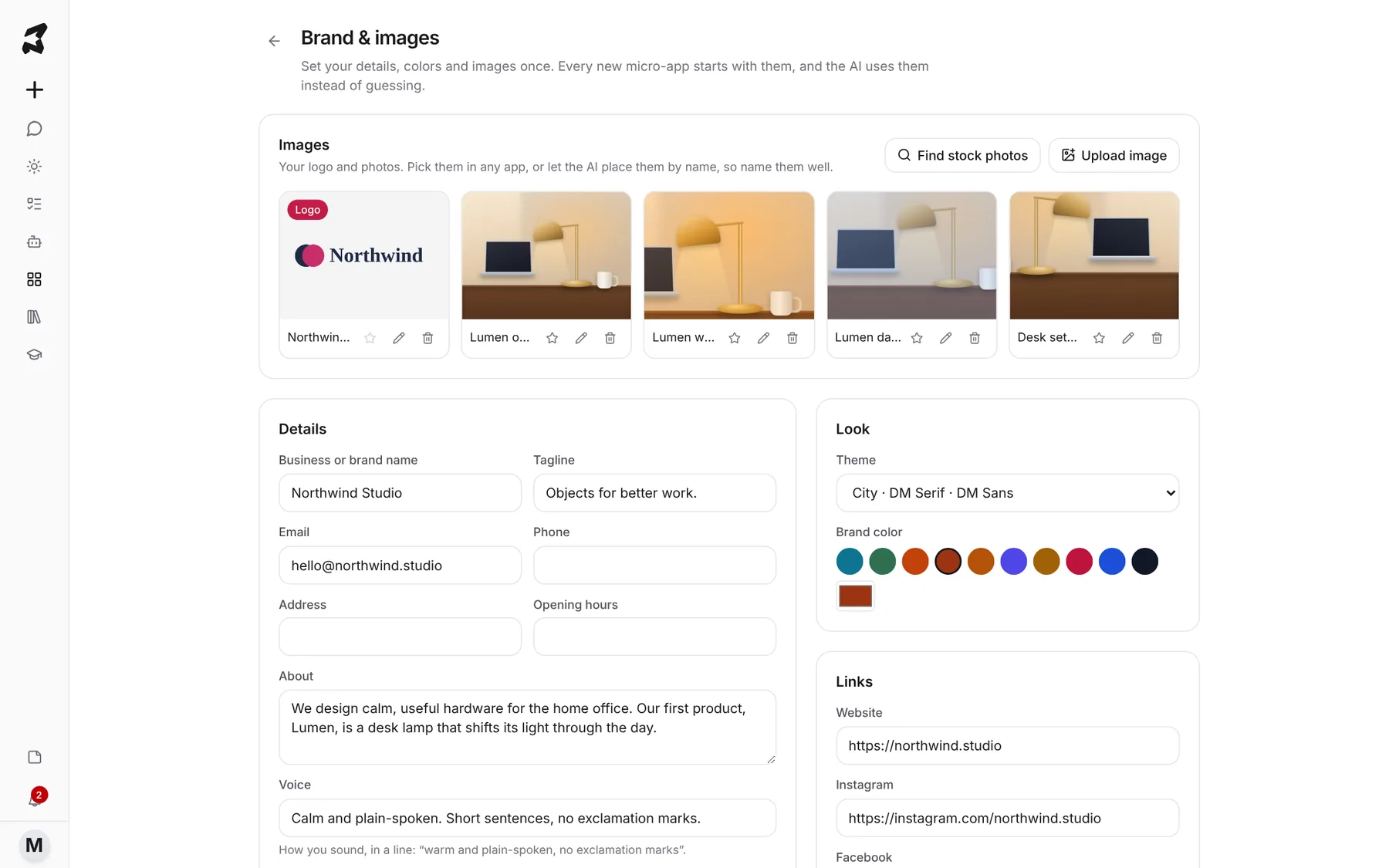
Click Brand & images on the Micro-apps page. Everything here is used by every new micro-app, and the AI uses it instead of guessing:
- Images — upload your logo and product photos with Upload image (or Find stock photos, when it’s offered). Use the icons under each image to mark it as the logo (star), rename it (pencil) or delete it. Name them well: the AI places images by name.
- Details — your business name, tagline, contact details, About and Voice (how you sound, in a line).
- Look — a default Theme and Brand color.
- Links — your website and social profiles.
Click Save at the bottom when you’re done.
Try it yourself: worked examples
Example 1 — A waitlist before launch
Pick Sign-up or waitlist and describe it:
A waitlist for our new desk lamp. Headline about light that follows
your day, three short benefits, and a form for name, email and job.
Early-bird offer: 15% off for the first 48 hours after launch.
Why it works: the offer and the fields are in the description, so the first version is close to final and you only tweak wording on the page.
Example 2 — A beta tester survey
Pick Survey:
A five-question survey for 40 beta testers who used our lamp for two
weeks: how likely they are to recommend it (0–10), which mode they
used most, a 1–5 rating for light quality, and what they'd change.
Why it works: naming the question types (0–10, 1–5, multiple choice, open text) gets you the right charts on the dashboard straight away.
Example 3 — An RSVP for a launch livestream
Pick Event & RSVP:
RSVP page for our launch livestream on November 18 at 9 AM Pacific.
30 minutes: product demo, Q&A with the designers. Online only, ask for
name and email, limit 300 seats.
Why it works: date, time, length and a seat limit are all things the event page has fields for, so they land in the right place.
Tips
- Upload your logo and a few photos under Brand & images before your first app. Every app after that starts on-brand.
- Use Preview at phone width before you publish. Most visitors arrive from a phone.
- Edit small things on the page; use Ask AI for anything that adds, removes or rewrites a section.
- Set a Closes on date for surveys and sign-ups with a deadline, so late answers don’t skew your numbers.