Account & settings
Manage your account, integrations and credits
A tour of Settings: your profile, plan and credits, default models and chat memory, connected apps and MCP servers, and privacy.
The Rundown
Settings is where you look after your account: your profile, your plan and credits, the models Axyen starts with, the apps and MCP servers your chats can use, and the links you’ve shared. This guide walks through each section so you know where things are when you need them.
Why it helps
A few minutes here saves time everywhere else. Setting default models means every new chat starts the way you like. Connecting Google Workspace or Slack lets chats read and act on your real work. Knowing where your credits stand means no surprises halfway through a big task.
What you’ll need
- An Axyen account
- To connect apps: access to the accounts you want to connect (Google, Slack, GitHub and so on)
- To add an MCP server: its URL and, if it needs one, a token
Step 1 — Open Settings and check your account
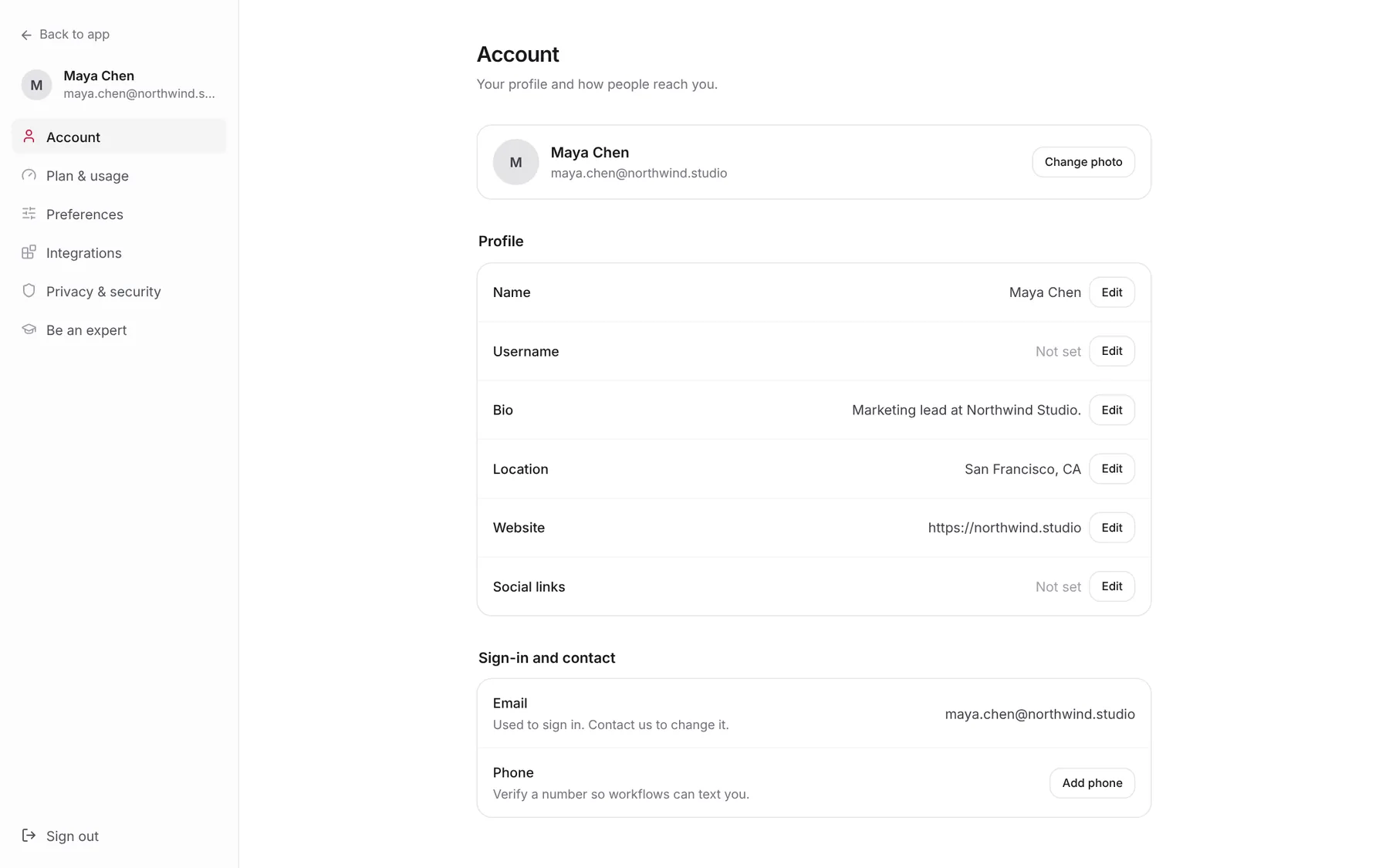
Click your avatar at the bottom of the sidebar and choose Settings. The sections are listed on the left: Account, Plan & usage, Preferences, Integrations, Privacy & security and Be an expert. Back to app takes you back to your chats.
Account holds your profile: Change photo, then Name, Username, Bio, Location, Website and Social links, each with its own Edit button. Under Sign-in and contact, your Email is used to sign in (contact support to change it), and Add phone verifies a number so workflows can text you.
Step 2 — See your plan and credits
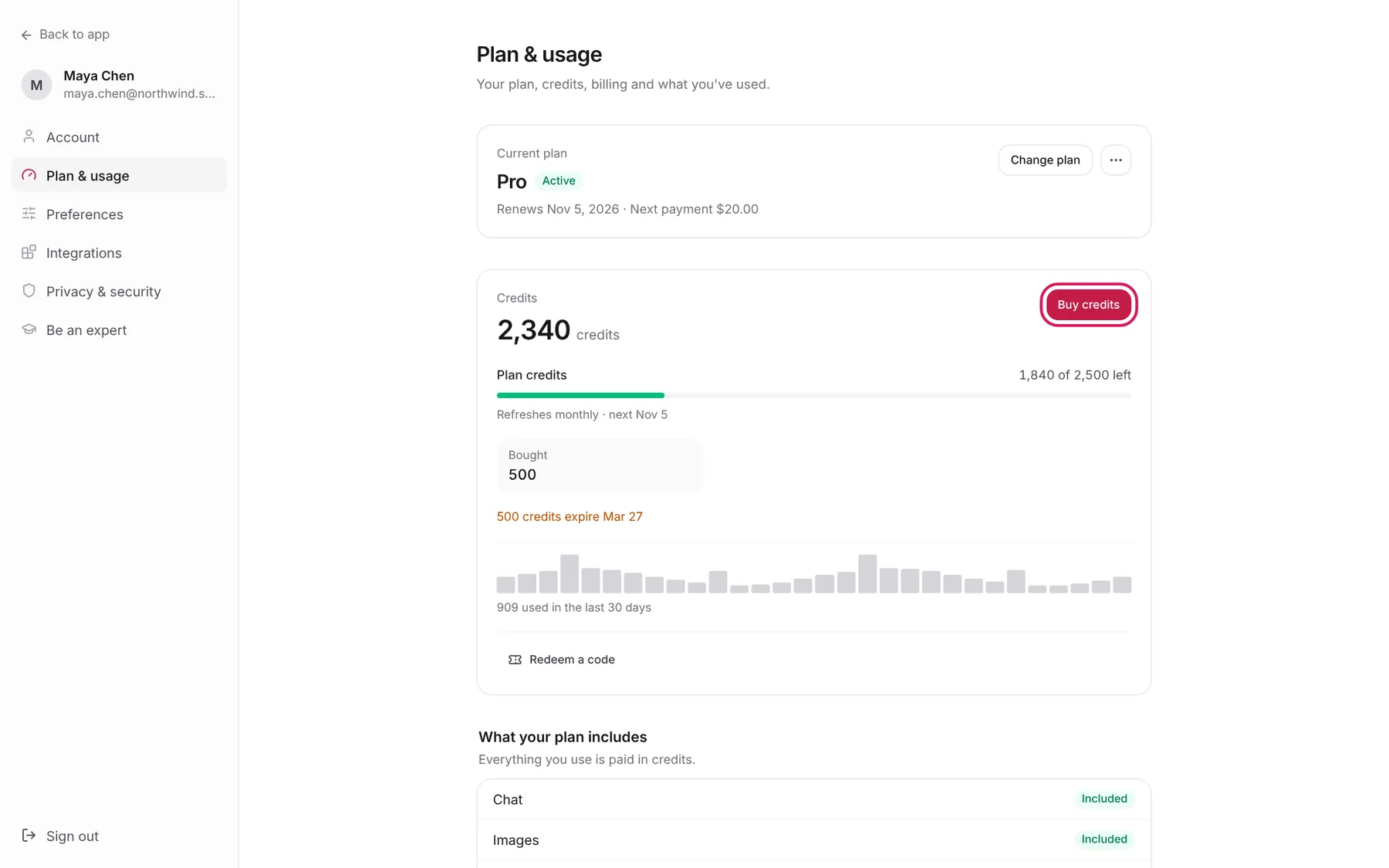
Open Plan & usage. The Current plan card shows your plan, its status, when it renews and your next payment. Change plan lists the plans you can switch to; the … menu next to it holds Cancel subscription.
Everything in Axyen is paid in credits. The Credits card shows:
- the total you can spend right now,
- Plan credits left from this period’s allowance, and when they refresh,
- credits you’ve Bought, and any that expire soon,
- a bar chart of credits used per day over the last 30 days.
Click Buy credits to top up. Payment happens in a secure card form.
Step 3 — Redeem a code and read your credit history
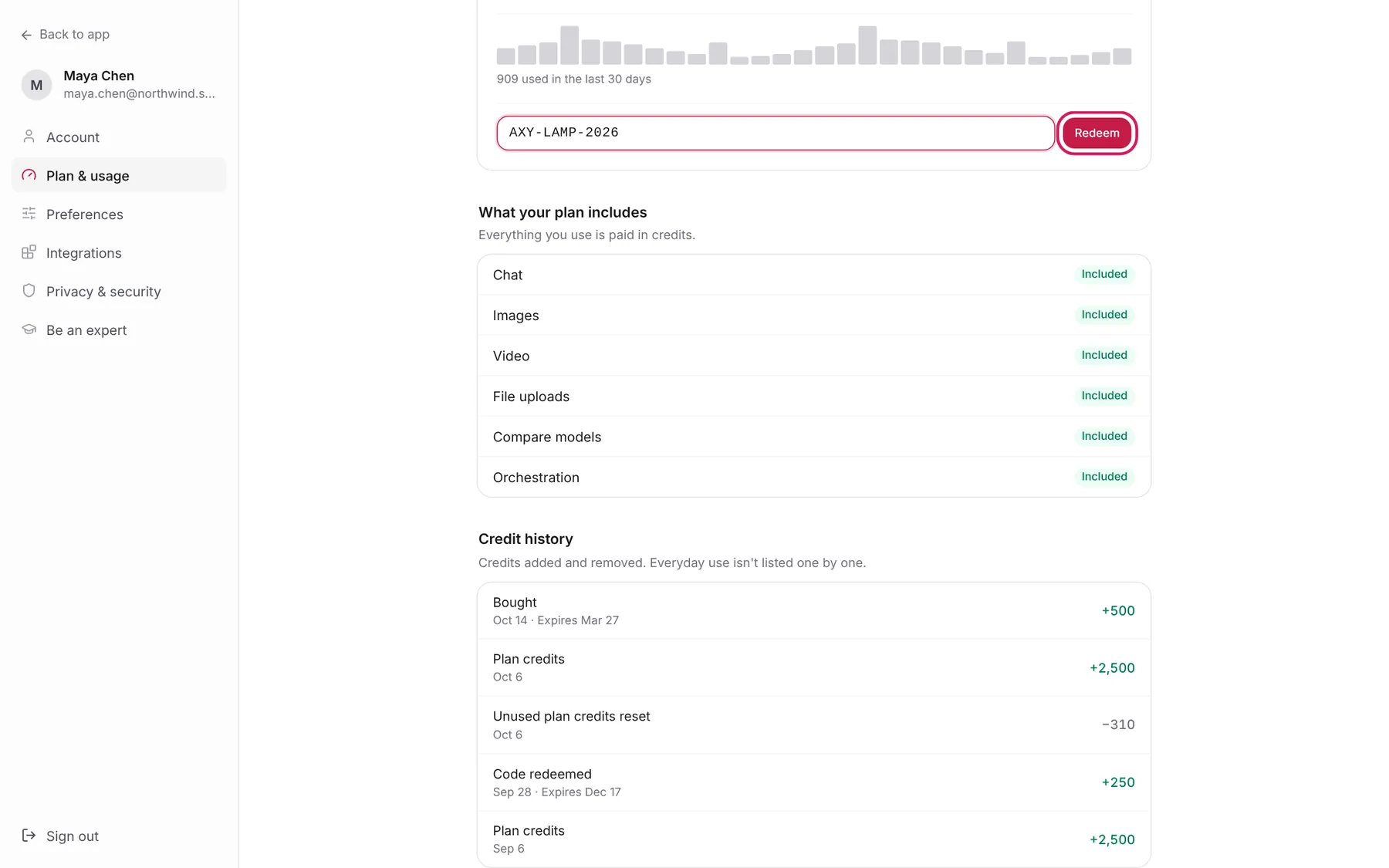
If you’ve been given a promo or gift code, click Redeem a code in the credits card, type it in and click Redeem. The credits are added straight away.
Further down, What your plan includes shows which features your plan switches on (Chat, Images, Video, File uploads, Compare models, Orchestration). Each is marked Included, Not in plan or Out of credits. Credit history lists credits added and removed (plan refills, purchases, redeemed codes, expiries) with dates. Everyday use isn’t listed one message at a time. Below that, Billing history lists your payments (with Subscription and Add-ons tabs), and Payment method shows the card on file.
Step 4 — Set your preferences
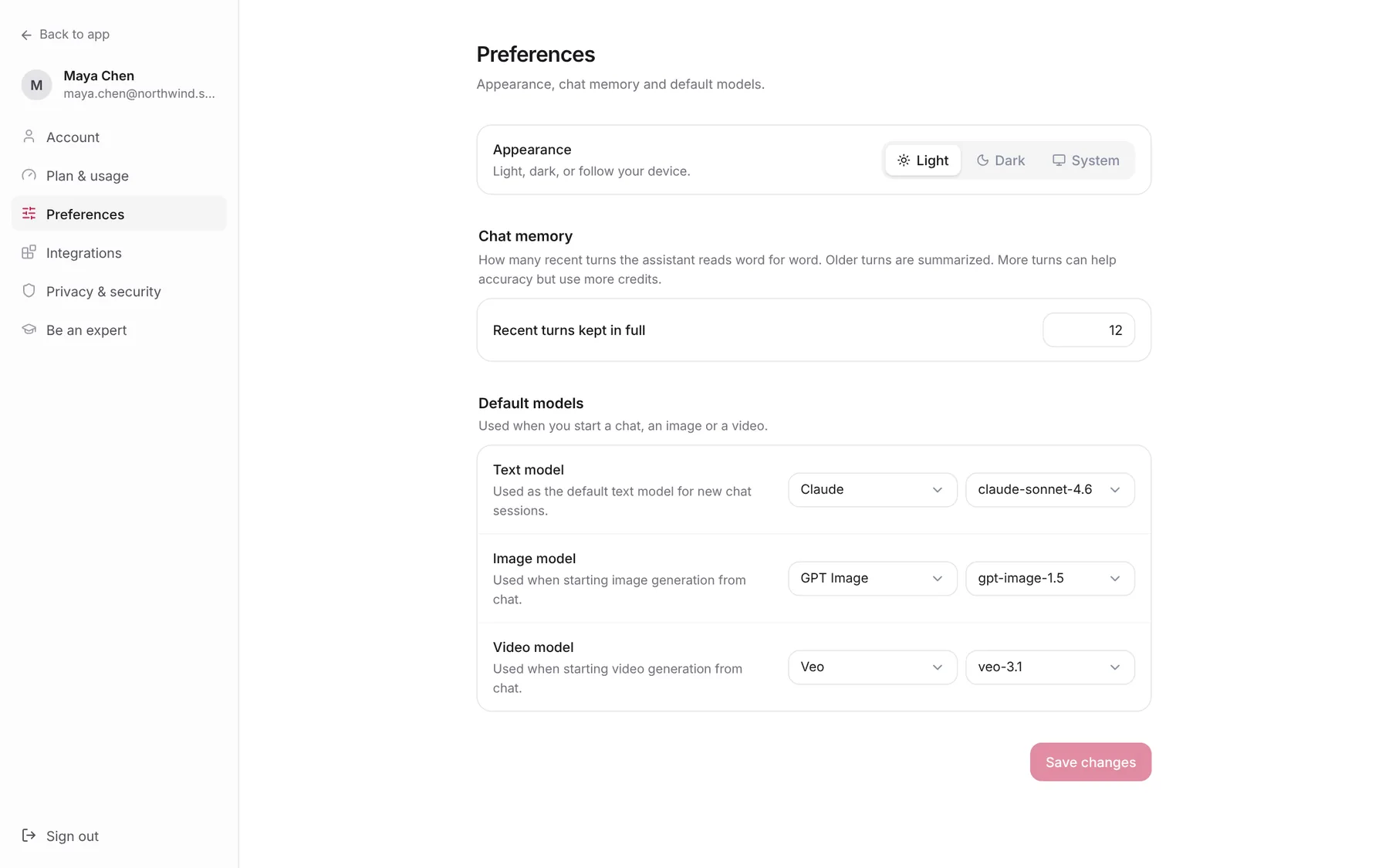
Open Preferences:
- Appearance — Light, Dark or System (follow your device).
- Chat memory — Recent turns kept in full is how many recent turns the assistant reads word for word. Older turns are summarized. More turns can help accuracy but use more credits.
- Default models — pick a provider and version for the Text model, Image model and Video model Axyen uses when you start a chat, an image or a video.
Click Save changes when you’re done.
Step 5 — Connect apps
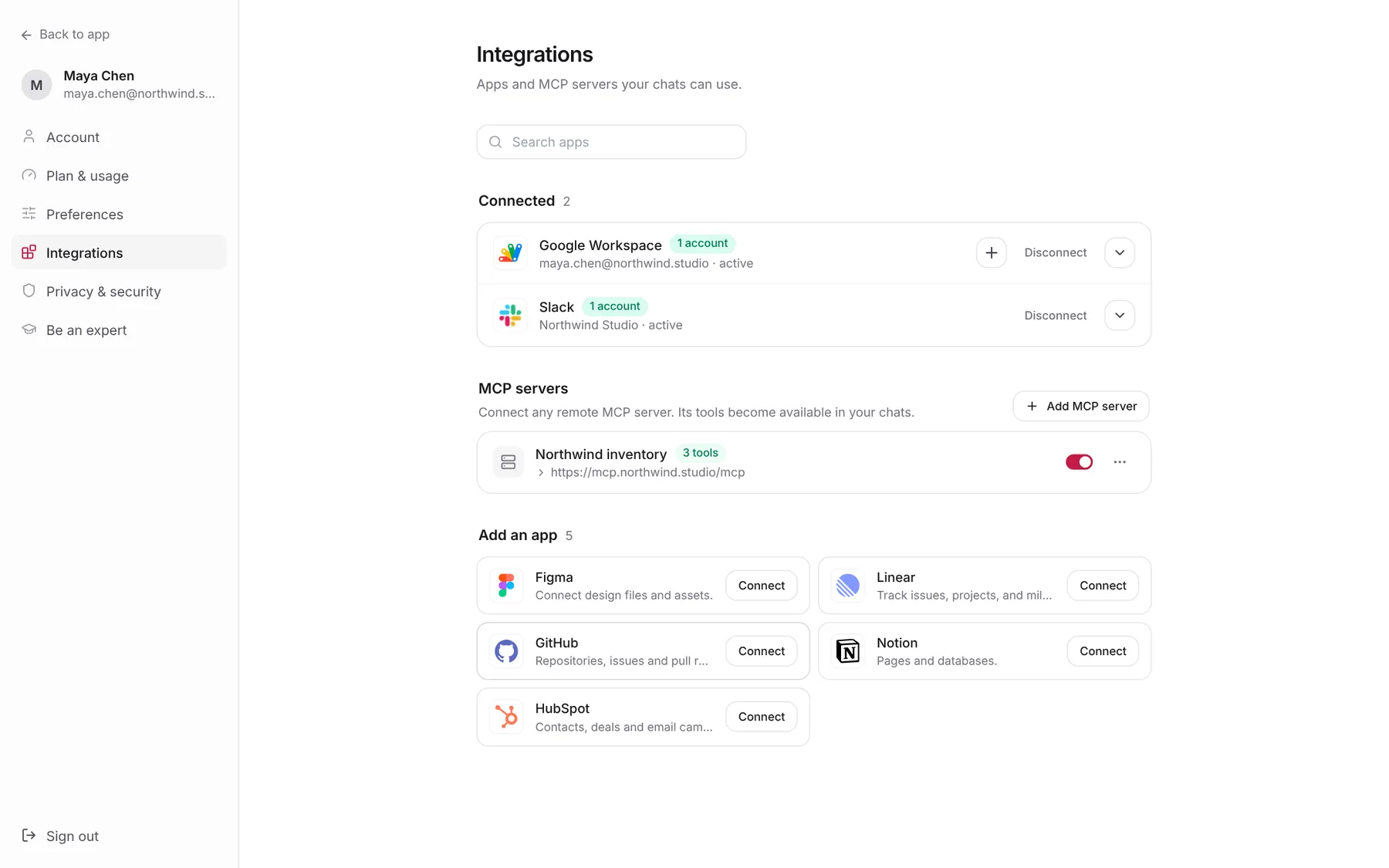
Open Integrations. Connected lists the apps your chats can use, with the account each one is connected to. Use + to add another account, Disconnect to remove one, or the arrow to see all accounts. Add an app lists everything else; click Connect and sign in to the app when asked. Search apps filters both lists.
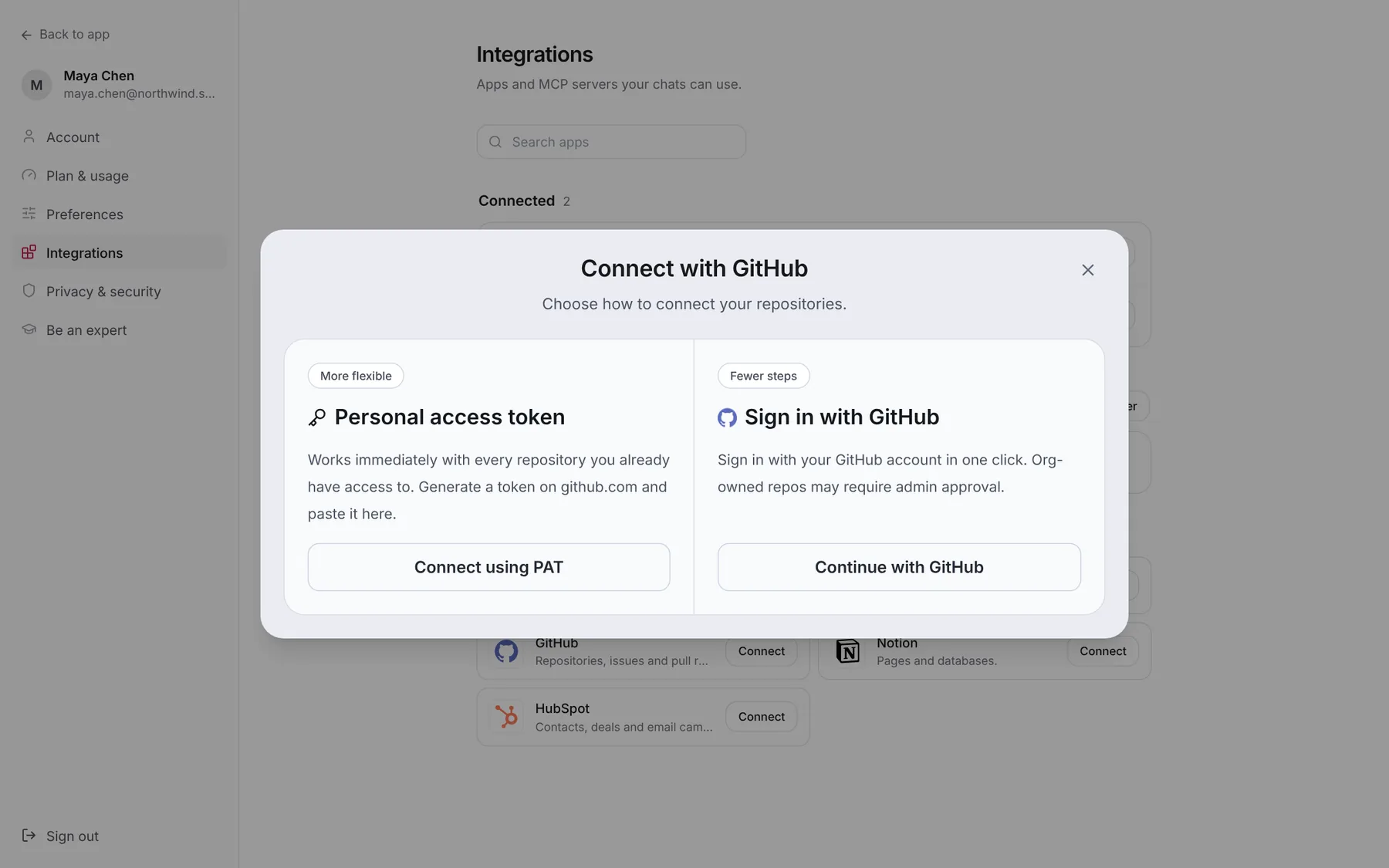
Some apps offer more than one way to connect. GitHub, for example, opens Connect with GitHub with two options:
- Personal access token (more flexible) — works immediately with every repository you already have access to. Generate a token on github.com and paste it in with Connect using PAT.
- Sign in with GitHub (fewer steps) — click Continue with GitHub. Repositories owned by an organization may need an admin’s approval.
Step 6 — Add an MCP server
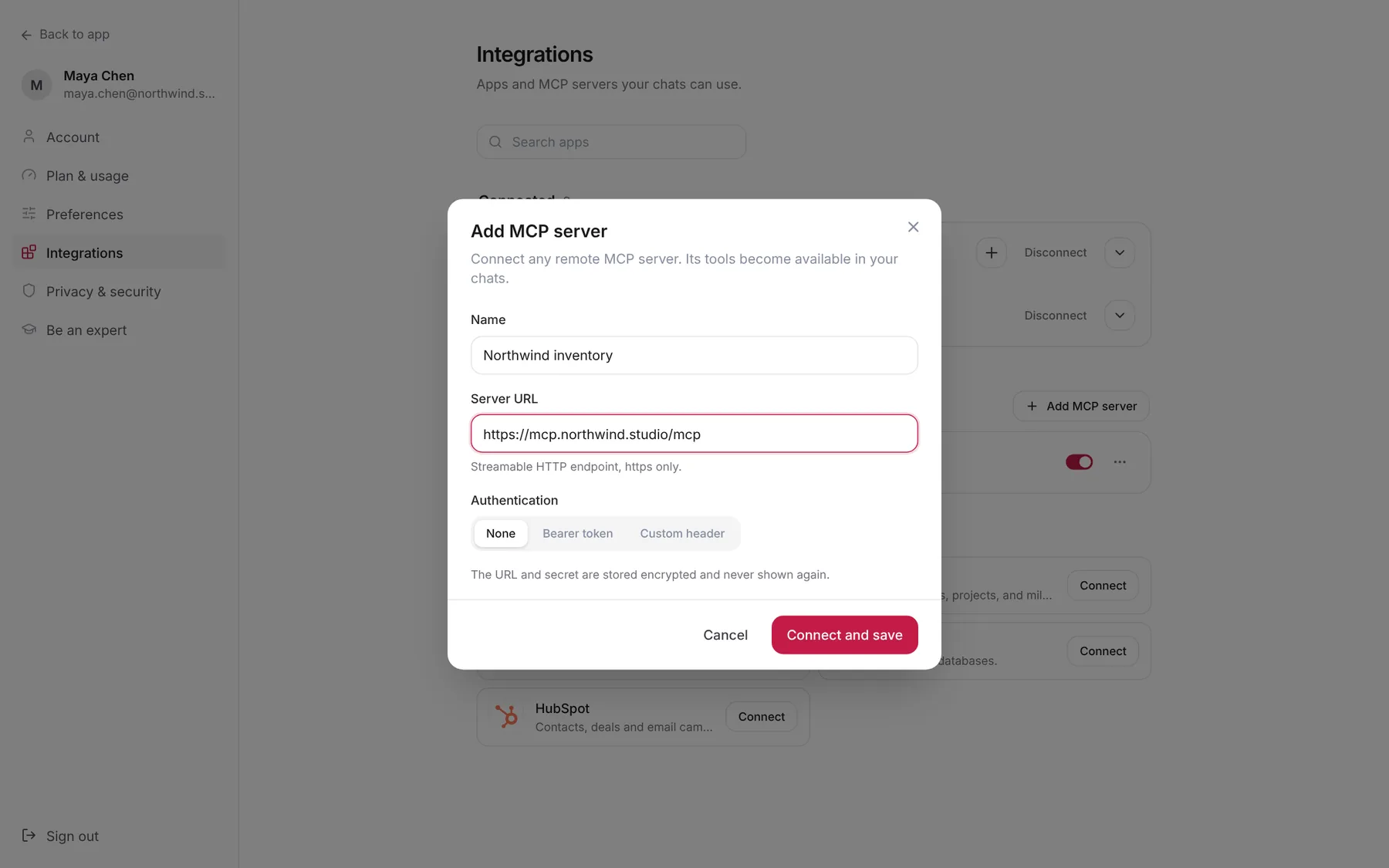
MCP servers bring your own tools into Axyen. Under MCP servers, click Add MCP server and fill in:
- Name — what you’ll see in chats.
- Server URL — the server’s streamable HTTP endpoint (https only).
- Authentication — None, Bearer token or Custom header, plus the token or header value if needed.
Click Connect and save. Axyen checks the connection and lists how many tools the server offers. The URL and secret are stored encrypted and never shown again. Use the switch next to a server to turn it off without deleting it.
Step 7 — Review privacy and sign out
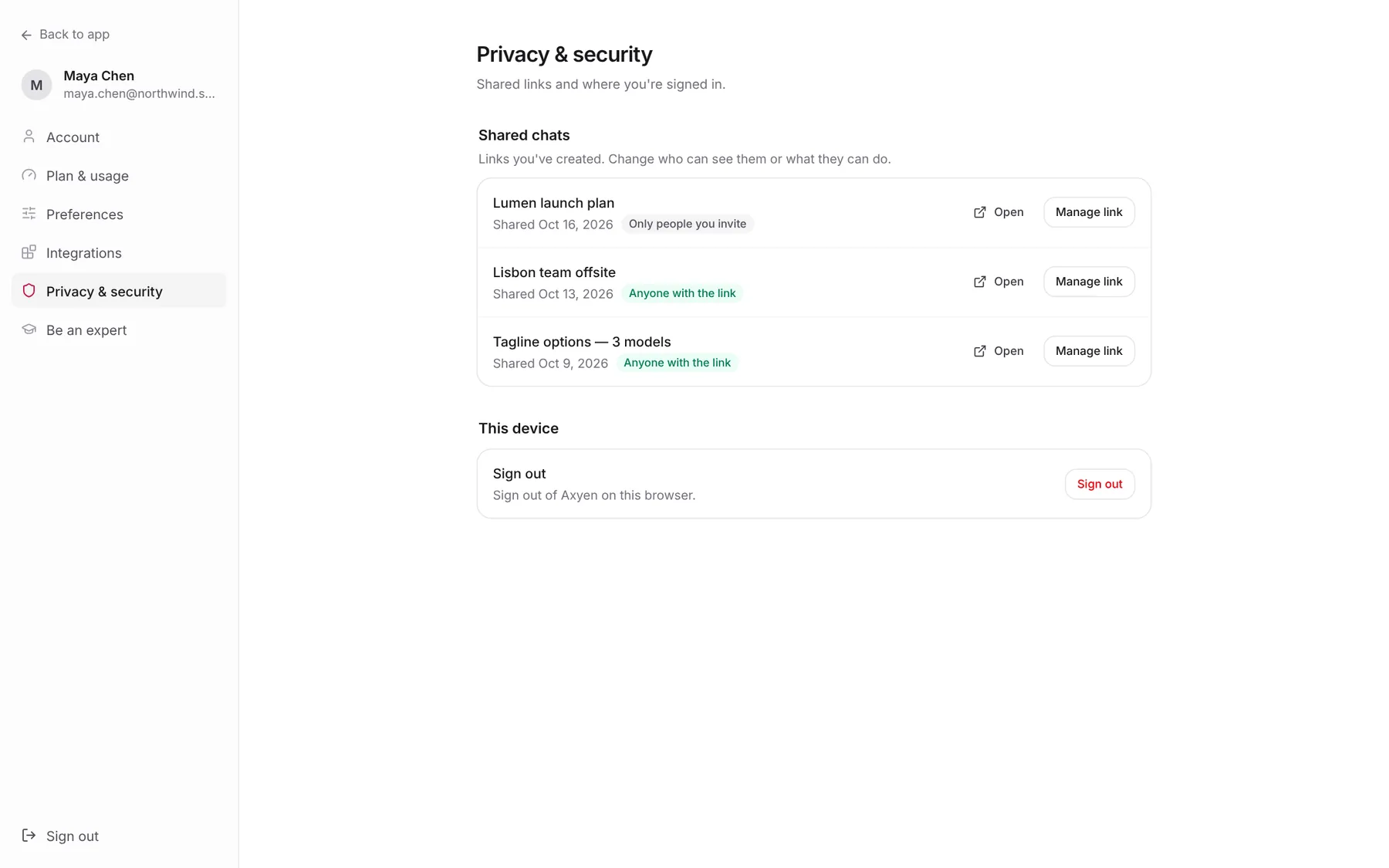
Privacy & security lists your Shared chats: every link you’ve created, when, and who can see it (Only people you invite or Anyone with the link). Use Open or Manage link to change them. Under This device, Sign out signs you out of Axyen in this browser.
Be an expert, the last section, is covered in Get a human expert’s review on an AI answer.
Try it yourself: worked examples
Example 1 — Use your inbox and calendar in a chat
Connect Google Workspace under Integrations, then in a chat ask:
Look at my calendar for next week and find two 45-minute slots for a
launch review with Jonas. Draft the invite.
Why it works: once the app is connected, Axyen can read your real calendar instead of asking you to paste it.
Example 2 — Plug in an internal tool
Add your team’s MCP server under MCP servers, then ask:
Check stock levels for the Lumen SKUs and tell me if we can cover
1,200 launch-week orders.
Why it works: the server’s tools become available to the chat, so the answer uses live numbers.
Example 3 — Make every new chat start on your favorite model
In Preferences, set the Text model to the one you use most and click Save changes.
Why it works: you skip picking a model each time, and can still switch per chat when a task needs something different.
Tips
- Check the 30-day usage chart before a big batch of work. If you’re close to the end of your plan credits, buy a top-up first so nothing stops halfway.
- Bought and redeemed credits can expire. The credits card warns you when some are about to.
- Only connect the apps you’ll actually use in chats. You can always add more later.
- Raise Recent turns kept in full for long, detailed chats; lower it to save credits on quick ones.