Build & share
Get a human expert's review on an AI answer
Send part of a chat to a human expert, get their answer and suggested next prompts back in the same chat, or list yourself as an expert.
The Rundown
Sometimes you want a person, not a model, to check an answer before you act on it. From any chat you can send a request to a human expert in three steps: choose which messages to share, choose who to ask, and add a note. Their answer comes back next to your chat, often with prompts you can run straight away. You can also set up your own expert profile and answer other people’s requests.
Why it helps
An AI plan is a good first draft, but budgets, medical questions or legal wording deserve a second pair of eyes. Experts see only the messages you pick, so the rest of the chat stays private, and their suggestions arrive as prompts you can run in one click instead of advice you have to re-type.
What you’ll need
- A chat with an answer you’d like reviewed
- A short note saying what you want the expert to look at
- To offer your own expertise: a headline, your areas of expertise and a price per response
Step 1 — Start a request from a reply
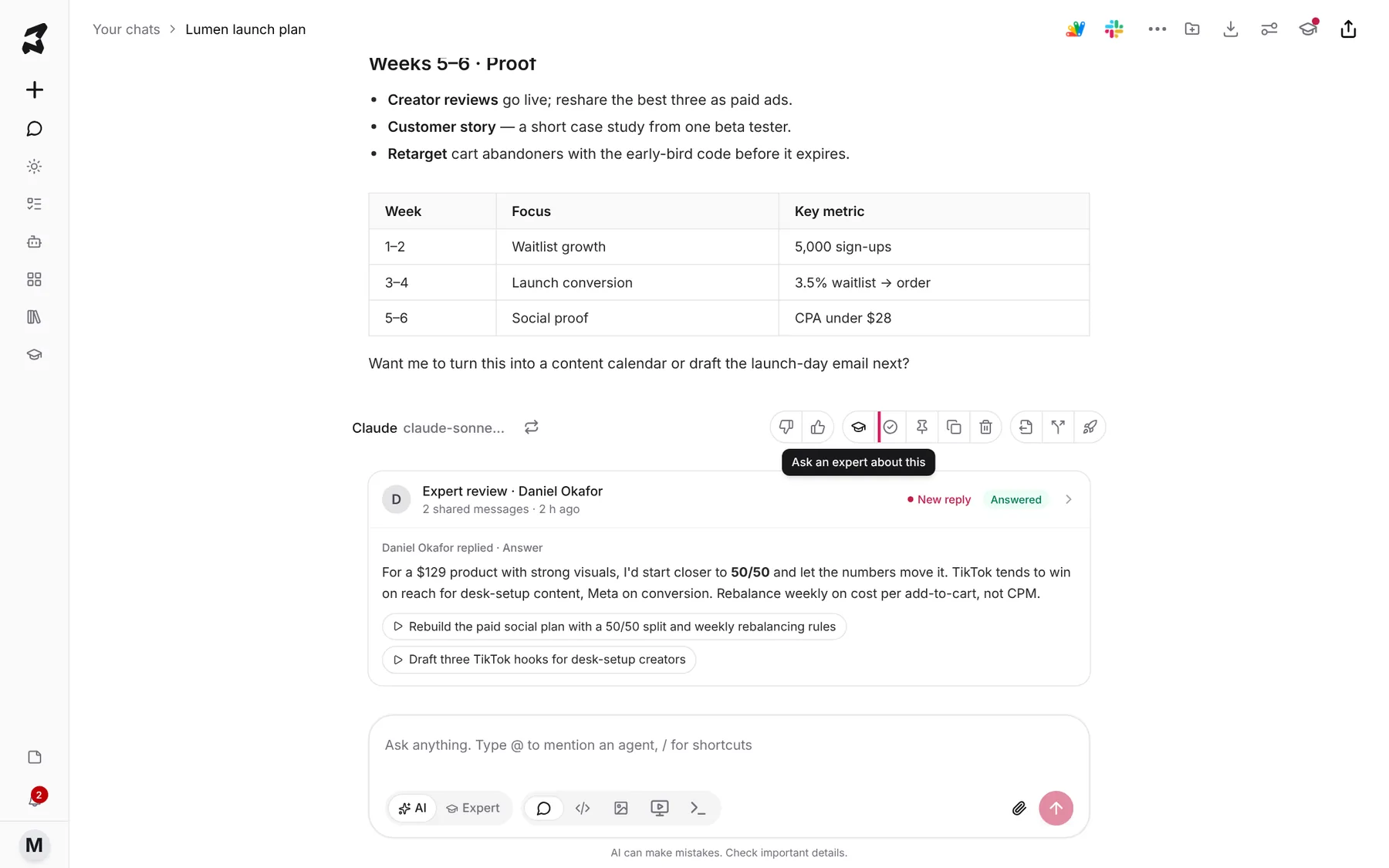
Open the chat with the answer you want checked. Hover over the reply to show the actions under it, then click the graduation-cap icon, Ask an expert about this. It starts a request with that reply and the question before it already selected.
There are two other ways in: the same icon in the chat header (Ask an expert), or the AI / Expert switch at the bottom left of the message box. Switch it to Expert, type what you want the expert to look at, and send. That opens the same three steps with your text as the note.
Step 2 — Choose what to share
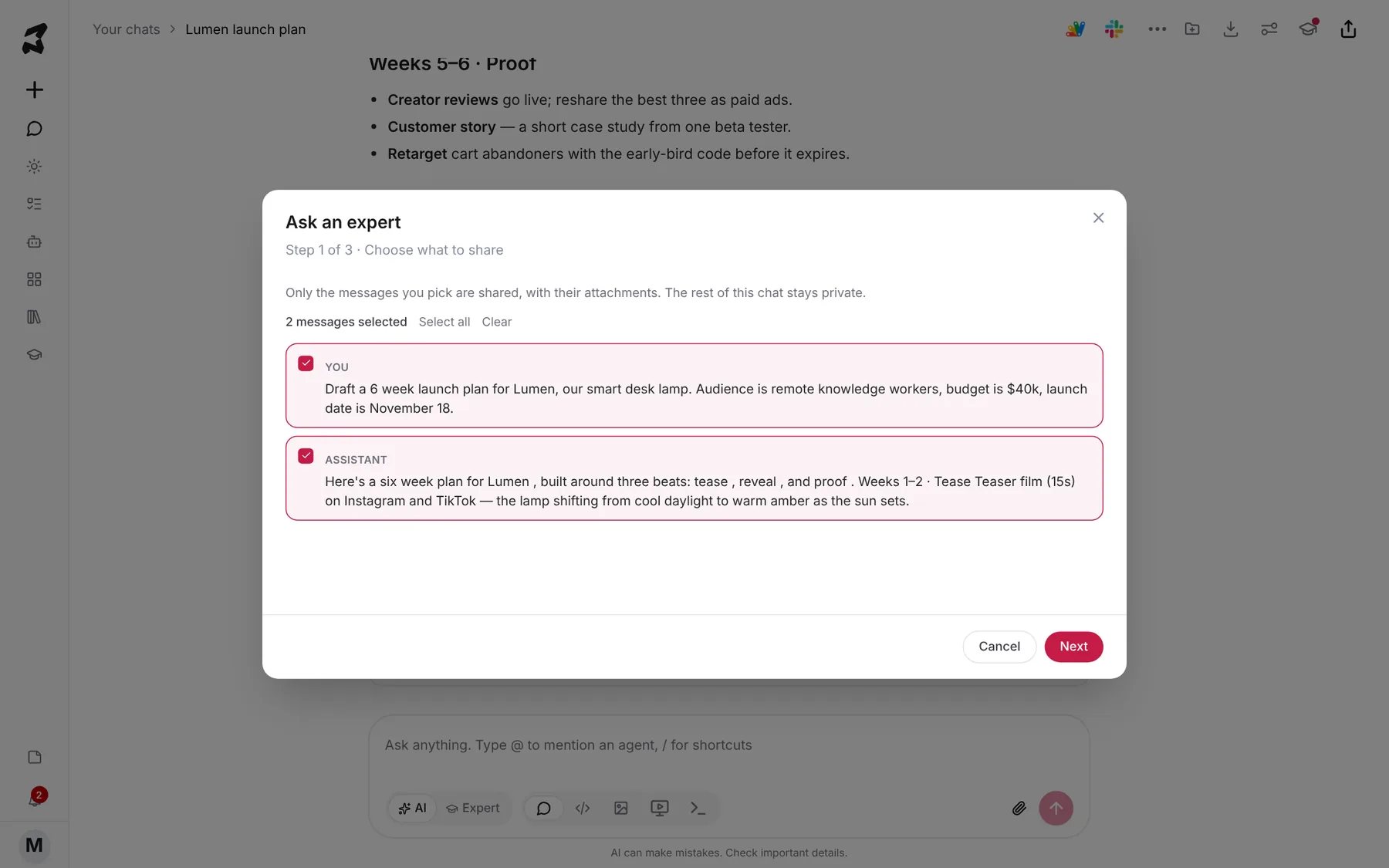
Step 1 of 3 · Choose what to share lists the messages in the chat. Only the messages you tick are shared, with their attachments. The rest of the chat stays private. Use Select all or Clear for long chats, then click Next.
Step 3 — Choose an expert
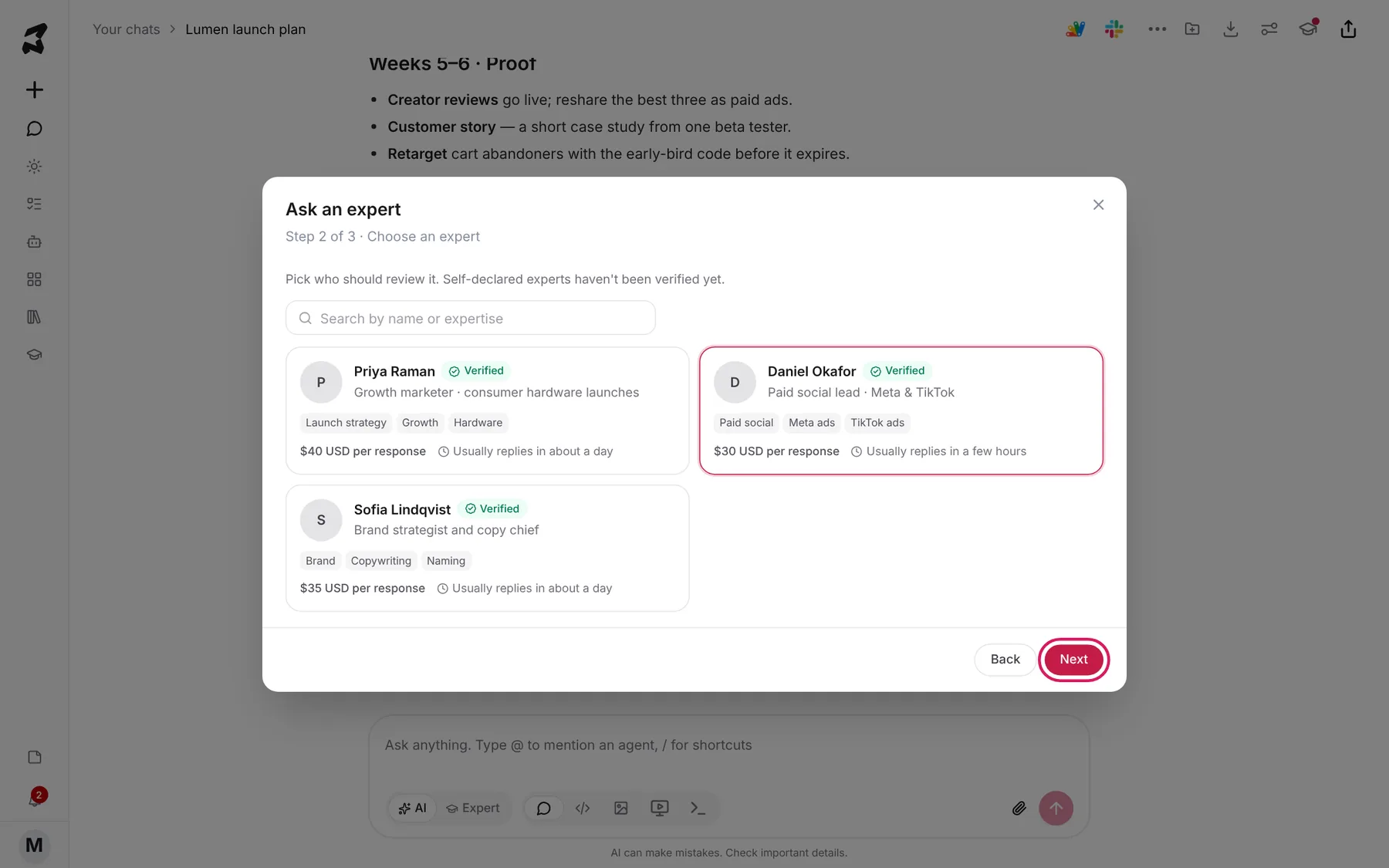
Step 2 of 3 · Choose an expert shows the experts taking requests. Each card has their headline, areas of expertise, price per response and how quickly they usually reply. A Verified badge means Axyen has checked their expertise. Experts without it chose their areas themselves. Use Search by name or expertise to narrow the list, click a card, then Next.
Step 4 — Add a note and send
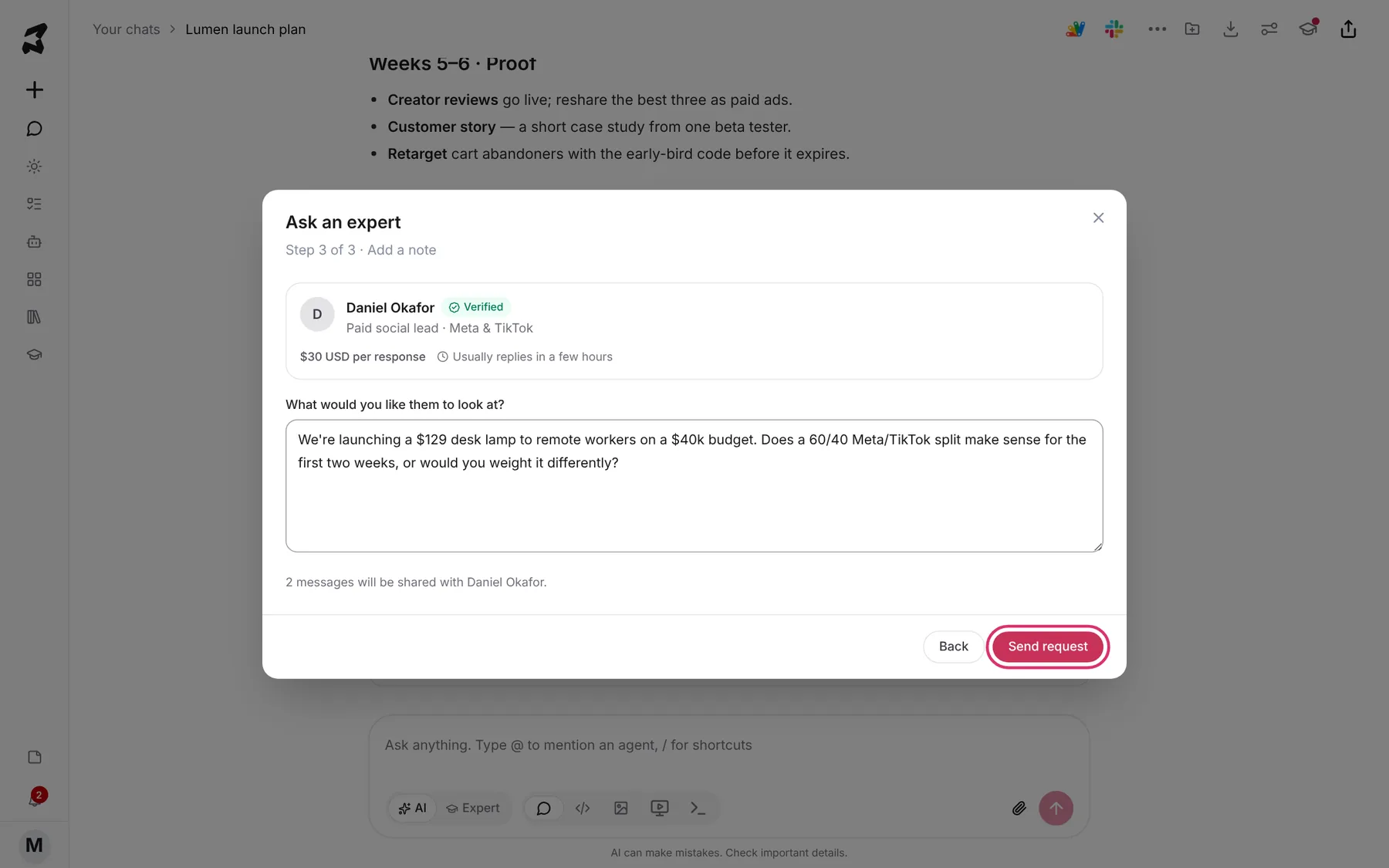
Step 3 of 3 · Add a note asks What would you like them to look at? Be specific: what you’re unsure about and what decision depends on it. The line under the box confirms how many messages will be shared and with whom. Click Send request.
We're launching a $129 desk lamp to remote workers on a $40k budget.
Does a 60/40 Meta/TikTok split make sense for the first two weeks, or
would you weight it differently?
Step 5 — Track your requests
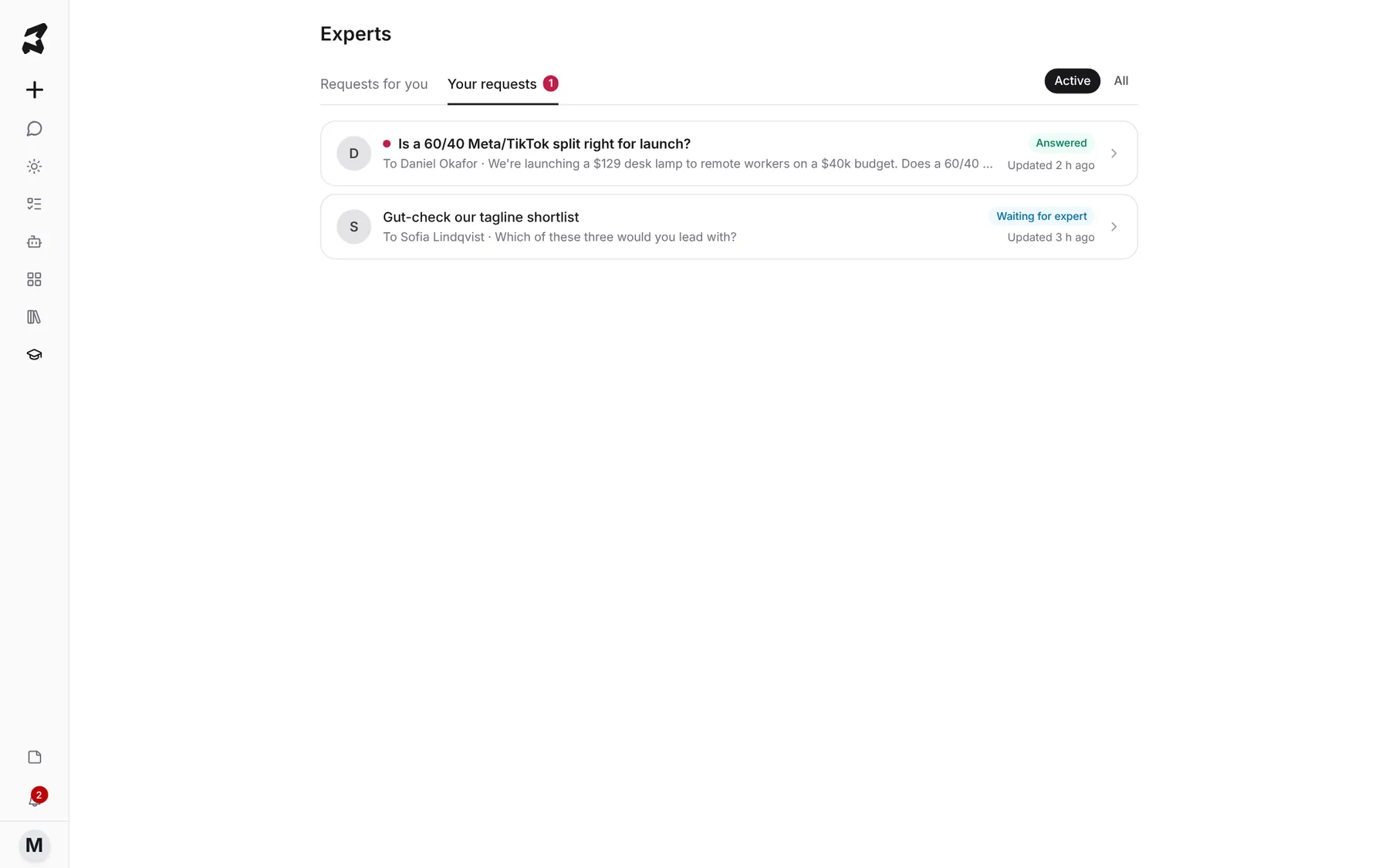
Click the Experts icon in the sidebar (the graduation cap). Your requests lists everything you’ve sent, with the expert’s name, your note, and a status: Waiting for expert, Expert has a question, Answered, Closed or Declined. A dot marks requests with a reply you haven’t read. Switch between Active and All on the right.
If you’re an expert yourself, Requests for you holds the requests people sent you.
Step 6 — Read the answer
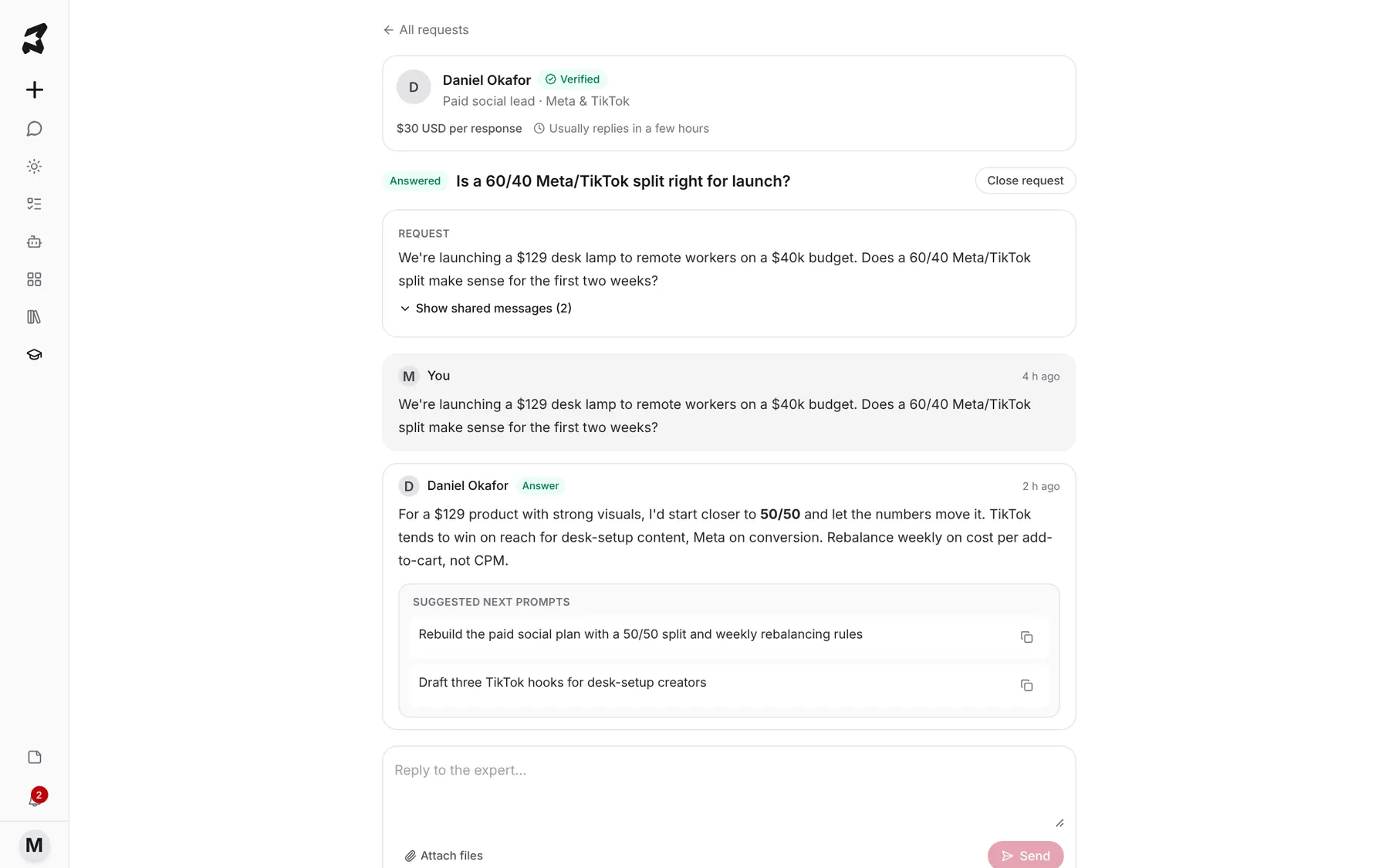
Open a request to see the whole conversation: the expert’s card, your Request (click Show shared messages to see exactly what they saw), your note and their Answer. Experts can also ask you a question first; reply in the box at the bottom, and attach files with Attach files if they need more. Click Close request when you’re done.
The expert may add Suggested next prompts: prompts they recommend you run next. Here you can copy them; from the chat you can run them directly (next step).
Step 7 — Run the suggested prompts in your chat
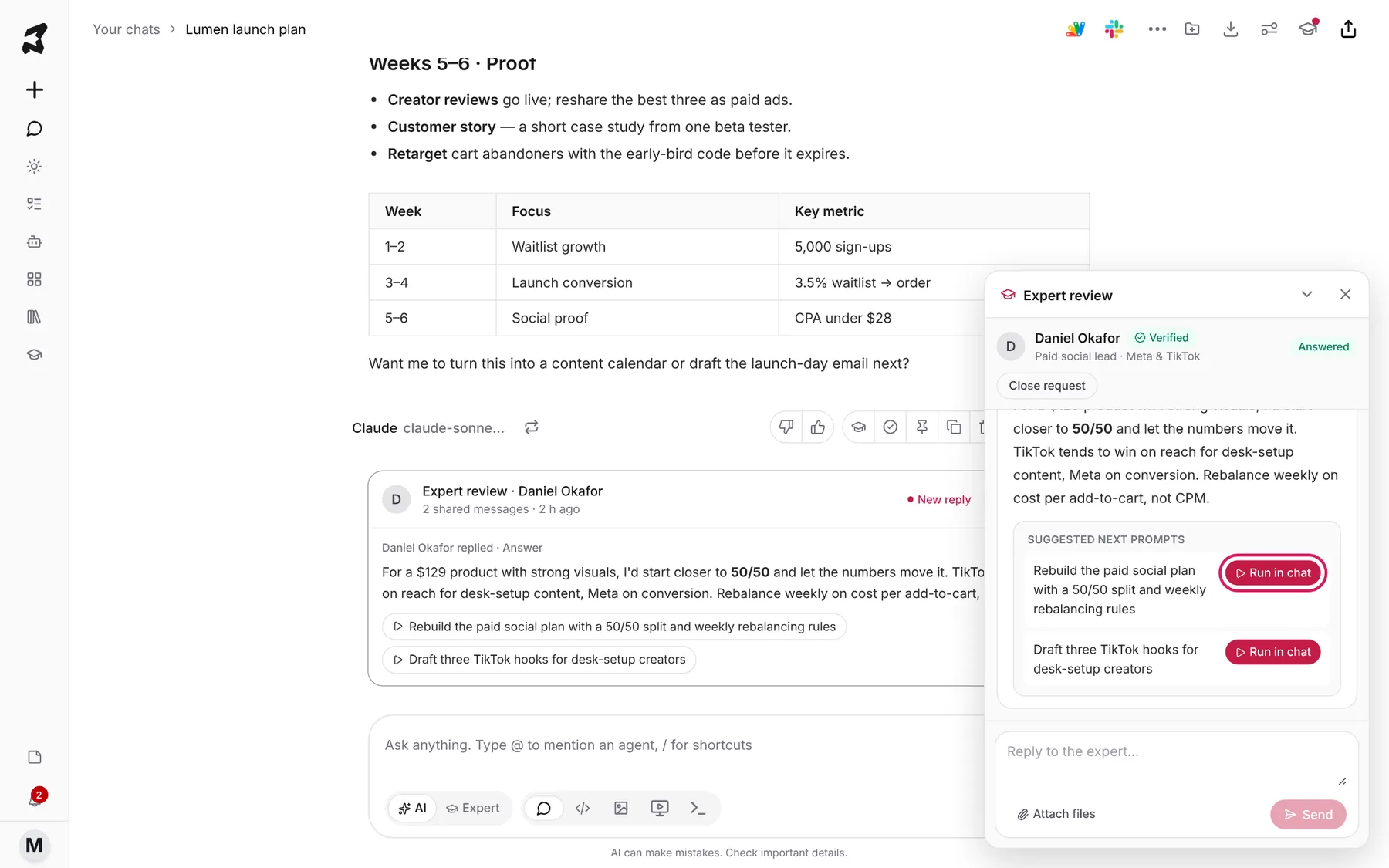
Back in the chat, the answer also appears as an Expert review card under the reply you asked about. Open it to see the Expert review panel, and click Run in chat next to a suggested prompt. Axyen sends it in that chat, with all the earlier context, so you get the revised plan right away.
Step 8 — Offer your own expertise
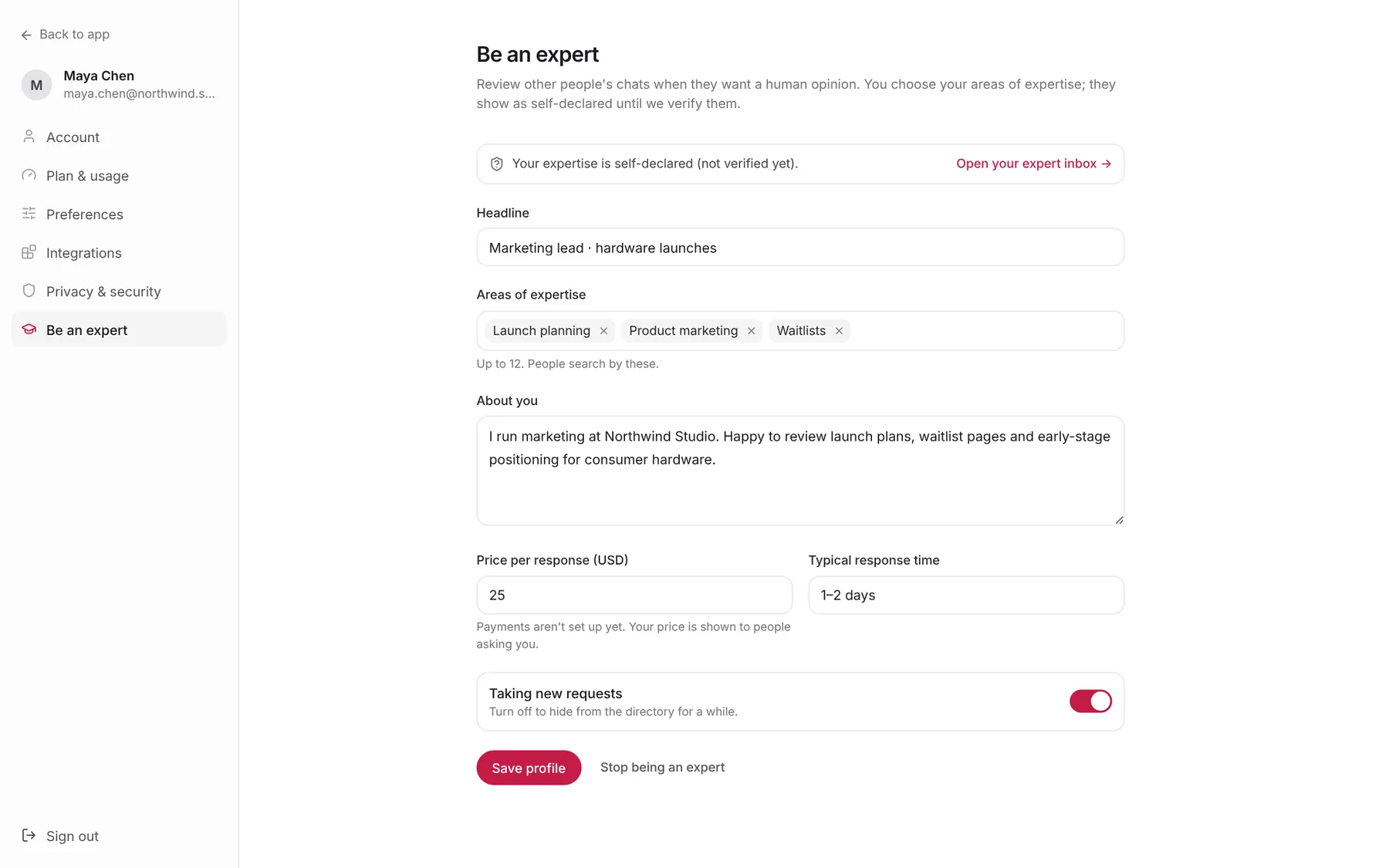
To answer other people’s requests, open Settings and choose Be an expert. Fill in a Headline, your Areas of expertise (type one and press Enter; up to 12, and people search by these), About you, a Price per response (USD) and your Typical response time, then click Become an expert. The page notes that payments aren’t set up yet: your price is shown to people asking you.
Once you’re listed, Taking new requests lets you pause new requests for a while, and Open your expert inbox takes you to Requests for you. Your expertise shows as self-declared until it’s verified.
Try it yourself: worked examples
Example 1 — Sanity-check a budget split
After Axyen drafts a media plan, ask a paid social expert:
Is this channel split realistic for a first launch with no ad history?
What would you change in week one?
Why it works: you share the plan itself, so the expert reviews your numbers rather than giving generic advice.
Example 2 — Choose between taglines
Share only the message with your shortlist and ask a brand or copy expert:
Which of these three would you lead with on the launch page, and why?
Our audience is remote knowledge workers.
Why it works: picking just one message keeps the request short and the rest of your chat private.
Example 3 — Ask before you send
Switch the message box to Expert and type:
Before I send this launch email to 5,000 people, does the subject line
and opening paragraph work? Anything that will hurt open rates?
Why it works: your typed text becomes the note, so you only pick the messages and the expert.
Tips
- Share the smallest set of messages that still gives the full picture. Experts answer faster when they don’t have to read the whole chat.
- Say what decision depends on the answer. “Should I spend $16k here?” gets a sharper reply than “Thoughts?”
- Look for the Verified badge when the topic is high-stakes.
- Use Run in chat on suggested prompts so the follow-up has the full context of your chat.