Text Axyen: Start Chats, Answer Questions and Update Apps From Your Messages
Connect your phone number once, and Axyen works from your messages app: text a request, get the answer texted back, reply to its questions with a number, and update a page you published, all without opening the app.
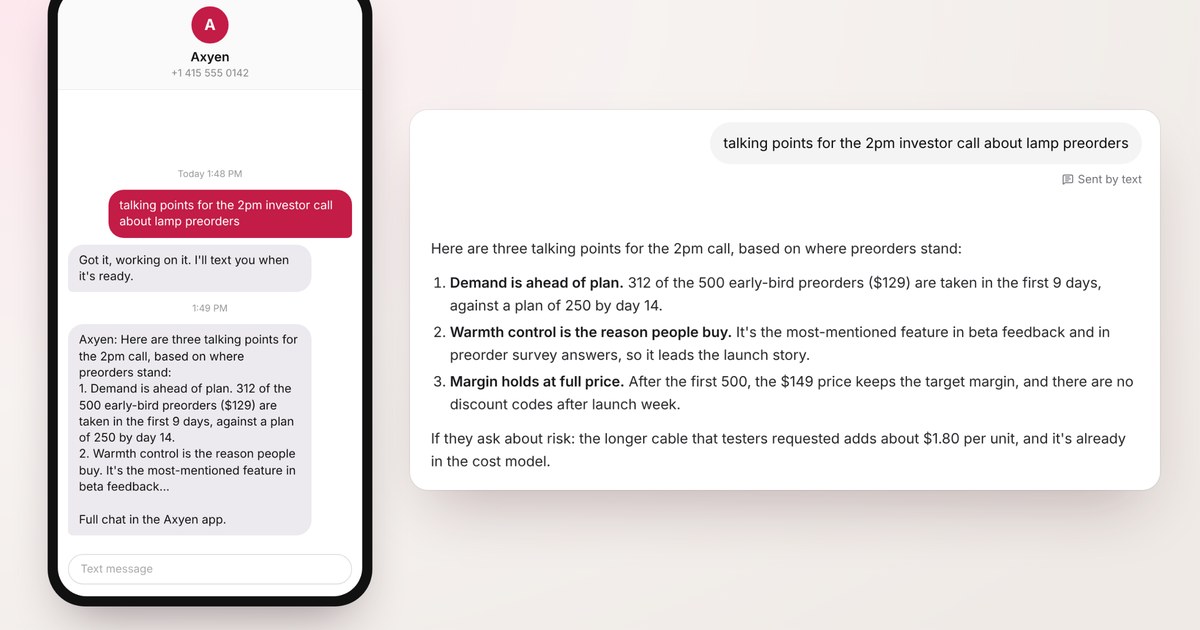
The best ideas for what to ask an AI rarely show up when you’re at your desk. They show up in a cab ten minutes before a call, in a store aisle, or halfway through a walk. Opening an app, signing in and finding the right chat is just enough friction that you don’t bother.
So Axyen now has a phone number. Text it like you’d text a colleague, and the answer comes back as a text. The full conversation is waiting in Axyen when you’re back at a screen.
Set it up once
Go to Settings → Account, and under Sign-in and contact find Phone.
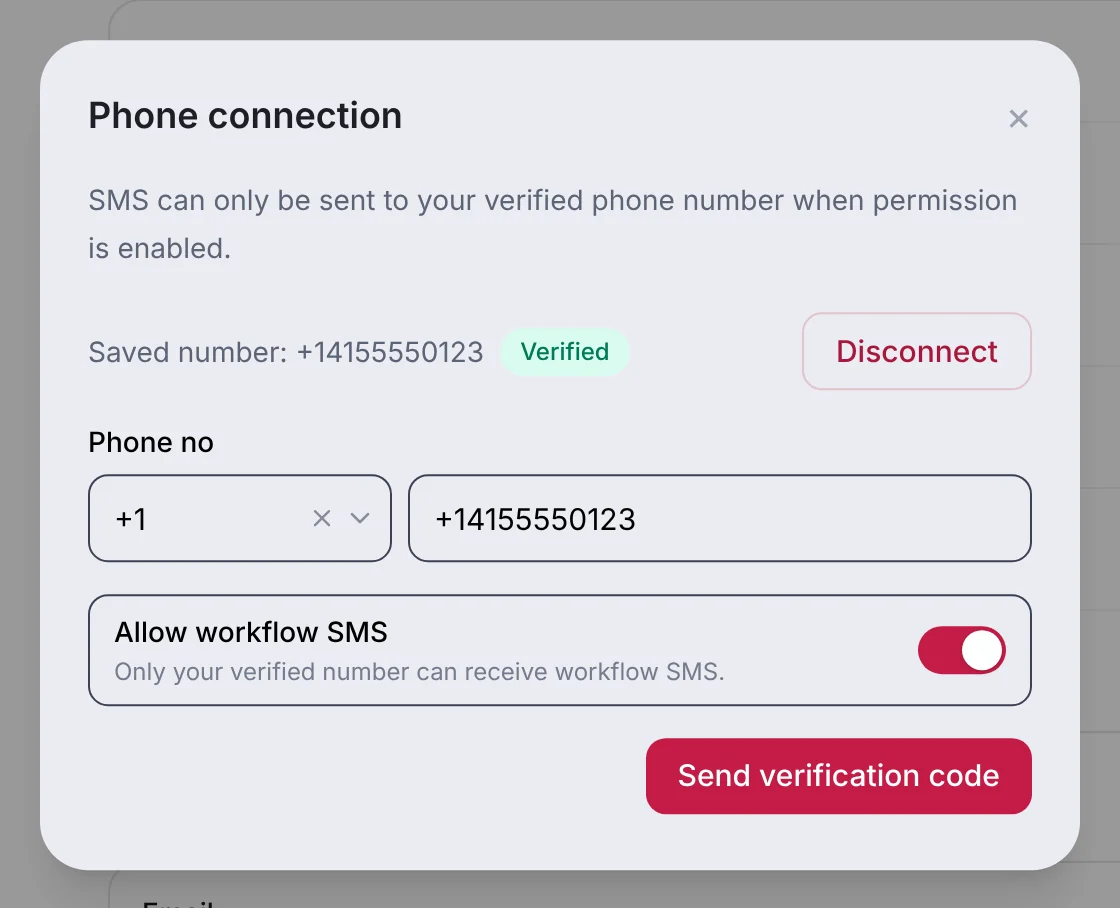
- Click Add phone (or Manage if you’ve added one before) and enter your mobile number.
- Click Send verification code, type the code from the text you receive, and click Verify.
- Make sure the SMS switch is on.
The Phone row then shows Verified, along with the number to text.
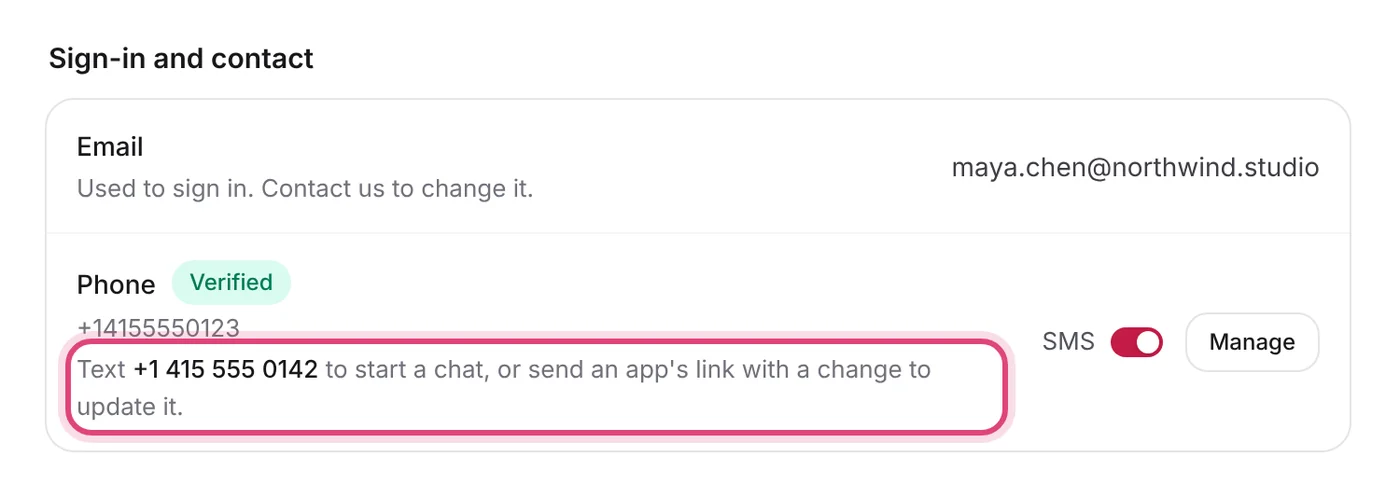
Save the number in your contacts as “Axyen”. Axyen matches each text to your account by your verified number, and its replies only ever go to that number.
Text a request, get the answer back
Text what you need, the way you’d type it in a chat:
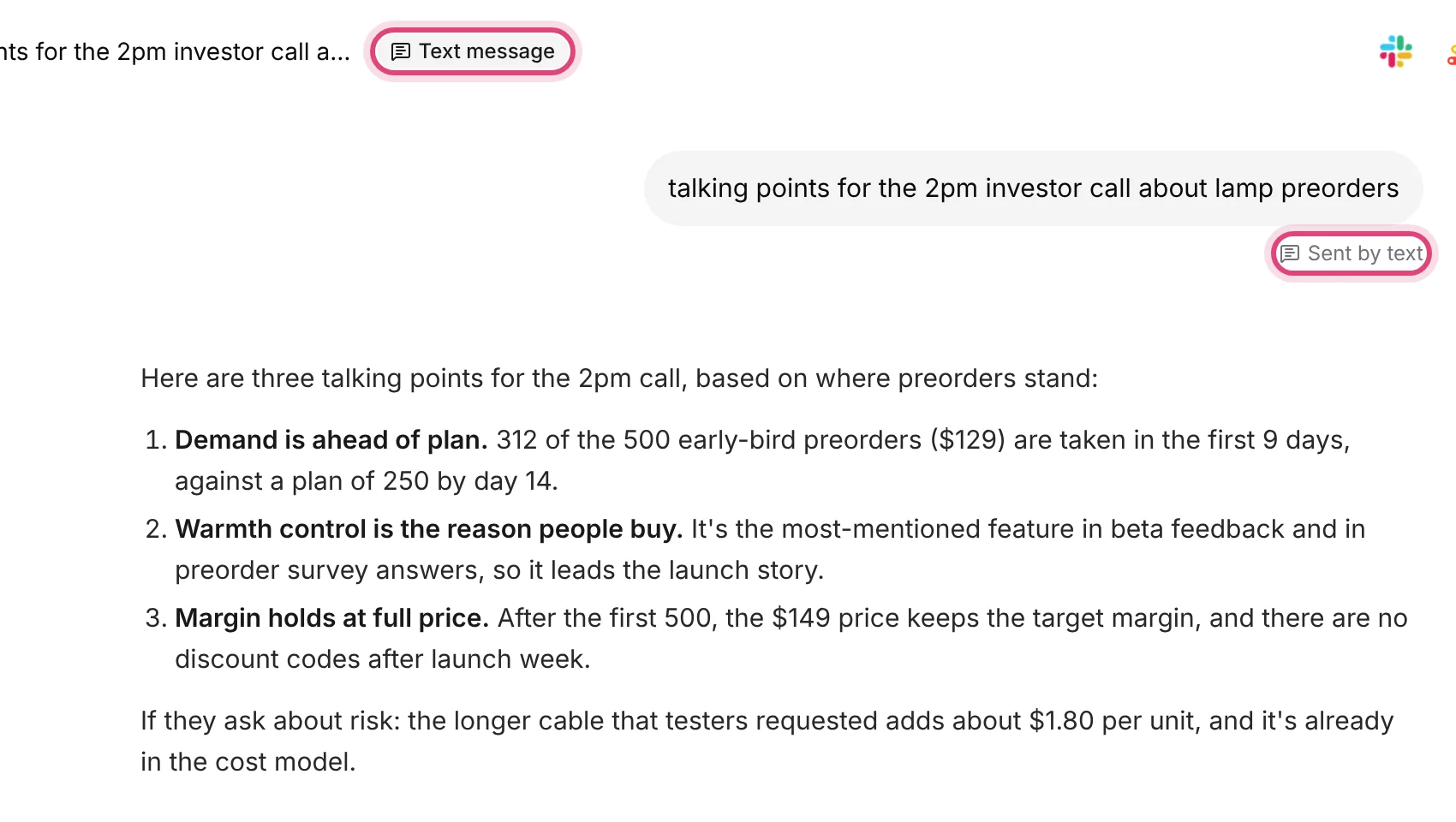
talking points for the 2pm investor call about lamp preorders
Axyen replies right away with “Got it, working on it. I’ll text you when it’s ready.” When the answer is ready, it arrives as a text. Long answers are shortened to fit, with lists kept as plain lines, and end with Full chat in the Axyen app.
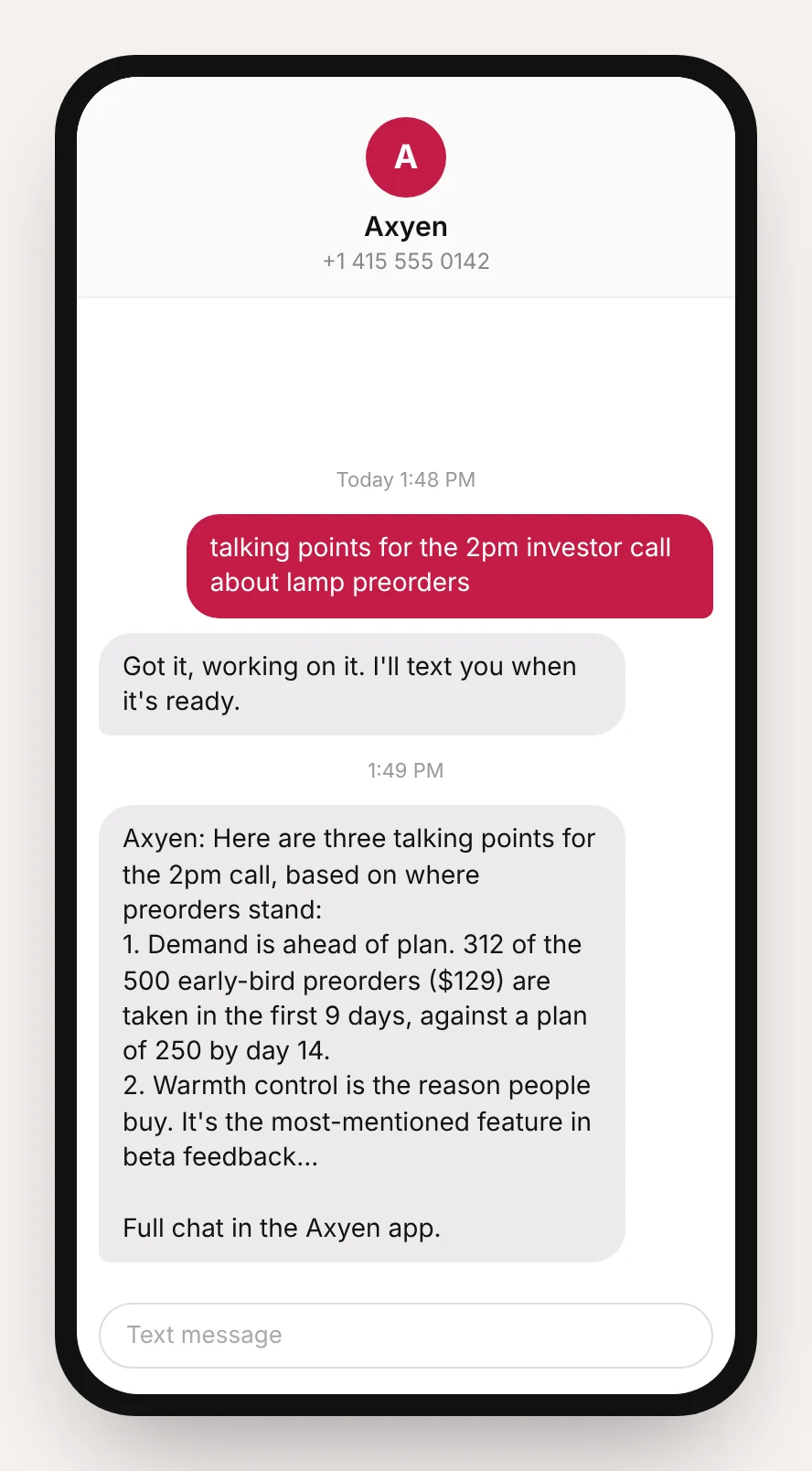
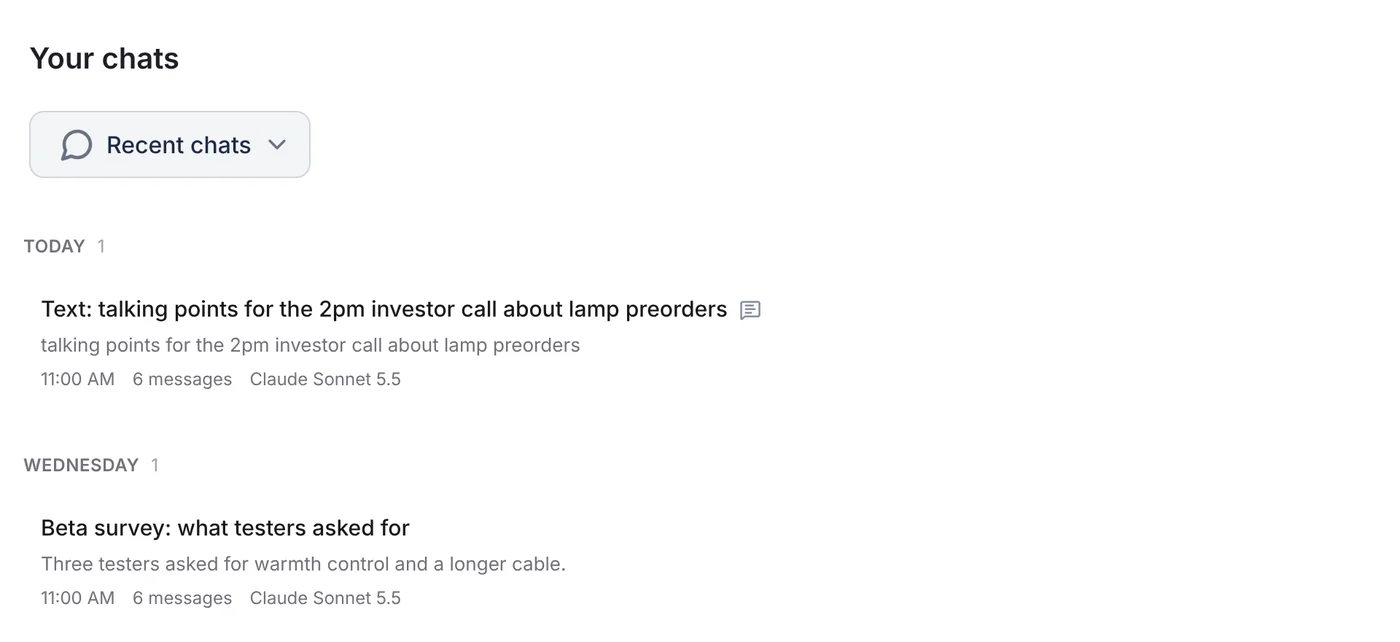
Nothing is lost to the shortening. Every text becomes a real chat in Axyen, titled with “Text:” and the start of your message, and marked so you can tell where it came from. The chat shows a Text message badge at the top and Sent by text under your message.
In your list of chats, ones that started by text have a small message icon next to their title.
Keep going, or start fresh
A text within two hours of your last one continues the same chat, so you can follow up naturally: “make the second point shorter”, “now a one-line opener”. To start a separate chat, begin your text with new:
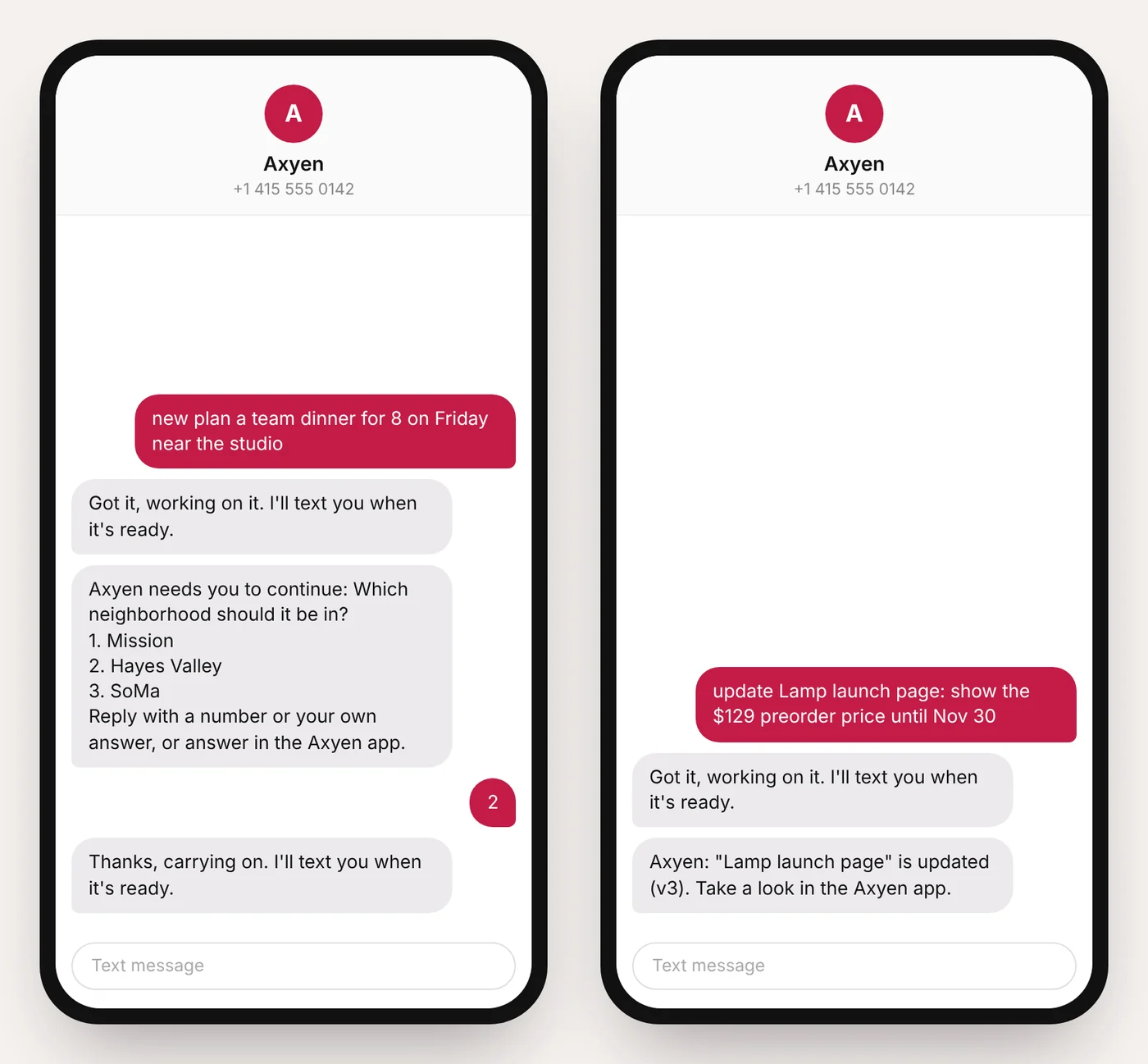
new plan a team dinner for 8 on Friday near the studio
Answer Axyen’s questions by text
Some requests need a decision from you before Axyen can finish. When that happens, you get the question as a text, with numbered options when there are some:
Axyen needs you to continue: Which neighborhood should it be in? 1. Mission 2. Hayes Valley 3. SoMa. Reply with a number or your own answer, or answer in the Axyen app.
Reply with 2, or with your own words (“somewhere walkable from the studio”). Axyen confirms with “Thanks, carrying on.” and texts you the result. You have 24 hours to answer by text, and you can always answer in the app instead.
Update a published app by text
If you’ve published a page or micro-app with Axyen, such as a launch page, a sign-up form or a price list, you can change it from your phone. Text its link followed by the change, or use its name:
update Lamp launch page: show the $129 preorder price until Nov 30
Axyen rebuilds it and texts back when the new version is live, for example: “Lamp launch page” is updated (v3).
Axyen can text you, too
The same connection works the other way. Agents and scheduled tasks can send results to your phone, for example “text me if the competitor changes their price” or “text me the summary when the weekly report is ready”. These texts only go to your verified number, and only while texting is on. That’s what the Allow workflow SMS switch controls.
Your other messaging apps
Texting is the way to start things in Axyen from your messages. Your other apps connect from Settings → Integrations, so Axyen can work with them inside your chats:
- Slack: Axyen can read channels and DMs and send messages for you, such as “summarize what #launch decided this week” or “post this update in #studio”.
- Google Workspace: Axyen can work with Gmail alongside Docs, Sheets and Calendar, and a scheduled task can watch your inbox for what matters.
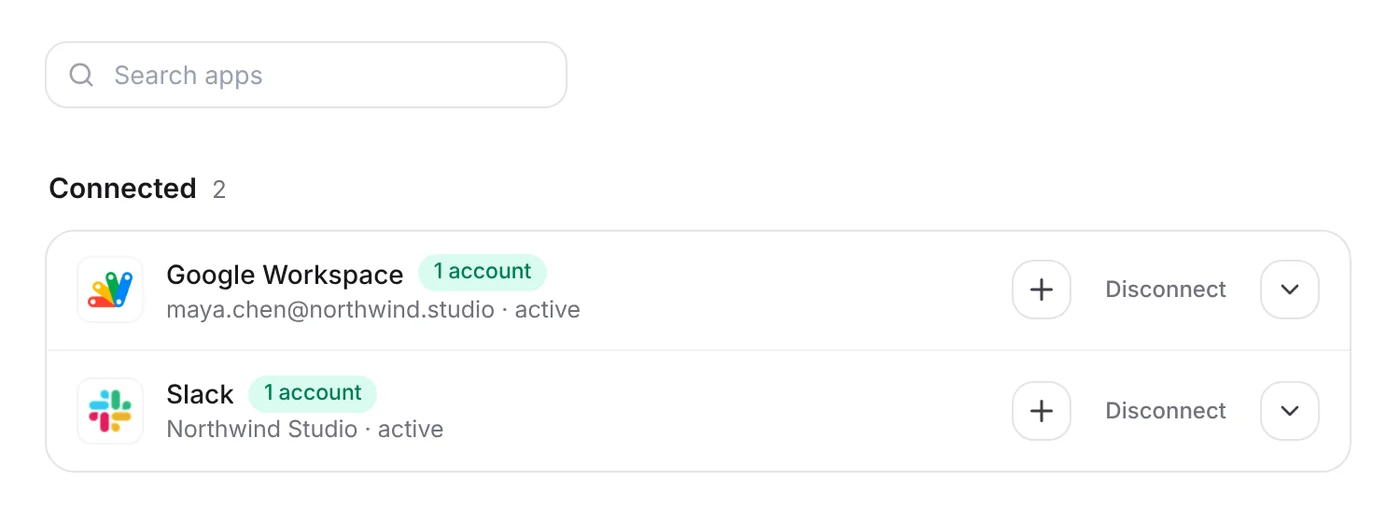
Messages in Slack or Gmail don’t start Axyen chats on their own. For that, text Axyen.
Good to know
- Words only. Axyen reads the text of your message, not pictures or attachments.
- Up to 20 texts an hour. If you go over, Axyen asks you to try again a little later.
- Texting uses credits like any other chat.
- To stop texts, reply STOP. That turns texting off for your account. Turn it back on with the SMS switch in Settings.
- Standard message rates from your carrier may apply.
The screenshots use fictional sample data: Maya Chen at Northwind Studio, the same example as our guides. The phone conversations are illustrations of the texts Axyen sends, and +1 415 555 0142 is a placeholder: your settings show the real number to text.
Try it
Open Settings → Account, verify your phone, and send Axyen the next thing you’d otherwise forget to ask.